

Microsoft has discontinued SQL Server Reporting Services (SSRS) in its latest SQL Server release, SQL Server 2025. No new version of SSRS will be released in future. They have decide to merge all the on-premises reporting services to Power BI Report Server (PBIRS), and going forward, PBIRS will be the default solution for all on-premises reporting services.
This is going to be a major change for many organizations that still rely on SSRS reports for their day-to-day activities. In this article, we will learn how you can safely migrate your SSRS reports to PBIRS, licensing availability and considerations of PBIRS, and risks and challenges of the migration.
License Availability for PBIRS
Power BI Report Server is available for both Enterprise and Standard editions in SQL Server 2025. If you have a valid SQL 2025 license, you can use the same key to install PBIRS as well in your environment. In case you don't want to upgrade to PBIRS, you can use SQL 2025 version for the database engine to host your reporting catalog. For additional details on PBIRS licensing, you may refer to the official Microsoft documentation.
Migrate SSRS Reports to Power BI Report Server
We will be covering the migration in three phases:
- Pre-Migration phase - where prerequisites will be installed, such as the SQL Server database engine, Power BI Report Server, and other server-level configurations.
- Migration phase - where we will backup-restore the reporting catalogues from source to destination server and configure the Power BI Report Server settings.
- Post-Migration/Validation phase - where we will be validating the reports after migration and troubleshooting any issues or challenges faced.
In our example, we will do a side-by-side migration of SQL Server 2016 SSRS reports to a SQL Server 2025 Power BI Report Server. We are using:
- Source: SQL2016 Instance with Database Engine and Reporting Services(SSRS)
Destination: SQL2025 Instance with Database Engine and Power BI Report Server(PBIRS)
Let's go through each phase one by one.
Pre-Migration Phase
SQL Server 2025 Database engine and Power BI Report Server are the two prerequisite components we need in the destination server before starting the migration. Follow the below steps to complete the installations:
Install SQL 2025 Database Engine
To host the reporting catalogues, we need a database engine. Install a SQL 2025 Enterprise Evaluation edition in the destination server. We won't be covering the installation steps as this is outside the scope of this article. You may refer the SQLAutomate tool to install a standalone SQL Server Instance.
Install Power BI Report Server(PBIRS)
Next, we will do installation of PBIRS which is pretty straight forward and doesn't requires a database engine at the time of installation. We need it later only while configuring the report server. Follow the below steps to install a PBIRS instance:
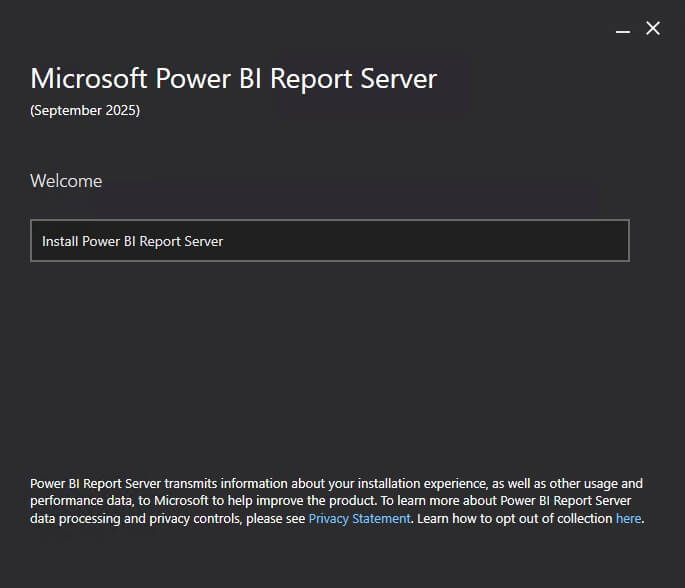
Download the installer and open it. Select 'Install Power BI Report Server'.
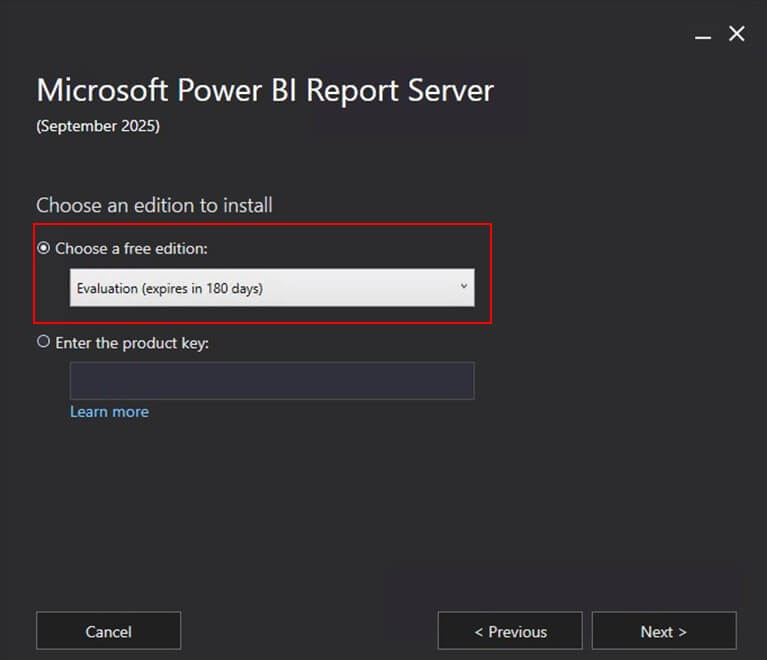
Choose an edition to install. If you a valid SQL Server 2025 license, choose the second option and enter the product key. If you want to use free edition, choose either 'Enterprise Evaluation edition(valid for 180 days) or Developer edition'. In our example, we are using Enterprise Evaluation edition.
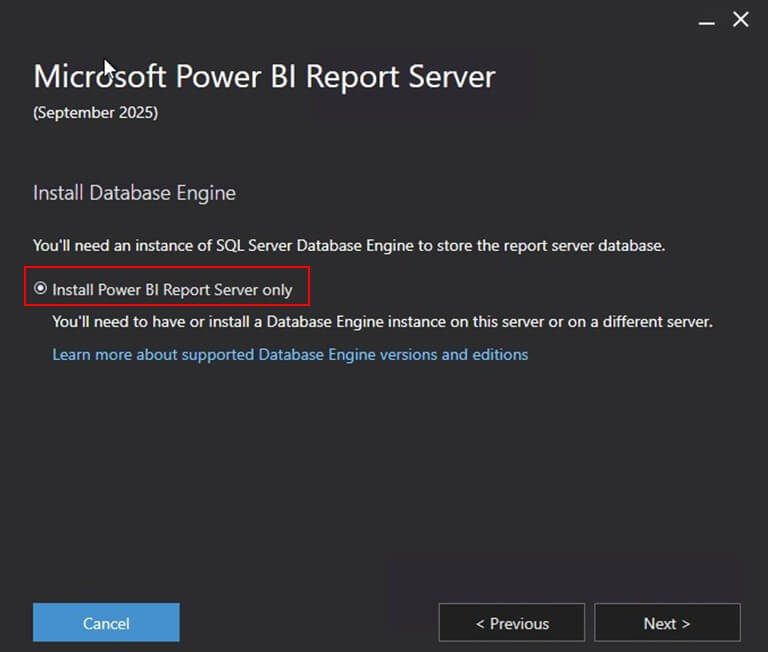
Select 'Install Power BI Report Server only' and click Next.
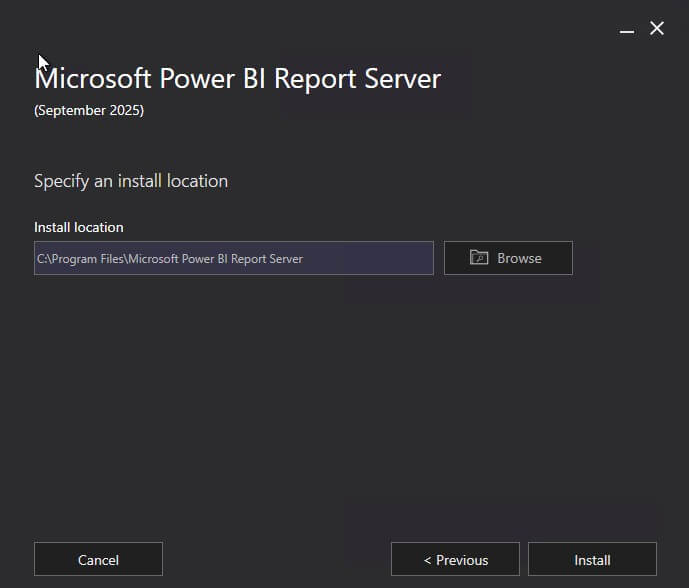
Provide the Install location and click on Install to begin the installation.
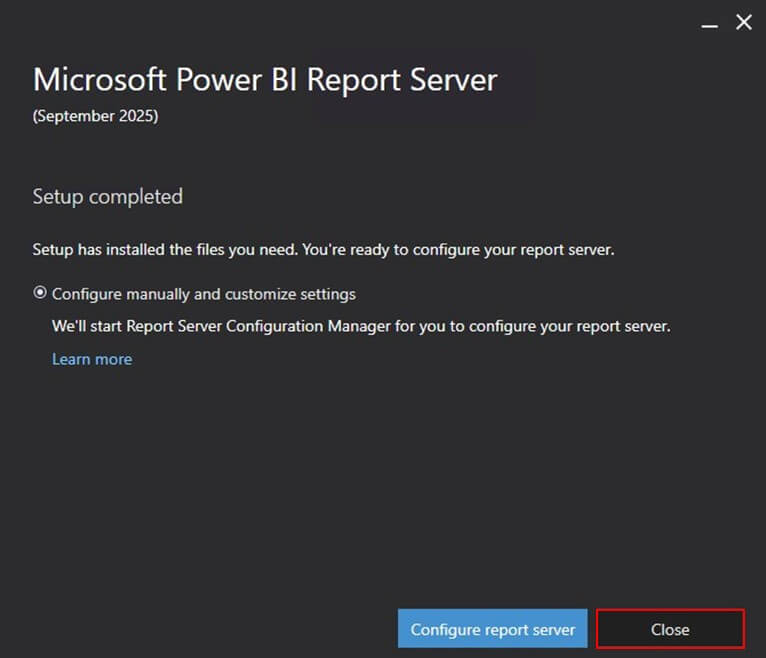
Once the installation is completed, you will get below screen. Click on Close as we are going to configure the report server during the migration phase.
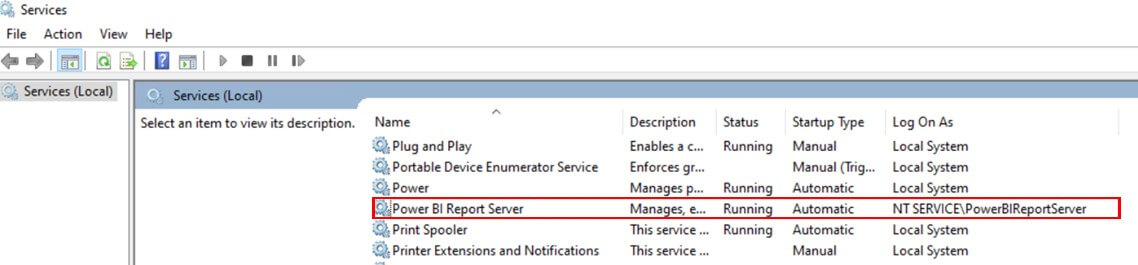
Open services.msc and search for PBIRS Service. It runs with default account. You may change it to a service account as per your requirement. In our example, we are using the default account only.
Migration Phase
Once the prerequisites are completed and your destination server is ready, follow the below steps to migrate the SSRS reports to PBIRS:
Backup Reports Databases
Backup your existing ReportServer and ReportServerTempDB databases from the source SQL2016 Instance and move the backups to a location from where it is accessible on destination SQL2015 Instance. It will be required later to restore in the new instance.
BACKUP DATABASE [ReportServer] TO  DISK = N'\\shared_location\ReportsDBBackup\ReportServer_Migration.bak'
WITH NOFORMAT, NOINIT,  NAME = N'ReportServer-Full Database Backup',
SKIP, NOREWIND, NOUNLOAD, COMPRESSION,  STATS = 10
GO

BACKUP DATABASE [ReportServerTempDB] TO  DISK = N'\\shared_location\ReportsDBBackup\ReportServerTempDB_Migration.bak'
WITH NOFORMAT, NOINIT,  NAME = N'ReportServerTempDB-Full Database Backup',
SKIP, NOREWIND, NOUNLOAD, COMPRESSION,  STATS = 10
GO
Backup Encryption Keys
Next, backup the SSRS encryption keys from the source as it is required later while configuring PBIRS.
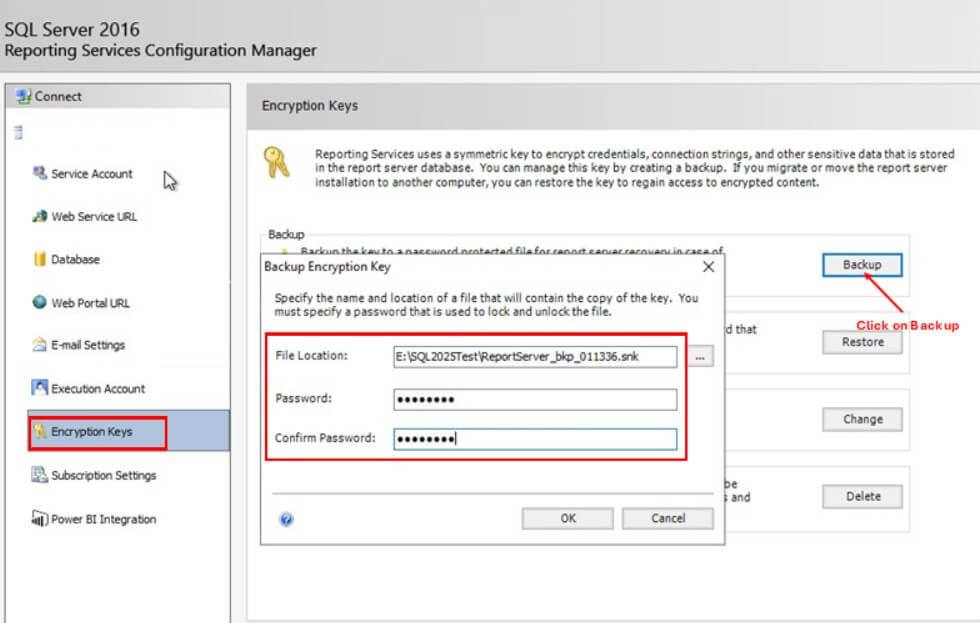
Open Reporting Service Configuration Manager and go to Encryption Keys section. Click on Backup and provide a file location to store the backup and a password.
Important - Note down this password as it will be required while restoring the encryption keys in destination server.
Restore Reports Databases
In the SQL2025 Instance, restore the ReportServer and ReportServerTempDB databases, which you backed up in previous steps.
USE [master]
RESTORE DATABASE [ReportServer] FROM  DISK = N'\\shared_location\ReportsDBBackup\ReportServer_Migration.bak' WITH  FILE = 1,
MOVE N'ReportServer' TO N'E:\MSSQLSERVER\Data\ReportServer.mdf',
MOVE N'ReportServer_log' TO N'E:\MSSQLSERVER\Log\ReportServer_log.ldf',
NOUNLOAD,  STATS = 5
GO

USE [master]
RESTORE DATABASE [ReportServerTempDB] FROM  DISK = N'\\shared_location\ReportsDBBackup\ReportServerTempDB_Migration.bak' WITH  FILE = 1,
MOVE N'ReportServerTempDB' TO N'E:\MSSQLSERVER\Data\ReportServerTempDB.mdf',
MOVE N'ReportServerTempDB_log' TO N'E:\MSSQLSERVER\Log\ReportServerTempDB_log.ldf',
NOUNLOAD,  STATS = 5
GO
Do the necessary cleanups of the database users if any. In our example, we removed some of the database users and logins which are not relevant in the new instance.
USE [ReportServer]
GO
DROP USER [NT SERVICE\ReportServer]
GO

USE [ReportServerTempDB]
GO
DROP USER [NT SERVICE\ReportServer]
GO

USE [master]
GO
DROP LOGIN [NT SERVICE\ReportServer]
GO
Configure Report Server
Now we are going to configure the report server to point it to catalogues which we have restored in previous steps.
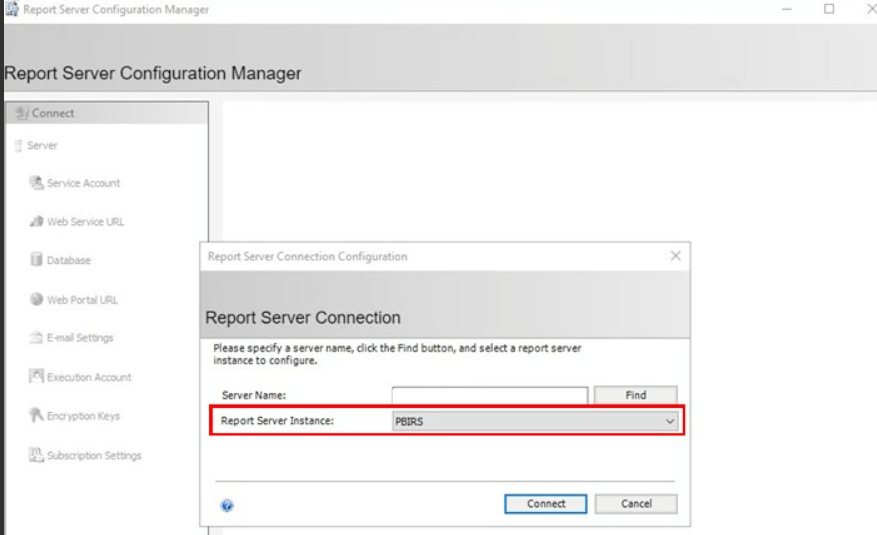
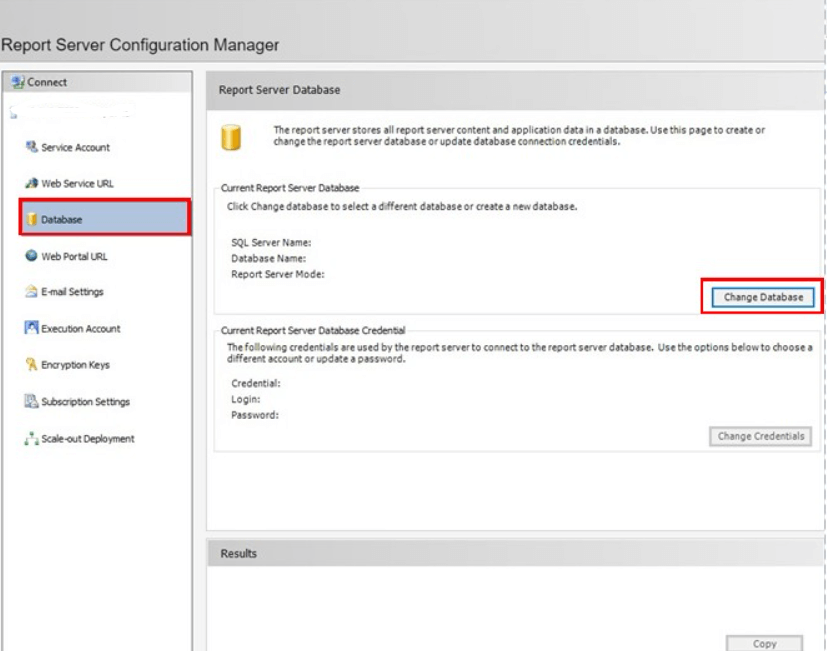
Open 'Report Server Configuration Manager' and connect to the PBIRS Instance.
Go to Database section and click on 'Change Database'.
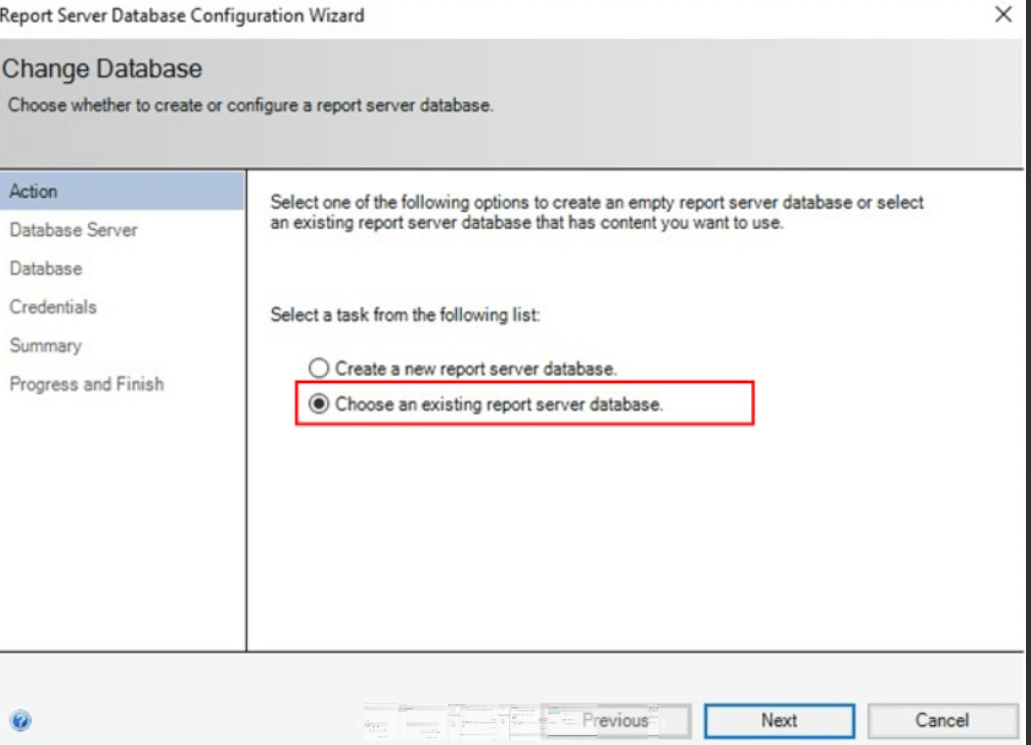
Click on 'Choose an existing report server database'.
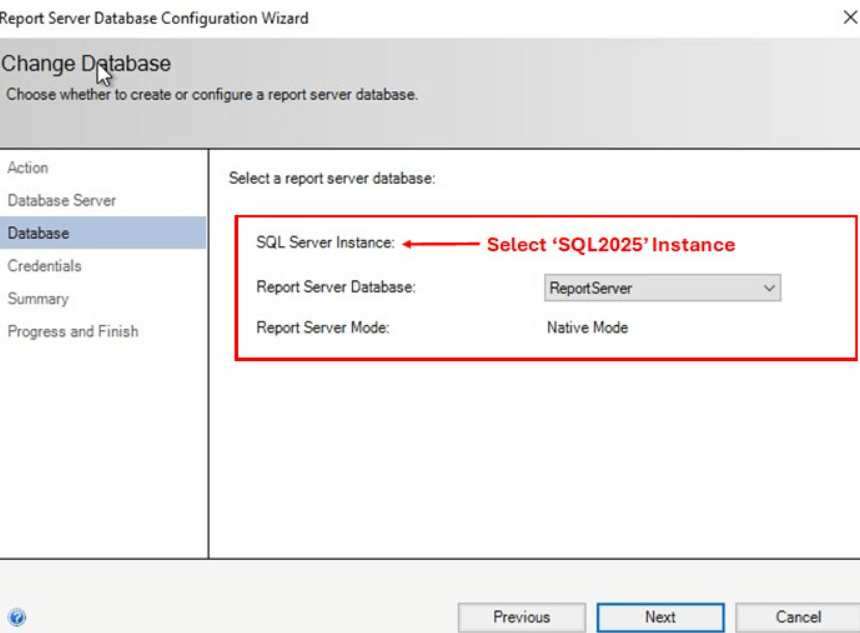
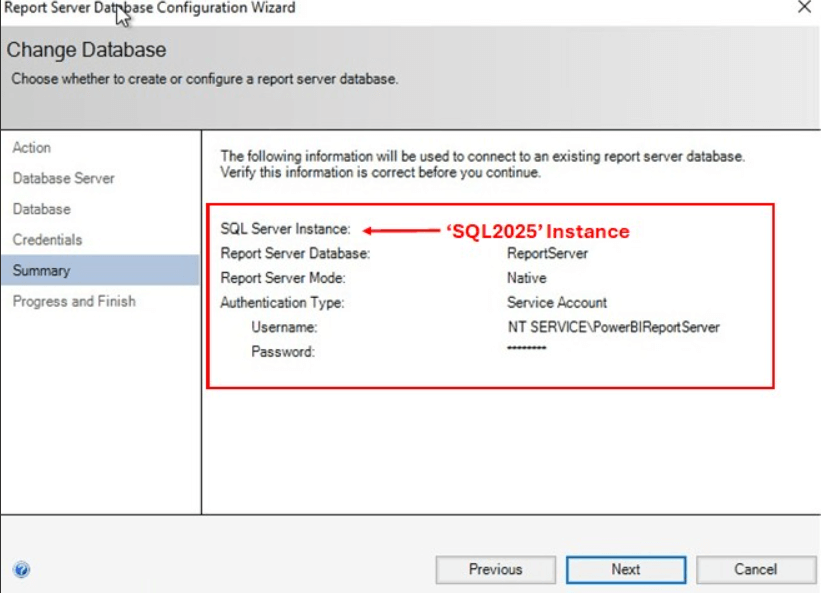
Connect to the SQL 2025 Instance and select ReportServer database which you have restored. Then click Next.
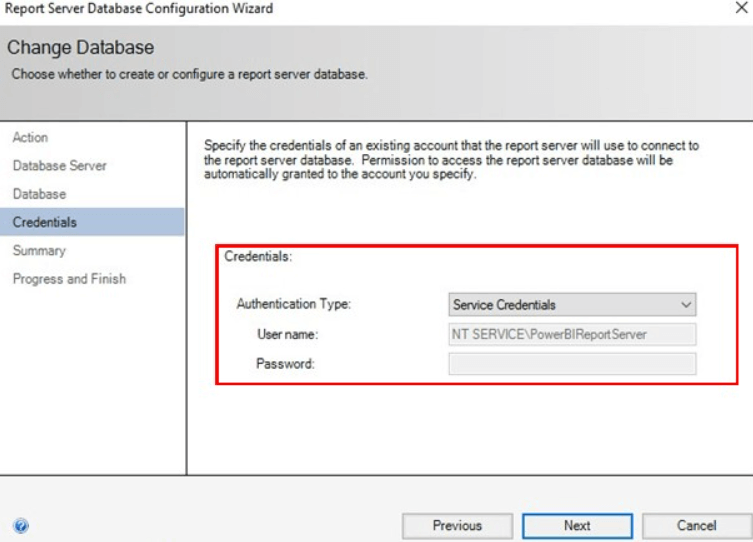
Enter the credentials to connect the reporting catalogue. We are using the default Service Account in our example.
Review the configurations and click on Next to finish the setup.
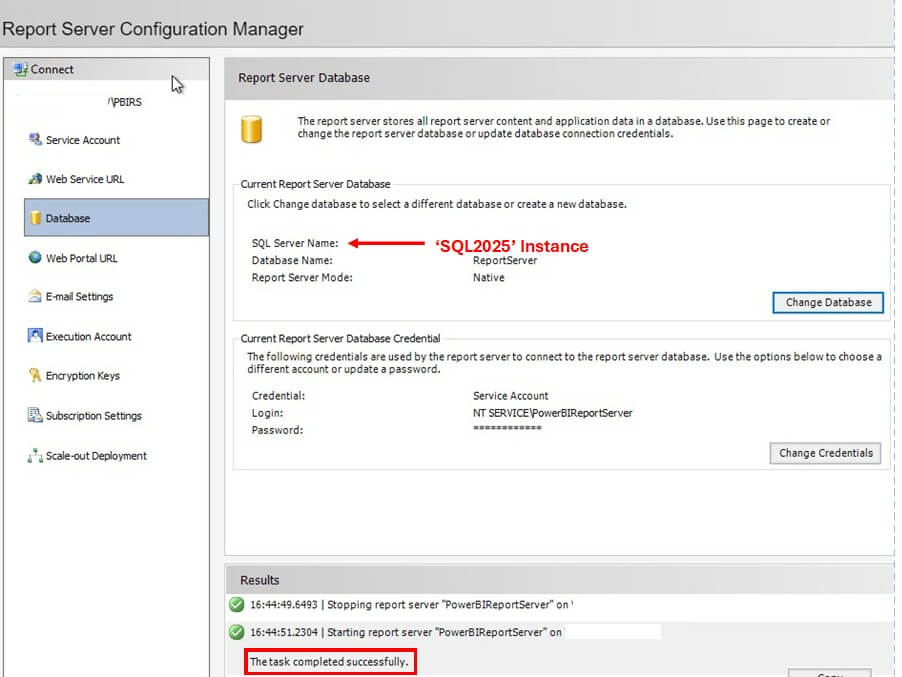
Once the configurations applied successfully, you will see a message 'The task completed successfully'.
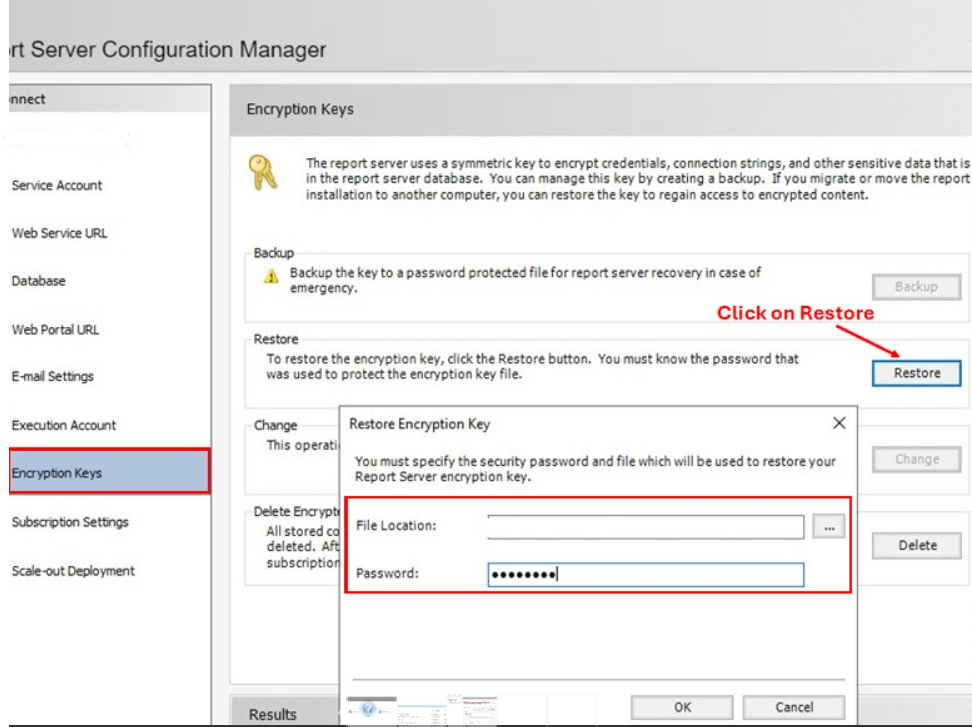
Go to Encryption Keys section and restore the key which you backed up earlier. Enter the same password which you used while taking backup.
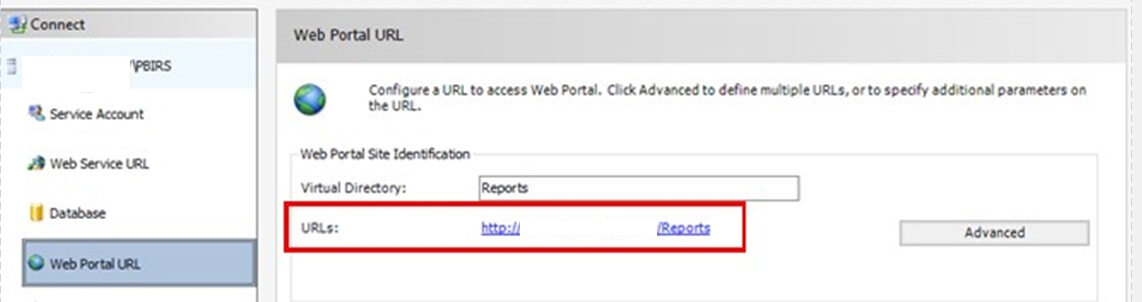
Configure Web Service URL and Web Portal URL by clicking on Apply. Attach a SSL certificate if applicable.
Reconfigure E-mail Settings and Execution Account if needed.
Post-Migration/Validation
Once the report server is ready, validate whether the report server portal is working fine or not. Navigate to Web Portal URL section in Report Server Configuration Manager and open the URL in browser. It will look something like - http://SQL2025/Reports/browse/
You will see a new user interface(somewhat similar to SSRS portal) containing different sections such as data sources, reports, etc. Validate the connectivity of data sources and reports. Try exporting them to Excel/PDF to see if it is working properly. Also verify the permissions of individual folder/files.
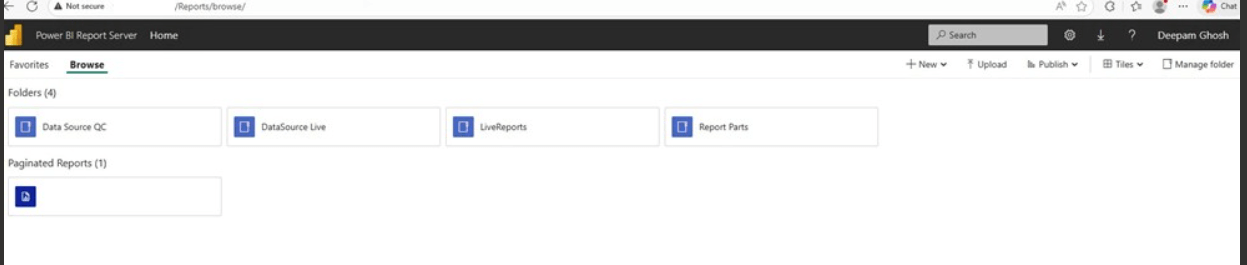
In my scenario, I faced two challenges post migration:
First, I received an HTTP 503 Service Unavailable error while opening the web portal. This was because there was a record of encryption key of source server in the dbo.keys table.

Deleting this record using below script, resolved the issue.
DELETE FROM [ReportServer].[dbo].[keys]
WHERE MachineName = 'SQL2016';
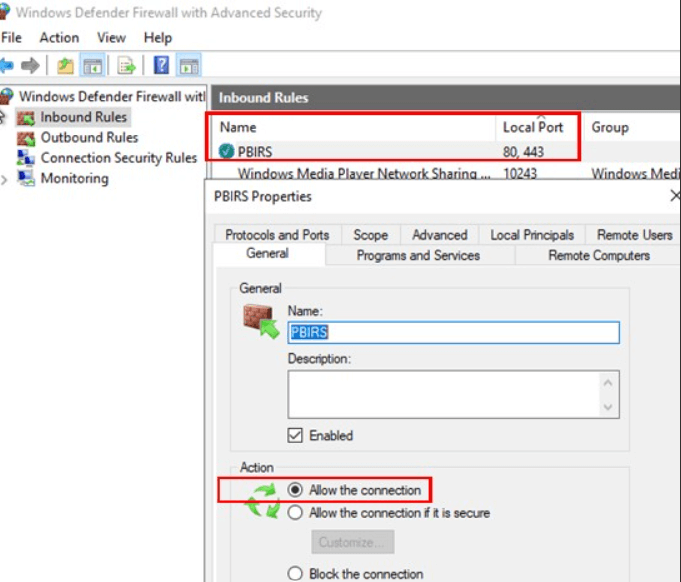
Second, I there was a Service not available error as local ports 80 and 443 were not open at VM level. I created a local Inbound Rule allowing both the ports to resolve this issue.
Conclusion: Risks and Key Consideration
Migrating from SSRS to PBIRS is not just a version upgrade, it is a platform transition which has its own technical and operational challenges. While PBIRS is the modern successor to SSRS, organizations should approach this migration with careful planning, validation, and stakeholder alignment. Below are some of the points which one should take care before planning the migration:
- One-Way Upgrade Path: The upgrade from SSRS to PBIRS only a one-way and no downgrade possible once you move to the new platform. So it highly recommended to do test the migration in DEV/UAT first before touching production.
- Report Compatibility: Although PBIRS supports paginated reports(.rdl) but it is advisable to check specially for any custom codes, report items, deprecated renders, etc. to avoid any outages of critical business reports post migration.
- Credential handling: Encryption keys must be backed up and restored correctly, otherwise all stored credentials, data sources and subscription becomes invalid.
- Performance Testing: PBIRS has different memory, TempDB and CPU usage patterns. Complex reports, concurrent users access should be load tested properly to avoid performance bottlenecks. Under sizing SQL Server 2025 Server can create serious performance issues.