
In Level 28, I introduced a set of Data Analysis Expressions (“DAX”) functions that work largely with text, stating that, although I’ve seen these functions covered as members of a single (and relatively large) “text-related functions” group, I have always preferred to consider them as members of bite-sized subgroups, as I have typically classified each among functions that perform similar types of manipulations and operations. (One of the weaknesses, in my opinion, in most DAX references is that they are organized alphabetically, or by other writers,’ or their own, “official categories,” rather than by the tasks a developer is trying to accomplish via their uses. I prefer an approach that is more pedagogical.)
To this end, I set out, for purposes of this overall Stairway “sub-Level,” to consider them grouped, each within its own respective, operational context. These are not hard-and-fast classifications, but seemed, to me, to serve the purpose well, and to help organize an approach for introducing the operations of similarly behaving functions together.
We noted in Stairway Level 28 that we would examine the Text-related functions within the following general subgroups, each with its own Level of the Stairway to DAX and Power BI series:
DAX Text Functions, by Operational Group
| Extract & Modify | LEFT(), RIGHT(), MID(), REPLACE(), SUBSTITUTE() |
| Combine & Aggregate | CONCATENATE(), CONCATENATEX(), COMBINEVALUES() |
| Format & Display | FORMAT(), FIXED() |
| Search & Compare | FIND(), SEARCH(), EXACT() |
| Clean & Standardize | TRIM(), UPPER(), LOWER() |
| Character Analysis | UNICHAR(), UNICODE(), LEN() |
As we noted in the initial level of this subseries, the DAX Text functions, in general, are based upon a library of Excel string functions that have been enhanced to work with columns and tables in Tabular models. At least some of these functions will be familiar to anyone who regularly uses Excel at the functions level – particularly within the context of data analysis. And, while different approaches can be employed to achieve similar effects with different functions, most of these deliver straightforward outcomes, except in the occasional, “other-than-typical” requirement.
In this Level, we will continue our examination of DAX Text Functions with a focus upon the COMBINE & AGGREGATE functions subgroup, wherein we will introduce the CONCATENATE(), CONCATENATEX(), and COMBINEVALUES() functions. We will continue to follow our typical approach of discussing the general purpose and operation of each, before illustrating the kinds of actions they might perform by putting them to work within a Power BI model to meet straightforward needs similar to those we might encounter in the business environment.
As we have done with practically every DAX function we have introduced in this Stairway, we will examine the syntax involved in its operation, and then construct an illustrative example of the use of the function in a simple practice exercise. Finally, with the examples we undertake, we will generate a self-validating results dataset to obtain a little hands-on experience with each member function, to ensure accuracy and completeness of the results output by the calculation we have constructed to contain each, and to confirm our understanding of how the function achieves its designed mission.
In the next sections, I’ll detail the operation of each Text function member of the COMBINE & AGGREGATE operational group. As usual, we will examine working examples for each function we discuss – examples that can be recreated, and executed, in the downloadable practice .pbix file. As is always the case with the Levels of this Stairway, the objective is to introduce each function within the setting of a relatively straightforward business need. We will likely encounter them in the business environment, as a part of various requirements that arise for the combination and aggregation of data already within a model, in perhaps various stages of dress / undress (that is, to meet partial requirements via slightly modified applications of one or more of the functions). The COMBINE & AGGREGATE operational group of the DAX Text functions will almost certainly come in handy in any but the most fixed structures and steady-state data conditions.
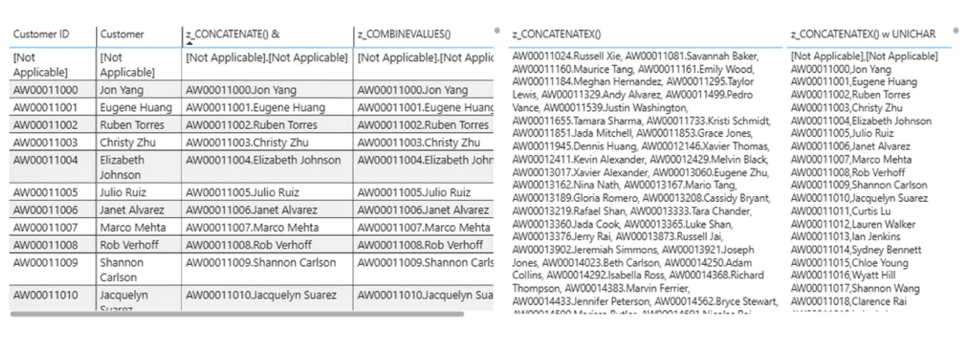
Illustration 1: DAX Text Functions: Combine & Aggregate Group – Examples We Will Encounter
We’ll create a calculation with each function, as we work through them in this Level, that demonstrates the use of the respective function in a simple scenario, within consolidated Table visualizations similar to the above, which we’ll construct. Combining the functions within the same Table report will allow comparison and contrast, particularly, in this case, between the pre-existing state of the data and the desired end objective. Moreover, this affords us the opportunity to explore, in a hands-on manner, multiple functions efficiently, within a simple model and, ideally for training, in this Level, even within the same visual(s).
DAX Text Functions: The Combine & Aggregate Functions
Assuming that we have installed Power BI Desktop (the illustrations in this Level reflect the July 2026 release), we are ready to download and open the sample Power BI Desktop file that we will use for hands-on practice with the concepts introduced in this Level.
NOTE: The latest version of Power BI is available for free download at www.powerbi.com, among other sources.
Download Sample Power BI File (.pbix) for Use in this Level
The sample Power BI file we’ll be using contains fully imported data, and a few pre-existing calculations that might be helpful in general. We will build and add the calculations and visualizations that form the focus in this step-by-step Level as we go.
Using the sample dataset provided will ensure that the results we obtain in following the detailed steps of the exercises agree to the results obtained, and depicted, in the Level, as we progress.
Within the model for this Level / sub-Level, the function(s) under consideration might already have been added to the most recently updated sample file – with the “z_ prefixed” name that is otherwise the same as the name we give them upon construction in the given exercises. To complete the exercises in a given Level, I suggest that, working on a blank tab, we complete the steps, and then compare our results with those pre-existing in the sample. (Consider the tabs within the tabs of the Exercise Examples section as “answer keys” for the respective corresponding Level.) This approach will likely produce the best learning results.
Once the sample .pbix file is downloaded, take the following steps to open it in Power BI Desktop.
Open Power BI Desktop, then follow these steps, as depicted in Illustration 2 below:
- Select Open from the splash dialog that appears upon entry.
- From the Open dialog, select Browse the device.
- Locate the downloaded .pbix file for selection within the dialog.
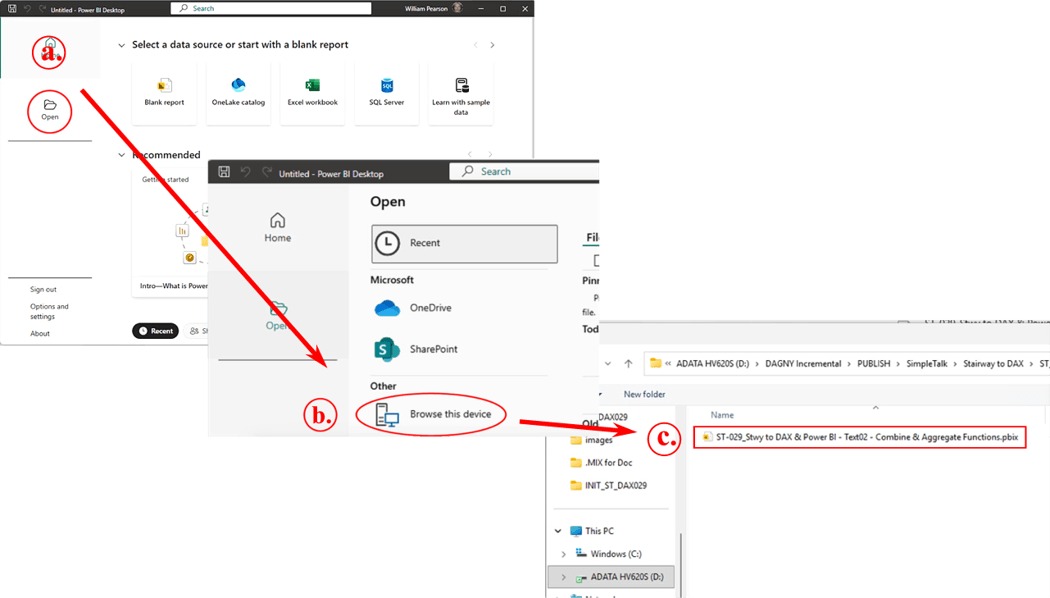
Illustration 2: Navigate to, and Select, the Downloaded .pbix File …
Select the file and click “Open.”
The .pbix file opens and we arrive within the Report view, which consists of a several tabs (“EXERCISE EXAMPLES”) containing the solutions to the current Level, as well as solutions for past DAX Text Functions subseries Levels, whose members depend upon the date of our entering this Level. As most of us know, we can tell we are in the Report view because the current view (of the three views available in the upper left corner, Report, Data, and Model) is indicated by the bar to the left of the icon.
About the File Download
The sample Power BI file for this Level, which we’ll be using for the exercises with various respective functions we examine in this Level, contains fully imported data, and, in subsequent Levels of the ongoing work we accomplish with the DAX Text functions, any pre-existing calculations that might be helpful to us in general for the given Level. Calculations created in other Levels of the Text Functions subseries, at least up to the time of our download, will also appear (with a “z_” prefix (consider these as an “answer key,” of sorts), so we can follow the steps in the Level directly and create the functions as we proceed, with no regard to the conflict with the originals that are already in place as a reference). We will add the calculations and visualizations that form the focus in this step-by-step Level as we go. Moreover, with the final Level of the Text functions sub-series, we will be able to download a fully completed model with all our constituent modeling included.
To complete the exercises in a given Level, I suggest that, working on a blank tab as directed throughout, we complete the steps, and then compare our results with the pre-existing “answer key” in place within the downloaded sample, for the given Level. Using the sample dataset provided will ensure that the results we obtain, in following the detailed steps of the exercises, agree to the calculations and results I obtained (and which I have depicted) in writing the respective Stairway Level.
In the downloaded Power BI model for this Level, four divider tabs have been created at the bottom, labelled as follows:
- PRACTICE CANVASES ---->
- PRACTICE: DAX Text Funcs- Combine & Aggregate--->
- EXERCISE EXAMPLES ---->
- SOLUTION: DAX Text Funcs- Combine & Aggregate--->
The PRACTICE CANVASES ---à and EXERCISE EXAMPLES ---à tabs will serve as grouping, functional “dividers,” which are sub-joined by additional dividers that correspond to our progress through each of the various Levels of the DAX String functions. We will also progressively add tabs as needed to the right of each Level tab, labelled “PRACTICE”, etc., within which we will work the steps we undertake in the respective Level. This section of the Power BI model therefore represents a “design and test studio,” wherein the right-most tab will typically correspond to the formulae, etc., that we examine for the given current article within the EXERCISE EXAMPLES section.
The individual, following tab(s), then, preceded by the tab labelled EXERCISE EXAMPLES, are, in effect, “answer keys,” and capture working solutions for each of the reports we have constructed in the steps we cover within the current DAX Functions we are examining. The visualizations, together with their respective underlying functions, can be used as a reference, subject to modification, expansion, etc., as opportunities arise.
I hope that this approach will produce the best learning outcome, as well as future reusability, of our training investment. Working examples of every DAX function that we examine will be available within the respective subsets of the respective Text Functions Levels.
Getting Started with This Level of the Stairway to DAX and Power BI
Once the sample .pbix file is downloaded, take the following steps to open it in Power BI Desktop.
- Navigate to the file we have downloaded.
- Right-click the file.
- Select File > Open from the splash dialog that appears, as shown.
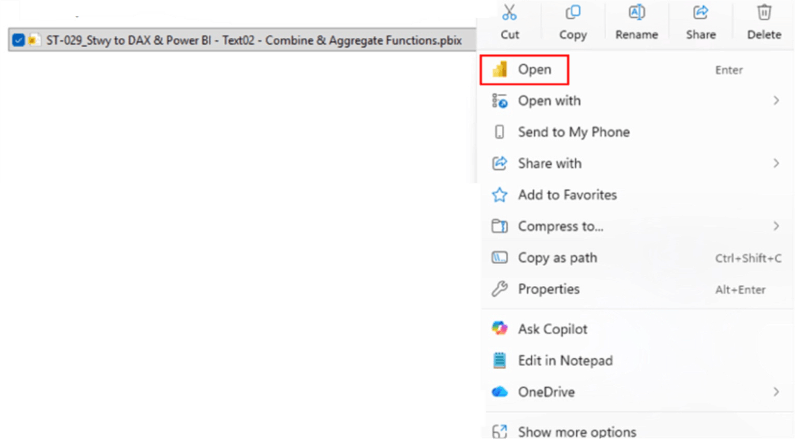
Illustration 3: Select Open on the Splash Dialog that Appears
The .pbix file opens and we arrive within the Report view, which consists of a tab named “EXERCISE EXAMPLES” (at the bottom right), primarily as a divider (“current Level” work will go to the right of the divider). As most of us are likely aware, we can tell we are in the Report view because the current view (of the three views available in the upper left corner, Report, Data, and Model) is indicated by the bar to the left of the icon, with caption appearing with mouseover, as depicted.
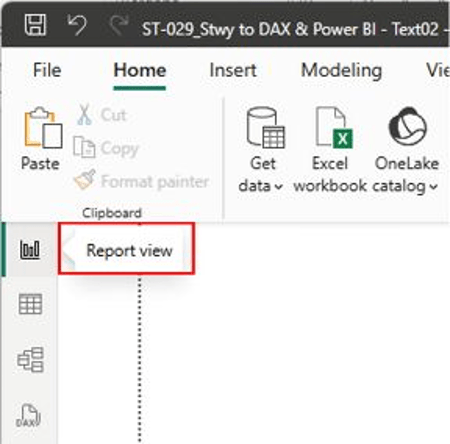
Illustration 4: Report View Indicator …
- Click the Report, Table and Model view icons, along the upper left frame of the Power BI Desktop canvas, as desired, to become familiar with the sample model.
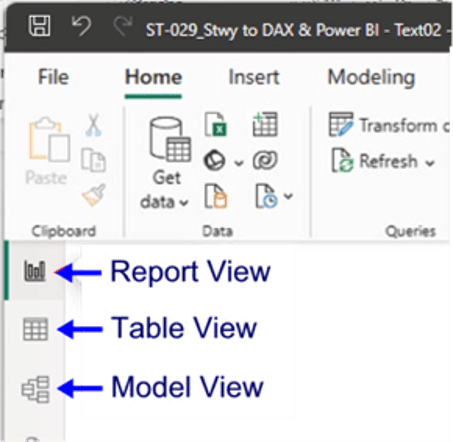
Illustration 5: Other View Options …
- Return to the Report view when ready.
(We can, of course, always click the Data and Model View icons, along the left of Power BI Desktop, and just below the Report View icon, as desired, to become familiar with the sample model.)
DAX Text Functions: The Combine & Aggregate Functions
Hands-on practice with the Combine & Aggregate operational group of the DAX Text functions, throughout the next sections, will make their respective objectives and operations clearer. We’ll see, within this combined (while comparative, as it suits) exploration of these functions, how each can be easily employed to return data, within the active filter context, to enable us to meet the requirements of clients or employers in the business environment. We’ll get an understanding of the purpose of each function, and gain hands-on insight into how it performs, via columns we’ll construct.
We will:
- Examine the syntax involved in exploiting each function;
- Undertake an illustrative example of the use of each function in a practice exercise;
- Review a discussion of the results we obtain in each of the steps of the practice exercise.
The DAX “Text: Combine & Aggregate” Functions
As we have noted earlier in our examination of the DAX text functions in general, and in some form or other throughout the entire Stairway to DAX, the data we encounter, in various business and other environments, often comes from less-then-pristine, consistently maintained environments. Particularly with text data, real-world sources can be messy and inconsistent in nature (emails, product codes, addresses, names, etc.). As we noted in the previous Level of this Stairway, Level 28: DAX Text Functions: The DAX Extract & Modify Functions: LEFT(), RIGHT(), MID(), REPLACE(), SUBSTITUTE(), DAX functions, in general, often provide us the tools we need to turn raw, or otherwise less-than-ideal, text into data that is more structured and usable to meet organizational needs and requirements (although a few examples are focused more upon support for joining tables, creating calculated columns and supporting other calculations, and the generation of polished visuals, among other objectives.
As I mentioned in Level 28: DAX Text Functions: The DAX Extract & Modify Functions: LEFT(), RIGHT(), MID(), REPLACE(), SUBSTITUTE(), I have seen many “membership lists” for DAX functions, and have compared and contrasted the associated groupings carefully. My reading in several instances leads me to formulate the membership lists for the functions I address in this Level of the Stairway to Dax and Power BI – functions that might arguably belong in this subset of the text functions might also appear to belong in others, depending upon the granularity of function that is used as grouping criteria, among other classification differences. Suffice it to say that all the DAX text functions will find coverage within the various text function Levels, as I define them, and so a reader can remain confident that all will be addressed, under one text function sub-classification or another.
The DAX Text: Combine & Aggregate functions are designed, in general, to assemble multiple text values into a single result by joining individual strings or aggregating text across rows for reporting, analysis, and presentation. This combination of text values into richer, more meaningful strings, whether by joining individual expressions, aggregating values across an entire table, etc., make it possible to create descriptive labels, formatted lists, composite keys, and presentation-ready text for a wide range of purposes.
The functions that we will examine in this Level include the following:
- CONCATENATE()
- CONCATENATEX()
- COMBINEVALUES()
The DAX Text: Combine & Aggregate functions are designed, in general, to construct new text values by joining individual strings or aggregating text from multiple rows into a single result, supporting the creation of composite keys, descriptive labels, formatted lists, and presentation-ready output.
As I will demonstrate, we can employ the members of the Text: Combine & Aggregate function group to achieve numerous common text combination and aggregation needs. We will discuss the objectives, syntax, operation and further considerations for each member function individually in the respective sections that follow. As we typically do with all functions within this Stairway, we treat each member function with a brief introduction, and then take a look at distinguishing characteristics and specifics.
Preparation and Practice
We can easily gain an understanding of each of the CONCATENATE(), CONCATENATEX(), and COMBINEVALUES() functions by putting them into action, as we can do with DAX functions throughout this Stairway, using the compact sample data set I have provided within the downloadable Power BI model. We will work via simple measures we create in Power BI, and be able to gain confidence that the practice measures perform correctly through viewing the results we obtain via a “self-checking” scenario.
We’ll begin with a simple reporting requirement: to present results of each of the three functions I have discussed above, based upon a data string we pull into a simple Power BI report. The focus here is to work with naming strings in two cases (CONCATENATE(), and CONCATENATEX()), and, also, with values in one (COMBINEVALUES()), so we will be working with somewhat simple visual displays.
First, make sure that the layout of the canvas, with the Build and Data sections to the right of the pane appear as shown:
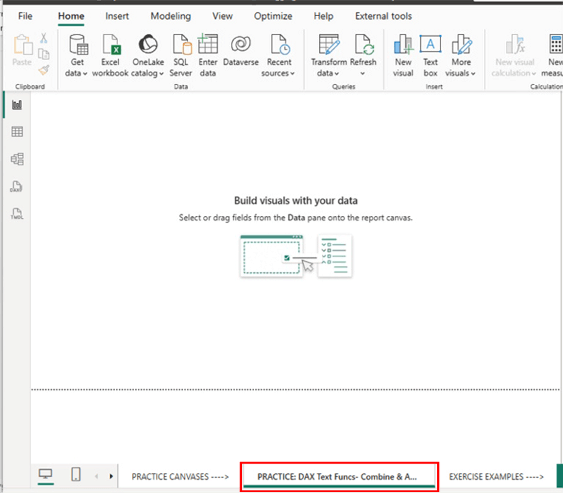
Illustration 6: Canvas Layout …
Note the presence of the tab (currently unoccupied) , to the right of the tab marked PRACTICE CANVASES, which is labelled PRACTICE DAX Text Funcs- Combine & Aggregate. It is on this tab that we will complete the practice build of tables throughout this Level.
First, let’s place a Table data region on the canvas.
- Select the PRACTICE DAX Text Funcs- Combine & Aggregate tab, to the right of the PRACTICE CANVASES tab (at the bottom of the canvas).
- Click the Table icon under Visualizations: Build visual to create Table visual on the canvas, as depicted in Illustration 7.
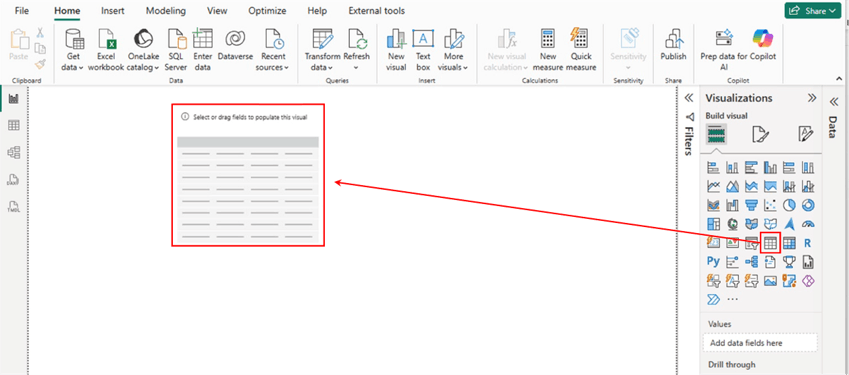
Illustration 7: Drop a Table Region onto the Canvas …
Once we have a Table visual in place to house them, we will create three new columns: one each, to demonstrate the operation of the DAX CONCATENATE(), CONCATENATEX(), and COMBINEVALUES() functions. Adding these measures to the same Table will provide instant visual confirmation that the functions deliver the appropriate data values in the manner that we expect. Moreover, the fact we’re presenting the calculation output in Table visualization(s) will allow us to generate and examine multiple outputs in a single view.
Preparation for Our Exploration of the DAX Text: Combine & Aggregate Functions
As I mentioned earlier, to prepare for some hands-on exposure to the DAX Text: Combine & Aggregate, we’ll work with a single Table visualization, to which we will add member functions as we introduce them so as to contain all functions we meet in the respective Level within a tab of a single Power BI .pbix file – and ultimately a single file that contains all our samples for the entire DAX Text Functions subseries. Our goal with the next few sections is to generate a table visualization that resembles the one depicted in Illustration 8.
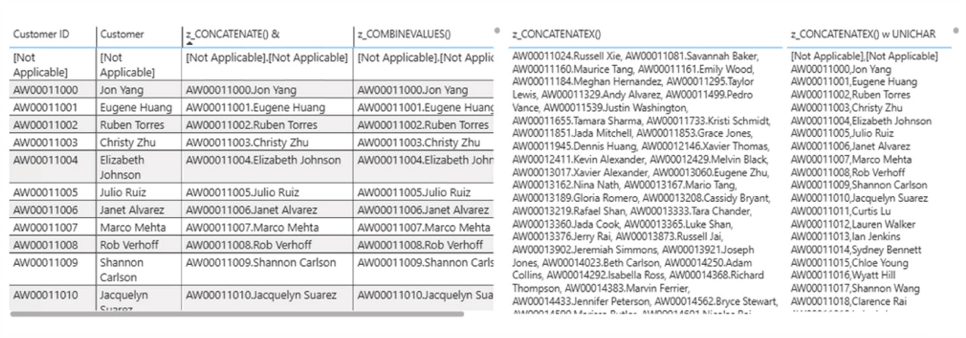
Illustration 8: Our End Objective with the Practice Table …
NOTE: You may be new to the Power BI table, and want to review its general operations, in connection with my walkthrough of the atomic steps of constructing the sample Table in the following sections. Here is a good place to start for Table Visualization Details.
Pre-populate the Table Data Region for Display of the Calculations for the Columns to Be Created
Let’s initially populate the primary column of the newly added primary table for the end presentation of our calculations using the DAX Text: Combine & Aggregate Functions.
With the Table icon selected (the default) in the Visualization: Build visual section to the right of the report canvas, select the Customer: Customer ID checkbox in the Data section to the right, as shown in Illustration 9.
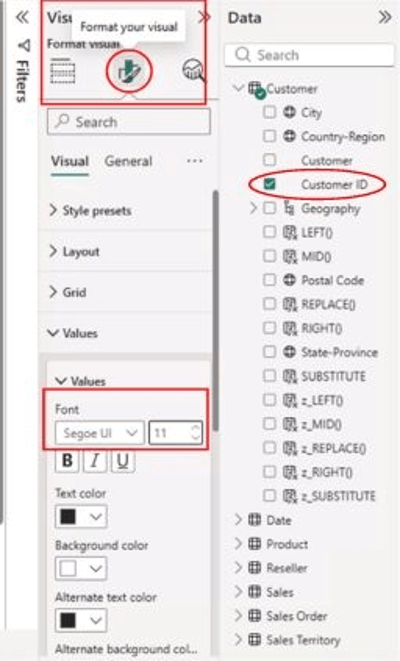
Illustration 9: Setting Font Format for Desired Viewing …
- Click the carat (“>” ) symbol to the left of the upper Values tab, once again, to collapse the Values section within the Format settings we have opened.
- Click the carat (“>” ) symbol to the left of the Grid tab above the collapsed Values
The Gridlines settings, both Horizontal and Vertical, appear as shown in Illustration 10.
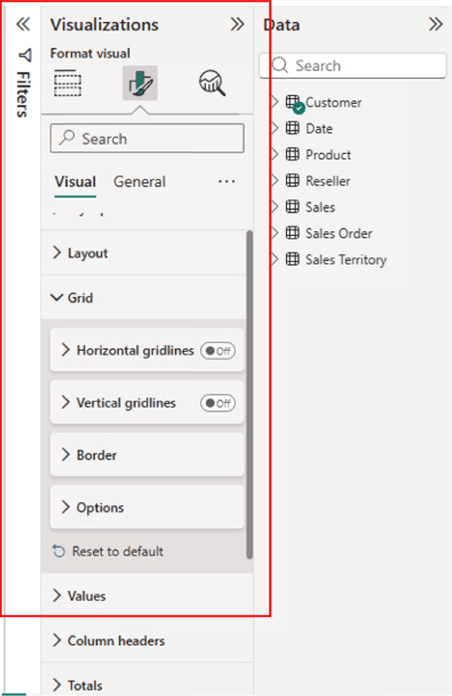
Illustration 10: Horizontal and Vertical Gridlines Settings Groups Appear …
- Click the Off button that appears, by default, for each of the Horizontal and Vertical gridlines headings, to enable the “On” setting and to turn “On” both Horizontal and Vertical gridlines.
- Click the right carat (“>”) to the left of each of the Horizontal and Vertical gridlines heading
- Set the Color of each of the two settings to Black.
- Ensure a Width of “1” for each.
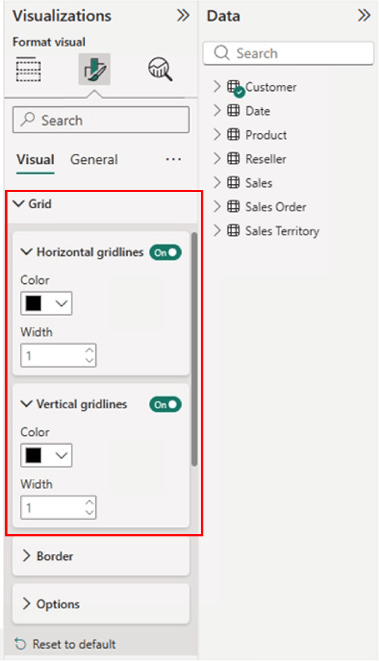
Illustration 11: Turn On and Set the Horizontal and Vertical Gridlines …
- Click each of the carat (“>” ) symbols to the left of each of the Horizontal and Vertical gridlines labels to close them.
- Click the carat (“>” ) symbol to the left of the upper Grid tab, once again, to close the Grid
Having created a simple Table to present the results of our work in this Level, we are ready to proceed to the creation of columns to illustrate the operation of the selected DAX functions in a side-by-side setting. Our next focus will be to put the “Text: Combine & Aggregate” functions to work, using as a basis a string of text, Customer ID, that we have selected as the basis for our examination of the use of the following DAX functions:
- CONCATENATE()
- CONCATENATEX()
- COMBINEVALUES()
To this end, we’ll devote an “explore and practice” subsection to each function, within which we’ll examine the operational details behind individual members of the “Text: Combine & Aggregate” group. Then, within each respective subsection, we will undertake a quick, hands-on Power BI walkthrough for the respective function, as we put it to use in the table we have created.
Let’s position ourselves, at this point, to create calculations to demonstrate the operation of the DAX “Text: Combine & Aggregate” functions. To do so, let’s focus upon the Data selection pane on the far right of our current working area.
- With the Table containing our work so far selected, click the carat (“>”) to the left of the Customer table entry (if not already open), to expose the columns therein, as depicted in Illustration 12.
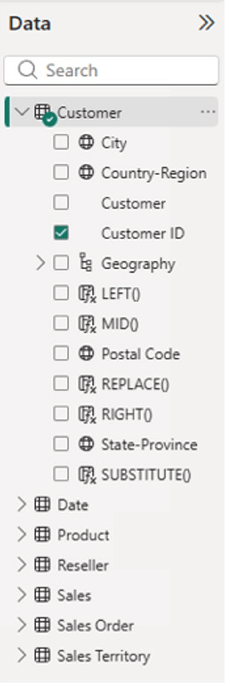
Illustration 12: Existing Tables at the Beginning of the Level …
From here, we will be adding a calculation using the function members of the “Text: Combine & Aggregate” group.
One-on-One with the DAX Text: Combine & Aggregate Functions
Let’s get started with the CONCATENATE() function, and perform the same series of steps for each function in this Level thereafter.
The CONCATENATE() Function
Purpose:
CONCATENATE() joins two text strings into one text string.
DAX Syntax
CONCATENATE(<text1>, <text2>)
<text1> - The first text string to be joined into a single text string, or a reference to a column containing text.
<text2> - The second text string to be joined to the end of <text1>, or a reference to a column containing text.
Strings can include text or numbers.
Return Value:
A single string value; the concatenated string.
Further Remarks and Considerations – CONCATENATE()
- Two Argument Limit: If we need to concatenate three or more strings or columns, we can create a series of calculations or, better, use the concatenation operator (&) to join all of them in a simpler expression.
- Insert Spaces between Concatenated Texts: CONCATENATE() does not automatically insert spaces; to do so, we nest another CONCATENATE() or use the & operator to include a space.
Example:
CONCATENATE(Customers[FirstName], CONCATENATE(" ", Customers[LastName])))- The Concatenation Operator (&): The ampersand operator (&) performs the same operation as CONCATENATE(), but allows us to join multiple terms easily without nesting, such as in the addition of a separating space, as we see here:
Example:
Customers[FirstName] & " " & Customers[LastName]
- Automatic Data Type Conversion: If an argument contains a non-text value (such as a number, date, or Boolean), DAX automatically casts/converts that value to text prior to concatenating.
- DirectQuery and RLS: The DAX CONCATENATE() function is not supported for use in DirectQuery mode when used within calculated columns or within row-level security (RLS) rules.
The CONCATENATE() Function in Action
Returning to the sample Power BI model that we began to prepare above, let’s create a calculation that give us desired concatenated output to meet a sample business need. We’ll create a “combined” calculation that performs a concatenation with each of the CONCATENATE() function and the concatenation ampersand (&) operator.
Concatenation with DAX
The business need at hand involves an “combination” of the Customer ID and the simple Customer Name (Customer) to meet a specific client requirement: We have a requirement to concatenate the ID and Name, with a period (“.”) divider in between, to meet the needs of a specific set of reports. The client will use this new character to provide a more “intelligent” key to enable instant identification of the customer by name, while coupling the ID therewith, and make searching, sorting and analysis of various types easier.
We will combine CONCATENATE() and the & operator in a single exercise, as both perform a concatenation. As I have discussed earlier, CONCATENATE() does not automatically insert spaces or characters, so we would need to nest another CONCATENATE() or use the & operator to include a space in our output. I use both in the first practice exercise, as it provides an opportunity to see both options in action within a single practice exercise.
Meeting the Business Need with CONCATENATE() and &
To perform the requested field concatenation, we will apply the DAX CONCATENATE() function, which, as we have learned earlier, will integrate the data fields we designate. Let’s see how this works by performing the operations within the Power BI Table visualization, as we have done in earlier Levels of this Stairway, to demonstrate our operations with a set of functions in a consolidated visualization that will allow for easy comparison of results.
- Click the carat (“>”), as before, if necessary, to the left of the Customer table in the Data area on the right side of the Data view to expose the member columns and calculations, as shown. The Customer table opens, and contains the Customer ID column that we will be working with throughout this Level. The column will ultimately also contain one string each for the DAX “Text: Combine and Aggregate” functions that comprise the focus of this Level, together with other items for this and earlier steps taken earlier in this Level.
- Click the Table we have already created to select it, if necessary.
- Place an “X” in the checkbox next to the Customer ID column that already appears among the Customer table members in the Data pane to the far right.
- Right-click the Customer table in the Data area, and select New Column from the context menu that appears, as depicted in Illustration 13.
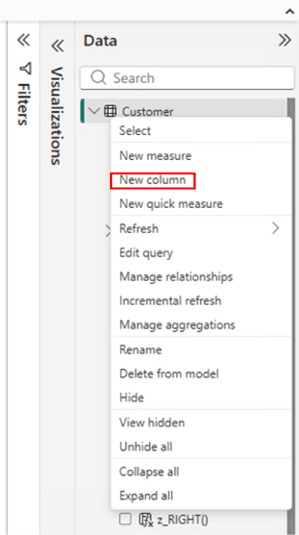
Illustration 13: Beginning the Creation of a New Column …
A new column (named “Column,” by default) appears, within the exploded Customer table, whose columns appear as shown. This column has been created to house the output of the calculation we will input. Moreover, the calculation editor has appeared atop the canvas. It is here that we will define the new calculated column.
NOTE: If the calculation editor does not appear / disappears, simply single-click the new Column column, and the editor will return to view, as shown in Illustration 14.
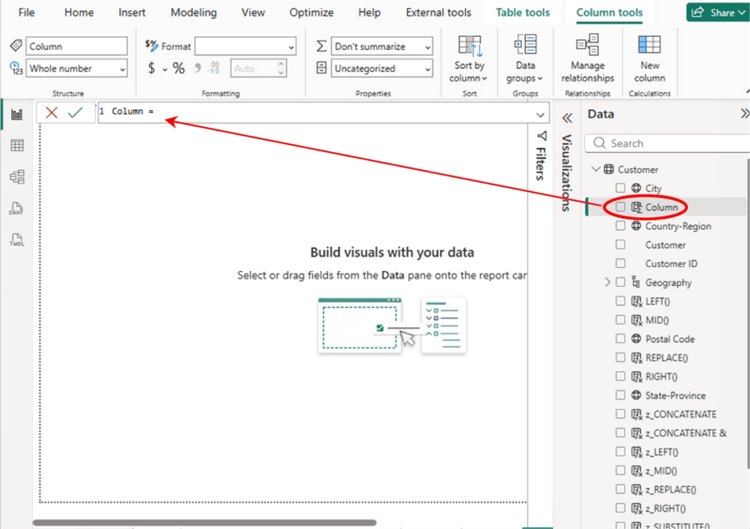
Illustration 14: Creation of a New Column …
- Type (or cut and paste) the following DAX, into the place of the Column = ,
CONCATENATE()& = CONCATENATE(Customer[Customer ID], CONCATENATE(".", Customer[Customer]))in the formula bar.
- Click the green check symbol to the left of the formula, once it is added, to quick-check apparent accuracy and completeness.
- Place an “X” in the checkbox next to the new CONCATENATE() & column that now appears among the Customer table members in the Data pane to the far right.
The new CONCATENATE() & column appears underneath the Customer table within the Data view.
Other settings reset automatically at this point, as system detections are made, etc. and the calculation appears in the Editor as depicted:
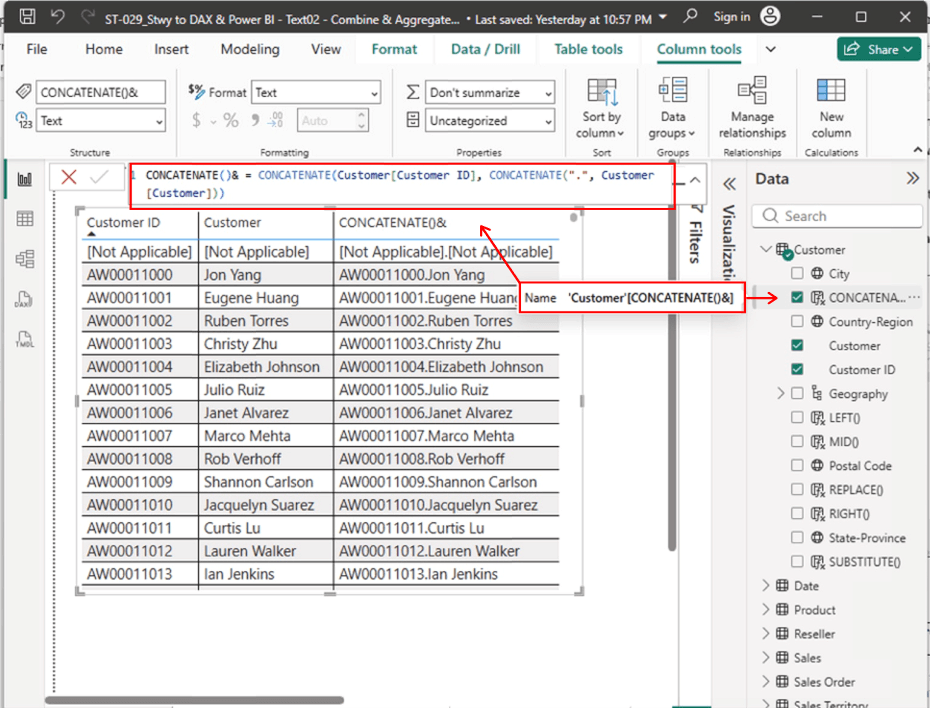
Illustration 15: Creating a Calculation Using CONCATENATE() and & …
NOTE: If you don’t see the column titles, touch the table, and click the Add or remove visual elements button to turn them on …)
We can easily see that the new calculation has accomplished its defined objective, and that the new CONCATENATE() column is populated by a string that presents the results we have expected.
Let’s work with the CONCATENATEX() function next.
The CONCATENATEX() Function
Purpose:
CONCATENATEX() evaluates an expression for each row of a table and concatenates the results into a single text string, separated by a specified delimiter.
DAX Syntax
CONCATENATEX(<table>, <expression>[, <delimiter>][, <orderBy_expression>[, <order>]])
<table> - The table containing the rows over which the expression will be evaluated.
<expression> - The text string or DAX expression evaluated for each row to be concatenated into a single text string.
<delimiter> - (Optional) The text string to be inserted between each concatenated result.
<orderBy_expression> - (Optional) The expression used to determine the sort order of the output values.
<order> - (Optional) The sort direction: ASC (ascending, default) or DESC (descending).
Strings can include text, numbers, dates, or Booleans (which are automatically converted to text)
Return Value
A single combined text string containing the evaluated <expression> results for every row in <table>, separated by <delimiter> and sorted according to <orderBy_expression> if specified.
Key Return Behavior Details
- Empty Table / BLANK Results: If <table> is empty or has no rows in the current filter context, CONCATENATEX() returns BLANK().
- Single Row Result: If <table> evaluates to a single row, CONCATENATEX() returns the <expression> result for that single row without adding the <delimiter>.
- String Truncation Limits: DAX text measures are subject to engine string length limitations (typically up to ~2,147,483,647 characters in VertiPaq), though Power BI visual controls may truncate or wrap long outputs visually.
One of the most common production patterns for CONCATENATEX() is displaying currently selected values from a slicer inside a report header or card, but there are other displays where a literally concatenated (think “endlessly winding …”) string might prove difficult from a display perspective, as we’ll see in our next practice example. In fact, because of what an unbridled concatenation can imply, we’ll proceed to a second CONCATENATEX() sample table via an additional visual in our virtual workbench, so that the physical results of our next query will not completely overshadow the calculations we have accomplished in this Level so far. To wit, we will be working with a second table to manage CONCATENATEX() – for reasons that will become rapidly obvious.
First, we will create a sample calculated column using CONCATENATEX() in a highly filtered scenario (my objective here will become obvious with significantly less drain upon resources).
- Right-click the Customer table in the Data area, and select New Column from the context menu that appears, as we have done earlier.
The calculation editor appears, once more, atop the canvas. It is here that we will define a new calculated column, to house the unlimited, space-hungry output of our next calculation, containing an unbridled CONCATENATEX(). (Depending upon your resources, it may take a little time for the calculation to fully develop itself.)
- Type (or cut and paste) the following DAX, replacing the default of Column = ,
CONCATENATEX() = CONCATENATEX(Customer, [Customer ID] & "." & [Customer] & ", ")
into the formula bar, and then click the green check symbol to the left of the code.
- Click to the right of the existing table we’ve created, onto the canvas, to enable default table creation in the next steps.
- Place an “X” in the checkbox next to the new CONCATENATEX() column that now appears among the Customer table members in the Data pane to the far right.
- As possible, drag the new table slightly to align it in parallel with the existing tables, on its right, so that they are side-by-side, as shown.
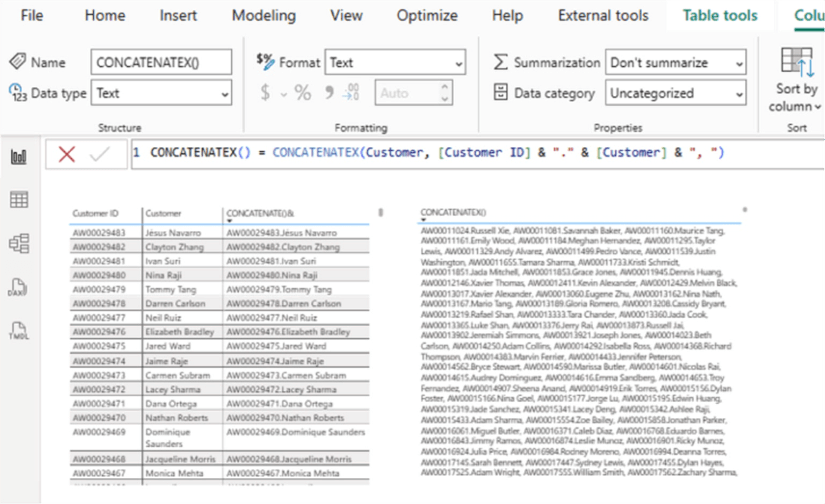
Illustration 16: Presenting the Results of the Simple CONCATENATEX() Calculation …
We can easily see that the new calculation has accomplished its defined objective, and that the new CONCATENATEX() column is populated by a string that presents the results we have expected.
We can also see that the new calculation has, technically, accomplished its defined objective, and that the new CONCATENATEX() column is populated by a string that presents the results we have expected. It’s likely obvious, at this point, that the format of the returned arrangement may be relatively useless, to many of us in most situations, due to the “single large string” that has been returned for every row of our table. Let’s look next at the reason for the result, and what DAX offers to minimize potentially tedious work with similar long strings, where CONCATENATEX() is otherwise appropriate for a given need.
Generating Business Need Refinements with CONCATENATEX()
Returning to the sample Power BI model that we began to prepare above, let’s create a calculation to generate the desired concatenated output to meet more refined sample business needs, using the DAX CONCATENATEX() function.
Fine Tune the DAX CONCATENATEX() Function to Offer Another Desired Reporting Arrangement
The business need at hand involves the same “combination” of the Customer ID and the simple Customer Name (Customer) – with a stylistic twist, to meet a specific client requirement: In addition to our efforts above, where we concatenated the Customer ID and Name, with a period (“.”) divider in between, to meet the needs of a specific set of reports, we have piloted the results for the client, and have received a few good comments, in addition to an additional request.
The client (understandably) wants to display the above results with each client appearing in an individual line of the report visualization, versus a spiraling, spaghetti-like single string that would be impractical from most reporting perspectives. The client will gratefully add a refinement to ease locating / identifying clients by name, while coupling the ID therewith, to make searching, sorting and analysis of various types more straightforward. To assist both implementation of the proposed improvements and simultaneous comparison / contrast with the solution we have provided in the last section, we will present our enhanced solution side-by-side with the one we delivered above. (Power BI is an excellent choice for a reporting and analysis tool that enables and encourages such design efforts.)
Convert the Output to Multiline Text: One Line Per Client
CONCATENATEX() can create multiline text outputs (useful in tooltips, matrix cards, or detail cards) by passing UNICHAR(10)—the standard Line Feed character—as the delimiter. Let’s create an alternative CONCATENATEX() sample via a substitution in our latest visual, again to leave in place the calculations we have accomplished in this Level so far. This time, we’ll work with a new visualization – in effect a modified copy of the last, to save a little time - containing the solution on the same tab, to the right of its predecessor, for easy comparison of results.
- Click into the right of the Table visualization we just created to highlight / select the entire visual.
- Select CTRL + C to copy the visualization exactly as it appears, as shown:
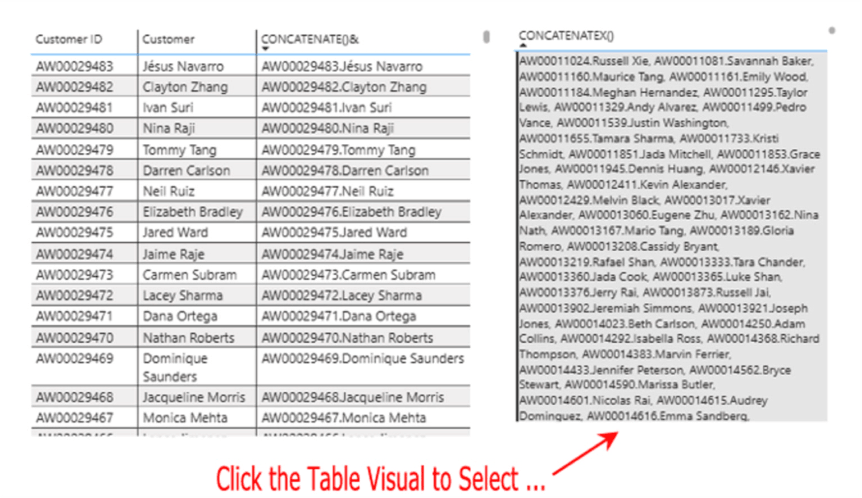
Illustration 17: Copying the Existing Table Visualization to Save Time …
- Click outside the existing visualization, then select CTRL +V to paste the copy to the right, as depicted:
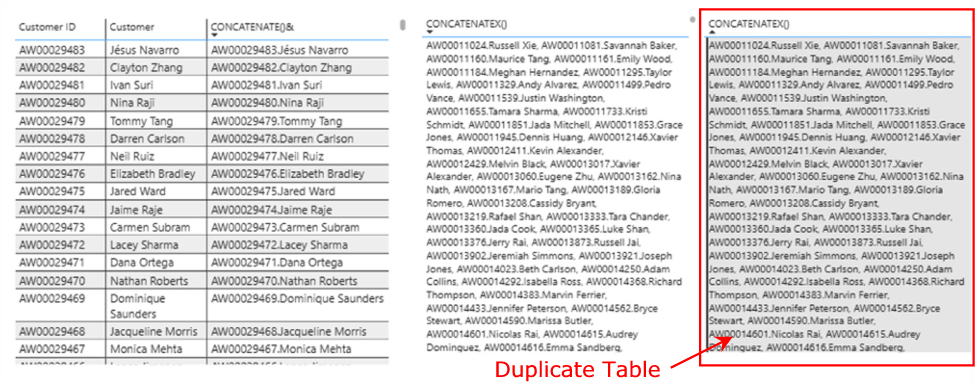
The duplicate table visualization appears, complete with data as originally returned. Let’s make a slight alteration in the source DAX of the new report to demonstrate the ease with which we can change its data presentation.
- Ensuring that the duplicate table remains selected, click the carat (“>”), to the left of the Customer table in the Data area on the right side of the Data view, if necessary, to expose the member columns and calculations. Once again, the Customer table opens, containing the Customer ID, as well as other columns with which we are working throughout this Level.
- Right-click the Customer table in the Data area, and select New Column from the context menu that appears, as we did earlier.
The calculation editor appears, once more, atop the canvas. It is here that we will define a new calculated column, to house the unlimited, space-hungry output of our next calculation, containing an unbridled CONCATENATEX().
- Type (or cut and paste) the following DAX, into the place of the Column = ,
CONCATENATEX() w UNICHAR = CONCATENATEX(Customer, [Customer ID] & "," & [Customer], UNICHAR (10), Customer[Customer ID], ASC)
into the formula bar, as shown.
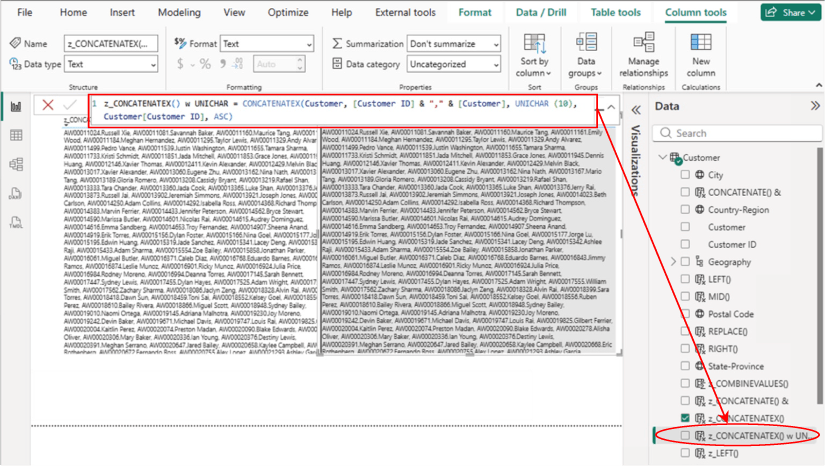
Illustration 19: Leveraging UNICHAR in the Duplicate Table Visual (10) …
In the formula above, we are driving multiline text outputs (an excellent option, incidentally, to support detail cards, matrix cards, detail cards, tooltips and the like) by passing UNICHAR(10) – the standard Line Feed character – as the delimiter.
NOTE: I will separately introduce, and more fully discuss, UNICHAR() in a future Level of the Stairway to DAX and Power BI.
- Click the green check symbol to the left of the formula, once it is added, to initially check apparent accuracy and completeness, together with expected formatting.
- Place a check in the checkbox next to the new CONCATENATEX() w UNICHAR() column that now appears among the Customer table members in the Data pane to the far right.
- Remove the previously existing CONCATENATEX() column from the Columns box, as depicted.
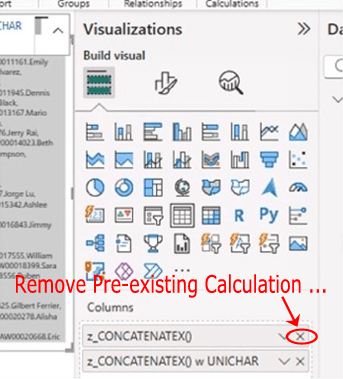
Illustration 20: Swapping out the Concatenation Calculations …
The new CONCATENATEX() w UNICHAR column appears underneath the Customer table within the Data view. (The calculation should appear, of course, in a standalone table.)
Other settings reset automatically at this point, as system detections are made, etc. and the calculation and output appear in the editor as depicted.
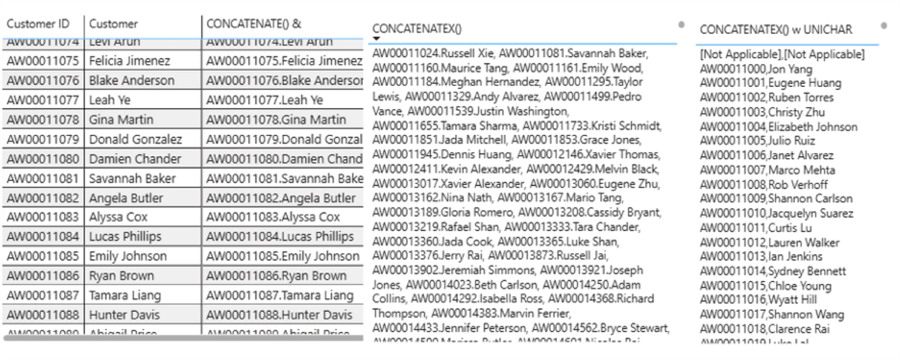
Illustration 21: The Results Compared: UNICHAR() has Fit the Bill …
We note that the employment of UNICHAR() – specifically UNICHAR(10) here, has been effective in performing multiline delimitation, and broken out our previous spaghetti output into something a little more useful.
Let’s work with the COMBINEVALUES() function to wrap up this Stairway Level.
The COMBINEVALUES() Function
Purpose:
COMBINEVALUES() joins two or more text strings into a single text string using a specified delimiter. Its primary purpose is to support multi-column relationships in DirectQuery models, where composite keys must be created efficiently.
DAX Syntax
COMBINEVALUES(<delimiter>, <expression1>, <expression2>[, <expression3>, …])
<delimiter> – A constant text value inserted between each expression.
<expression> – Any DAX expression whose value will be converted to text and concatenated.
Strings can include text or numbers.
Return Value
A single string value: the concatenated output.
Further Remarks and Considerations – COMBINEVALUES()
- Multiple Argument Support: COMBINEVALUES() allows concatenation of three or more expressions without nesting, unlike CONCATENATE(), which only supports two arguments.
- Delimiter Requirement: The delimiter must be a constant text value. It is automatically inserted between each expression.
- Automatic Data Type Conversion: If an argument contains a non-text value (such as a number, date, or Boolean), DAX automatically converts that value to text prior to concatenation.
- DirectQuery Optimization: COMBINEVALUES() is specifically designed to support composite keys in DirectQuery models. When used in calculated columns to join multiple columns from two tables, Power BI generates an optimized SQL join predicate, improving query performance.
Example:
Table1[CalcColumn] = COMBINEVALUES(",", Table1[Column1], Table1[Column2])
Table2[CalcColumn] = COMBINEVALUES(",", Table2[Column1], Table2[Column2])
This produces SQL logic such as:
(Table1.Column1 = Table2.Column1 OR both are NULL)
(Table1.Column2 = Table2.Column2 OR both are NULL
- Delimiter Selection Matters: COMBINEVALUES() does not validate that unique input combinations produce unique output strings. Poor delimiter choices can cause collisions (e.g., "| "), especially in DirectQuery.
- Blank Handling: COMBINEVALUES() ignores blank or null values, inserting no delimiter for them.
Example 1:
Code like this:
COMBINEVALUES(" ", Customers[FirstName], Customers[LastName])would produce a result like this:
John Doe
Example 2:
Code like this:
COMBINEVALUES(", ", [MonthName], [CalendarYear])would produce values like these:
January, 2026
February, 2026
…
December, 2026
Preparation for Next Steps
We now need to return to the leftmost table visualization, as we have examined (and demonstrated) the more space-intensive qualities of an unrestrained CONCATENATEX(), along with a subsequent CONCATENATEX() w UNICHAR() approach to constraint. To make room for our work with the last DAX function considered in this Level, we need to be able to add another column to the three that already exist in the leftmost table. To do so, let’s take the following steps (see the diagram in Illustration 22 for pointers …).
- Highlight the rightmost table, containing our most recent installation of the CONCATENATEX() w UNICHAR()
- Move / drag the table further to the right, if and as necessary, of the leftmost table to open enough space for an additional column.
See the diagram below for a summary of the move I’m suggesting.
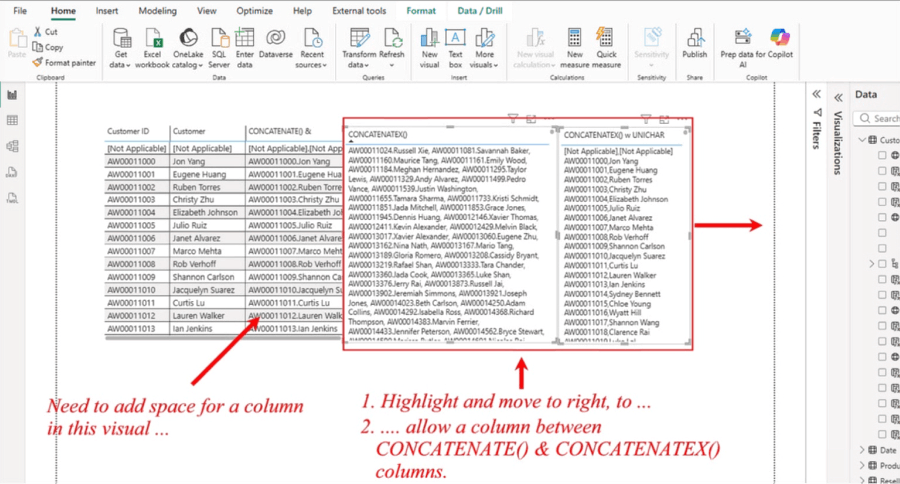
Illustration 23 : Prepare Space for Work with the COMBINEVALUES() Function
With the additional space provided, we are ready to take up the last DAX function in this Level, COMBINEVALUES().
The COMBINEVALUES() Function in Action
As we can see, COMBINEVALUES() is ideal for creating composite identifiers or formatted text outputs. In DirectQuery models, it is used to build relationship keys when no single column uniquely identifies a row.
Meeting the Business Need with COMBINEVALUES()
Let’s return to the sample Power BI model that we began to prepare above, and let’s employ COMBINEVALUES() to create a calculation that gives us the desired combined value output to meet a sample business need.
To create a composite key combining Customer ID and Customer Name with a period (“.”) delimiter:
Customer[CompositeKey] =
    COMBINEVALUES(".", Customer[Customer ID], Customer[Customer])
This produces values sin a format like:
12345.John Doe
This key can then be used for:
- Faster searching
- Easier sorting
- More intuitive identification
- Composite relationships in DirectQuery
To perform the requested field combinations, we will leverage the DAX COMBINEVALUES() function, which, as we have learned, will accommodate our requirements to combine the data fields requested. Let’s get some hands-on exposure to how this works by performing the operations within the Power BI Table visualization as we have left it after our practice with the other DAX members of the COMBINE & AGGREGATE functions subgroup, CONCATENATE() and CONCATENATEX().
- Click the leftmost table to prepare to insert a new column to the right of the CONCATENATE()&
- Click the carat (“>”), if necessary, to the left of the Customer table in the Data area on the right side of the Data view to expose the member columns and calculations, as we have done in earlier exercises.
The Customer table opens, and contains the Customer ID, among other, columns with which we have already been working within this Level.
- Right-click the Customer table in the Data area, and select New Column from the context menu that appears, as we saw in Illustration 13
A new column (named “Column,” by default) once again appears, within the exploded Customer table. This column, again, has been created to house the output of the calculation we will input, and [Column=] appears in the editor. We will again enter the calculation editor to define a new column.
- Type (or cut and paste) the following DAX, into the place of the Column = ,
COMBINEVALUES() = CONCATENATE(Customer[Customer ID], CONCATENATE(".", Customer[Customer]))into the formula bar.
- Click the green check symbol to the left of the formula, once it is added, to quick-check apparent accuracy and completeness.
- Click the left visualization (that contains three columns at this point), if necessary, to select it (we want to display our new COMBINEVALUES() column in the same table visualization as, and to the immediate right of, CONCATENATE()&.
- Place an “X” in the checkbox next to the new COMBINEVALUES() column that now appears among the Customer table members in the Data pane to the far right.
The new COMBINEVALUES() column appears to the right of the CONCATENATE()& calculation we added earlier on the canvas as shown.
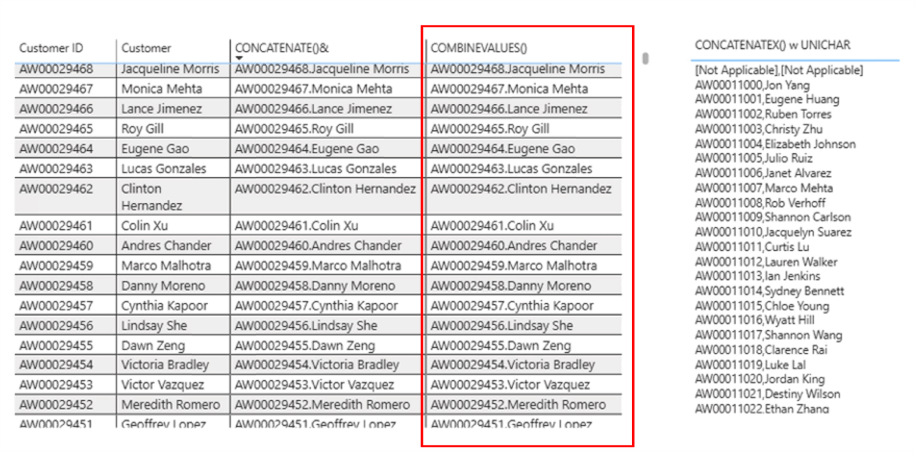
Illustration 22 : Creating a Calculation Using COMBINEVALUES() …
We can see that the new calculation has accomplished its defined objective, and that the new COMBINEVALUES() column is populated by a string that presents the results we have expected. We now have a simple set of Table visualizations that demonstrate the assembly and operation of the DAX “Combine and Aggregate Functions” group, including the CONCATENATE(), CONCATENATEX(), and COMBINEVALUES() functions.
Stairway Level Summary
This Level of the Stairway to DAX and Power BI is part of a subseries devoted to the DAX Text Functions subseries, within which I typically introduce multiple DAX functions – grouping functions, where practical, that are similar in operation in some ways, so as to condense explanations and to encourage comparison / contrast. In this case, we continued the DAX Text Functions with the Combine & Aggregate Functions, where we introduced the CONCATENATE(), CONCATENATEX(), and COMBINEVALUES() functions, and within which we followed our typical approach of discussing the general purpose and operation of each and then put the respective functions to work within a Power BI model to meet needs similar to those we might encounter in the business environment.
As part of this introduction, we examined the syntax involved with each function, and then constructed an illustrative example of the use of each in a simple practice exercise. Finally, for each example we undertook, we explored means of generating a self-validating results dataset to ensure accuracy and completeness of the results generated by the respective measure we constructed to contain the respective function.