Schema drift between environments is one of those problems that usually goes unnoticed, until a deployment fails or a production issue appears. In Azure SQL projects, even small differences in tables, indexes, or procedures can cause unexpected behavior.
Recently, I needed a simple, scriptable way to compare schemas between two Azure SQL databases without relying on Visual Studio or SSDT. I ended up using sqlpackage, and it worked surprisingly well for this purpose.
This article explains how I use sqlpackage to detect schema drift and generate a delta script that shows exactly what’s different.
Why I Avoid Manual Schema Comparison
In many teams, schema comparison still happens in one of these ways:
- Manually inspecting database objects
- Relying on ad-hoc scripts
- Using GUI tools that are hard to automate
These approaches don’t scale well—especially when working with multiple Azure SQL environments (Dev, Test, Prod). I wanted something that was:
- Lightweight
- Scriptable
- CI/CD friendly
That’s where sqlpackage fits nicely.
Installing sqlpackage Before You Begin
Before you can compare two Azure SQL database schemas using sqlpackage, you need to install the sqlpackage command-line utility on your machine. sqlpackage.exe is the same tool that Powers the DACPAC deployments discussed in this site’s previous article on deploying DACPACs to Azure SQL Database.
Here are the recommended ways to install sqlpackage, depending on your environment:
Option 1 — Install as a .NET Global Tool (Cross-Platform)
The easiest and most modern way to install sqlpackage on Windows, macOS, or Linux is using the .NET SDK tool installer. This gives you the sqlpackage command directly on your PATH. Run below command in command prompt.
dotnet tool install --global Microsoft.SqlPackageIf you already have it installed and want to update to the latest version, run:
dotnet tool update --global Microsoft.SqlPackageThis method works well for local development and automation scripts, including PowerShell and CI/CD pipelines.
Option 2 — Download Standalone Zip (Windows / macOS / Linux)
If you don’t use the .NET SDK or prefer a self-contained download, Microsoft also publishes standalone builds of sqlpackage:
- Visit the official SqlPackage download page on Microsoft Docs.
- Download the appropriate zip for your OS.
- Extract and place the folder somewhere on your system (e.g., C:\tools\sqlpackage).
- Add the folder containing sqlpackage.exe to your system PATH so you can call it from any terminal.
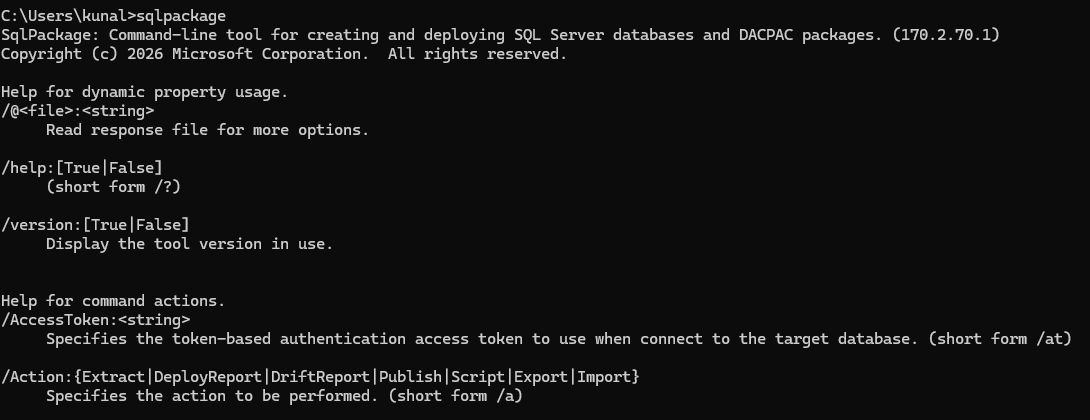
Using sqlpackage to compare databases
Instead of comparing live databases directly, I prefer working with DACPAC files. A DACPAC represents the schema of a database and makes comparisons predictable and repeatable.
At a high level, my workflow looks like this:
- Create a DACPAC from the source database (for example, Production)
- Compare it against a target database (for example, Test)
- Generate a delta script that highlights schema differences
Generating a Schema Difference Script
Once I have the DACPAC, I use sqlpackage with the Script action to generate a schema difference script.
Here’s a minimal example:
sqlpackage /Action:Script ^
/SourceFile:"Prod.dacpac" ^
/TargetServerName:"mytestserver.database.windows.net" ^
/TargetDatabaseName:"TestDB" ^
/OutputPath:"SchemaDiff.sql" ^
/p:DropObjectsNotInSource=False ^
/p:ExcludeSchemaValidation=True
What this does:
- Compares the schema inside the DACPAC with the target database
- Generates a SQL script that represents the differences
- Clearly shows which objects would be added, altered, or dropped
I intentionally keep DropObjectsNotInSource set to False in most cases. This helps avoid accidentally dropping objects that may exist intentionally in the target environment.
How I Read the Delta Script
The generated script is very useful for spotting drift quickly. I typically look for:
- Tables or columns that exist in one environment but not the other
- Index changes that may impact performance
- Stored procedure or function differences
Even without executing the script, it provides a clear picture of how far environments have diverged.
Common Mistakes I Ran Into
A few things worth noting from experience:
- The target database name is mandatory for the Script action
- Always review scripts before applying them to higher environments
- This approach focuses on schema, not data differences
Once these are understood, the workflow becomes very reliable.
Where This Fits Best
I’ve found this approach especially useful for:
- Pre-deployment validation
- Detecting accidental schema changes
- CI/CD pipelines where GUI tools aren’t available
- Azure SQL environments managed by multiple teams
It’s simple, transparent, and easy to automate.
Final Thoughts
Using sqlpackage for schema comparison has helped me catch schema drift early and avoid surprises during deployments. It’s not a replacement for every database tool, but it’s a solid option when you need a lightweight, automatable way to understand schema differences across environments.
For teams working with Azure SQL and CI/CD pipelines, this approach provides a practical balance between control, visibility, and simplicity.