
Introduction
In the Stairway Level 3, we configured SQL Server to use Azure Key Vault as an Extensible Key Management (EKM) provider and created an asymmetric key to protect our encrypted data. With the EKM integration in place, the next critical step in any real-world deployment is ensuring that the key protecting your data is safely backed up and can be restored when needed.
Transparent Data Encryption (TDE) is only as resilient as the availability of its encryption key. Without a recoverable key, even a fully backed-up database cannot be restored. Therefore, disaster recovery planning for Azure Key Vault becomes a mandatory part of your TDE strategy.
In this level, we will walk through backing up an Azure Key Vault key using the Azure Portal and storing it securely. This is an essential operational capability. If the original key becomes unavailable—whether due to accidental deletion, misconfiguration, or a Key Vault outage—you must be able to restore it quickly to ensure continued access to your encrypted data.
Prerequisites
Before proceeding with this demonstration, ensure the following components are already in place:
- You have completed Stairway Step 3, where SQL Server was integrated with Azure Key Vault using the Extensible Key Management (EKM) provider.
- A source Azure Key Vault named TDEKeyVaultV has been created and configured.
- The database used for this demo is TDETest_EKM, which is already encrypted with TDE using an asymmetric key stored in Azure Key Vault.
- The Azure application we use in this demo is the same as the one we created in the stairway Level 3 named 'TDE_Application'.
Please note that in Stairway Step 3, the Key Vault was originally named TDEKeyVault. However, due to recreation constraints encountered in my Azure account, a new Key Vault named TDEKeyVaultV has been used instead for this demonstration. The configuration and steps remain the same; only the vault name differs for demonstration purposes. These prerequisites ensure that we are building on a fully functional EKM + TDE configuration before simulating the disaster recovery scenario.
Steps to Back Up the Key
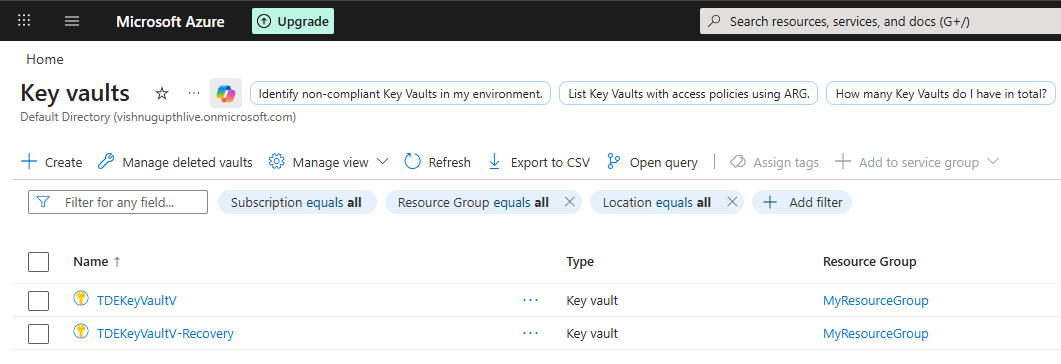
Sign in to the Azure Portal. Navigate to Key Vaults as shown below.
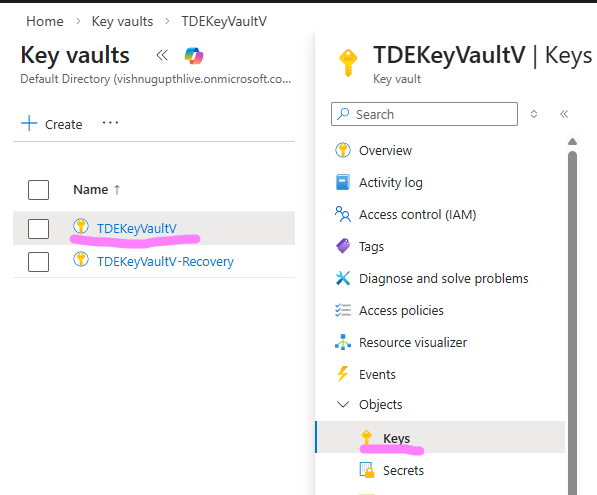
Select the vault 'TDEKeyVaultV ' that contains your EKM key. In the left pane, under Objects, select Keys as shown below.
This will open up the page on the right side blade, listing the keys in your Key Vault as shown below.
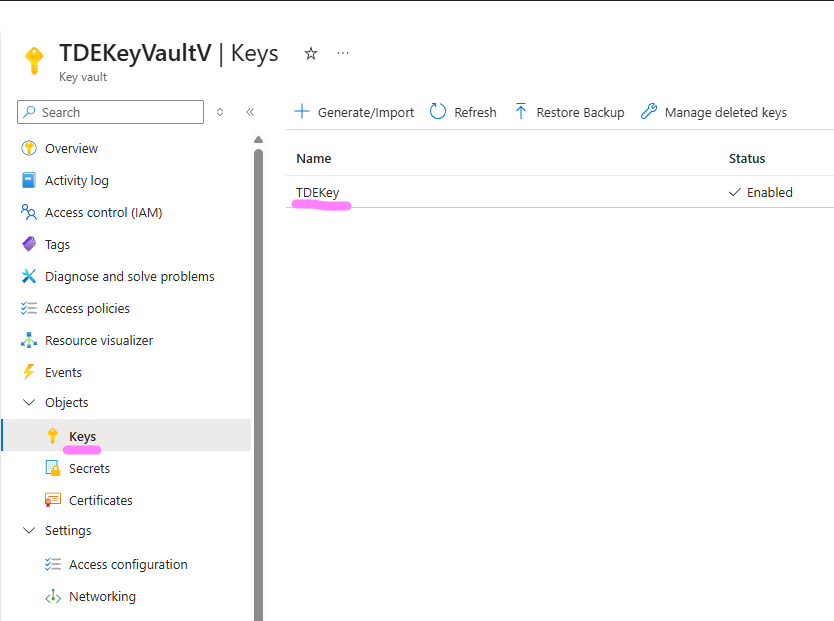
Selecting the key 'TDEKey' as shown above exposes the Download Backup option, as shown in the image below, which generates the encrypted key blob required for disaster recovery.
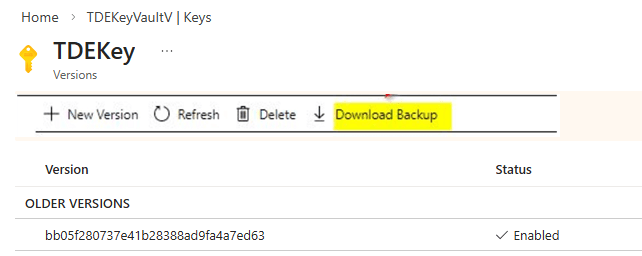
Click on the Download option as shown in the image above to generate the backup file. Save the resulting .keybackup file to a secure location.
In this demonstration, the file was downloaded to C:\Downloads as shown below.
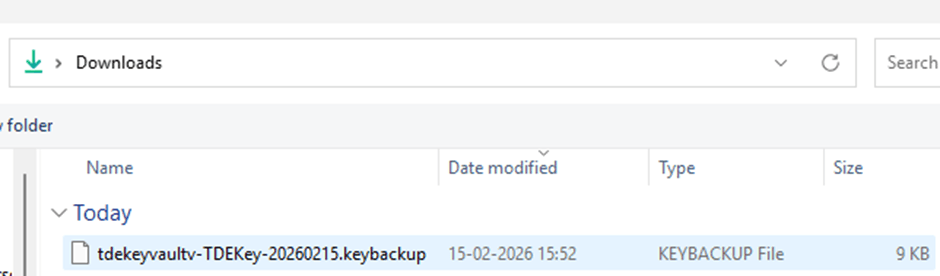
Important: This file contains the encrypted key material. Store it in a secure location with restricted access, as it can be used to restore the key into another Azure Key Vault.
What Does the .keybackup File Contain?
When you click Download Backup, Azure generates a cryptographically protected backup blob that contains the encrypted key material and its associated metadata.
Although the file can technically be opened in a text editor, its contents are not human-readable and cannot be interpreted or meaningfully modified. The key material inside the file is encrypted and integrity-protected by Azure. If the file is altered or corrupted in any way, the restore operation will fail. Azure Key Vault validates the integrity of the backup during restore, ensuring that tampered files cannot be used.
It is also important to understand that:
- The key material is never exposed in plaintext.
- The file cannot be imported directly into SQL Server.
- The backup can only be restored into an Azure Key Vault within the same subscription and geography.
This design allows recoverability without compromising key security.
Best Practices
When backing up Azure Key Vault keys used for TDE, follow these operational best practices:
- Store backups in multiple secure locations. Maintain at least two secure copies to prevent single points of failure.
- Store key backups in Azure Storage accounts configured with immutable blob storage (WORM) policies to protect against accidental or malicious deletion.
- Document the backup process for audits. Maintain clear documentation of who performed the backup, when it was taken, where it is stored, and how it can be restored. This is critical for compliance and audit requirements.
- Restrict access to the backup file. Apply strict access controls. Only authorized administrators responsible for disaster recovery should have access to the .keybackup file.Following these practices ensures that your TDE encryption keys remain protected, recoverable, and audit-compliant.
Conclusion
In this level, we focused exclusively on backing up the Azure Key Vault key that protects our SQL Server TDE database. We explored why key backup is a critical operational requirement, how Azure secures the backup file, and the best practices for storing it safely.
At this stage, we have successfully generated and secured the .keybackup file. However, a backup alone does not guarantee recoverability. A key is only truly protected when it has been restored and validated in a controlled scenario.
In the next stairway level, we will continue this journey by creating a new Key Vault, configuring the required permissions, restoring the backed-up key into the new vault, and validating that SQL Server can successfully authenticate and bring the encrypted database online.
Only after completing those steps can we confidently say that our TDE deployment is fully disaster recovery ready.