

Introduction
In this article, we will check some new features in SQL Server 2025. We will mention some nice AI features, new functions, data types, and more. At the end, we will show in the Appendix how to install SQL Server 2025 to start with it.
Semantic Search and vectors
Search capabilities are now more advanced, leveraging AI and vector representations instead of relying solely on keyword matching.
Previously, Full-Text Search was used to index tokens and perform more efficient text searches. However, vector-based search introduces a more sophisticated approach by measuring distances between vectors.
For example, when searching for the word "fish", semantic search converts the term into a vector representation and compares it with other vectors stored in the database. It then identifies the closest matches based on similarity.
As a result, related concepts such as "sea", "aquatic animals", and "seafood" can be retrieved, even if the exact keyword is not present. This is possible because semantic search evaluates the distance between vectors to determine contextual similarity.
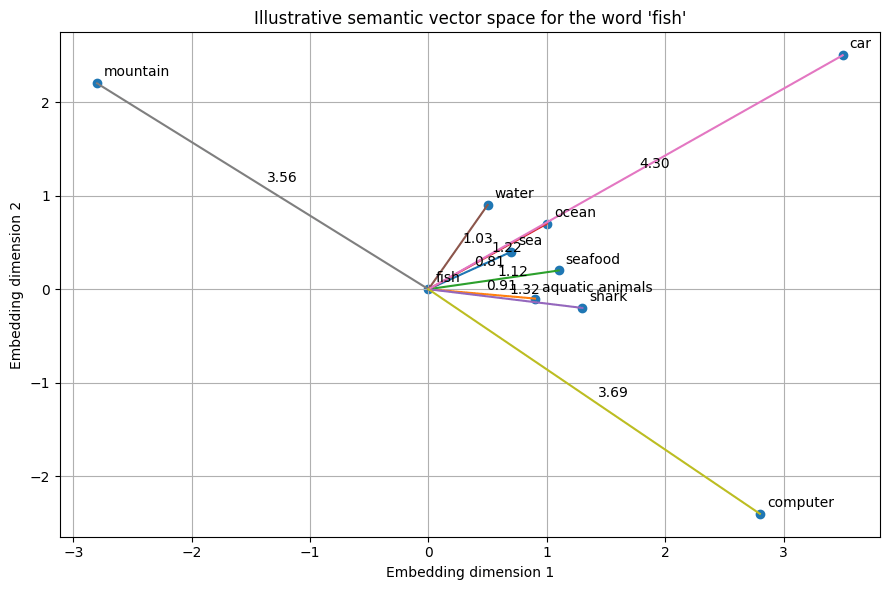
For more information about vectors in SQL Server, refer to this article: Vectors in SQL Server 2025
AI integration with GitHub Copilot – Is this the end of SQL?
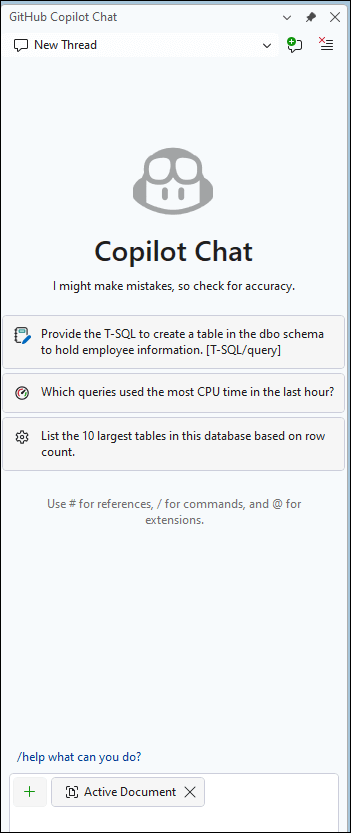
SSMS includes built-in support for GitHub Copilot, allowing you to enhance your productivity with AI-assisted coding. However, only a limited number of requests are available for free. After reaching that limit, a paid subscription is required to continue using the service.
With GitHub Copilot you can:
- Ask for suggested indexes.
- Ask for SQL Admin code.
- Check fragmentation.
- Ask for information about the database size.
- Ask for database settings.
- Server settings.
- Search for table information.
- And more.
It is not necessary to get information from tables using SQL now. The AI can get any information using natural language.
What is nice about it is that you do not need to write code to get the info. You just need to chat with GitHub Copilot. Other AI tools can help you with code, but GitHub Copilot has direct access to your database and can read and inform you of the real state of your database. So, you do not need to run code to get the info. GitHub Copilot will do it for you. For more information about this feature, refer to our article related: My experience using the GitHub Copilot in SSMS 22
Create external models
This option allows you to connect to external AI models, such as Azure OpenAI, OpenAI, and Ollama, to search for information, classify data (e.g., sentiment analysis), and summarize data.
For more information about external models, refer to this link: CREATE EXTERNAL MODEL (Transact-SQL)
Regular expressions
You can define search patterns for text and use sequences of characters. Regex was supported in SSIS with the SSIS expressions, and now, you can use it in SQL Server.
For more information about regular expressions, refer to this link: Regular Expressions in SQL Server 2025
JSON data in native form
Now JSON can be stored in a native format. You now have a JSON data type.
Declare @myjson JSON = '{"a":1, "b":"abc", "c":true}')You can also create a table with a JSON data type:
CREATE TABLE sales

(

sales_id INT,

item JSON );
For more information about the JSON data type and examples, refer to this link: JSON data type
SQL MCP
Microsoft SQL Server 2025 can be used together with a SQL MCP Server, where MCP stands for Model Context Protocol. MCP is not part of Data API Builder, but rather a protocol that allows AI agents (like chatbots) to interact with external data sources.
For example, if I have a database and I want an AI chatbot to query it, I can expose my SQL data using Data API Builder (DAB), which converts database objects into REST or GraphQL APIs. Then, an MCP server can be configured to allow the AI to securely access and query those APIs.For more information about DABs and the MCP, refer to these links:
- Model Context Protocol (MCP): A Developer’s Guide to Long-Context LLM Integration
- What is the Data API Builder?
- What is SQL MCP Server?
DAB (Data API builder)
You can connect an application to the SQL Server database using REST or GraphQL using DABs.
For more information about DABs, refer to this link.
Fuzzy String Matching
SQL Server now includes new functions to check if two strings are similar using fuzzy functions.
For example, we want to check the distance between product A and product B. We have a query like this one:
SELECT
ProductA,
ProductB,
EDIT_DISTANCE(ProductA, ProductB) AS Distance,
EDIT_DISTANCE_SIMILARITY(ProductA, ProductB) AS SimilarityScore
FROM ProductNames
WHERE EDIT_DISTANCE(ProductA, ProductB) <= 5
ORDER BY Distance ASC;
The distance will show the number of insertions, deletions, or replacements and transpositions to convert productA into productB.
There are several new Fuzzy functions. For more information, refer to this link: What is fuzzy string matching?
Batch optimization for some functions
When we use Mathematical functions or the DATETRUNC function, the use in batches is now optimized.
For more information about the DATETRUNC function, go to this link.
Always On features
Improvements on synchronization, Distributed Availability Groups, improvements when removing IP addresses, TLS 1.3 encryption with TDS 8.0 and more.
Appendix – How to install SQL Server 2025
Finally, we will show the steps to start with SQL Server. The MCP is an intermediary that helps to translate AI requests into DB requests.
Download the SQL Server
First, go to the Microsoft SQL Server page and look for the SQL Server 2025 Developer Edition. Now you have the Standard Developer Edition and the Enterprise Developer Edition. The Standard Edition has limited functionality, but it is better to have this version to make sure that all the features implemented exist in the production server, in case the paid license is a Standard Edition. In other words, the closer the development environment is to the production environment, the better the results will be.
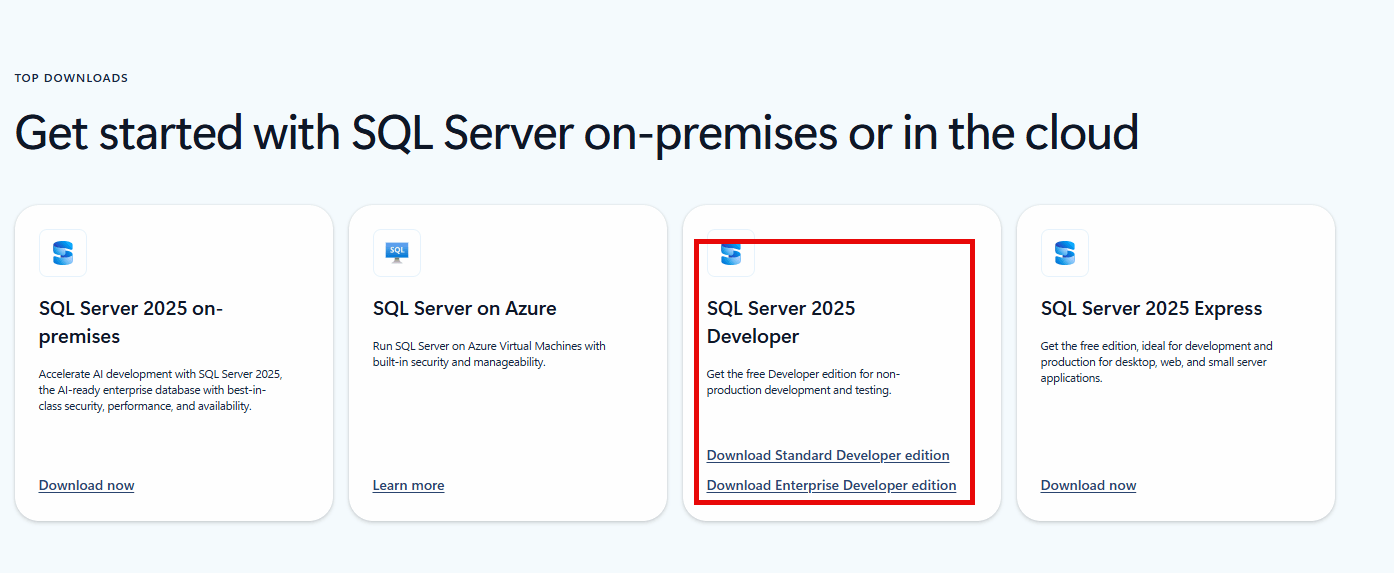
Download the Developer edition if you want to test it or use it for development. If you need to use it in production, you will need to upgrade SQL Server.
You have 4 options to download. SQL Server 2025 on-premises is the version to use locally in production. SQL Server on Azure is the version in the cloud. The Developer edition is for testers and developers and cannot be used in production. You can also use the Developer edition for educational purposes.
Finally, we have the SQL Server Express edition, which is a free version that can be used in production, but it is just for small businesses with very limited functionality and performance.
Installation
First, run the SQL Server installer. Once downloaded, it will show you the SQL Server Installation Center. Go to the Installation option and run the New SQL Server Standalone installation option.
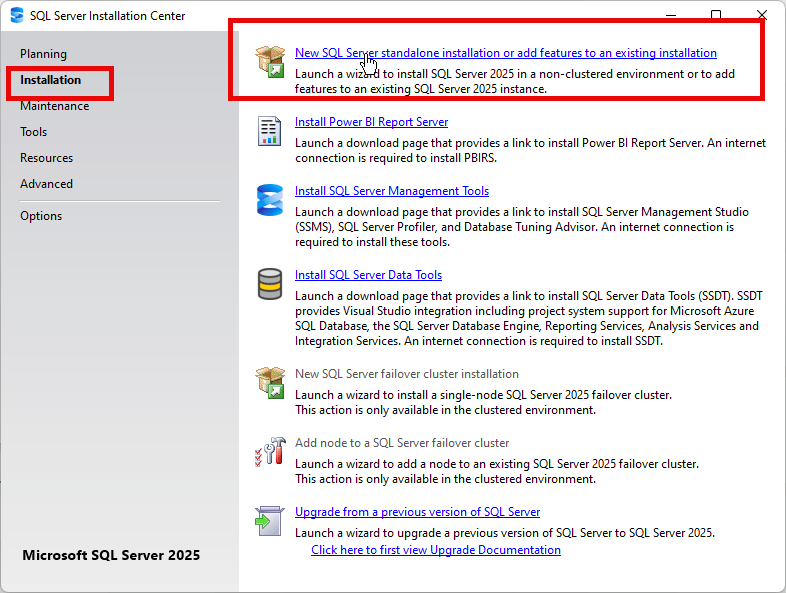
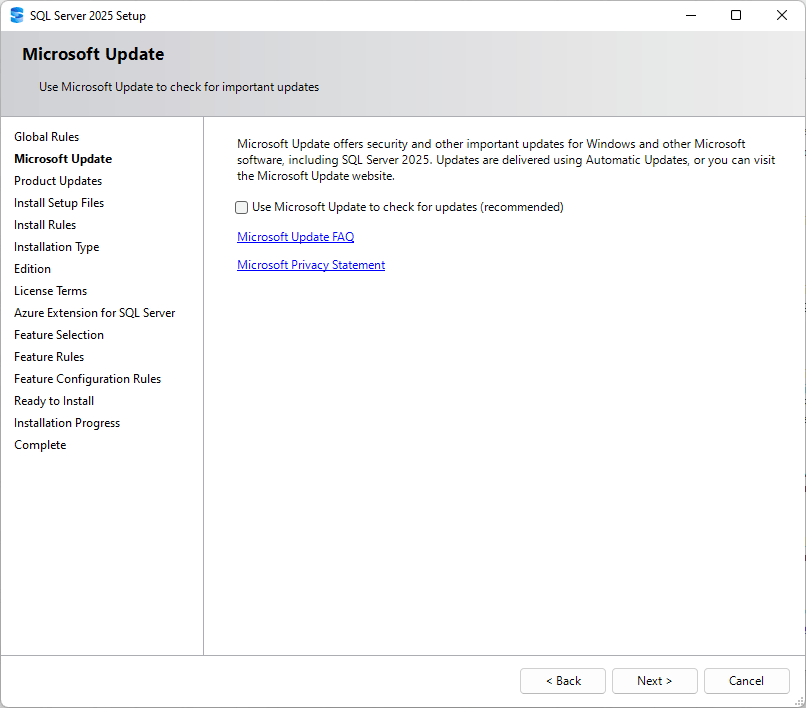
It is strongly recommended to check the option to verify if there are updates available. Microsoft is constantly creating updates with security and functionality patches.
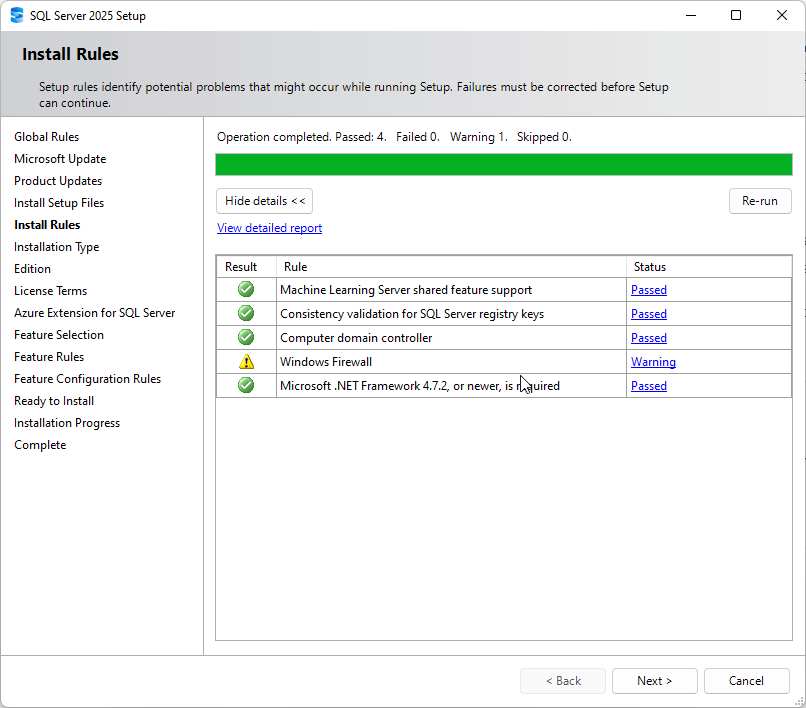
In the install rules, it will check if the requirements are accomplished (firewall, .NET Framework, registry keys consistency, etc.).
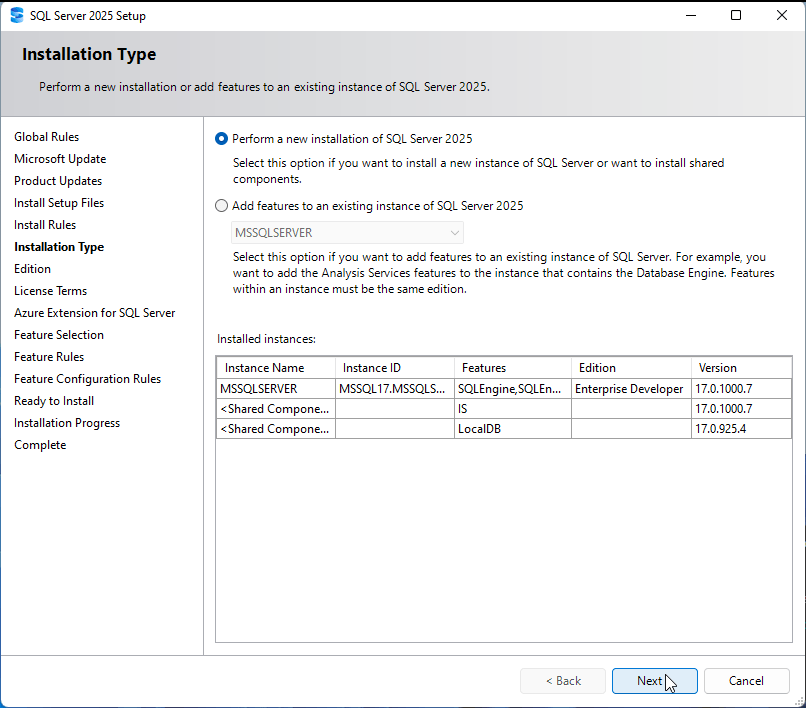
Also, you will see the installation Type. You can perform a new installation (in our case) or add new features to an existing instance.
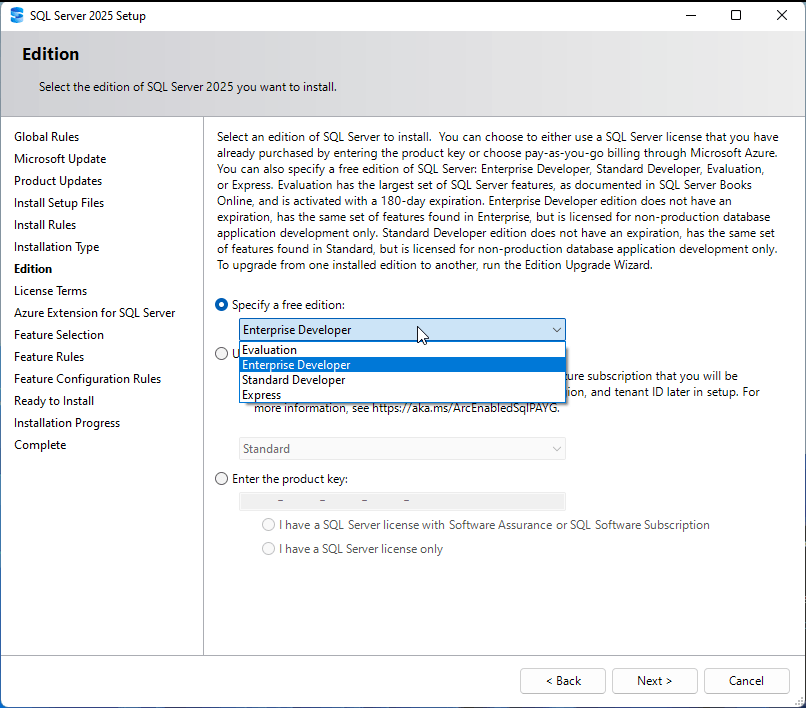
Something new about this new version is that you can use an Evaluation license (for 180 days, which can be upgraded to a paid version later).
Also, you can try the Enterprise Developer and the Standard Developer editions. This is very useful when you want to test the real functionality of your edition in production.
In addition, we have the License Terms. Here you will have the legal terms of usage.
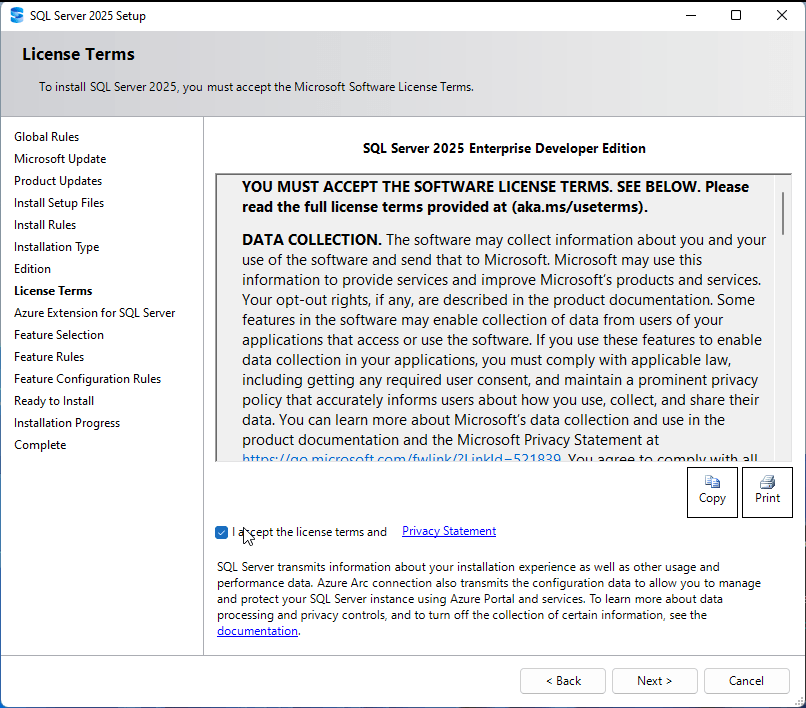
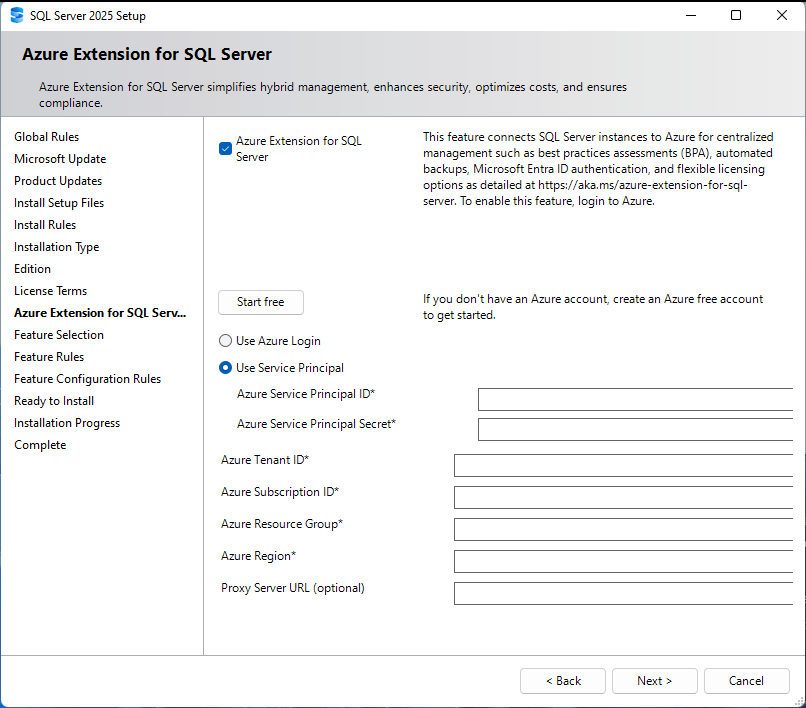
You can integrate SQL Server on-premises with Azure. This section will let you connect to Azure. For example, you can back up and send your local backups to the cloud, which is a best practice.
Azure requires an entire article. In this example, we will uncheck this option and continue. For more information about Azure, refer to this link: Getting Started in Azure.
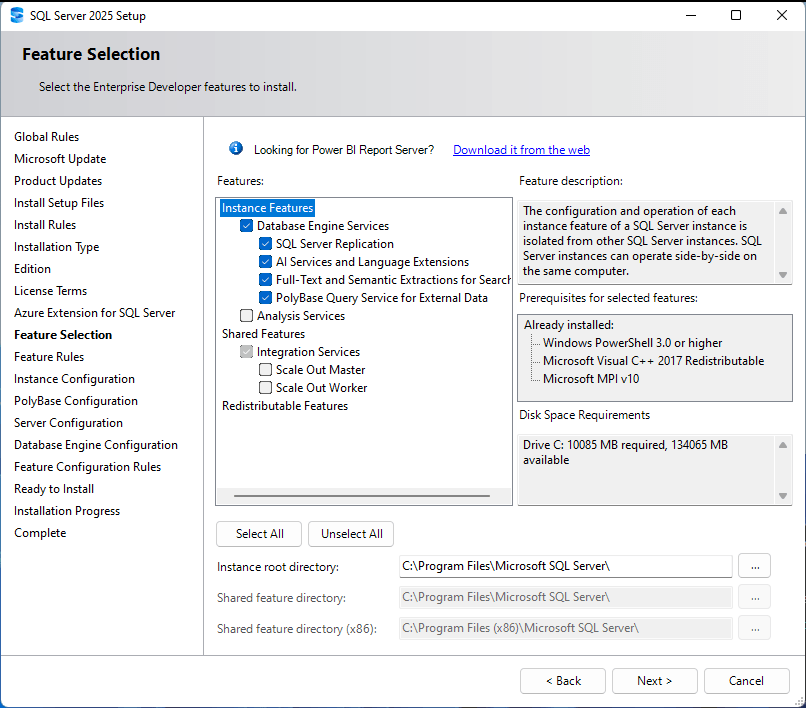
You can install the Database Engine, which contains the core of the database software to handle queries, users, logins, tables, etc. AI Server and language extensions are used to extend the T-SQL functionality with R and Python. With these tools, you can apply machine learning to the data. Full-text and Semantic Extractions for search are tools for a more advanced T-SQL, used for advanced search. Also, we have the PolyBase Query Service to access external data. You can query MySQL, Azure, MongoDB, Oracle, Hadoop, etc.
Additionally, we have Analysis Services, which can be used to access Multidimensional Databases for online analytical processes. This technology is used for Business Intelligence. Another key aspect is that you can install Tabular Databases in Analysis Services. This is a fast in-memory database used for business intelligence as well. Finally, we have integration services to create ETLs to import or export data.
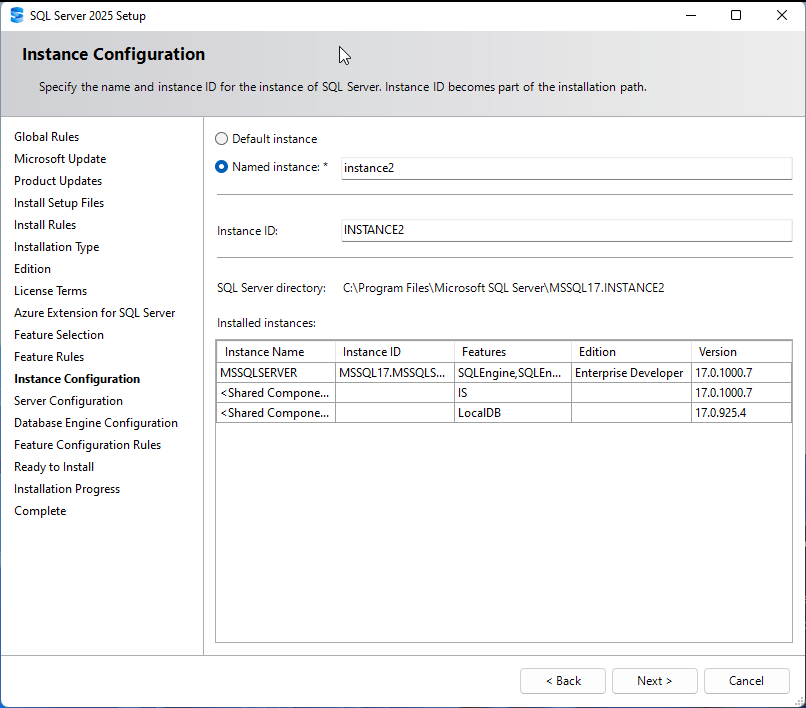
You can create a Default Instance or create a named instance. The default instance will use the Windows name. An instance is a separate installation of the database engine. You can have several instances installed on the same server.
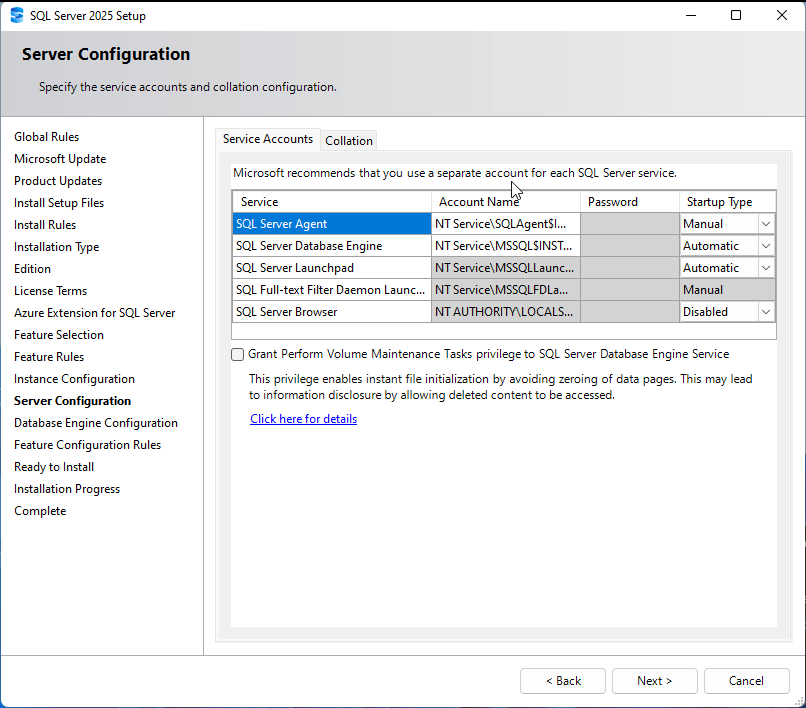
The next section is used to configure the account for the services. You can keep the default account names. You can also configure the Startup Types. The manual startup type is used to manually start or stop services. It is also possible to start them automatically or disable the services by default.
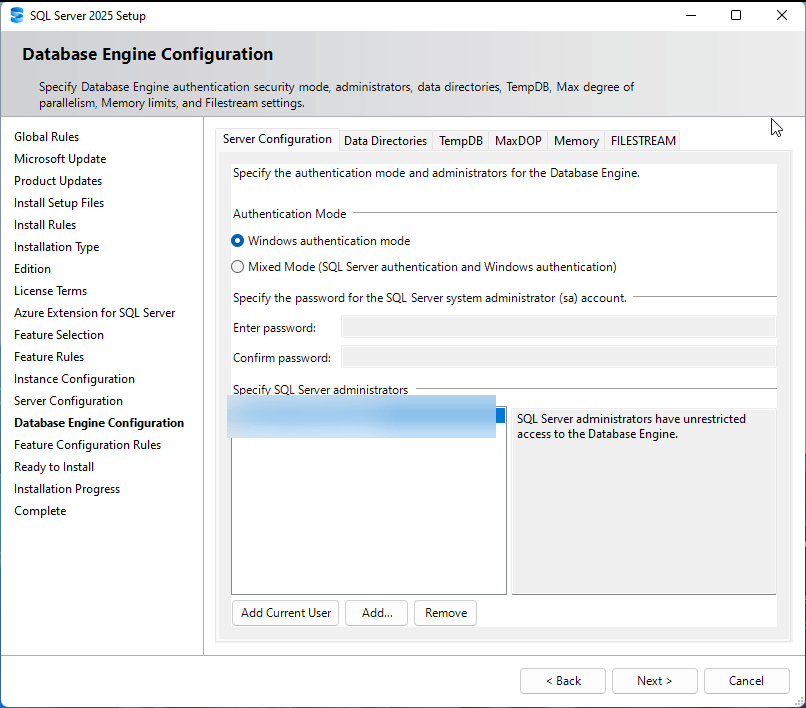
Finally, you have to select whether you need Windows Authentication (log in with a Windows user) or Mixed mode (use internal SQL Server users or Windows users).
You can add your Windows user administrators in this section.
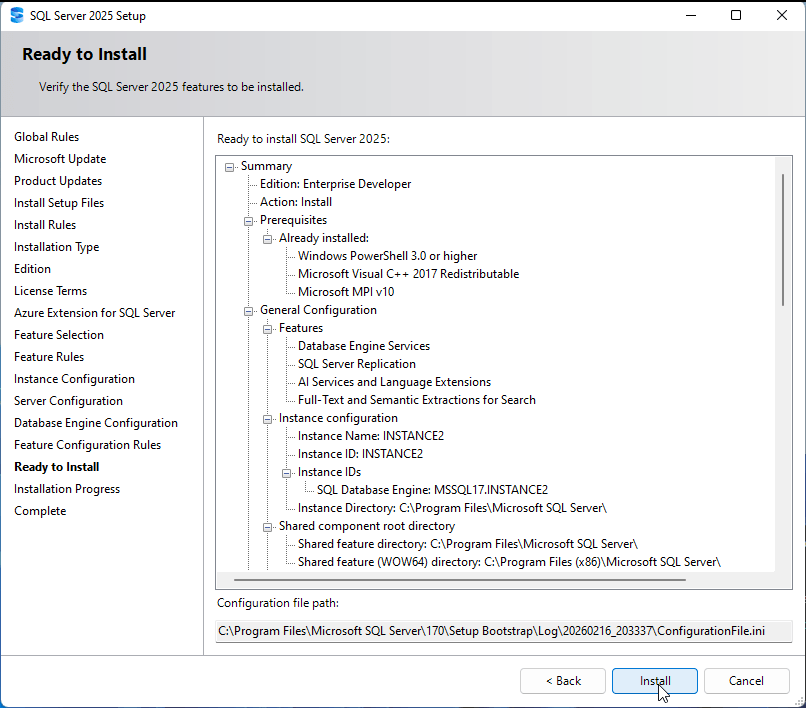
Press Install to install all the options selected.
How to test the installation
The most common software to handle SQL Server databases on-premises is SQL Server Management Studio (SSMS). Please install SSMS using this link to download.
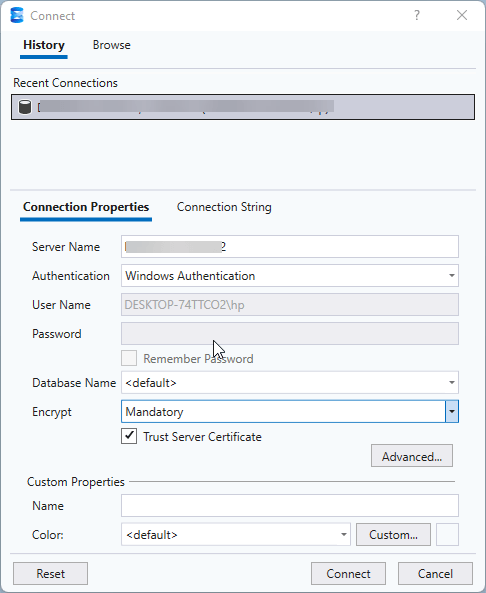
Once installed, select your Server Name. Use the Mandatory encryption option and check the Trust Server Certificate option for secure communication.
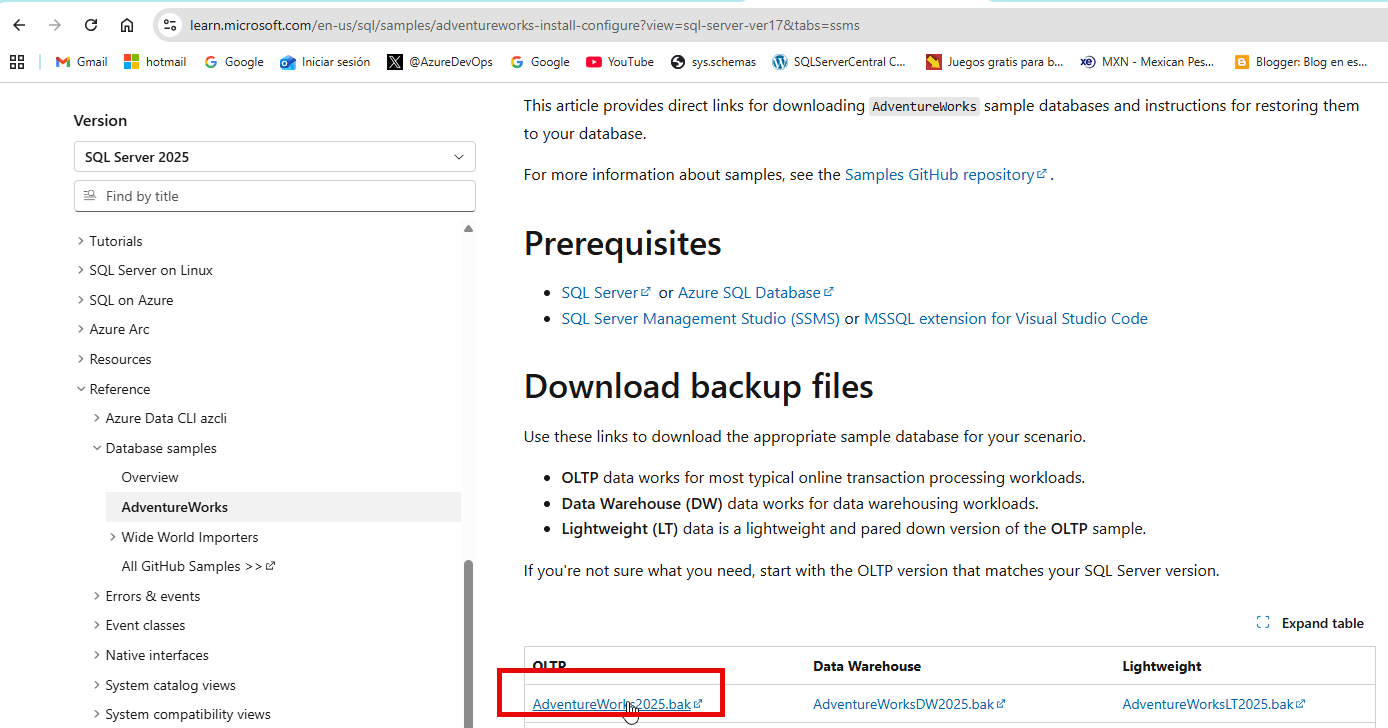
A very common sample database is AdventureWorks. This database contains data from a fictitious bike store. Most of the documented samples of SQL Server are based on this database. We will show you how to download and restore the database in your current SQL Server installation. Go to the Microsoft page and download the Adventureworks2025.bak database backup using this link.
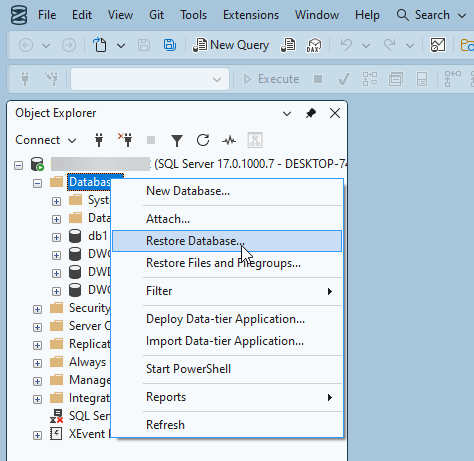
In SSMS, right-click on Databases and select the Restore Database in the context menu.
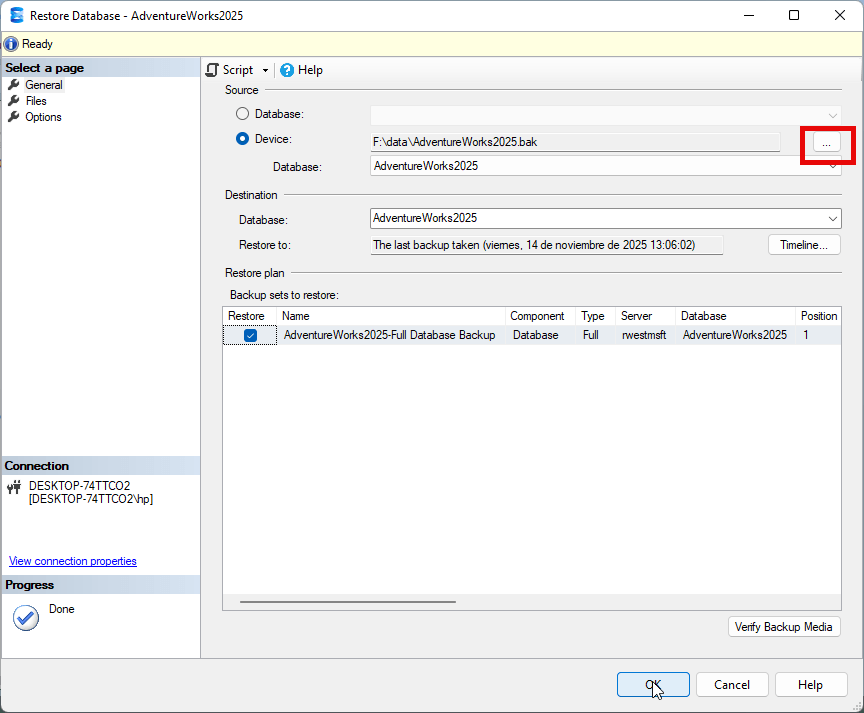
Press the browse button and select the Adventureworks2025.bak database downloaded from the Microsoft webpage.
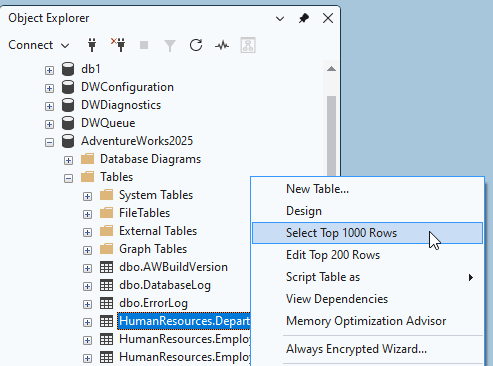
Once installed, you can check the data. To test, expand your Adventureworks2025 database and expand tables. Right-click the Humanresources.Departments table, select the Select Top 1000 Rows to visualize the first 1000 rows.
And that is all!
Please follow the next steps section to explore your version.
Next Steps
For more information about SQL Server 2025, refer to these links.