

A weighted average is a statistical measure that assigns different levels of importance, or weights, to each value before calculating the average. Unlike a simple arithmetic average, where every value contributes equally, a weighted average ensures that values with greater significance have a larger impact on the final result. This is particularly useful in scenarios such as calculating student grades, portfolio returns, product ratings, or sales performance, where not all observations should be treated equally. Although Microsoft Power BI provides the built-in AVERAGE() function for calculating arithmetic means, it does not include a dedicated function for weighted averages
Let us see how users can calculate weighted average in PowerBI using Power queries.
Consider the following two datasets. The first dataset stores the marks achieved by each student in each subject, whereas the second dataset defines the weighting associated with each subject. These datasets will be used to calculate the weighted average for each student. Both datasets are shown below.
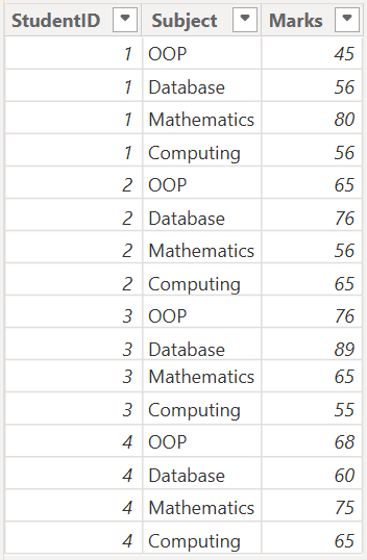
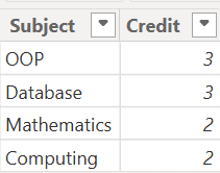
Once data uploaded to the PowerBI, we need to merge these datasets together from the Subject column as shown below.
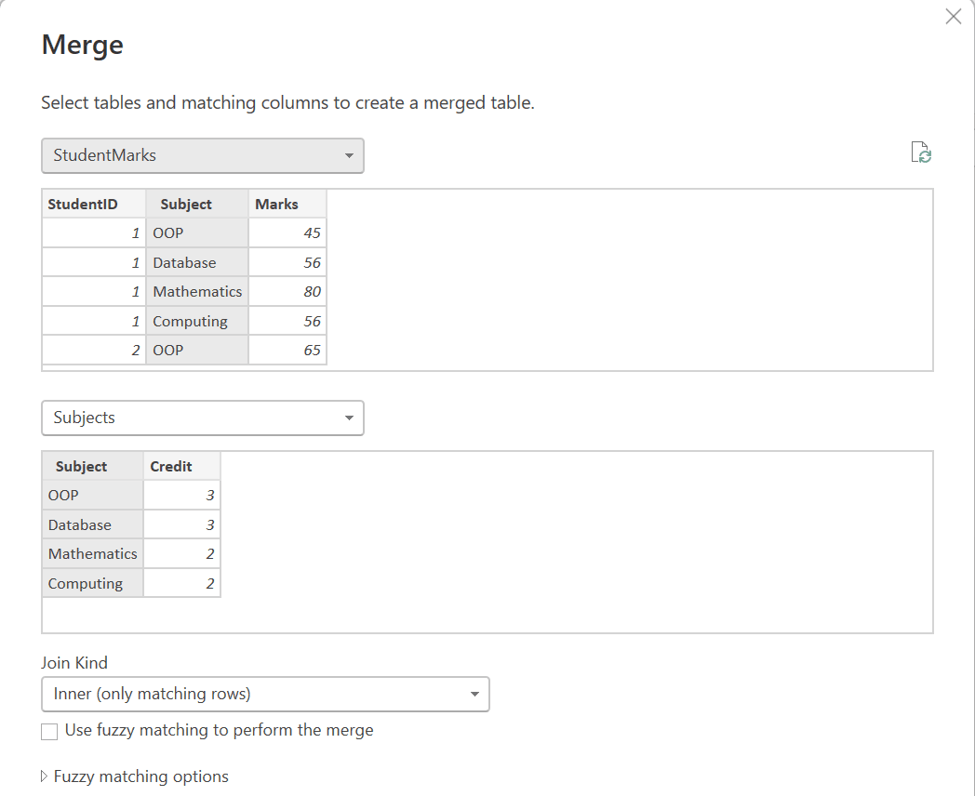
An Inner Join was used as the join type, you can could use any type of join depending on your data.
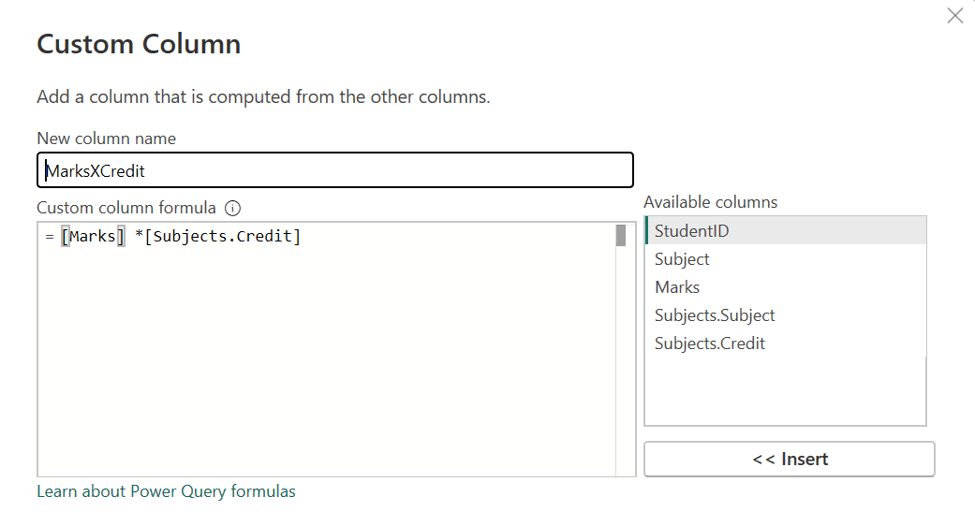
Then Marks and Credit columns were multiplied together to intermediate column named MarksXCredit as shown in the below image.
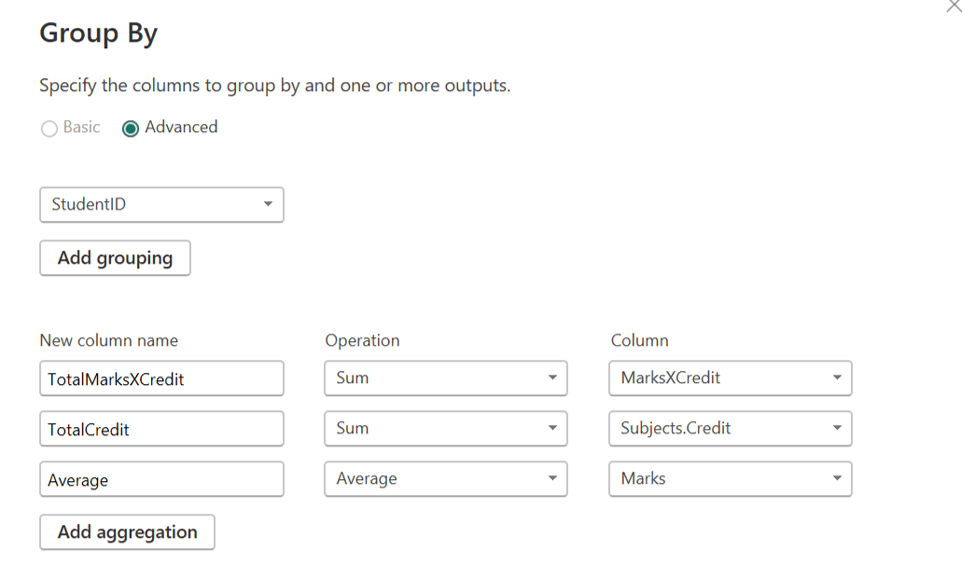
Then grouping was done for the MarksXCredit, and Credit columns with SUM function while Average for Marks.
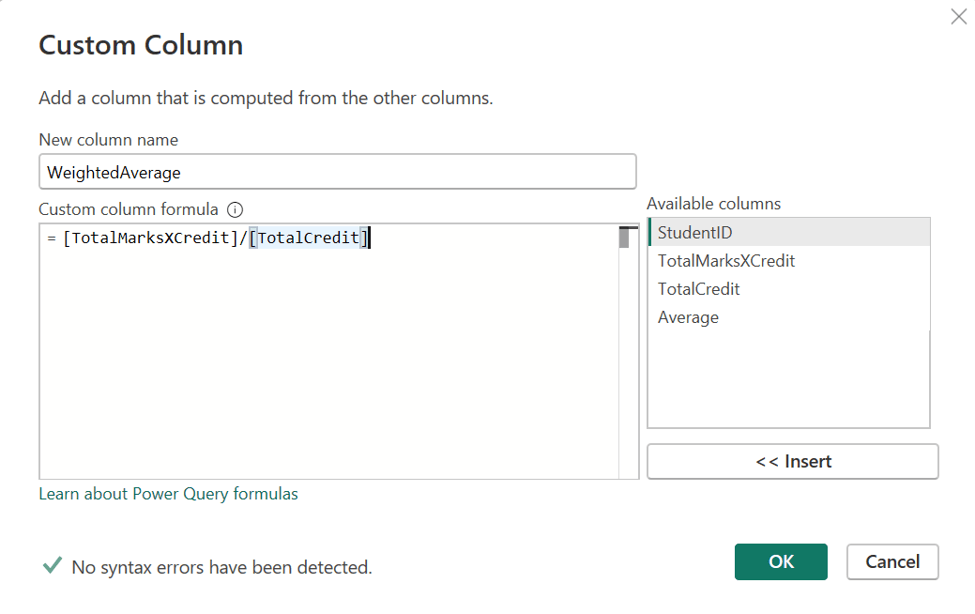
Finally the Weightage Average column was created by dividing the TotalMarksXCredit by TotalCredit as shown in the below custom column creation image.
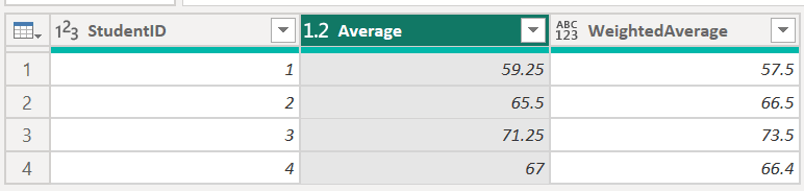
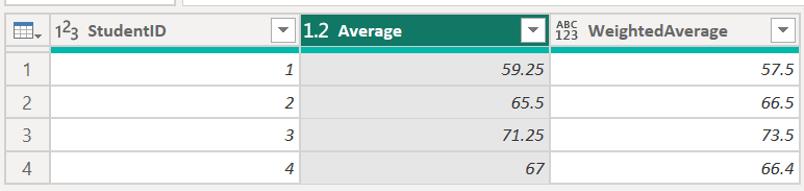
Once the unnecessary and intermediate columns were removed, you will have following two columns, Average and WeightedAverage for each student.
Let us assume another case for weighted average
A common use case for weighted averages is in educational assessment. Consider a subject that includes multiple assessment components, such as a Presentation, an Assignment, and a Final Paper. Each component contributes a different percentage to the overall subject grade. Therefore, the final mark is calculated using a weighted average, where each assessment score is multiplied by its corresponding weight before computing the overall result.
For this demonstration, we will use two tables. The StudentMarks2 table contains the marks obtained by each student for each assessment component (e.g., Presentation, Assignment, and Final Paper), while the Rubric table stores the weight assigned to each component.

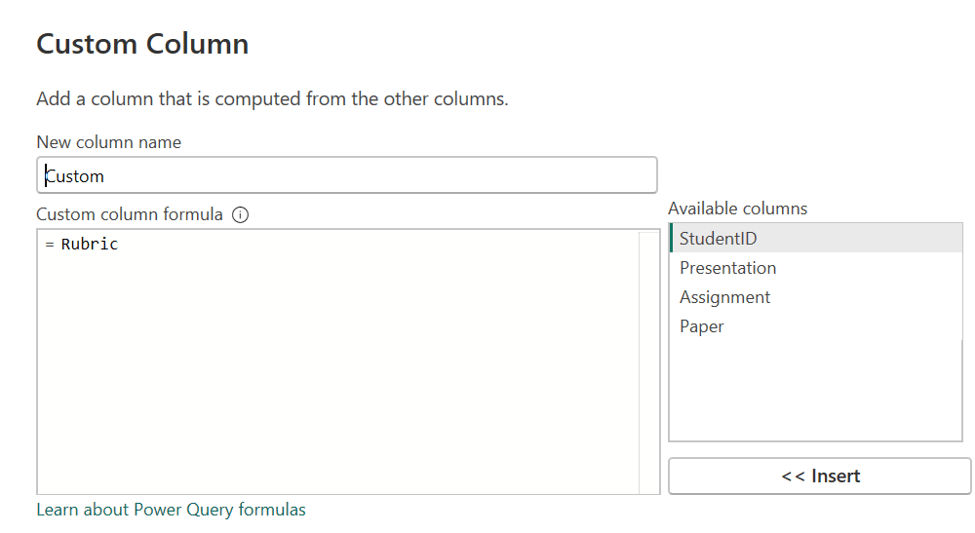
Unlike SQL, Power Query does not include a built-in Cross Join operation. To achieve the same result, add a Custom Column to the StudentMarks2 table and use the second query name, Rubric, as the column formula. Expanding this column produces a Cartesian product, pairing each row in StudentMarks2 with every row in Rubric.
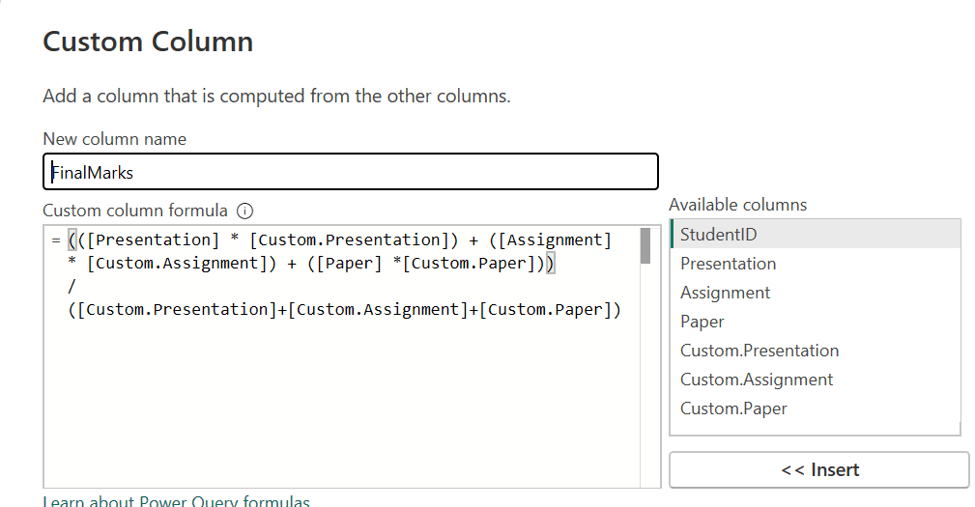
The FinalMarks column is then added to the table to calculate each student's final mark using a weighted average. Each assessment component is multiplied by its assigned weight, and the weighted values are combined to produce the overall score, as shown in the figure below.
After unnecessary columns were removed, you have the final marks and each components marks as shown below.

Although Power BI does not provide a dedicated weighted average function, it can be easily implemented. Weighted averages are essential in many real-world scenarios where different observations contribute unequally to the final result. By understanding this technique, you can create more accurate and insightful reports for education, finance, sales, and many other business domains.