

Imagine an auditor asks a simple question: "Can John only see one country within the cube?" You check the roles and confidently answer yes. A few minutes later you discover John can also see data from other countries. Nothing was hacked. Nothing was broken. The problem was that SSAS Tabular evaluates multiple roles very differently from what most administrators expect.
In organizations with hundreds of Active Directory groups, users often inherit several SSAS roles without administrators realizing it. A single unrestricted role silently overrides every carefully designed row-level security (RLS) filter. The result is unauthorized data exposure that may remain unnoticed for years. Most SSAS administrators assume assigning multiple security roles makes access more restrictive. Unfortunately, SSAS Tabular does exactly the opposite. SSAS evaluates each role independently and then merges the resulting visible rows. It never evaluates multiple role filters as a single logical expression.
This article explains why it happens, how to detect it, and how to prevent silent privilege escalation.
Structuring the Excel Audit Matrix
Let’s look at the following real-world example from one of my manufacturing customers. There are four roles:
- RoleCorp has access to all countries and all materials.
- RoleGT has access only to Guatemala and all materials.
- RoleFinished has access to all countries and only Finished materials.
- RoleRaw has access to all countries and only Raw materials.
John is assigned to all four roles because he is supposed to be restricted to Guatemala and to Finished and Raw materials.
| User | Role | Country | Materials |
| John | RoleCorp | All | All |
| John | RoleGT | Guatemala | All |
| John | RoleFinished | All | Finished |
| John | RoleRaw | All | Raw |
What does the user really see? One could mistakenly assume that the user can only see finished and raw materials from Guatemala, but in reality he can see everything. To verify our assumptions, let's test the security model.
Auditing SSAS Roles via DMV Script
In a previous article, I presented a PowerShell script to get the full permissions in SSAS Multidimensional. That script won’t work with SSAS Tabular, because the library for that and the permission structure are different.
The following PowerShell script audits every Tabular role, member and RLS filter in the model:
param (
  [string]$ServerName,
  [string]$DatabaseName)
[Reflection.Assembly]::LoadWithPartialName("Microsoft.AnalysisServices.Tabular") | Out-Null
$Server = New-Object Microsoft.AnalysisServices.Tabular.Server
try {
  if (-not $ServerName) { $ServerName = "localhost" }
  $Server.Connect($ServerName)
  $Databases = $Server.Databases
  if ($DatabaseName -and $Server.Databases[$DatabaseName]) {
    $Databases = @($Server.Databases[$DatabaseName])}
  $SecurityList = [System.Collections.Generic.List[Object]]::new()
  foreach ($DB in $Databases) {
    $Model = $DB.Model
    if (-not $Model) { continue }
    foreach ($Role in $Model.Roles) {
      if ($Role.TablePermissions.Count -eq 0) {
        $Members = $Role.Members
        if ($Members.Count -eq 0) { $Members = @($null) }
        foreach ($Member in $Members) {
          $SecurityList.Add([PSCustomObject]@{
            "DB" = $DB.Name
            "Role" = $Role.Name
            "User/Group" = if ($Member) { $Member.Name } else { "(Empty)" }
            "ObjectType" = "Database"
            "Object" = "All"
     "ReadPermission" = $Role.ModelPermission.ToString()})}}
      else {
        foreach ($Table in $Model.Tables) {
          $TablePerm = $Role.TablePermissions.Find($Table.Name)
          $DaxFilter = "All"
          if ($TablePerm -and -not [string]::IsNullOrWhiteSpace($TablePerm.FilterExpression)) {
            $DaxFilter = $TablePerm.FilterExpression}
          $Members = $Role.Members
          if ($Members.Count -eq 0) { $Members = @($null) }
          foreach ($Member in $Members) {
            $SecurityList.Add([PSCustomObject]@{
              "DB" = $DB.Name
              "Role" = $Role.Name
              "User/Group" = if ($Member) { $Member.Name } else { "(Empty)" }
              "ObjectType" = "Table"
              "Object" = $Table.Name
              "ReadPermission" = if ($DaxFilter) { $DaxFilter } else { "All" }})}}}}}
  $SecurityList | Out-GridView -Title "SSAS Security Matrix - $ServerName"}
catch {
  Write-Error "Error: $_"
  Read-Host "Press Esc to exit"}
finally {
  $Server.Disconnect()}
Note the script outputs everything into a GridView, but you can export it to a .csv changing “Out-GridView” to the following:
$SecurityList | Export-Csv -Path "C:\temp\SSAS_SecurityMatrix.csv" -NoTypeInformation -Encoding UTF8
SSAS Tabular vs. Multidimensional Insight: Unlike SSAS Multidimensional, Tabular models do not feature "Measure Group" security. In Tabular, measures are globally accessible in the field list once Read access is granted. SSAS enforces security strictly by context filtering via Row-Level Security (RLS) on dimensions, or hard-hidden via Object-Level Security (OLS) using TMSL/Tabular Editor. This is why metadata scripts targeting roles only reflect DAX table filters rather than measure restrictions.
Then, to check the InfoSec compliance, sort the columns hierarchically to easily spot permission overlap: Sort first by User, then Database, then Object, like I did in the following example.
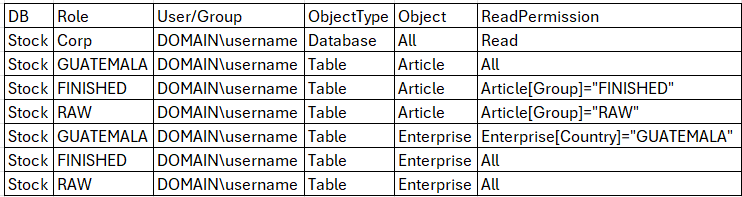
Permission overlaps become immediately visible. The user "username" appears multiple times under the same "Stock" database, with different RLS rules on the "Article" and "Enterprise" tables. Therefore, their effective access is the UNION of those rules. However, because the "Corp" role grants unrestricted access at the Database level, the user ultimately has access to everything in the "Article" and "Enterprise" tables.
Scenario 1: Explicit Role Testing
We can easily test our defined roles using Excel. We just need to adjust the connection string after establishing a connection to our Tabular model. Specifically, we need to add a property named "Roles" and specify which roles we want to test. In the following example, we simulate a user who has been assigned the "GUATEMALA" (GT), "FINISHED" (PT, producto terminado), and "RAW" (MP, materia prima) roles.
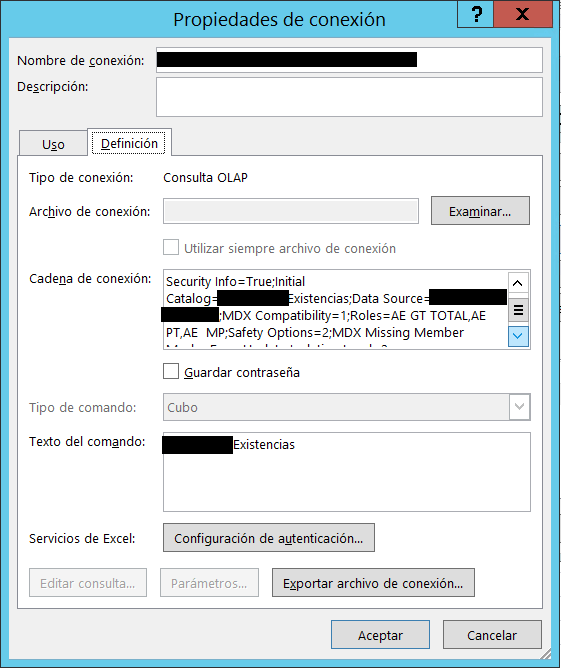
Because we assigned the "Guatemala" role with restrictions on "Finished" and "RAW" materials, we expect the filters to be combined using an AND operation. The image below tells a different story.
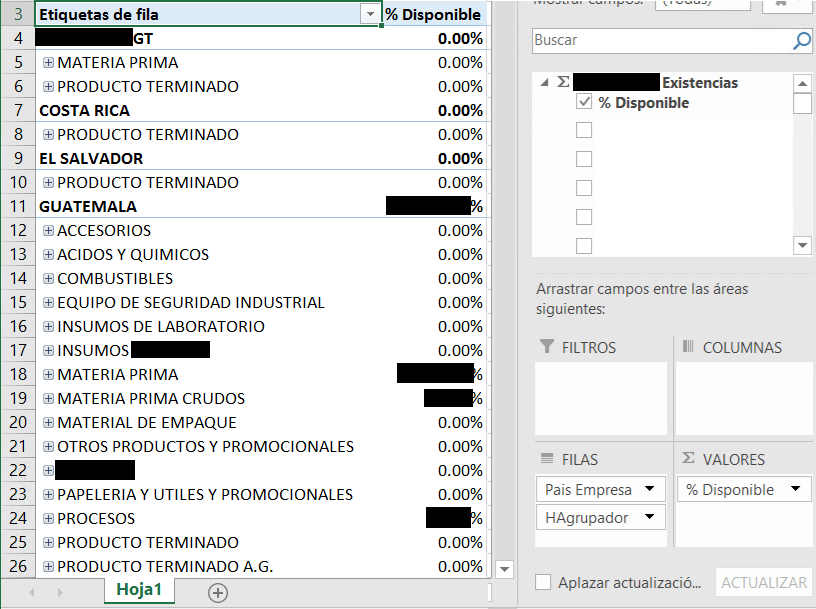
What Excel displays is the result of an OR operation between the roles:
- All product categories in Guatemala (Finished Goods, Raw Materials, Spare Parts, Packaging), resulting in partial exposure of data from other countries.
- Finished Goods and Raw Materials in all other countries, such as Mexico. Instead of restricting the results to Guatemala, the user can now see the selected material categories across all countries.
Scenario 2: EffectiveUserName (Real Production Behavior)
Now we want to test the real permissions of a real user. We just need to adjust the connection string after establishing a connection to our Tabular model. Specifically, we need to add a property named "EffectiveUserName" and specify the user. In the following example, we simulate being the user DOMAIN\username.
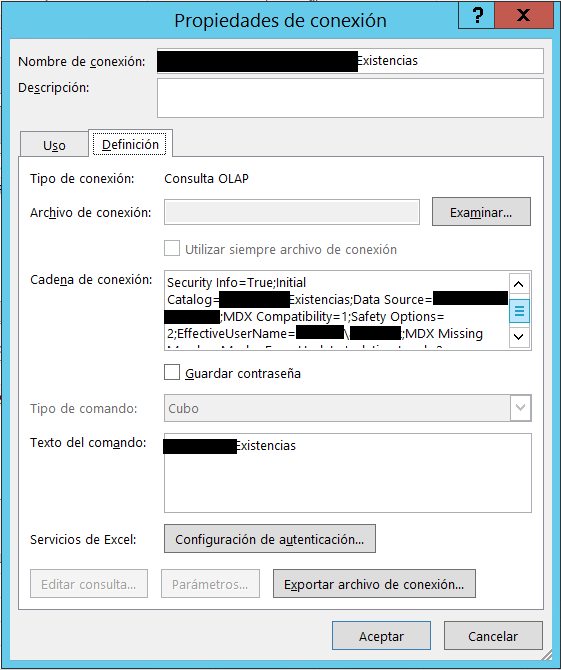
Because we assigned the "Corp" role for everything, the "Guatemala" role and the restricted roles on "Finished" and "RAW" materials, we expect the filters to be combined using an AND operation. The image below tells a different story.
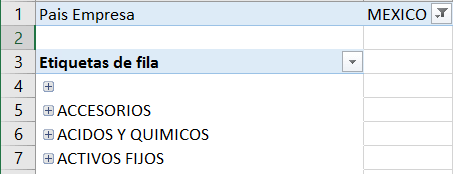
What Excel displays is the result of an OR operation between the roles:
- All Entities (Guatemala, Mexico, etc.): The user sees ALL product categories across ALL companies without restriction.
- The Culprit: In addition to the three restricted roles, the user account was silently assigned to an administrative or unrestricted role (e.g., Full Access or Read All): the “RoleCorp” which has no restrictions, thus is listed as “Enterprise=All” with “Product=All” in its permissions.
- The SSAS Security Rule: A single unrestricted role overrides all RLS filters defined in other roles. SSAS Tabular never subtracts permissions.
We can confirm that the user can see all products from an enterprise different from Guatemala, not only Finished and Raw products as we initially thought.
Key Takeaways for DBAs
There are a few things to keep in mind for managing access in SSAS.
- SSAS Roles are Additive (OR): Never split restrictions across multiple roles for the same user if you expect an intersection (AND).
- Consolidate into Single Roles: If User X should only see "Finished Goods in Guatemala", create ONE role with DAX filters applied to both Enterprise and Article tables simultaneously.
- Audit via EffectiveUserName: Always test security using EffectiveUserName rather than role names alone to catch hidden inherited permissions.
- Filter Dimensions, Not Fact Tables: Never apply RLS DAX filters directly on massive Fact tables to restrict data. Always apply security on the smaller Dimension tables (e.g., Enterprise or Article). The Tabular engine is optimized to propagate these filters down to the facts efficiently via relationships. Direct fact-table filtering destroys performance.
- Never assume multiple roles become more restrictive. Always verify effective permissions.
Row-Level Security is often trusted because the role definitions look correct in isolation. The real risk appears when users inherit multiple roles through Active Directory groups or administrative assignments. If you only review roles individually, you may never discover that your effective security model is exposing far more data than intended. Always audit permissions from the user's perspective—not the role's.