

This article covers a real-world downgrade of SQL Server, SSAS, SSIS, and PBIRS.
The Story
An audit was on its way, and the customer assumed they needed to buy the most expensive SQL Server licenses because Analysis Services and Power BI were heavily used throughout the organization. There was an expected expenditure of several thousand dollars, which also needed several levels of approvals.
After reviewing the environment, I realized the SQL Server engine itself was lightly utilized, and no critical Enterprise-only features were in use. It was also within limits: 24 cores and 128 GB RAM. That observation led to a simple question: "Can I move to Standard Edition without impacting users of Analysis Services and Power BI Report Server?"
This is how the project started, and I documented every step for future reference. For your benefit: Standard Edition costs significantly less than Enterprise Edition. In many environments, EE provides all the functionality necessary, with a better use of the existing hardware. The only way to know for sure is to test.
Environment summary
Here is a summary of the environment: hardware and utilization.
- Installed Features: SQL Server Engine, Analysis Services, Integration Services, Power BI Report Server
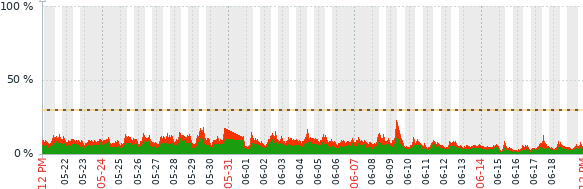
- Cores: 24, with less than 25% usage
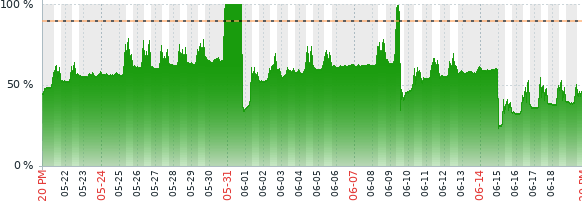
- Memory: 98 GB, with less than 75% usage
- Enterprise Edition license cost (initial purchase): $136,320
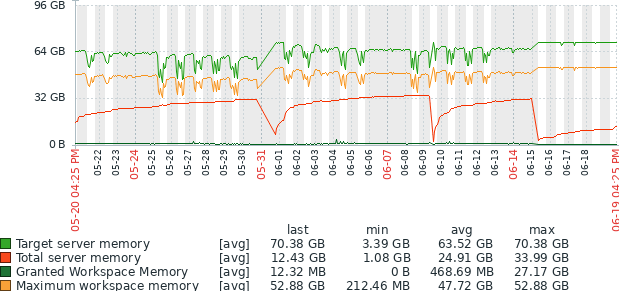
I took metrics of everything I saw, with an unexpected result on June 15th, after the final switchover to Standard Edition: an improvement in performance.
CPU usage:
Memory utilization:
SQL Server memory usage:
SQL Server Compilations:
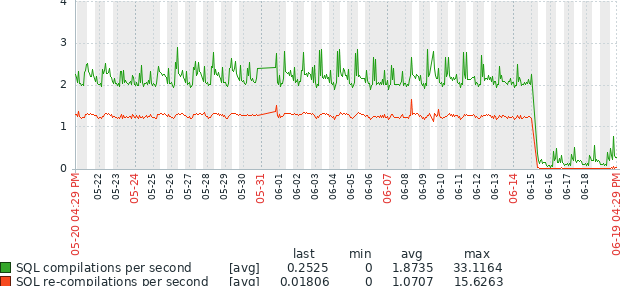
I didn’t change NUMA, the Enterprise and Standard licenses used all cores, and I didn’t change the memory settings.
If you want to know what really happened, you can jump to the section “The Plot Twist” to find out.
I don’t have a graph with the SSAS memory usage, but it is constantly around 10 GB. Before the switchover, I installed the versions side-by-side and did thorough testing with some users to make sure everything worked the same. After the change, I got several users feedback, and they didn’t notice any difference.
The saving: Standard Edition license cost (initial purchase) is $47,304 which is 34% the cost of Enterprise, and a saving of $89,016.
Enterprise features I had to remove
Below is a brief summary of all changes I made to allow being able to downgrade from Enterprise to Standard, even though the process took several days and thorough testing. If you want to dig into the details, you can read through the "Migration strategy" section.
| Component | Feature | Resolution |
| SSIS | Enterprise | Uninstalled and installed Standard |
| SSAS | Perspectives | Removed |
| SSAS | > 3 partitions | Merged into historical |
| SSAS | Aggregate=None | Replaced with custom measures |
| SQL Server | Compression | Not used |
| SQL Server | Partitioning | Not used |
| SQL Server | TDE | Not used |
| SQL Server | In-memory OLTP | Evaluated lower than 32 GB in the foreseeable future |
| SQL Server | Online index rebuilds | Evaluated in Ola Hallengren CommandLog it takes less than 2 mins, changed the index rebuild jobs |
| PBIRS | Enterprise 2025 | Uninstalled, installed and applied Standard 2025 license |
A few references from the table above about how to determine if a feature is in use or not:
- https://www.sqlservercentral.com/blogs/transact-sql-query-to-obtain-basic-information-about-partitioned-tables
- https://www.sqlservercentral.com/blogs/rotating-tde-certificates-without-re-encrypting-data
- https://www.sqlservercentral.com/blogs/steps-to-create-an-in-memory-table-for-sql-server
- https://ola.hallengren.com/sql-server-index-and-statistics-maintenance.html
Compatibility assessment
To check if the downgrade is feasible, because you may be unknowingly using Enterprise-specific features, the steps for SSAS are:
- Backup your SSAS databases
- Try to restore them in a Standard edition instance
- Try to reprocess all databases: cubes, dimensions, partitions, etc.
This may lead you to check if changes need to be made and your client is ok with you making them. In my case, I had to replace the non-additive measure “Aggregate=None” with hidden “Aggregate=Min” and “Aggregate=Max” measures, then create a custom measure to mimic the non-aggregate behavior. I also had to remove perspectives (this is done in Visual Studio) and lower the number of partitions to 3 in each measure group, in some cases deleting old partitions and in others merging them into a “Historical” one. This requires creating custom scripts to automate partition management monthly using SQL Server agent jobs.
The steps to make the assessment for SQL Server are:
- Backup your databases
- Try to restore them in a Standard edition instance
If all databases get online, you’re good to go, but if not, check the error log and determine why the restore failed, if changes need to be made and your client is ok with you making them.
Migration strategy
After you've validated the Standard version is feasible and you want to step ahead into the downgrade, below are the details about how it may go. Note each environment and situation is different, so this is only how it went for me.
Step 1: install Standard version instance alongside
The first stumbling block was that you can’t install two versions of shared features, and SSIS is one of them. So, during maintenance, I uninstalled only SSIS from the Enterprise version:
- From Control Panel, launch “Programs and Features”
- Select Microsoft SQL Server Enterprise (64-bit) and click on “Uninstall/Change”. When prompted, choose “Remove”
- Select the Enterprise instance, and when prompted about what to preserve, uncheck only “Integration Services”, everything else must remain checked.
- Check the summary and click Finish.
Once finished, I proceeded to install the Standard version as a named instance, including the shared features and SSIS. Once installed, I didn’t have to modify anything: SQL Server jobs which used SSISDB ran without issues. I monitored the performance and everything was the same, even when the documentation says Standard uses less threads or is single threaded in some processes. I didn’t have to touch the SSIS MsDtsSrvr.ini.xml file.
Step 2: switch SSAS from Enterprise to Standard
After finally being able to restore and process the databases into the Standard version, the next step was to make the switch. Below are the steps to make the transition smooth for every user and application.
- Backup the Enterprise SSAS databases.
- Restore the SSAS databases in the Standard SSAS instance.
- Shut down and disable the Enterprise SSAS service.
- Connect to the Standard SSAS instance, right-click it, select Properties, go to General, and in the “Port” type 2383, then click Accept. It will show a message box in the background, make sure you find it and click on “accept”.
- Restart the Standard SSAS service.
Once done, everything worked seamlessly: all existing Excel workbooks and Power BI reports continued working without any modification, because whoever used the old instance name connected to the Standard (named) instance automatically.
Step 3: migrate database objects
Before attempting the final switch, I created all necessary objects in the Standard instance using scripts:
- SQL Server agent jobs (disabled until the switch)
- SQL Server operators
- SSIS proxies and credentials: https://www.mssqltips.com/sqlservertip/5805/script-out-sql-server-credentials-and-proxies/
- Instance logins with their SID and password intact. Note this doesn’t assign instance-level permissions, so you may need to manually assign them: VIEW SERVER PERFORMANCE STATE, VIEW SERVER STATE, VIEW ANY DEFINITION, etc.
- Linked servers: this required some research to find the login’s passwords
- Logon triggers
- Objects in the master database for WhoIsActive, Ola Hallengren index jobs, and my own LogRead: https://www.mssqltips.com/sqlservertip/5140/read-all-errors-and-warnings-in-the-sql-server-error-log-for-all-versions/
- Configure database mail
- Re-create the RSExecRole in the master and msdb databases
- Grant the PBIRS user the RSExecRole in the master and msdb databases
Step 4: detach/attach
Because the databases were located on the same server, detach/attach significantly reduced downtime compared to a full backup and restore cycle. During a maintenance window, I detached and attached the databases one by one, because they were few. This included the SSIS and ReportServer databases. During the attach, I found out a permission was missing at the Windows directory level, so once added, the process for the remaining databases went smoothly. Also, I had to change the database owner to “sa”, because the databases were attached with my user as owner. If you have views that depend on linked server, you need to rebuild them, but that was not the case for me.
Step 5: post-migration scripts
You have to enable permissions for SSIS, and you can do so with the script below:
USE [master];
GO
ALTER DATABASE [SSISDB] SET TRUSTWORTHY ON; -- to allow CLR assemblies
GO
EXEC sp_configure 'show advanced options', 1;
RECONFIGURE;
GO
EXEC sp_configure 'clr enabled', 1; -- to enable CLR assemblies to run
RECONFIGURE;
GO
USE [SSISDB];
GO
EXEC [catalog].[startup]; -- state cleanup
GO
Step 6: Restart the PBIRS service
Once the service was restarted, the report scheduled jobs in the SQL Server agent were recreated. Then, go to the report server à configuration à site configuration à schedules, and make sure there are no “expired” schedules. If there are, select and “enable” them.
Step 7: modify the instance name in the monitoring software
Note that monitoring software may be reading performance counters at the OS level from the default instance, so you need to change the instance name to the named instance one.
The Plot Twist: The Observer Effect
After the switchover to Standard Edition, the CPU utilization graphs showed a massive improvement, dropping to levels I hadn't seen before. At first, I attributed this entirely to the removal of Enterprise background services. However, digging deeper, I discovered the real culprit behind the historical CPU spikes: sp_WhoIsActive.
I had a job continuously polling the server using sp_WhoIsActive to log activity. While it is a fantastic tool created by Adam Machanic, querying over 15 DMVs frequently—especially retrieving execution plans and full SQL text—can cause significant overhead, TempDB pressure, and CPU spikes on certain environments. When I re-enabled the sp_WhoIsActive logging job on the new Standard environment, the CPU immediately spiked back to the previous "Enterprise" levels.
Other DBAs in the community have reported similar scenarios where querying DMVs for sql_text becomes the actual bottleneck. This was a classic "Observer Effect": the tool I used to monitor performance was the most CPU and memory intensive one. I decided to keep the job enabled in order to monitor performance.
Conclusion
The downgrade was completed during a few maintenance windows with no functional impact on users. The customer retained SSIS, SSAS and Power BI Report Server functionality while reducing licensing costs by roughly 66%. The biggest challenge was not SQL Server itself, but identifying and replacing Enterprise-only features in SSAS. If you're considering a similar project, the fastest way to evaluate feasibility is simple: restore everything into a Standard Edition test environment and see what breaks.
Looking back, migrating was far less risky than the customer initially feared, and the result was a licensing reduction of nearly $90,000 while preserving the same functionality for end users. Enterprise Edition is often treated as an insurance policy against unknown requirements. In this case, a few days of testing revealed that most of those requirements no longer existed.
Sometimes the most expensive SQL Server feature is the one you're not using.
Furthermore, since the CPU utilization remains consistently under 25%, a logical next step in the future would be migrating this instance to a machine with fewer cores. This will free up valuable licenses that can be repurposed elsewhere, compounding the savings.
Have you ever discovered that your environment was over-licensed? What Enterprise features are keeping you from downgrading?