

Introduction
A finance manager suddenly discovers that an employee, who moved to a branch office six months ago, can still browse confidential sales reports in an SSAS cube. Nobody remembers why. Nobody knows which role grants the permission. And checking hundreds of SSAS roles manually could take hours. This is a far more common problem than many DBAs realize.
OLAP cubes are often considered "internal" systems, which means they rarely receive the same security attention as relational databases. Ironically, they usually contain the most valuable information in the organization:
- executive KPIs
- salary information
- sales forecasts
- customer profitability
- financial planning
All of that information has already been collected, cleaned, correlated, and summarized—making it one of the most valuable targets an attacker could exfiltrate, neatly summarized and ready to export.
Auditing who has access to what in SQL Server Analysis Services (SSAS) has historically been a tedious task. Imagine 80 cubes, 250 roles, 1800 users. Now answer: “Does John Smith have access to the ProfitMargin cube?” Most organizations simply cannot answer that question quickly.
In this article, we will explore an automated solution using PowerShell to extract a comprehensive security matrix, which enables you to:
- Instantly identify users accumulating permissions across multiple roles
- Audit specific permissions over cubes, dimensions, and inner relationships
- Inspect AllowedSet and DeniedSet definitions
- Identify empty roles
- Identify overlapping roles
- Identify disabled AD accounts
Overall, this gives you a complete picture of who has access to what—and, more importantly, who should not. It is recommended that you verify this periodically and track changes being made for auditing purposes, because an adversary can add persistence without you noticing.
The InfoSec Challenge: Overlapping Roles and the Principle of Least Privilege
From an information security perspective, overlapping roles in SSAS Multidimensional represent a latent risk if left unmonitored. Unlike systems where the most restrictive permission prevails, SSAS operates on a union (OR) logic. If a user belongs to Role A (which grants read access to the Sales cube) and Role B (which explicitly denies access to the same cube), the SSAS engine will grant them read access. The only exception is a DeniedSet at the dimension level, which acts atomically to subtract specific members.
Without clear, consolidated visibility, it is incredibly easy to violate the Principle of Least Privilege, allowing former employees, transferred staff, or service accounts to accumulate legacy permissions and silently access critical financial data. An automated, periodic audit is the only effective countermeasure.
Advantages of the Automated Solution
Implementing a PowerShell script for this task provides three immediate operational advantages:
- Centralized Visibility and Risk Mitigation - Instead of navigating endless object trees in SSMS, the script consolidates the mapping into a single matrix: Database ? Role ? Real User ? Object ? Effective Permission. This enables security officers and infrastructure teams to spot anomalies in seconds.
- Consistency in Compliance Audits - Whether dealing with internal policies, ISO 27001, or external financial audits, having a reproducible script makes it possible for you to generate access control reports on a schedule (via SQL Server Agent) and export them to auditable formats like CSV or HTML.
- Faster resolution for management needs - It helps answer questions such as: which permissions are assigned to a user, why he can view specific data, move the user to a role with more granular permissions, or add a new role with a limited set of data as needed.
The Script
The script works this way:
- It receives the parameter $ServerName, which can be the default instance or a named instance. If not supplied, the script will try connecting to localhost.
- It receives the parameter $DatabaseName, but it can be empty. Note: generating the permissions for all databases in a single run takes a lot of time, but generating them for a specific database runs in a couple of minutes, so it is recommended to do it one by one. In my case, 2.6K records for one database were returned in 2 minutes.
- The script iterates through each database in the server (unless a specific database name is supplied), and will scan the permissions for each role doing the following:
- If the role is administrator, it will list each member with the text “Full Control (Admin)”
- It will get the cube permissions of the role and will list each member with the text “Allow”
- For each dimension permission of the role within the cube, it will list the specific allowed permissions
- For each dimension permission of the role within the cube, it will list the specific denied permissions
- It will get the dimension permissions of the role and will list each member with the text “Allow”
- It will list the specific allowed permissions within the dimension
- It will list the specific denied permissions within the dimension
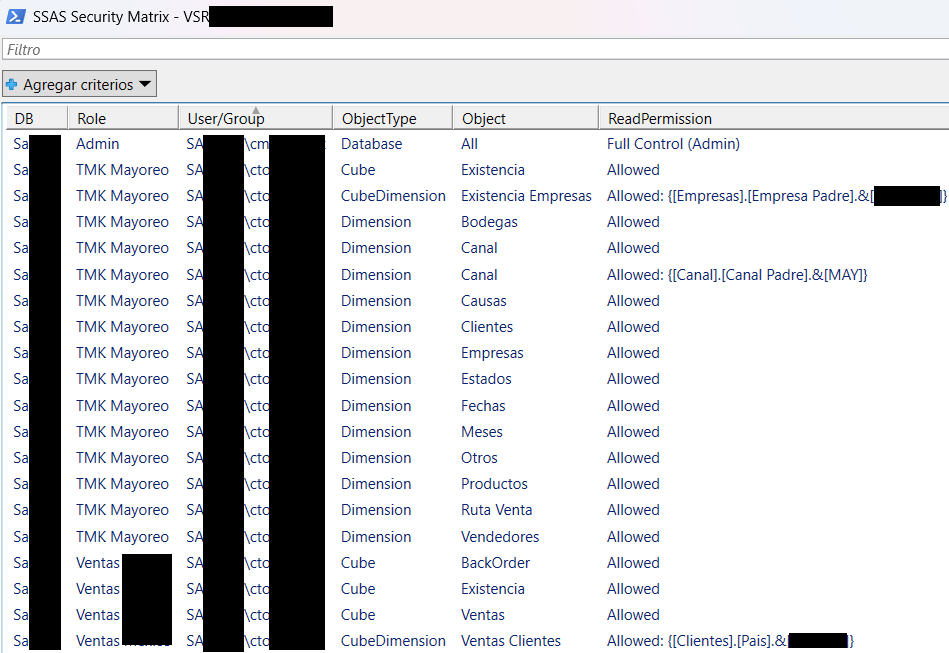
- A GridView is displayed allowing you to find, filter, order, and export the data in this format:
DB | Role | User/Group | ObjectType | Object | ReadPermission
Below you can find the script:
param (
  [string]$ServerName,
  [string]$DatabaseName)
[Reflection.Assembly]::LoadWithPartialName("Microsoft.AnalysisServices") | Out-Null
$Server = New-Object Microsoft.AnalysisServices.Server
try {
  if (-not $ServerName) {
    $ServerName = "localhost"}
  $Server.Connect($ServerName)
  $Databases = $Server.Databases
  if ($DatabaseName -and $Server.Databases[$DatabaseName]) {
    $Databases = @($Server.Databases[$DatabaseName])}
  $SecurityList = [System.Collections.Generic.List[Object]]::new()
  foreach ($DB in $Databases) {
    foreach ($Role in $DB.Roles) {
      try {
        $DbPerm = $DB.DatabasePermissions.GetByRole($Role.Id)} catch { }
      if ($DBPerm -And $DBPerm.Administer) {
        $Members = $Role.Members
        if ($Members.Count -eq 0) { $Members = @($null) }
        foreach ($Member in $Members) {
          $Row = [PSCustomObject]@{
            "DB" = $DB.Name
            "Role" = $Role.Name
            "User/Group" = if ($Member) { $Member.Name } else { "(Empty)" }
            "ObjectType" = "Database"
            "Object" = "All"
            "ReadPermission" = "Full Control (Admin)"}
          $SecurityList.Add($Row)}
        continue}
      foreach ($Cube in $DB.Cubes) {
        try {
          $CubePerm = $Cube.CubePermissions.GetByRole($Role.Id)} catch { }
        if ($CubePerm -And $CubePerm.Read -Ne "None") {
          $Members = $Role.Members
          if ($Members.Count -eq 0) { $Members = @($null) }
          foreach ($Member in $Members) {
            $Row = [PSCustomObject]@{
              "DB" = $DB.Name
              "Role" = $Role.Name
              "User/Group" = if ($Member) { $Member.Name } else { "(Empty)" }
              "ObjectType" = "Cube"
              "Object" = $Cube.Name
              "ReadPermission" = $CubePerm.Read}
            $SecurityList.Add($Row)}
          foreach ($CubeDimPerm in $CubePerm.DimensionPermissions) {
            $AllowedSetMDX = ""
            foreach ($AttrPerm in $CubeDimPerm.AttributePermissions) {
              if ($AttrPerm.AllowedSet -and -not [string]::IsNullOrWhiteSpace($AttrPerm.AllowedSet)) {
                $AllowedSetMDX += $AttrPerm.AllowedSet}}
            if (-not [string]::IsNullOrWhiteSpace($AllowedSetMDX)) {
              $Members = $Role.Members
              if ($Members.Count -eq 0) { $Members = @($null) }
              foreach ($Member in $Members) {
                $Row = [PSCustomObject]@{
                  "DB" = $DB.Name
                  "Role" = $Role.Name
                  "User/Group" = if ($Member) { $Member.Name } else { "(Empty)" }
                  "ObjectType" = "CubeDimension"
                  "Object" = "$($Cube.Name) $($CubeDimPerm.CubeDimensionID)"
                  "ReadPermission" = "Allowed: $AllowedSetMDX"}
                $SecurityList.Add($Row)}}
            $DeniedSetMDX = ""
            foreach ($AttrPerm in $CubeDimPerm.AttributePermissions) {
              if ($AttrPerm.DeniedSet -and -not [string]::IsNullOrWhiteSpace($AttrPerm.DeniedSet)) {
                $DeniedSetMDX += $AttrPerm.DeniedSet}}
            if (-not [string]::IsNullOrWhiteSpace($DeniedSetMDX)) {
              $Members = $Role.Members
              if ($Members.Count -eq 0) { $Members = @($null) }
              foreach ($Member in $Members) {
                $Row = [PSCustomObject]@{
                  "DB" = $DB.Name
                  "Role" = $Role.Name
                  "User/Group" = if ($Member) { $Member.Name } else { "(Empty)" }
                  "ObjectType" = "CubeDimension"
                  "Object" = "$($Cube.Name) $($CubeDimPerm.CubeDimensionID)"
                  "ReadPermission" = "Denied: $DeniedSetMDX"}
                $SecurityList.Add($Row)}}}}}
      foreach ($Dim in $DB.Dimensions) {
        try {
          $DimPerm = $Dim.DimensionPermissions.GetByRole($Role.Id)} catch { }
        if ($DimPerm -And $DimPerm.Read -Ne "None") {
          $Members = $Role.Members
          if ($Members.Count -eq 0) { $Members = @($null) }
          foreach ($Member in $Members) {
            $Row = [PSCustomObject]@{
              "DB" = $DB.Name
              "Role" = $Role.Name
              "User/Group" = if ($Member) { $Member.Name } else { "(Empty)" }
              "ObjectType" = "Dimension"
              "Object" = $Dim.Name
              "ReadPermission" = $DimPerm.Read}
            $SecurityList.Add($Row)}
          $AllowedSetMDX = ""
          foreach ($AttrPerm in $DimPerm.AttributePermissions) {
            if ($AttrPerm.AllowedSet -and -not [string]::IsNullOrWhiteSpace($AttrPerm.AllowedSet)) {
              $AllowedSetMDX += $AttrPerm.AllowedSet}}
          if (-not [string]::IsNullOrWhiteSpace($AllowedSetMDX)) {
            $Members = $Role.Members
            if ($Members.Count -eq 0) { $Members = @($null) }
            foreach ($Member in $Members) {
              $Row = [PSCustomObject]@{
                "DB" = $DB.Name
                "Role" = $Role.Name
                "User/Group" = if ($Member) { $Member.Name } else { "(Empty)" }
                "ObjectType" = "Dimension"
                "Object" = $Dim.Name
                "ReadPermission" = "Allowed: $AllowedSetMDX"}
              $SecurityList.Add($Row)}}
          $DeniedSetMDX = ""
          foreach ($AttrPerm in $DimPerm.AttributePermissions) {
            if ($AttrPerm.DeniedSet -and -not [string]::IsNullOrWhiteSpace($AttrPerm.DeniedSet)) {
              $DeniedSetMDX += $AttrPerm.DeniedSet}}
          if (-not [string]::IsNullOrWhiteSpace($DeniedSetMDX)) {
            $Members = $Role.Members
            if ($Members.Count -eq 0) { $Members = @($null) }
            foreach ($Member in $Members) {
              $Row = [PSCustomObject]@{
                "DB" = $DB.Name
                "Role" = $Role.Name
                "User/Group" = if ($Member) { $Member.Name } else { "(Empty)" }
                "ObjectType" = "Dimension"
                "Object" = $Dim.Name
                "ReadPermission" = "Denied: $DeniedSetMDX"}
              $SecurityList.Add($Row)}}}}}}
  $SecurityList | Out-GridView -Title "SSAS Security Matrix - $ServerName"}
catch {
    Write-Error "Error: $_"
Read-Host "Press Esc to exit"}
finally {
    $Server.Disconnect()}
Example: calling the script
Assuming the script is in the C: drive at the root level, the instance is named “SSASInstance”, and the database is named “DB”, the script is called this way:
& "C:\SSASSecurityAudit.ps1" -ServerName "SSASInstance" -DatabaseName "DB"
Below you can see the GridView with the results:
A Crucial Clarification: Multidimensional Models (AMO) Only
We must draw a clear line regarding the scope of this solution. SQL Server Analysis Services coexists in two entirely different architectural worlds:
- The Tabular Model: Governed by the TOM (Tabular Object Model), where security is defined at the table and row levels using DAX expressions.
- The Multidimensional Model: Based on the traditional AMO (Analysis Services Management Objects) library, structured around cubes, dimensions, attributes, and MDX-based security filters (AllowedSet / DeniedSet).
The script and strategy described in this article are designed exclusively for the Multidimensional Model. If you attempt to execute this logic against a Tabular instance, the script will either fail or return an empty report, as concepts like Cubes or CubePermissions simply do not exist in the Tabular architecture.
Also, note the most restrictive permission, CellPermission with Read, ReadContingent or Write access, is not covered in the script. It also doesn’t cover MiningStructurePermission and MiningModelPermission.
Conclusion
If your organization cannot answer "Who can see this cube?" within a few minutes, then it probably doesn't truly understand its analytical security posture. Fortunately, PowerShell and AMO make that visibility achievable with surprisingly little code.
Security in analytical environments should never be a black box. In mature architectures like SSAS Multidimensional, understanding the additive behavior of roles and possessing the tools to audit them efficiently is a mandatory requirement for any modern DBA or Data Architect. This provides insightful information to cybersecurity teams and ISO 27001 / auditing teams.
Automating this process not only ensures compliance with InfoSec policies. Infrastructure security and performance can—and should—go hand in hand.