If you have worked with Microsoft SQL Server and used the SQL Server Management Studio ( SSMS ), you may have noticed there is a service available, which is Database Mail. This service was introduced first in Microsoft SQL Server 2005, though it was deployed since a long time, many DBAs are not utilizing this feature because of depending on 3rd party applications, which can offer you the same functionalities along with other capabilities such as monitoring or visualization tools.
If you are planning to start automating sending emails from the same SQL Server without depending on any external application, we can use Database Mail. Database Mail can be used in the following ways:
- Sending emails after the SQL jobs / Queries fail or success in SQL Server Agent .
- When configuring alerts, we can include some recipients to receive email notifications, ex : high CPU usage detected.
- Query results and reporting : we can send periodic results from an executed queries which cover various insights either on SQL Instance or on SQL Databases, attachments can be added .
- Application Notification : in some applications, there is notification module for email, this service can be helpful when it comes to sending email notifications regarding some actions / reports to the end users .
Enabling Database Mail
To get started, first open SSMS and then connect to your instance. In the Object Explorer, choose Management > Database Mail as shown here:
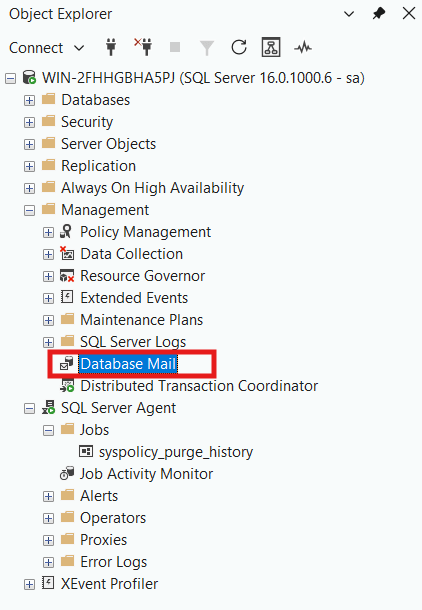
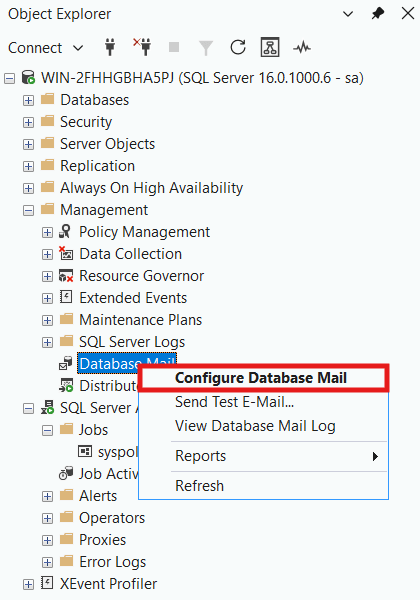
Right Click on Database Mail and click on Configure Database Mail.
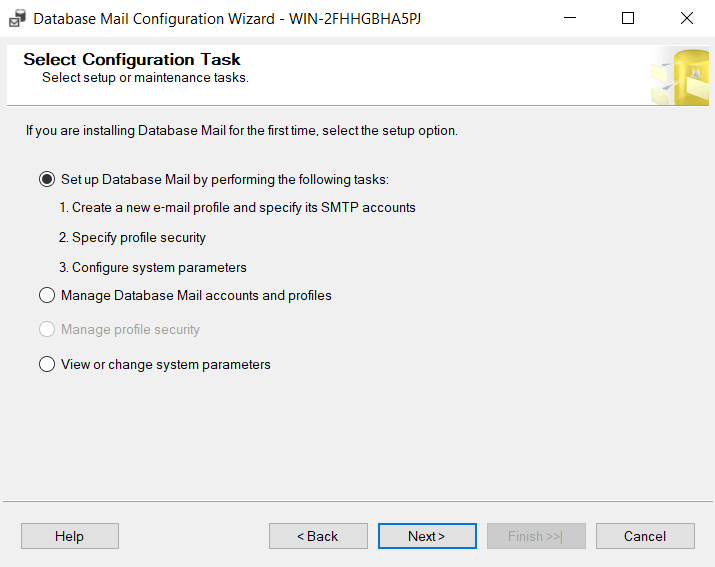
Choose the first option below to create new SMTP account.
Once click on Next, you will get the below message box since you are configuring the DB mail for the first time, click on Yes.

In the below image, we need to define a mail profile and within this profile we can define one or multiple SMTP accounts . Click Add.
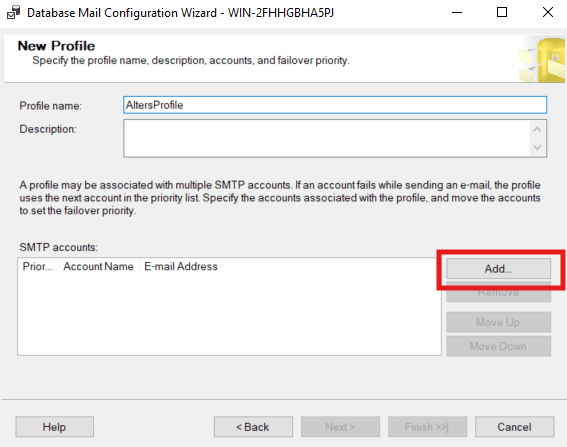
We gave a name for this profile: AlertsProfile. We need to connect to an SMTP server. I will use my own Gmail account for our demonstration, but a in real world environment, do not use any personal account as there should be a dedicated SMTP server with dedicated account that serves this purpose.
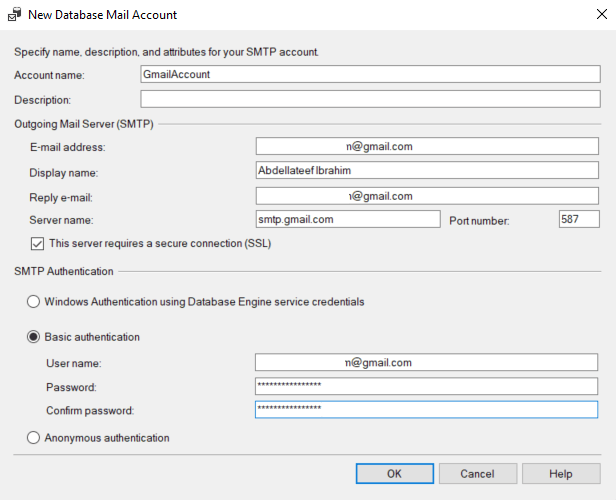
Enter your Email Address and Display Name, which is the name will appear in the recipient mail box once receive the email. The Reply Email can be the same as your email, and the SMTP for Google which is smtp.gmail.com
Once click on OK, and you have created the first SMTP account, you can add another account if you have for the purpose of failover. If the first SMTP server is down or unreachable, SQL Server will switch to the second SMTP server.
We will keep it as one account in our demonstration.
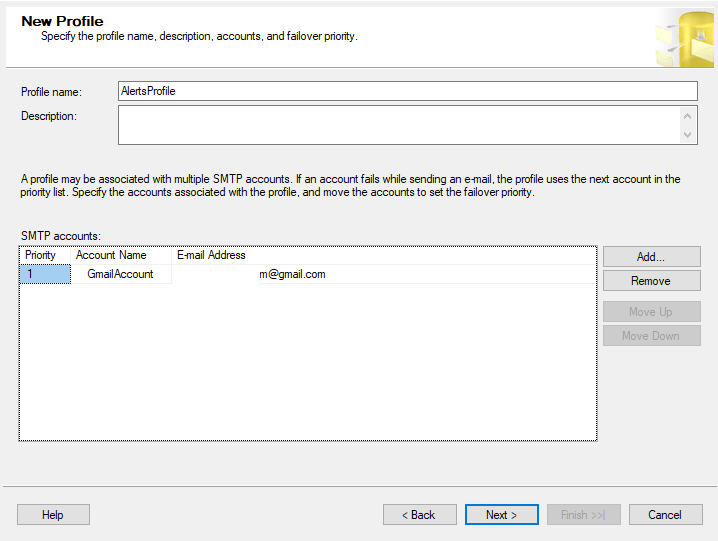
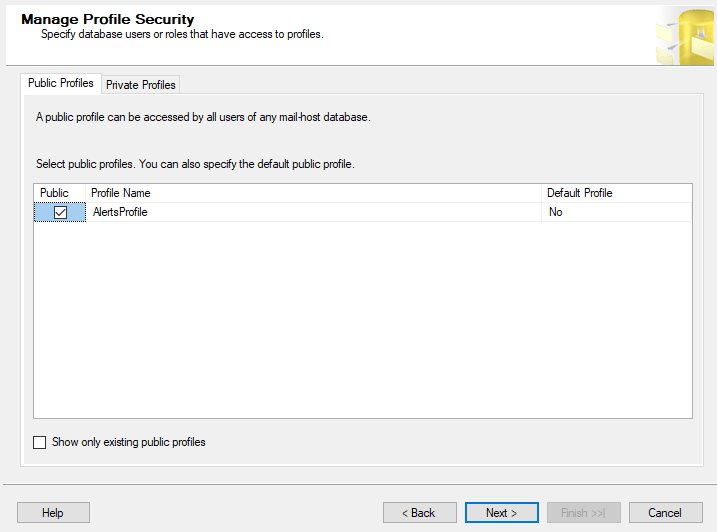
Once click on Next, you have the option to select this profile as public to be used by all users in SQL, or private with restriction to specific users or roles, we will use it public one
Moving Next, we will get the system parameters below
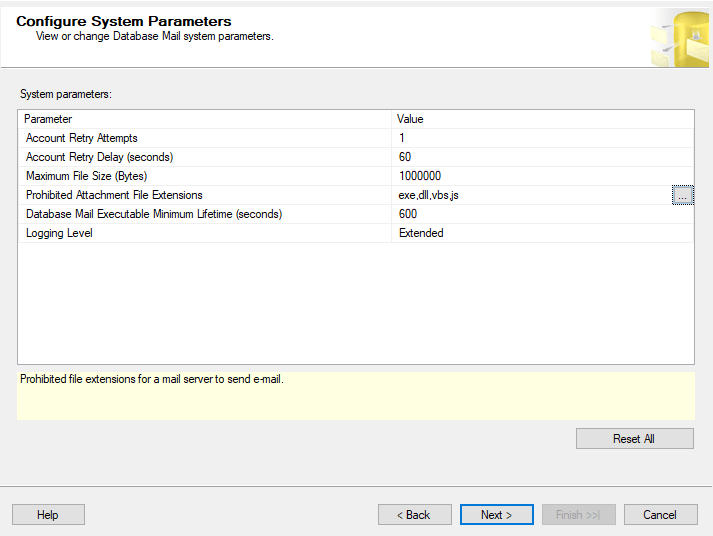
The above values are the default ones, here is brief explanation on each one of them :
| Parameter Name | Value | Explanation |
| Account Retry Attempts | 1 | Number of times that the SQL server will try to send the mail again if failed on the first time |
| Account Retry Delay (seconds) | 60 | The time which the SQL server will try after the failed attempt |
| Maximum File Size (Bytes) | 1000000 | Maximum file size can be included in the attachment |
| Prohibited Attachment File Extensions | exe,dll,vbs,js | Files with these extensions will be blocked from being sent to the recipient/s |
| Database Mail Executable Minimum Lifetime (seconds) | 600 | The process related to DB mail will remain active for 600 seconds after the mail sent, After 600 seconds minutes of inactivity, it shuts down |
| Logging Level | Extended | Detailed logging when select Extended option, more information will be available in msdb.dbo.sysmail_event_log DMV |
After click on Next and Finish, the process of configuring DB mail is done
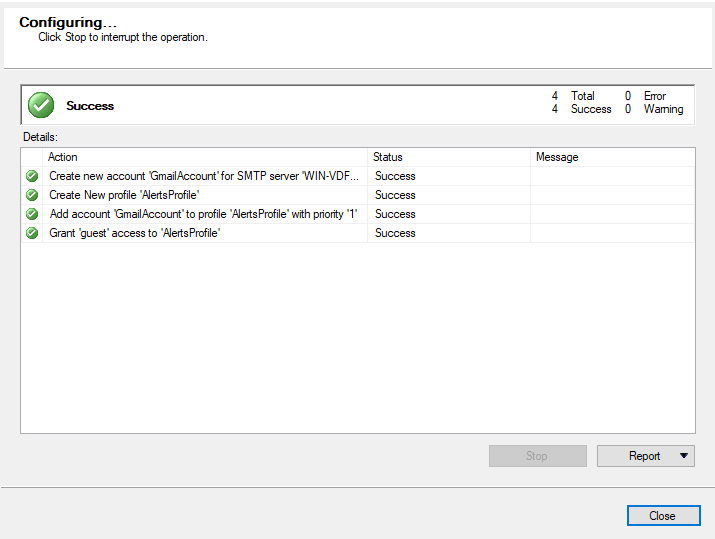
Now, let us perform sending test email by apply the following steps :
Right click on Database Mail from Object Explorer and click on "Send Test E-mail".
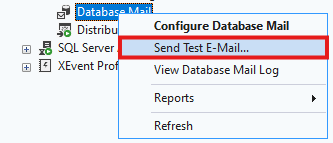
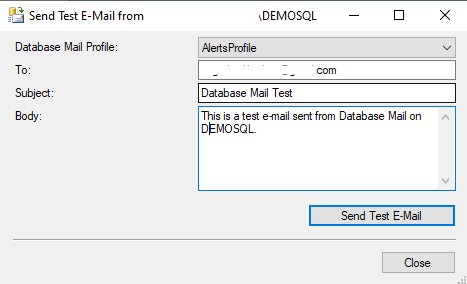
Fill in the fields with the required information and click on the Send Test Email button
You will get the below box
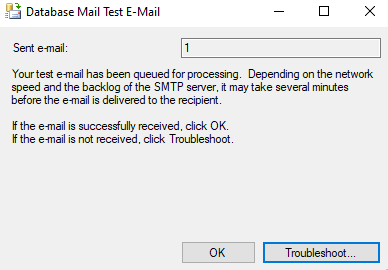
There is number 1 appeared. This is the mailitem_id column for the transaction in msdb.dbo.sysmail_allitems DMV.
That's it; Database Mail is working.
We will deep dive into DB Mail DMVs and how to troubleshoot the issues in different article, and also we will cover the usage for DB mail in more practical ways.