

Introduction
If you work with SQL Server in environments with multiple concurrent users, you have likely encountered deadlocks. Deadlocks happen when two or more transactions block each other, making progress impossible. When this occurs, SQL Server intervenes, rolling back one transaction and allowing the others to continue. The rolled-back transaction receives Error 1205.
Understanding how SQL Server decides which transaction to terminate is crucial for building robust applications. This article explains the deadlock concept, how SQL Server detects them, the rules for selecting a deadlock victim, and includes practical examples you can try yourself.
What is a Deadlock?
A deadlock occurs when two or more transactions are waiting for resources held by each other, forming a circular dependency. For example, Transaction 1 locks Table A and wants Table B, while Transaction 2 locks Table B and wants Table A. Neither transaction can proceed, and SQL Server must choose one to roll back to break the cycle.
Unlike normal blocking, where one transaction eventually proceeds, deadlocks cannot resolve themselves without intervention.
How SQL Server Detects Deadlocks
SQL Server uses a background process called the lock monitor to detect deadlocks. By default, it runs every five seconds. When a deadlock occurs, SQL Server selects a victim transaction, rolls it back, and releases its locks so the other transactions can continue. If deadlocks happen frequently, SQL Server may temporarily increase the monitoring frequency to as low as 100 milliseconds.
After the rollback, the victim transaction receives Error 1205, which applications can handle or retry as needed.
How SQL Server Chooses a Deadlock Victim
SQL Server follows a logical sequence to decide which transaction to roll back. It uses three main criteria:
- Deadlock Priority: Each transaction has a priority—LOW, NORMAL (default), HIGH, or a numeric value from -10 to 10. Transactions with the lowest priority are selected as victims first. You can set this using SET DEADLOCK_PRIORITY HIGH.
- Rollback Cost: If transactions have equal priority, SQL Server evaluates which is least expensive to roll back, usually based on the number of rows or resources modified.
- Random Selection: If both priority and rollback cost are identical, SQL Server selects a victim randomly.
This approach ensures minimal impact on important transactions while resolving the deadlock efficiently.
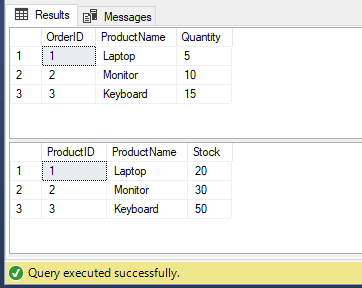
Let’s create a practical example to observe how SQL Server selects a deadlock victim. First, create a test database and tables:
CREATE DATABASE DeadlockDemo;
GO

USE DeadlockDemo;
GO

CREATE TABLE Orders (
    OrderID INT IDENTITY PRIMARY KEY,
    ProductName NVARCHAR(50),
    Quantity INT
);

CREATE TABLE Inventory (
    ProductID INT IDENTITY PRIMARY KEY,
    ProductName NVARCHAR(50),
    Stock INT
);

INSERT INTO Orders (ProductName, Quantity) VALUES
('Laptop', 5),
('Monitor', 10),
('Keyboard', 15);

INSERT INTO Inventory (ProductName, Stock) VALUES
('Laptop', 20),
('Monitor', 30),
('Keyboard', 50);
These tables simulate a simple order and inventory system.
Simulating a Deadlock
To observe how SQL Server selects a deadlock victim, we will simulate a deadlock scenario using two separate sessions in SSMS.
Tip: Pause after the first UPDATE in each session to ensure a deadlock occurs. Do not execute COMMIT TRAN until SQL Server resolves the deadlock automatically.
Transaction 1 (Session 1) – Locks Orders First
Run this code in one query window.
USE DeadlockDemo;
BEGIN TRAN;

-- Step 1: Lock Orders rows
UPDATE Orders
SET Quantity = Quantity + 1
WHERE OrderID IN (1,2);
-- Pause here before next update to simulate deadlock

-- Step 2: Attempt to update Inventory
UPDATE Inventory
SET Stock = Stock - 1
WHERE ProductID = 1;

-- COMMIT TRAN is not executed yet; wait for deadlock resolution
Note: This transaction first locks the Orders table, then tries to update Inventory.
Transaction 2 (Session 2) – Locks Inventory First
Run this code in a second query window, on a separate connection from the code above.
USE DeadlockDemo;
BEGIN TRAN;

-- Step 1: Lock Inventory row
UPDATE Inventory
SET Stock = Stock - 1
WHERE ProductID = 1;
-- Pause here before next update to simulate deadlock

-- Step 2: Attempt to update Orders
UPDATE Orders
SET Quantity = Quantity + 1
WHERE OrderID IN (1,2);

-- COMMIT TRAN is not executed yet; wait for deadlock resolution
Note: This transaction first locks the Inventory table, then tries to update Orders, creating a circular dependency with Transaction 1.
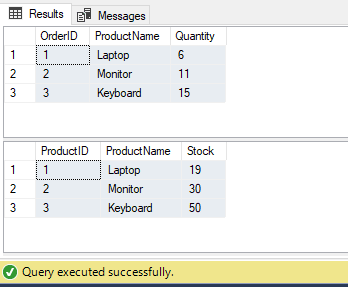
When both transactions try to access resources held by the other, SQL Server detects a deadlock and automatically rolls back one transaction to resolve it. By default, both transactions have NORMAL priority. SQL Server considers the rollback cost, typically based on the number of rows or resources modified. In this case, Transaction 1 updates two rows in Orders before attempting to update Inventory, while Transaction 2 updates one row in Inventory before attempting to update Orders. Since Transaction 2 has fewer changes initially, SQL Server chooses it as the deadlock victim, rolling it back while allowing Transaction 1 to complete successfully.

Note: Transaction 2 (Session 2) was chosen as the deadlock victim because it had fewer initial changes. Transaction 1 (Session 1) completed successfully.
SELECT * FROM Orders;
SELECT * FROM Inventory;
Here are the updated Order and Inventory Results:
Changing Deadlock Priority
You can control which transaction is more likely to survive a deadlock by using SET DEADLOCK_PRIORITY. For example, in Session 2, run this code:
SET DEADLOCK_PRIORITY HIGH;
BEGIN TRAN;

UPDATE Inventory
SET Stock = Stock - 1
WHERE ProductID = 1;

UPDATE Orders
SET Quantity = Quantity + 1
WHERE OrderID IN (1,2);
By setting a higher priority, Session 2 is less likely to be rolled back, so Session 1 is more likely to be chosen as the deadlock victim. This is useful for protecting critical processes such as payments, financial updates, or order completion.

Transaction 1 (Session 1) was chosen as the deadlock victim because Session 2 had SET DEADLOCK_PRIORITY HIGH. Session 2 completed successfully.
Updated Order and Inventory Results:
After executing this transaction, you can query the tables to see how the updates reflect the new deadlock priority:
SELECT * FROM Orders;
SELECT * FROM Inventory;
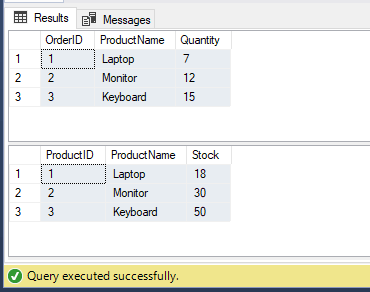
This confirms that the higher-priority transaction completed successfully while the lower-priority transaction was rolled back.
Real-World Use Cases
Understanding and managing deadlock victims is important in practical scenarios:
- Order Processing: Protect payment or shipping transactions by assigning higher priority, while non-critical updates remain NORMAL.
- Financial Applications: Assign HIGH priority to essential accounting updates and NORMAL or LOW to reporting jobs.
- Data Import Jobs: Background imports or logging processes can safely have LOW priority, ensuring that core operations are unaffected.
Best Practices to Minimize Deadlocks
Even with proper priority management, prevention is better than reaction:
- Access objects in the same order across all transactions.
- Keep transactions short and efficient to reduce lock duration.
- Use appropriate indexes to reduce lock contention.
- Assign deadlock priorities for critical transactions.
- Monitor using SQL Server Profiler or Extended Events to analyze deadlock graphs.
Handling Deadlocks with Retry Logic
Even with careful design, deadlocks can still occur in busy systems. One common strategy is to implement a retry pattern in your application. The idea is simple: when a transaction is chosen as a deadlock victim (Error 1205), the application waits briefly and then retries the transaction automatically.
The following T-SQL example demonstrates how to automatically retry a transaction if it is chosen as a deadlock victim.
DECLARE @RetryCount INT = 0;
DECLARE @MaxRetries INT = 3;

WHILE @RetryCount < @MaxRetries
BEGIN
    BEGIN TRY
        BEGIN TRAN;

        -- Your transactional code here
        UPDATE Orders
        SET Quantity = Quantity + 1
        WHERE OrderID = 1;

        UPDATE Inventory
        SET Stock = Stock - 1
        WHERE ProductID = 1;

        COMMIT TRAN;
        BREAK; -- Exit loop if successful
    END TRY
    BEGIN CATCH
        IF ERROR_NUMBER() = 1205
        BEGIN
            SET @RetryCount = @RetryCount + 1;
            WAITFOR DELAY '00:00:02'; -- Wait 2 seconds before retry
        END
        ELSE
        BEGIN
            -- For other errors, re-raise
            THROW;
        END
    END CATCH
END
This loop attempts the transaction up to three times. If a deadlock occurs, the transaction waits two seconds and retries. Other errors are not retried and are raised immediately. This ensures that temporary deadlocks do not disrupt critical operations, a common pattern in production systems.
Here are the updated Order and Inventory Results:
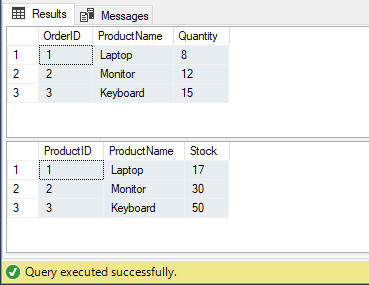
Note: The deadlock error (Error 1205) was handled automatically, and the transaction was retried until it succeeded.
Conclusion
Deadlocks are an inevitable part of concurrent database operations. SQL Server resolves them intelligently by considering deadlock priority, evaluating rollback cost, and using randomness only when necessary. By simulating deadlocks and observing how SQL Server selects a victim, you can:
- Predict which transactions might be rolled back.
- Protect critical transactions using SET DEADLOCK_PRIORITY.
- Implement retry logic to handle deadlocks gracefully in applications.
- Design more robust and deadlock-resilient systems.
Practicing these concepts ensures smoother operation in production and reduces unexpected transaction failures. By combining careful transaction design, deadlock priority management, and retry patterns, you can keep your SQL Server applications running efficiently and reliably.
