

Introduction
When we first start working with SQL Server, most tables are small enough and we do not think much about their size. But over time, a table can collect millions or even billions of rows. For example, an online shopping application may store every order ever placed, a banking system may retain years of transactions, or a logging system may record thousands of events every minute. Tables at this scale are often part of a Very Large Database, commonly referred as VLDB.
As these tables grow, routine administration and maintenance can become much more difficult. Large tables increase backup windows and require significantly more system resources and time when rebuilding or reorganizing indexes. On the other hand, removing old data with a DELETE statement can create a large transaction log, cause lock contention, and disrupt active users working in the application.
SQL Server table partitioning helps us manage this situation more effectively. Instead of keeping all rows in one large physical section, we divide the table into smaller logical groups called partitions. We usually divide data using a meaningful column, such as an order date, transaction date, year, region, or customer category. For example, rather than keeping ten years of sales records together in one large section, we can place each year’s sales data into its own partition. To the application, it still looks and behaves like one normal table. However, behind the scenes, SQL Server can manage each partition independently, making database maintenance, index upkeep, storage organization, and historical data archiving far easier to handle as our data grows.
Core Architecture and Mechanics
Table partitioning does not force us to change the way our application reads or writes data from the table. Our application can continue to query Sales.Orders as one normal table. Behind the scenes, SQL Server separates its rows into smaller groups called partitions.
Imagine that Sales.Orders contains sales data from many years. Instead of storing every row in one large section, we can place older orders in one partition, 2024 orders in another, 2025 orders in another, and all orders from 2026 onwards in a final partition.
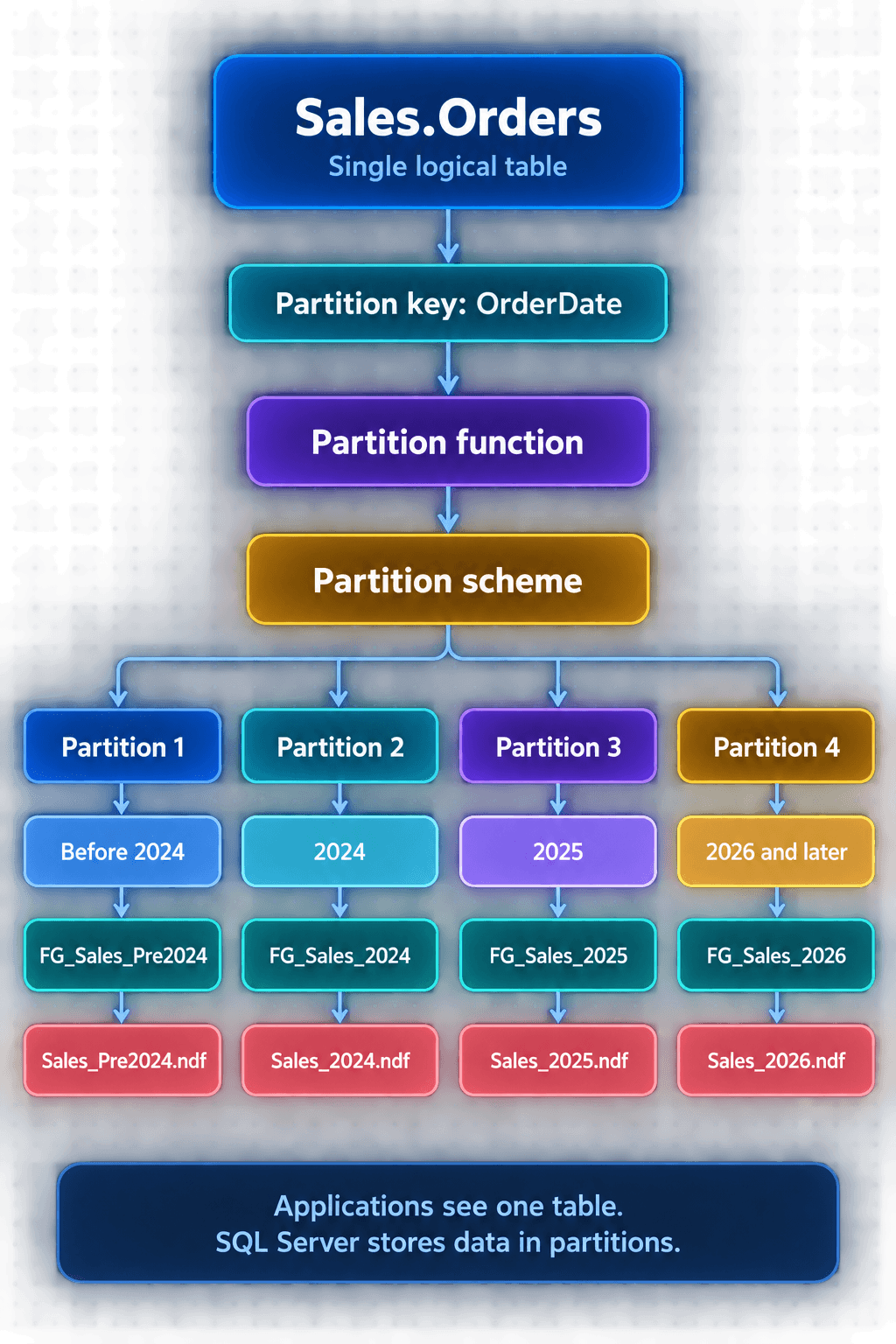
The process works in a simple sequence:
- We start with one logical table, such as Sales.Orders. This is the table name our application uses. We do not need a separate table name for every year.
- We choose a partition key. In this example, OrderDate is our partition key. SQL Server checks this column to decide where each order belongs. An order dated 2025-07-18, for example, belongs in the 2025 partition.
- We create a partition function. We can think of this as a set of sorting rules. It defines the date boundaries that separate our data. For example, it can decide that all orders before 2024 go to Partition 1, orders in 2024 go to Partition 2, and so on.
- We create a partition scheme. The scheme connects each logical partition to a filegroup. In simple terms, the function decides which partition receives a row, while the scheme decides where that partition is stored.
- Each filegroup can use one or more data files, often with the .ndf extension. For example, the FG_Sales_2025 filegroup may store its data in Sales_2025.ndf.
A filegroup is like a labelled storage container inside SQL Server. A data file is the actual file where SQL Server stores pages of table and index data. We can keep filegroups on separate disks when that supports our storage and maintenance strategy, although putting them in separate filegroups does not automatically make queries faster.
The important idea is this: our application sees one table, while SQL Server can manage its data in smaller, organised sections.
Implementation Guide
Now that we are familiar with the core concepts and working mechanics of table partitions in SQL Server, we will take one step ahead in understanding how can we implement them. For that, we will create a fresh database and a schema into it where we will create our table and other necessary entitites.
Create Database
First, we will create a database named: SalesDB. The following query checks whether SalesDB already exists. If it does not exist, SQL Server creates it. So, running this safely more than once will not recreate or overwrite the database.
IF DB_ID(N'SalesDB') IS NULL
BEGIN
    CREATE DATABASE SalesDB;
END;
Once the above query is executed successfully, the new dataabse: SalesDB is created. So we need to switch to the SalesDB database to continue with our next steps. To do so, we can run the following command:
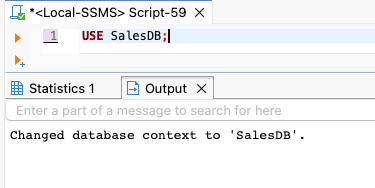
USE SalesDB;
We should see a similar output confirming that we are now using SalesDB database:
Now, we will create a new schema named: Sales. A schema works like a folder for database objects. Our table (which is a database object) will be created in this schema and can be referred as <Schema Name>.<Table Name>. To create the schema, we will also use a similar safe query pattern where we will check if any schema named Sales already exists. If not, it will be created. If available, the existing Sales schema will be retained as it is and will not be overriden. To do so, we can make use of the following query:
IF SCHEMA_ID(N'Sales') IS NULL
BEGIN
    EXEC(N'CREATE SCHEMA Sales');
END;
Create Filegroups
As we just learnt above that filegroups are logical storage containers, we will now create filegroups for storing order details as per their year of order. We will create multiple filegroups to store orders from different years for our learning purposes. Firstly, we will create the filegroup to store the orders placed before the year 2024 as below.
We are as usual using a safe method here too while creating the filegroup. We are checking if the filegroup named: FG_Sales_Pre2024 already exists in the system. If it does, we leave it as it is. Else, we create one by altering the SalesDB database and adding a filegroup with this name to store order placed before 2024.
IF NOT EXISTS
(
    SELECT 1
    FROM sys.filegroups
    WHERE name = N'FG_Sales_Pre2024'
)
BEGIN
    ALTER DATABASE SalesDB
    ADD FILEGROUP FG_Sales_Pre2024;
END;
Next, in the similar way, we will create one more filegroup to store orders placed in the year of 2024:
IF NOT EXISTS
(
    SELECT 1
    FROM sys.filegroups
    WHERE name = N'FG_Sales_2024'
)
BEGIN
    ALTER DATABASE SalesDB
    ADD FILEGROUP FG_Sales_2024;
END;
Now, we will create one more filegroup which will hold orders placed in the year of 2025:
IF NOT EXISTS
(
    SELECT 1
    FROM sys.filegroups
    WHERE name = N'FG_Sales_2025'
)
BEGIN
    ALTER DATABASE SalesDB
    ADD FILEGROUP FG_Sales_2025;
END;
Finally, we will create one more filegroup to hold all orders placed on and after 2026:
IF NOT EXISTS
(
    SELECT 1
    FROM sys.filegroups
    WHERE name = N'FG_Sales_2026'
)
BEGIN
    ALTER DATABASE SalesDB
    ADD FILEGROUP FG_Sales_2026;
END;
Creating Physical Data Files
Now, we will create physical data files (in .ndf format) that SQL Server will use to store order data from different years. Just like we created different filegroups for yearwise orders, similarly we have to create different physical data files for every filegroup. Then, we will connect that file to the respective filegroup we created earlier, explicitly. We will understand the different sections of the query first and then we will run the consolidated query provided to help us create a physical data file and tie it to the respective filegroup which stores orders placed before 2024.
DECLARE @DataPath nvarchar(4000) =
    CONVERT(nvarchar(4000), SERVERPROPERTY('InstanceDefaultDataPath'));
This first line creates a variable named @DataPath. A variable is a temporary place where we store a value while the query is running. This value can be accessed by using this variable throughout the query. Here, in @DataPath, we store the default directory where the SQL Server instance keeps the database files.
SERVERPROPERTY('InstanceDefaultDataPath') - asks the SQL Server, “Which folder should we use for database data files?” SQL Server accordingly returns the suitable path depending on whether it's running on a Windows machine, or a Mac machine, or in some docker container. For example, in my machine, SQL Server is running in a docker instance and hence the path for me returned is: /var/opt/mssql/data/
CONVERT(nvarchar(4000) - ensures that this path is stored as a text. nvarchar(4000) can hold a long text value, which is useful because folder paths can be lengthy.
IF RIGHT(@DataPath, 1) NOT IN (N'\', N'/')
    SET @DataPath = @DataPath + N'\';
This checks whether the folder path ends with a slash.
RIGHT(@DataPath, 1). - reads the final character of the path. SQL Server expects a separator between the folder name and the file name: Note that a Windows OS normally uses a \ while a Linux OS normally uses a /. If SQL Server returns a path without either separator at the end, this line adds a \ so that our generated path does not become invalid. For example, if SQL Server returns: "C:\SqlData" then this line of code changes it to "C:\SqlData\".
IF NOT EXISTS
(
    SELECT 1
    FROM sys.database_files
    WHERE name = N'Sales_Pre2024_Data'
)
This section checks whether the data file already exists in SalesDB. sys.database_files is a built-in SQL Server system view. It contains information about every database file attached to the current database. Sales_Pre2024_Data is the logical file name. It is an internal SQL Server name that we assign to the file. It is not the physical .ndf filename. This query prevents an error if we run the script again. If SQL Server finds a file with this logical name, it skips the creation step and retains it as it is.
BEGIN
    EXEC
    (
If the file does not exist, BEGIN starts the code block that creates it.
EXEC runs a dynamically built SQL command. We use dynamic SQL here because the file path is stored in the @DataPath variable, and SQL Server needs us to construct the final ALTER DATABASE statement as text.
N'ALTER DATABASE SalesDB ADD FILE
(
This begins the dynamically generated command. ALTER DATABASE SalesDB means we are changing the configuration of the SalesDB database. ADD FILE command tells SQL Server that we want to attach a new physical data file to the database.
NAME = N''Sales_Pre2024_Data'',
NAME assigns the logical name of the file. The name Sales_Pre2024_Data is how SQL Server identifies this data file internally. We use it later if we need to inspect, modify, move, or remove the file. The doubled single quotation marks, such as N''Sales_Pre2024_Data'' , are needed because this command is being built inside another text string. SQL Server interprets them as one quotation mark in the final command.
FILENAME = N''' +
REPLACE(cast(cast(cast(cast(cast(cast(cast(cast(cast(cast(cast(cast(cast(cast(cast(@DataPath + N'Sales_Pre2024.ndf' as nvarchar(max)) as nvarchar(max)) as nvarchar(max)) as nvarchar(max)) as nvarchar(max)) as nvarchar(max)) as nvarchar(max)) as nvarchar(max)) as nvarchar(max)) as nvarchar(max)) as nvarchar(max)) as nvarchar(max)) as nvarchar(max)) as nvarchar(max)) as nvarchar(max)),cast(cast(cast(cast(cast(cast(cast(cast(cast(cast(cast(cast(cast(cast(cast( '''' as nvarchar(max)) as nvarchar(max)) as nvarchar(max)) as nvarchar(max)) as nvarchar(max)) as nvarchar(max)) as nvarchar(max)) as nvarchar(max)) as nvarchar(max)) as nvarchar(max)) as nvarchar(max)) as nvarchar(max)) as nvarchar(max)) as nvarchar(max)) as nvarchar(max)),cast(cast(cast(cast(cast(cast(cast(cast(cast(cast(cast(cast(cast(cast(cast( '''''' as nvarchar(max as nvarchar(max as nvarchar(max as nvarchar(max as nvarchar(max as nvarchar(max as nvarchar(max as nvarchar(max as nvarchar(max as nvarchar(max as nvarchar(max as nvarchar(max as nvarchar(max as nvarchar(max as nvarchar(max))))))))))))))))))))))))))))))) +
N''',
FILENAME defines the physical location and filename of the new data file. The final path is created by joining: @DataPath with Sales_Pre2024.ndf. For example, SQL Server may generate the final path for me as: /var/opt/mssql/data/Sales_Pre2024.ndf
SIZE = 10MB,
FILEGROWTH = 10MB
It creates the file with an initial size of 10 MB. FILEGROWTH means that if SQL Server fills the entire file to its full size, then it expands the file by another 10 MB at a time. For our practice and small demonstrations, 10 MB is acceptable. In a production environment, we normally choose values based on expected data growth and available disk capacity.
)
TO FILEGROUP FG_Sales_Pre2024;'
This connects the newly created .ndf file to the FG_Sales_Pre2024 filegroup. This matters because our future partition scheme will route all orders before 2024 to this filegroup. Since the filegroup contains Sales_Pre2024.ndf, SQL Server stores the relevant rows in that physical data file.
So, in simple terms, the entire block of the following query ensures thet if the Sales_Pre2024.ndf data file does not already exist, it creates it in SQL Server’s own data folder, start it at 10 MB, grows it in 10 MB pieces when needed, and attaches it to the filegroup for orders before 2024. The entire block of query looks like below:
DECLARE @DataPath nvarchar(4000);
DECLARE @FullFilePath nvarchar(4000);
DECLARE @Sql nvarchar(max);

-- Get SQL Server's default folder for database data files.
SET @DataPath =
    CONVERT(nvarchar(4000), SERVERPROPERTY('InstanceDefaultDataPath'));

-- Add a final slash only if SQL Server's path does not already have one.
IF RIGHT(@DataPath, 1) NOT IN (N'\', N'/')
BEGIN
    SET @DataPath = @DataPath + N'\';
END;

-- Build the complete physical path for our pre-2024 data file.
SET @FullFilePath = @DataPath + N'Sales_Pre2024.ndf';

-- Create the file only if this logical file name does not already exist.
IF NOT EXISTS
(
    SELECT 1
    FROM sys.database_files
    WHERE name = N'Sales_Pre2024_Data'
)
BEGIN
    -- Build the ALTER DATABASE command as text.
    SET @Sql =
        N'ALTER DATABASE [SalesDB] ADD FILE
        (
            NAME = N''Sales_Pre2024_Data'',
            FILENAME = N' + NCHAR(39) +
            REPLACE(cast(cast(cast(cast(cast(cast(cast(cast(cast(cast(cast(cast(cast(cast(@FullFilePath as nvarchar(max)) as nvarchar(max)) as nvarchar(max)) as nvarchar(max)) as nvarchar(max)) as nvarchar(max)) as nvarchar(max)) as nvarchar(max)) as nvarchar(max)) as nvarchar(max)) as nvarchar(max)) as nvarchar(max)) as nvarchar(max)) as nvarchar(max)),cast(cast(cast(cast(cast(cast(cast(cast(cast(cast(cast(cast(cast(cast( NCHAR(39) as nvarchar(max)) as nvarchar(max)) as nvarchar(max)) as nvarchar(max)) as nvarchar(max)) as nvarchar(max)) as nvarchar(max)) as nvarchar(max)) as nvarchar(max)) as nvarchar(max)) as nvarchar(max)) as nvarchar(max)) as nvarchar(max)) as nvarchar(max)),cast(cast(cast(cast(cast(cast(cast(cast(cast(cast(cast(cast(cast(cast( NCHAR(39 as nvarchar(max as nvarchar(max as nvarchar(max as nvarchar(max as nvarchar(max as nvarchar(max as nvarchar(max as nvarchar(max as nvarchar(max as nvarchar(max as nvarchar(max as nvarchar(max as nvarchar(max as nvarchar(max))))))))))))))))))))))))))))) + NCHAR(39)) +
            NCHAR(39) + N',
            SIZE = 10MB,
            FILEGROWTH = 10MB
        )
        TO FILEGROUP [FG_Sales_Pre2024];';

    -- Run the completed command.
    EXEC sys.sp_executesql @Sql;
END;
In similar way, we would need to create physical data files for other years' orders too so that for every year's order, the corresponding filegroup stores the data/row into the respective physical data file. So, for orders placed in 2024, we will create a physical data file and link it to the respective filegroup as follows:
DECLARE @DataPath nvarchar(4000);
DECLARE @FullFilePath nvarchar(4000);
DECLARE @Sql nvarchar(max);

-- Get the default folder used by this SQL Server instance.
SET @DataPath =
    CONVERT(nvarchar(4000), SERVERPROPERTY('InstanceDefaultDataPath'));

-- Ensure the folder path ends with a slash.
IF RIGHT(@DataPath, 1) NOT IN (N'\', N'/')
BEGIN
    SET @DataPath = @DataPath + N'\';
END;

-- Create the complete physical path for the 2024 data file.
SET @FullFilePath = @DataPath + N'Sales_2024.ndf';

-- Add the file only if it does not already exist.
IF NOT EXISTS
(
    SELECT 1
    FROM sys.database_files
    WHERE name = N'Sales_2024_Data'
)
BEGIN
    -- Build the ALTER DATABASE command.
    SET @Sql =
        N'ALTER DATABASE [SalesDB] ADD FILE
        (
            NAME = N''Sales_2024_Data'',
            FILENAME = N' + NCHAR(39) +
            REPLACE(cast(cast(cast(cast(cast(cast(cast(cast(cast(cast(cast(cast(cast(@FullFilePath as nvarchar(max)) as nvarchar(max)) as nvarchar(max)) as nvarchar(max)) as nvarchar(max)) as nvarchar(max)) as nvarchar(max)) as nvarchar(max)) as nvarchar(max)) as nvarchar(max)) as nvarchar(max)) as nvarchar(max)) as nvarchar(max)),cast(cast(cast(cast(cast(cast(cast(cast(cast(cast(cast(cast(cast( NCHAR(39) as nvarchar(max)) as nvarchar(max)) as nvarchar(max)) as nvarchar(max)) as nvarchar(max)) as nvarchar(max)) as nvarchar(max)) as nvarchar(max)) as nvarchar(max)) as nvarchar(max)) as nvarchar(max)) as nvarchar(max)) as nvarchar(max)),cast(cast(cast(cast(cast(cast(cast(cast(cast(cast(cast(cast(cast( NCHAR(39 as nvarchar(max as nvarchar(max as nvarchar(max as nvarchar(max as nvarchar(max as nvarchar(max as nvarchar(max as nvarchar(max as nvarchar(max as nvarchar(max as nvarchar(max as nvarchar(max as nvarchar(max))))))))))))))))))))))))))) + NCHAR(39)) +
            NCHAR(39) + N',
            SIZE = 10MB,
            FILEGROWTH = 10MB
        )
        TO FILEGROUP [FG_Sales_2024];';

    -- Execute the generated command.
    EXEC sys.sp_executesql @Sql;
END;
Similarly, the following query will create a physical data file to store orders placed in the year of 2025 and link them to the respective filegroup:
DECLARE @DataPath nvarchar(4000);
DECLARE @FullFilePath nvarchar(4000);
DECLARE @Sql nvarchar(max);

-- Get SQL Server's default database data-file folder.
SET @DataPath =
    CONVERT(nvarchar(4000), SERVERPROPERTY('InstanceDefaultDataPath'));

-- Ensure the returned folder path ends with a slash.
IF RIGHT(@DataPath, 1) NOT IN (N'\', N'/')
BEGIN
    SET @DataPath = @DataPath + N'\';
END;

-- Create the complete path for the 2025 physical data file.
SET @FullFilePath = @DataPath + N'Sales_2025.ndf';

-- Add the file only when its logical name does not already exist.
IF NOT EXISTS
(
    SELECT 1
    FROM sys.database_files
    WHERE name = N'Sales_2025_Data'
)
BEGIN
    -- Build the SQL Server command that adds the .ndf file.
    SET @Sql =
        N'ALTER DATABASE [SalesDB] ADD FILE
        (
            NAME = N''Sales_2025_Data'',
            FILENAME = N' + NCHAR(39) +
            REPLACE(cast(cast(cast(cast(cast(cast(cast(cast(cast(cast(cast(cast(cast(@FullFilePath as nvarchar(max)) as nvarchar(max)) as nvarchar(max)) as nvarchar(max)) as nvarchar(max)) as nvarchar(max)) as nvarchar(max)) as nvarchar(max)) as nvarchar(max)) as nvarchar(max)) as nvarchar(max)) as nvarchar(max)) as nvarchar(max)),cast(cast(cast(cast(cast(cast(cast(cast(cast(cast(cast(cast(cast( NCHAR(39) as nvarchar(max)) as nvarchar(max)) as nvarchar(max)) as nvarchar(max)) as nvarchar(max)) as nvarchar(max)) as nvarchar(max)) as nvarchar(max)) as nvarchar(max)) as nvarchar(max)) as nvarchar(max)) as nvarchar(max)) as nvarchar(max)),cast(cast(cast(cast(cast(cast(cast(cast(cast(cast(cast(cast(cast( NCHAR(39 as nvarchar(max as nvarchar(max as nvarchar(max as nvarchar(max as nvarchar(max as nvarchar(max as nvarchar(max as nvarchar(max as nvarchar(max as nvarchar(max as nvarchar(max as nvarchar(max as nvarchar(max))))))))))))))))))))))))))) + NCHAR(39)) +
            NCHAR(39) + N',
            SIZE = 10MB,
            FILEGROWTH = 10MB
        )
        TO FILEGROUP [FG_Sales_2025];';

    -- Run the completed ALTER DATABASE command.
    EXEC sys.sp_executesql @Sql;
END;
Finally, we will create one more physical data file to store data for order placed on and after 2026 and link it to the respective filegroup using the following query:
DECLARE @DataPath nvarchar(4000);
DECLARE @FullFilePath nvarchar(4000);
DECLARE @Sql nvarchar(max);

-- Get SQL Server's default database data-file folder.
SET @DataPath =
    CONVERT(nvarchar(4000), SERVERPROPERTY('InstanceDefaultDataPath'));

-- Ensure the returned folder path ends with a slash.
IF RIGHT(@DataPath, 1) NOT IN (N'\', N'/')
BEGIN
    SET @DataPath = @DataPath + N'\';
END;

-- Create the complete path for the 2026 physical data file.
SET @FullFilePath = @DataPath + N'Sales_2026.ndf';

-- Add the file only when its logical name does not already exist.
IF NOT EXISTS
(
    SELECT 1
    FROM sys.database_files
    WHERE name = N'Sales_2026_Data'
)
BEGIN
    -- Build the command that adds the physical .ndf file.
    SET @Sql =
        N'ALTER DATABASE [SalesDB] ADD FILE
        (
            NAME = N''Sales_2026_Data'',
            FILENAME = N' + NCHAR(39) +
            REPLACE(cast(cast(cast(cast(cast(cast(cast(cast(cast(cast(cast(cast(cast(@FullFilePath as nvarchar(max)) as nvarchar(max)) as nvarchar(max)) as nvarchar(max)) as nvarchar(max)) as nvarchar(max)) as nvarchar(max)) as nvarchar(max)) as nvarchar(max)) as nvarchar(max)) as nvarchar(max)) as nvarchar(max)) as nvarchar(max)),cast(cast(cast(cast(cast(cast(cast(cast(cast(cast(cast(cast(cast( NCHAR(39) as nvarchar(max)) as nvarchar(max)) as nvarchar(max)) as nvarchar(max)) as nvarchar(max)) as nvarchar(max)) as nvarchar(max)) as nvarchar(max)) as nvarchar(max)) as nvarchar(max)) as nvarchar(max)) as nvarchar(max)) as nvarchar(max)),cast(cast(cast(cast(cast(cast(cast(cast(cast(cast(cast(cast(cast( NCHAR(39 as nvarchar(max as nvarchar(max as nvarchar(max as nvarchar(max as nvarchar(max as nvarchar(max as nvarchar(max as nvarchar(max as nvarchar(max as nvarchar(max as nvarchar(max as nvarchar(max as nvarchar(max))))))))))))))))))))))))))) + NCHAR(39)) +
            NCHAR(39) + N',
            SIZE = 10MB,
            FILEGROWTH = 10MB
        )
        TO FILEGROUP [FG_Sales_2026];';

    -- Execute the completed ALTER DATABASE command.
    EXEC sys.sp_executesql @Sql;
END;
Creating the Partition Function
Before SQL Server can divide our Sales.Orders table into yearly sections, it needs a rule that tells it that where each order date belongs. This rule is called a partition function. We can think of a partition function as a date-based sorting guide:
- Orders before 2024 go into one partition
- Orders from 2024 go into another partition
- Orders from 2025 go into another partition
- Orders from 2026 onwards go into the final partition
Our partition function does not create the table or move data yet. It only creates the date-routing rules. We will connect these rules to filegroups later using a partition scheme.
We will first understand in details every block of the query that creates the partition function and execute them one at a time.
Check whether the partition function already exists:
sys.partition_functions is a system view containing all partition functions in the current database. name shows the function name. fanout shows the number of partitions created by the function. Since we will use three boundary values, SQL Server will create four partitions. If this query returns no rows, the function does not yet exist and we can continue.
SELECT
    name,
    fanout
FROM sys.partition_functions
WHERE name = N'pfSalesOrderDate';
Create the partition function:
This query creates a partition function named pfSalesOrderDate.
CREATE PARTITION FUNCTION pfSalesOrderDate - This creates a partition function named pfSalesOrderDate. We are using such a name as pf means partition function and SalesOrderDate tells us that the function is used for sales order dates. (DATETIME2(0)) - This tells SQL Server that our partition function works with date-and-time values. DATETIME(2) is a modern SQL Server data type for storing dates and times. The (0) means we do not store fractional seconds. For example: 2025-06-15 10:30:45 is valid, while milliseconds are not stored. For best results, our future OrderDate column should also use DateTime2(0).
AS RANGE RIGHT - tells SQL Server what to do when an order date exactly matches a boundary date.With RANGE RIGHT, the boundary value belongs to the partition on its right side. For example, 2024-01-01 00:00:00 belongs to the 2024 partition and not the pre-2024 partition.
FOR VALUES
(
    '2024-01-01 00:00:00',
    '2025-01-01 00:00:00',
    '2026-01-01 00:00:00'
)
These are our boundary dates. The SQL Server uses them to divide the data into date ranges. Since we provide three boundary values, the SQL Server creates four partitions.
Understanding how RANGE RIGHT routes orders:
Our function produces these partitions:
- Partition 1: OrderDate < '2024-01-01 00:00:00'
- Partition 2: OrderDate >= '2024-01-01 00:00:00' and < '2025-01-01 00:00:00'
- Partition 3: OrderDate >= '2025-01-01 00:00:00' and < '2026-01-01 00:00:00'
- Partition 4: OrderDate >= '2026-01-01 00:00:00'
For example:
- An order dated 2023-12-31 23:59:59 goes to Partition 1.
- An order dated 2024-01-01 00:00:00 goes to Partition 2.
- An order dated 2025-07-15 09:30:00 goes to Partition 3.
- An order dated 2026-01-01 00:00:00 goes to Partition 4.
Testing out how SQL Server routes sample dates:
After we have created the partition function, we can test it out without even creating a table or inserting any data by running the below query.
$PARTITION.pfSalesOrderDate(...) - asks SQL Server which partition number a date belongs to.
SELECT
    $PARTITION.pfSalesOrderDate(CAST('2023-12-31 23:59:59' AS DATETIME2(0))) AS Pre2024Order,
    $PARTITION.pfSalesOrderDate(CAST('2024-01-01 00:00:00' AS DATETIME2(0))) AS First2024Order,
    $PARTITION.pfSalesOrderDate(CAST('2025-06-15 10:30:00' AS DATETIME2(0))) AS OrderIn2025,
    $PARTITION.pfSalesOrderDate(CAST('2026-01-01 00:00:00' AS DATETIME2(0))) AS First2026Order;
Executing the above query in the query editor should generate a familiar output as below:
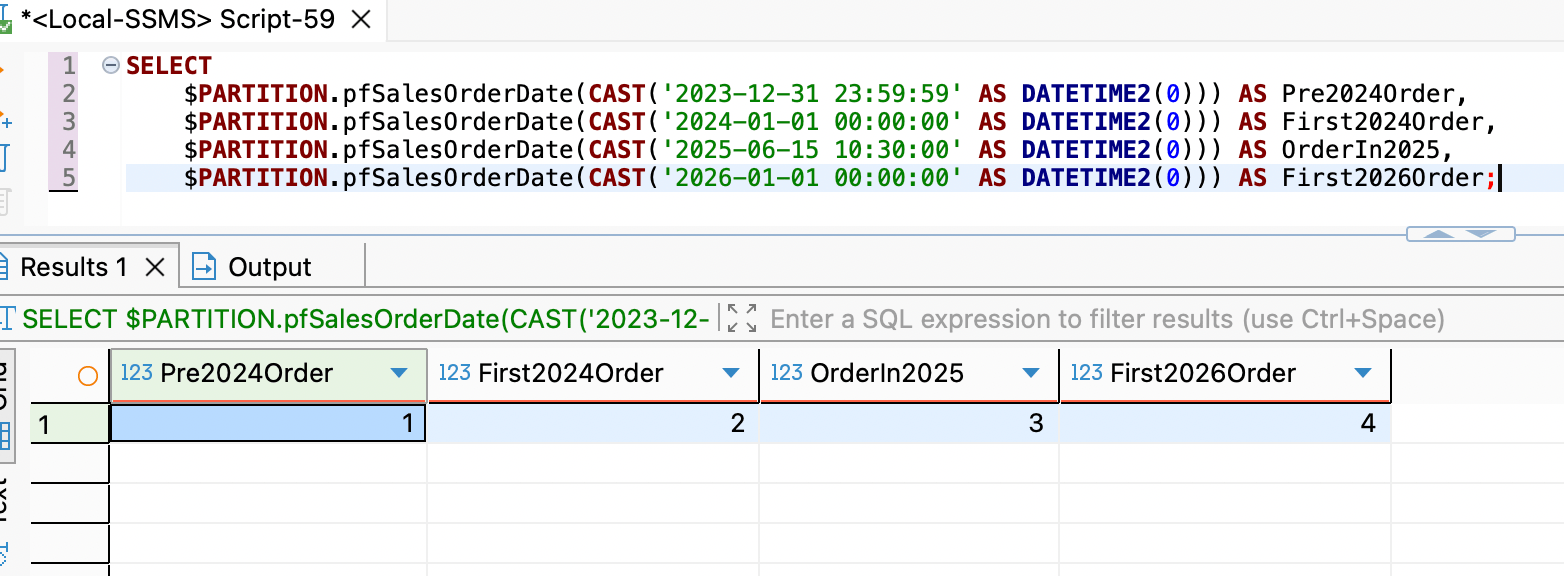
This confirms that our partition function is working correctly. The next step is to create a partition scheme, which maps these four logical partitions to our four filegroups.
Creating the Partition Scheme
Now that we have created the partition function, SQL Server knows how to divide orders by date. However, it does not yet know where each partition should be stored. A partition scheme solves this problem. It connects the logical partitions created by pfSalesOrderDate to the filegroups we created earlier. In simple terms:
- The partition function decides which partition an order belongs to.
- The partition scheme decides which filegroup stores that partition.
Confirm that the partition function exists:
Before creating the partition scheme, we should confirm that pfSalesOrderDate exists. A partition scheme cannot work without a partition function.
SELECT
    name,
    fanout
FROM sys.partition_functions
WHERE name = N'pfSalesOrderDate';
Since we have already created the partition function earlier, it should return an output as follows:
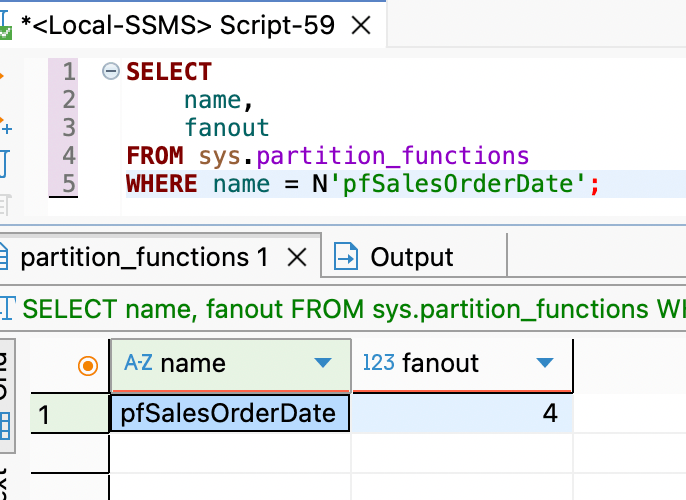
fanout = 4 confirms that our partition function has created four logical partitions.
Confirm that all required filegroups exist:
Our partition scheme needs four filegroups—one for each partition. We should check that they are present before we create the partition scheme. Though we know it is there, still we are doing this just to illustrate how we should be cautious and complete prechecks at every step. To check the existence of the filegroups, we can run the following query in our query editor:
SELECT
    name AS FilegroupName
FROM sys.filegroups
WHERE name IN
(
    N'FG_Sales_Pre2024',
    N'FG_Sales_2024',
    N'FG_Sales_2025',
    N'FG_Sales_2026'
);
which should generate a similar output as below:
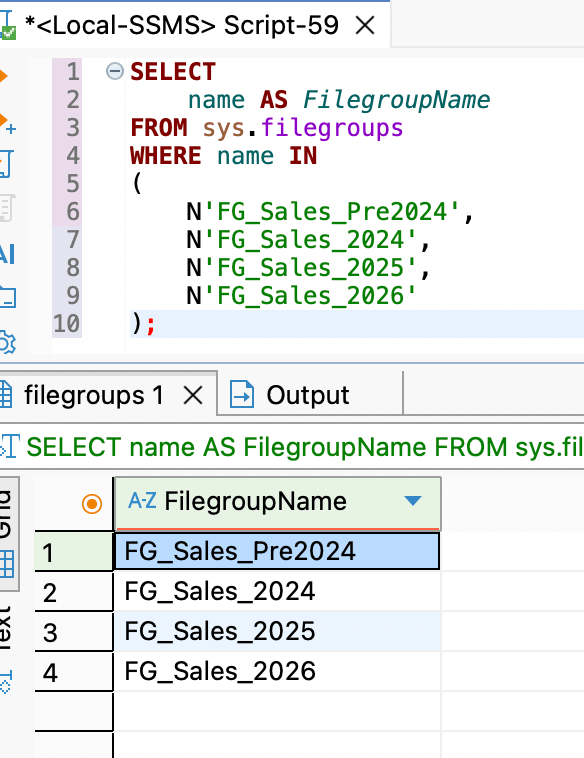
In case if a filegroup is missing, we should create it before continuing.
Check whether partition scheme already exists:
The following query checks whether a partition scheme named psSalesOrderDate already exists.
SELECT
    name
FROM sys.partition_schemes
WHERE name = N'psSalesOrderDate';
If no rows are returned (which should be the case for us as we have never created it till now), the partition scheme does not yet exist and we can go ahead and create it.
Creating the partition scheme:
The following query creates the partition scheme and maps each logical partition to its matching filegroup. We will check every part of the query to understand what purpose it serves before we execute the query in our editor.
CREATE PARTITION SCHEME psSalesOrderDate
This creates a partition scheme named psSalesOrderDate. We are using a meaningful name:
- ps means partition scheme
- SalesOrderDate tells us that this scheme is used for partitioning sales orders by date
AS PARTITION pfSalesOrderDate
This connects our scheme to the partition function named pfSalesOrderDate. The function has four partitions, so the scheme must provide four storage destinations.
TO
(
    [FG_Sales_Pre2024],
    [FG_Sales_2024],
    [FG_Sales_2025],
    [FG_Sales_2026]
)
This list maps each partition to a filegroup in the same order.
- Partition 1, containing orders before 2024, maps to FG_Sales_Pre2024.
- Partition 2, containing 2024 orders, maps to FG_Sales_2024.
- Partition 3, containing 2025 orders, maps to FG_Sales_2025.
- Partition 4, containing 2026 and later orders, maps to FG_Sales_2026.
The order of declaration here is extremely important. SQL Server does not match filegroups by their names; it maps them according to their position in the list.
The entire block of query that creates the partition scheme now looks like:
CREATE PARTITION SCHEME psSalesOrderDate
AS PARTITION pfSalesOrderDate
TO
(
    [FG_Sales_Pre2024],
    [FG_Sales_2024],
    [FG_Sales_2025],
    [FG_Sales_2026]
);
Executing the above query in our query executor will create the partition scheme.
Verifying the partition scheme:
Once the partition scheme is created, we would like to verify it once. After creating the scheme, we can run this query to confirm that SQL Server created it and linked it to the correct partition function.
SELECT
    ps.name AS PartitionScheme,
    pf.name AS PartitionFunction
FROM sys.partition_schemes AS ps
INNER JOIN sys.partition_functions AS pf
    ON ps.function_id = pf.function_id
WHERE ps.name = N'psSalesOrderDate';
Running the above query in the query executor should generate a similar output:
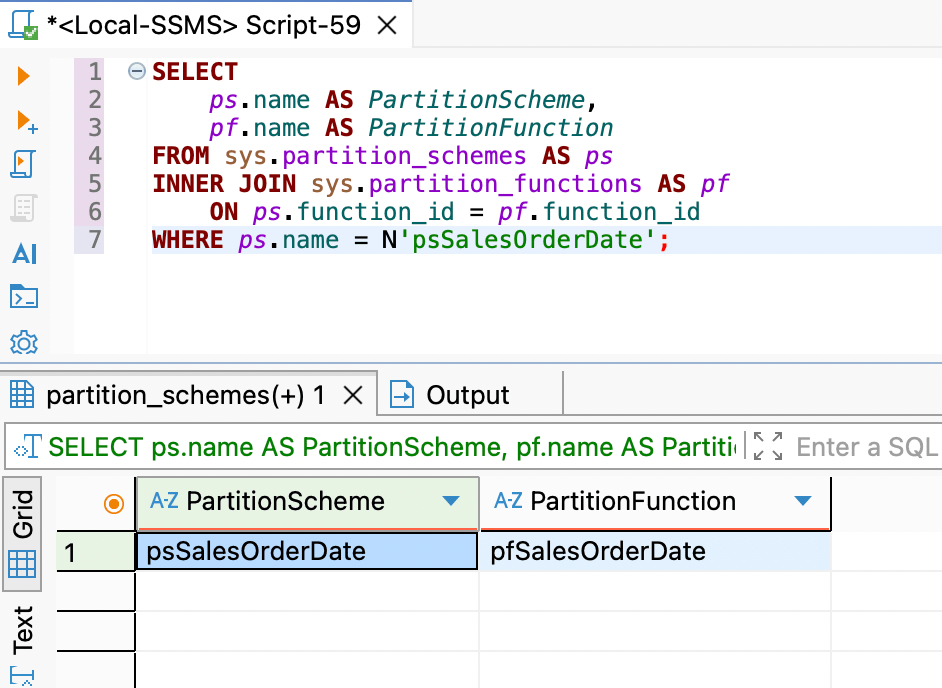
This confirms that our partition scheme is connected to the correct partition function.
Creating the Partitioned Table
Now we have the partition function and partition scheme ready. The next step is to create the actual Sales.Order table. This is where SQL Server begins storing order rows according to our date ranges and filegroups. One important rule applies here: when a unique index is placed on a partitioned table, the partition column must be included in that unique index. Since our primary key is also a unique clustered index, we include OrderDate in the primary key.
Check if the table already exists:
The below query checks whether a table named Orders already exists in the Sales schema.
SELECT
    OBJECT_ID(N'Sales.Orders', N'U') AS OrdersTableObjectId;
If the result is null (which should be the case for us), the table does not exist yet and we can create it.
Creating the partitioned table:
The following query creates the table and places its clustered primary key on the partition scheme. We will understand the query in details first and then run the entire query in our query editor to create the partitioned table.
CREATE TABLE Sales.Orders
This creates a table named Orders inside our Sales schema. The full object name becomes Sales.Orders.
OrderID INT IDENTITY(1,1) NOT NULL
OrderID is the unique identifier for each order. INT stores whole numbers. IDENTITY(1,1) tells SQL Server to generate the value automatically:
- The first order receives 1.
- The next order receives 2.
- Each new order increases by 1.
NOT NULL means every order must have an OrderID.
OrderDate DATETIME2(0) NOT NULL
OrderDate stores the date and time when an order was created. We use DATETIME2(0) because our partition function also uses DATETIME2(0). Keeping the data types consistent helps SQL Server route rows correctly. This is our partition column. SQL Server checks its value to decide which partition receives each order.
CONSTRAINT PK_Sales_Orders
    PRIMARY KEY CLUSTERED (OrderID, OrderDate)
This creates a primary key named PK_Sales_Orders. A primary key ensures that each row can be uniquely identified. CLUSTERED means SQL Server physically organises the table data according to this index. The key contains both OrderID and OrderDate. We have included OrderDate because it is our partition column. A unique clustered index on a partitioned table must include the partitioning column.
ON psSalesOrderDate(OrderDate)
This is the most important partitioning line. psSalesOrderDate is our partition scheme. OrderDate is the column SQL Server uses to apply the scheme.
The entire query block to create the partitioned table is:
IF OBJECT_ID(N'Sales.Orders', N'U') IS NULL
BEGIN
    CREATE TABLE Sales.Orders
    (
        OrderID INT IDENTITY(1,1) NOT NULL,
        OrderDate DATETIME2(0) NOT NULL,
        CustomerID INT NOT NULL,
        TotalAmount DECIMAL(12,2) NOT NULL,

        CONSTRAINT PK_Sales_Orders
            PRIMARY KEY CLUSTERED (OrderID, OrderDate)
    )
    ON psSalesOrderDate(OrderDate);
END;
We can run the above query in the query editor to create the partitioned table.
Verifying that the table uses the partition scheme:
After creating the table, we need to ensure that the table uses the partition scheme because based on that our data will be distributed appropriately across different filegroups. We can run this query to confirm that the clustered primary key uses our partition scheme and OrderDate as its partition column.
SELECT
    i.name AS ClusteredPrimaryKey,
    ps.name AS PartitionScheme,
    c.name AS PartitionColumn
FROM sys.indexes AS i
INNER JOIN sys.partition_schemes AS ps
    ON i.data_space_id = ps.data_space_id
INNER JOIN sys.index_columns AS ic
    ON i.object_id = ic.object_id
    AND i.index_id = ic.index_id
    AND ic.partition_ordinal = 1
INNER JOIN sys.columns AS c
    ON ic.object_id = c.object_id
    AND ic.column_id = c.column_id
WHERE i.object_id = OBJECT_ID(N'Sales.Orders')
    AND i.index_id = 1;
Once we run the above query, we should see a similar output:
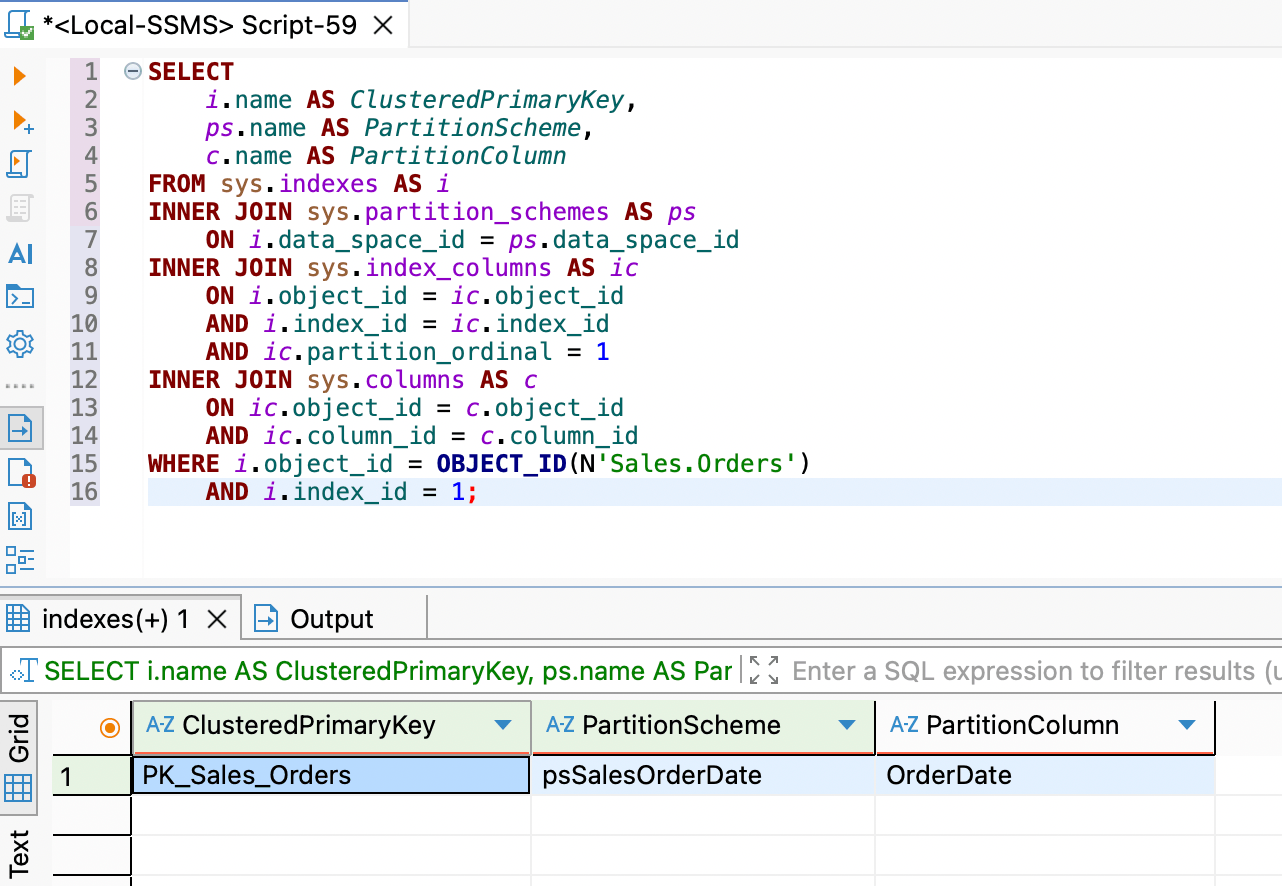
This confirms that Sales.Orders is partitioned by OrderDate using psSalesOrderDate.
Populating the Partitioned Table
Now that we have everything we need in place and well understood on how and why we did it, all we need to do is populate the partitioned table Sales.Orders with orders spanning across OrderDate ranging from before 2024 to after 2027. To do so, we can run the following simple INSERT query:
INSERT INTO Sales.Orders (OrderDate, CustomerID, TotalAmount)
VALUES
('2023-11-15 10:00:00', 1001, 150.00), -- Goes to Partition 1
('2024-04-10 14:30:00', 1002, 299.99), -- Goes to Partition 2
('2025-08-22 09:15:00', 1003, 85.50),  -- Goes to Partition 3
('2026-02-01 11:45:00', 1004, 420.00), -- Goes to Partition 4
('2026-03-10 16:00:00', 1005, 1250.00);-- Goes to Partition 4
Once we run the above query, data is inserted into the table now.
Inspecting Partition Metadata and Row Distribution
After creating our partitioned Sales.Orders table and inserting data, we need a way to confirm that SQL Server is placing rows in the correct partitions. The following query does not change data. It only reads SQL Server’s internal metadata and shows:
- The partition number.
- The filegroup used by that partition.
- The number of rows stored in it.
- The upper boundary date for that partition.
SELECT
    p.partition_number AS PartitionNumber,
    fg.name AS FileGroupName,
    p.rows AS RowsInPartition,
    rv.value AS UpperBoundaryValue
FROM sys.partitions AS p
INNER JOIN sys.indexes AS i
    ON p.object_id = i.object_id
    AND p.index_id = i.index_id
INNER JOIN sys.data_spaces AS ds
    ON i.data_space_id = ds.data_space_id
LEFT JOIN sys.partition_schemes AS ps
    ON ds.data_space_id = ps.data_space_id
LEFT JOIN sys.partition_range_values AS rv
    ON ps.function_id = rv.function_id
    AND rv.boundary_id = p.partition_number
LEFT JOIN sys.destination_data_spaces AS dds
    ON ps.data_space_id = dds.partition_scheme_id
    AND p.partition_number = dds.destination_id
LEFT JOIN sys.filegroups AS fg
    ON dds.data_space_id = fg.data_space_id
WHERE p.object_id = OBJECT_ID(N'Sales.Orders')
    AND i.index_id = 1
ORDER BY p.partition_number;
Running the above query should give a similar output:
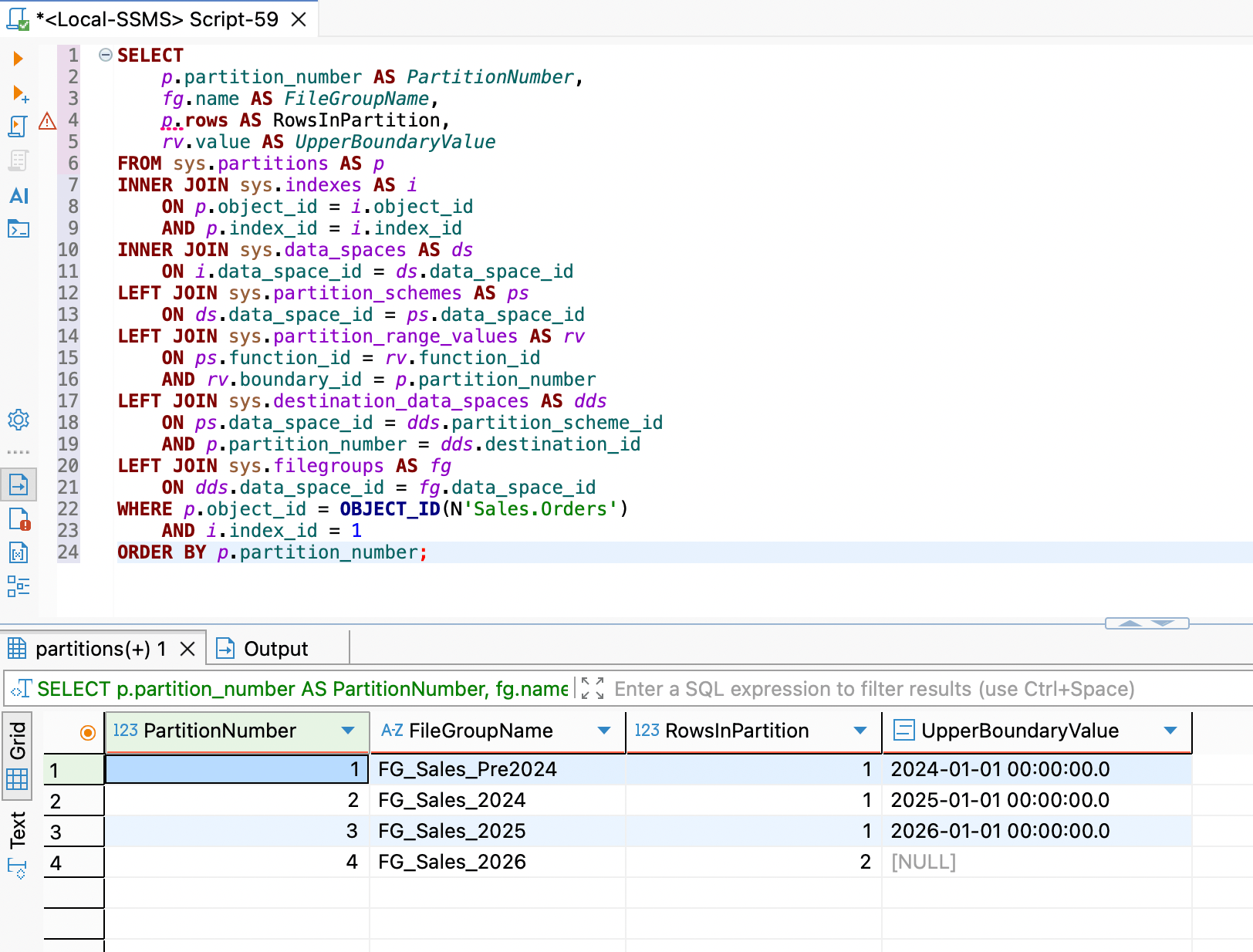
This result confirms that our table is partitioned correctly and that each date range is mapped to the intended filegroup.
Key Advantages
Once our Sales.Orders table is partitioned, we can use two important benefits:
- Faster date-based queries through partition elimination
- Fast historical-data archiving through the SWITCH operation
Partition elimination for query performance
Partition elimination means SQL Server can ignore partitions that cannot contain the data we requested. For example, if we request only 2026 orders, SQL Server can focus on Partition 4 because our partition function places all order with OrderDate in 2026 and later over there.
Before we begin, we will try to populate more records into the Sales.Orders table to ensure that we have enough data across all the partitions to ensure that it replicates a production grade database. Currently, our database now has this volume of record across all the partitions:
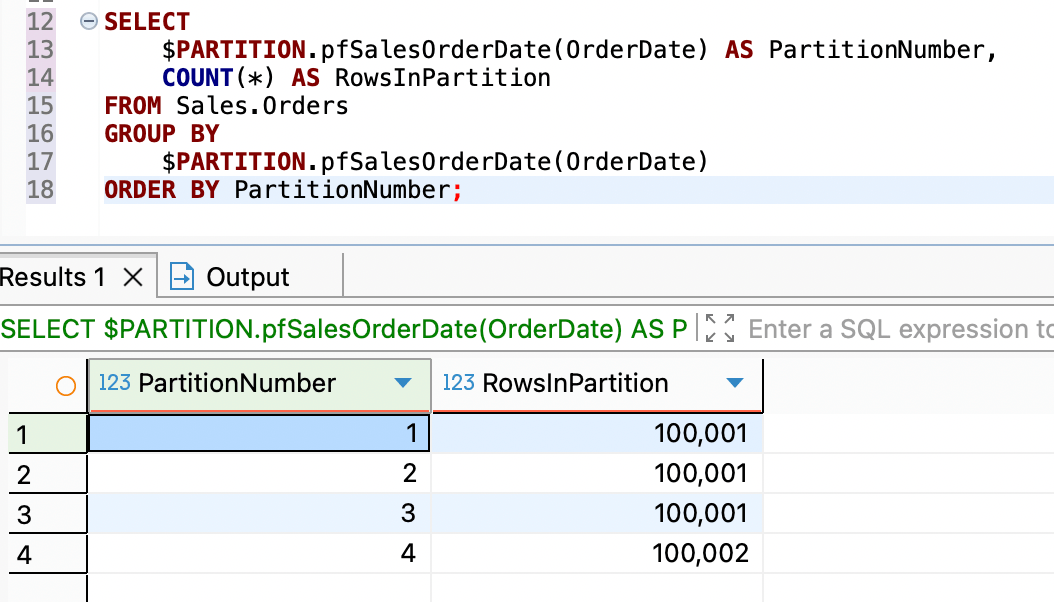
Now, to check the statistics, we need to first enable the I/O statistics using the following command:
SET STATISTICS IO ON;
This does not change our data. It tells SQL Server to report logical reads and physical reads after each query.
Next we will query only the orders with OrderDate having the year component as 2026. We can use the following query which requests orders from the beginning of 2026 up to, but not including, the beginning of 2027 (that is from 1st Jan 2026 to 31st Dec 2026).
SELECT
    OrderID,
    OrderDate,
    CustomerID,
    TotalAmount
FROM Sales.Orders
WHERE OrderDate >= '2026-01-01'
    AND OrderDate < '2027-01-01';
We have used OrderDate directly in the WHERE clause. This is important because it allows SQL Server to compare the filter with our partition boundaries.

If we see the output, our date range maps to Partition 4 and the SQL Server can use partition elimination to restrict processing to the applicable partition range. If partitioning was not implemented, scanning across 4 lakh + rows could not have completed in 13 logical reads.
Instant historical archiving with SWITCH
A normal deletion removes rows one by one. For example:
DELETE FROM Sales.Orders
WHERE OrderDate < '2024-01-01';
This can be slow for millions of rows because SQL Server logs each deleted row. It may also create a large transaction log and hold locks for a longer time.
A partition SWITCH operation is different. It moves an entire partition from one table to another by changing metadata. SQL Server does not copy or delete rows individually.
Before we switch data, we need an empty archive table with:
- The same columns.
- The same data types.
- The same clustered index definition.
- The same filegroup as the partition being moved.
- A CHECK constraint that accepts only pre-2024 rows.
To demonstrate this, we will first need to create an archive table to store the deleted records using the following query:
IF OBJECT_ID(N'Sales.Orders_Archive_Pre2024', N'U') IS NULL
BEGIN
    CREATE TABLE Sales.Orders_Archive_Pre2024
    (
        OrderID INT NOT NULL,
        OrderDate DATETIME2(0) NOT NULL,
        CustomerID INT NOT NULL,
        TotalAmount DECIMAL(12,2) NOT NULL,

        CONSTRAINT PK_Sales_Orders_Archive_Pre2024
            PRIMARY KEY CLUSTERED (OrderID, OrderDate),

        CONSTRAINT CK_Orders_Archive_Pre2024_OrderDate
            CHECK (OrderDate < '2024-01-01')
    )
    ON [FG_Sales_Pre2024];
END;
Note, that the constraint: CHECK (OrderDate < '2024-01-01') is essential for the SWITCH operation. It tells SQL Server that the archive table accepts only rows from before 2024. This exactly matches Partition 1 in our RANGE RIGHT partition function.
Now, we will perform the SWITCH operation to populate the partition 1 data into the archive table using the below query:
ALTER TABLE Sales.Orders
SWITCH PARTITION 1
TO Sales.Orders_Archive_Pre2024;
This command means:
- Take Partition 1 from Sales.Orders
- Partition 1 contains orders dated before 2024.
- Move the entire partition into Sales.Orders_Archive_Pre2024
SQL Server changes metadata rather than deleting and reinserting every row.
Finally, to verify the archive operation, we can check how many records are remaining in the partition 1 now by running the following query:
SELECT
    p.partition_number AS PartitionNumber,
    p.rows AS RowsRemainingInPartition
FROM sys.partitions AS p
WHERE p.object_id = OBJECT_ID(N'Sales.Orders')
    AND p.index_id = 1
    AND p.partition_number = 1;
Clearly, we should be able to see that 0 records are now remaining in the partition 1:
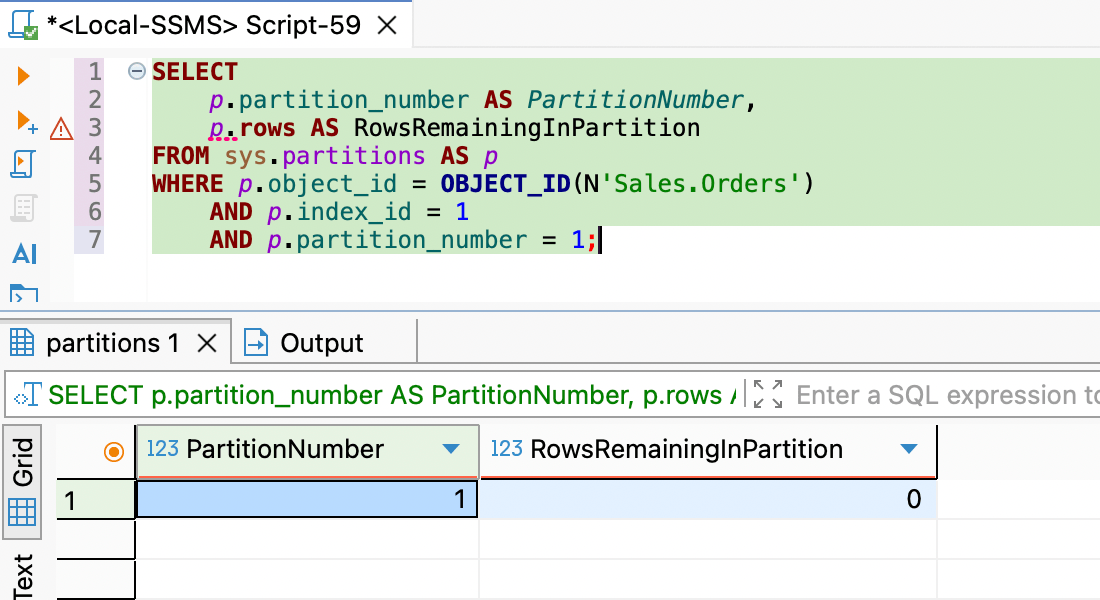
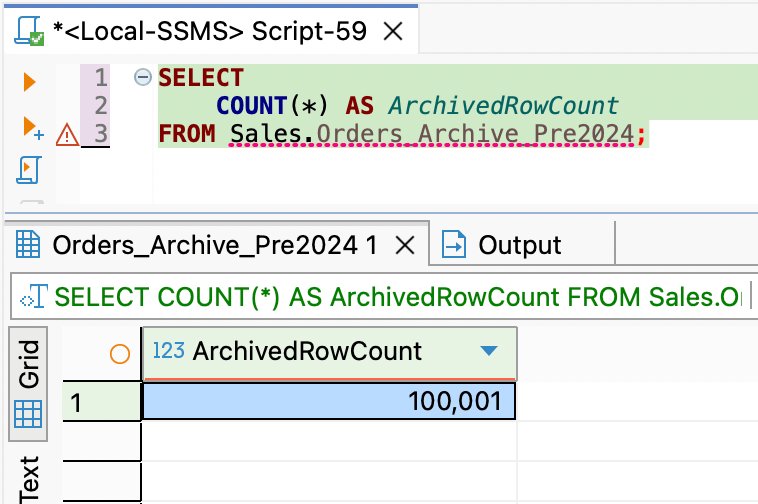
If we decide to check how many records were archived from partition 1 to the archived table, we can run the following query to check the same:
SELECT
    COUNT(*) AS ArchivedRowCount
FROM Sales.Orders_Archive_Pre2024;
Since we populated huge volume of records to test real time scenarios, we can see that almost 1 lakh records were archived:
Conclusion
Table partitioning provides a powerful, architectural solution for managing multi-gigabyte or terabyte tables in SQL Server without sacrificing performance. By organizing massive datasets into distinct physical storage units, it optimizes query execution through partition elimination and turns long-running archive deletes into instant, zero-downtime metadata operations.
When implemented with properly aligned indexes and realistic boundary ranges, partitioning ensures that your database remains responsive, scalable, and easy to maintain as your business data continues to grow.