Introduction
Using SQL Server RDS is the easiest and simplest way for any development team since it gives a lot of insights into the database usage and also allows storage to be expanded whenever it is needed. But that convenience also comes with a hefty cost that keeps adding up every month.
I feel using SQL Server Developer Edition in Kubernetes is a better option for many non production scenarios because it helps reduce cost, gives flexibility and control over the configuration, can be hooked up to monitoring tools to track database-level memory and CPU load, and also integrates well with CI/CD pipelines for database testing.
The sections below cover how I set up SQL Server Developer Edition in Kubernetes on AWS EKS.
Prerequisites:
Before starting, make sure you have the following:
- AWS Account
- AWS EKS Cluster with EBS CSI add-on enabled
- EBS Storageclass YAML to create a storageclass
- Stateful set helm chart of SQL Server (from mssql-docker repo)
- Kubectl and AWS CLI installed
Deployment Options:
When it comes to running SQL Server in Kubernetes, you have two approaches to choose from: StatefulSet or Helm Deployment as a Pod. These are described below
- StatefulSet: StatefulSets are built with databases in mind. Each pod can hang on to its own persistent volume, which means data doesn’t just vanish if the pod restarts. They also give pods stable network names and roll things out in a predictable order. That kind of control starts to matter if you’re dealing with clustering or need a safety net for failover.
- Helm Deployment (as a Pod): When it comes to Helm Deployment you can keep things simpler by deploying SQL Server as a single Pod using Helm. It’s much simpler setup no bells and whistles and it makes sense if you don’t plan on clustering or replication. While Helm can handle scaling and rolling updates, it lacks the ordered guarantees provided by StatefulSets.
My Approach
For this article, I deployed SQL Server as a Pod using Helm. This setup worked for my development testing. I also added CPU and memory monitoring using Sumo Logic and connected it to a CI/CD pipeline.
Before deploying SQL Server, the EKS cluster needs to be ready to handle persistent storage. The EBS CSI Driver add-on must be enabled for this setup. Without the CSI add-on, the pod does not get EBS storage. I hit this issue during testing.
Since the EKS cluster already existed in my case, I enabled the add-on later from the AWS console. For a new cluster, this can also be enabled during the cluster setup.
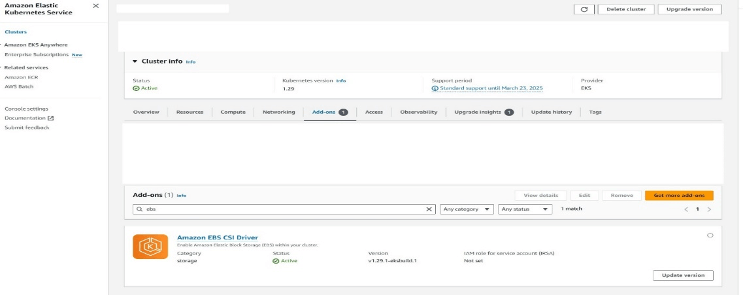
Once the EBS CSI Driver is enabled, the next step is to create a StorageClass for SQL Server to use its data files. Without this, Kubernetes will not know how to provision EBS volumes for the pod, and the deployment will not move forward. There are two ways this can be handled. One way is to create the StorageClass separately before deploying SQL Server. The other way is to define the StorageClass as part of the Helm chart itself.
For this setup, I went with creating the StorageClass separately. This worked better for my use case since the same StorageClass can be reused across deployments, and the storage configuration stays outside the Helm chart. It also made things easier to manage later.
Example storageclass.yaml:
apiVersion: storage.k8s.io/v1
kind: StorageClass
metadata:
  name: ebs-sc
provisioner: ebs.csi.aws.com
parameters:
  type: gp3
  fsType: xfs
allowVolumeExpansion: true
volumeBindingMode: WaitForFirstConsumer
reclaimPolicy: Retain
Once the yaml file is ready, apply it using:
kubectl apply -f storageclass.yaml
You can verify that the StorageClass is created successfully by running:
kubectl get storageclass
Prepare the Helm Chart
Here are the steps to create the Helm chart needed to deploy the containers.
Clone the Repository with these commands.
git clone https://github.com/microsoft/mssql-docker.git

cd mssql-docker/linux/sample-helm-chart-statefulset-deployment
Modify the Helm chart to support the deployment as follows. First, create a secret YAML or create a Kubernetes secret in the environment where we are deploying this statefulset. I am using the approach of creating a secret.yaml file with the following configuration
apiVersion: v1
kind: Secret
metadata:
      name: mssql
      namespace: {{ .Release.Namespace }}
type: Opaque
data:
     SA_PASSWORD: {{ .Values.sa_password | b64enc }}
Next, set the StorageClassName to the one you created (ebs-sc):
pvc:
      StorageClass: "ebs-sc"
      userdbaccessMode: ReadWriteOnce
      userdbsize: 100Gi
      userlogaccessMode: ReadWriteOnce
      userlogsize: 50Gi
      tempdbaccessMode: ReadWriteOnce
      Tempsize: 20Gi
      mssqldataaccessMode: ReadWriteOnce
      mssqldbsize: 10Gi
?
Set the hostname to a custom name:
hostname: "my-custom-sqlserver"?
Set the sa_password for the SA account:
Sa_password: “YourStrongPassword”?
Add nodeselector in case the EKS cluster has multiple node type
nodeSelector:
  kubernetes.io/arch: amd64?
Edit the deployment YAML to make sure nodeselector is defined, as well as the secret volume is mounted. The Nodeselector is defined under template --> spec
spec:
  nodeSelector:
    {{- toYaml .Values.nodeSelector | nindent 8 }}

?
The volumeMounts are defined under template--> spec-->containers
volumeMounts:
   - name: mssql
     mountPath: "/var/opt/mssql"
   - name: mssql-config-volume
     mountPath: /var/opt/config
The volumes are defined under template--> spec
volumes:
 - name: mssql-config-volume
   configMap:
   name: mssql
Remove the sc.yaml file since we will be deploying the storage class separately before this statefulset is deployed as part of storageclass.yaml defined in the Create EBS Storage Class step.
Deploy SQL Server Using Helm
After updating the chart values, I deployed SQL Server using Helm with this command.
helm upgrade --install sqlserver . \
  --set ACCEPT_EULA.value=Y \
  --set MSSQL_PID.value=Developer \
  --set sa_password="<password>" \
  --set admin_passwd="<admin_password>"
Once deployed, I checked the pod status:
kubectl get pods
At this point, SQL Server was running as a pod with EBS-backed storage.
Post-deployment SQL Configuration
Once the pod is deployed and up and running, I did a few SQL changes so it can be shared across the dev team. First, I created a login and user with this code:
-- 1. Create a new SQL Server login
CREATE LOGIN <username> WITH PASSWORD = '<Password>';

-- 2. Create a new user for the login in the master database
CREATE USER <username> FOR LOGIN <username>;

-- 3. Add the user to the sysadmin server role
ALTER SERVER ROLE sysadmin ADD MEMBER <username>;?
Next I check the max connection limit. This is the query for that:
EXEC sp_configure 'user connections';
If it throws an error like this:
Msg 15123, Level 16, State 1, Procedure sp_configure The configuration option 'user connections' does not exist, or it may be an advanced option.
Then I enabled advanced options using:
EXEC sp_configure 'show advanced options', 1;
RECONFIGURE;
After that, I reran:
EXEC sp_configure 'user connections';
Conclusion
AWS RDS gives a very easy and direct approach to create and use SQL Server for a development team, but it comes with a huge overhead running cost behind the easy process. Using SQL Server Developer Edition in Kubernetes is a good alternative. It reduces expenses, gives more control over configuration, and integrates easily with monitoring and CI/CD pipelines.
This setup may not replace RDS for production HA/DR workloads, but for dev/test environments, it is a cost-effective and flexible solution. It provides the team with the ability to optimize and manage SQL Server in a way that best fits their needs, while keeping costs under control and making sure development activity is never blocked.