

This series has examined several changes to the T-SQL language in SQL Server 2025. We've previously looked at some of the generic functions, fuzzy string matching, and the new JSON aggregate functions. Now we turn to something SQL Server developers have been requesting for a very long time: native regular expression support.
SQL Server 2025 ships with five new regular expression functions:
In this article, we'll focus on REGEXP_LIKE, the simplest of the five to understand and the best starting point for learning the new regex capabilities in T-SQL. The others will follow in later articles.
This is part of a series on how the T-SQL language is evolving in SQL Server 2025. Note: Some of these changes are already available in the various Azure SQL database products.
A Note on Compatibility Level
REGEXP_LIKE requires database compatibility level 170 or higher. You can check and change the level like this:
-- Check current level
SELECT name, compatibility_level FROM sys.databases WHERE name = DB_NAME();

-- Upgrade if needed
ALTER DATABASE [YourDatabase] SET COMPATIBILITY_LEVEL = 170;
If your database is still at an earlier compatibility level, the function won't resolve, and you'll get an error. You can see this after running the script below:
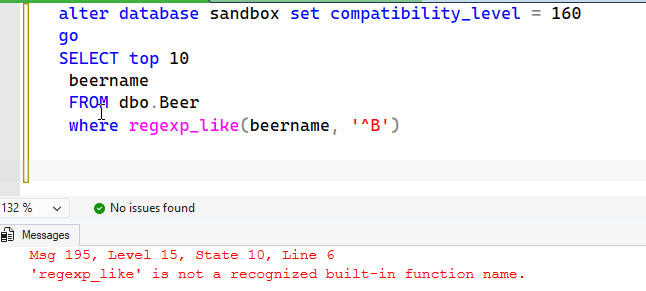
The other regex functions (REGEXP_COUNT, REGEXP_INSTR, etc.) are available at all compatibility levels, but REGEXP_LIKE specifically requires 170. Worth keeping in mind if you're deploying to a database that hasn't been upgraded yet.
What Is a Regular Expression?
If you're new to regular expressions, the quick version is this: a regex is a compact pattern-matching language. Instead of saying "find strings that start with a digit", you write ^\d. Instead of "find strings that contain exactly three uppercase letters in a row", you write [A-Z]{3}. The patterns look cryptic at first, but there are really only a handful of building blocks:
| Syntax | Meaning |
|---|---|
| . | Any single character (except newline by default) |
| ^ | Start of the string |
| $ | End of the string |
| \d | Any digit (0–9) |
| \w | Any word character (letter, digit, or underscore) |
| [abc] | Any one of: a, b, or c |
| [^abc] | Any character except a, b, or c |
| * | Zero or more of the preceding element |
| + | One or more of the preceding element |
| ? | Zero or one of the preceding element |
| {n} | Exactly n repetitions |
| {n,m} | Between n and m repetitions |
| \\. | A literal dot (backslash escapes special characters) |
Developers coming from Python, JavaScript, .NET, or Java will recognize this syntax immediately as SQL Server uses the same RE2-style pattern language those environments use. If you need help with regular expressions, this is a great place to use AI. There are also RegEx builders, like RegEx 101 that help you build and test expressions.
REGEXP_LIKE Syntax
The function signature is straightforward:
REGEXP_LIKE ( string_expression, pattern_expression [, flags] )
It returns a boolean: true if the pattern matches anywhere in the string, false if it doesn't. The optional flags argument is a short string of modifier characters:
- c — case-sensitive matching (the default)
- i — case-insensitive matching
- m — multi-line mode, so ^ and $ match at line boundaries, not just string boundaries
- s — single-line mode, lets . match newline characters too
If you supply contradictory flags (like both i and c), the last one wins. I'll show an example below of this.
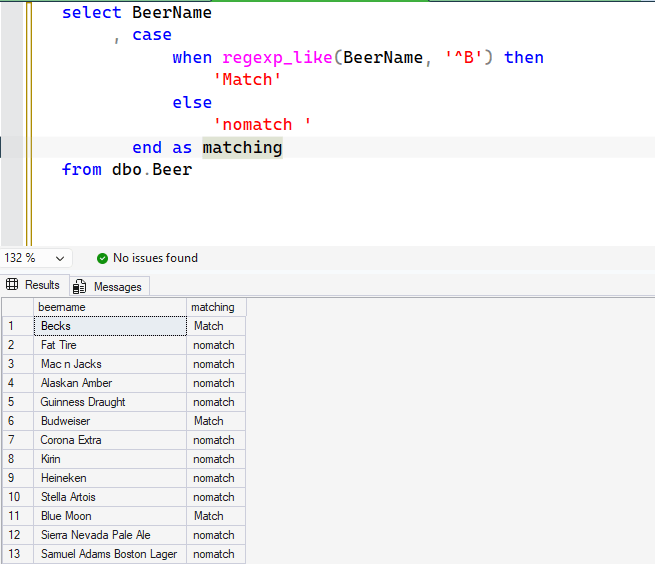
The function is used in a WHERE clause or a CHECK constraint, anywhere a boolean expression is valid. It is not something you use as a result, unless you include in an expression where the boolean is evaluated, such as in a CASE statement. You can see this below:
The Setup
The easiest way to experiment with REGEXP_LIKE is to run it against literal values before touching real table data. Here I'll check a few common scenarios using data in AdventureWorks, To make the data look better, I'll first set this to compat mode 170, and then select data from a few tables.
You can see my results below:
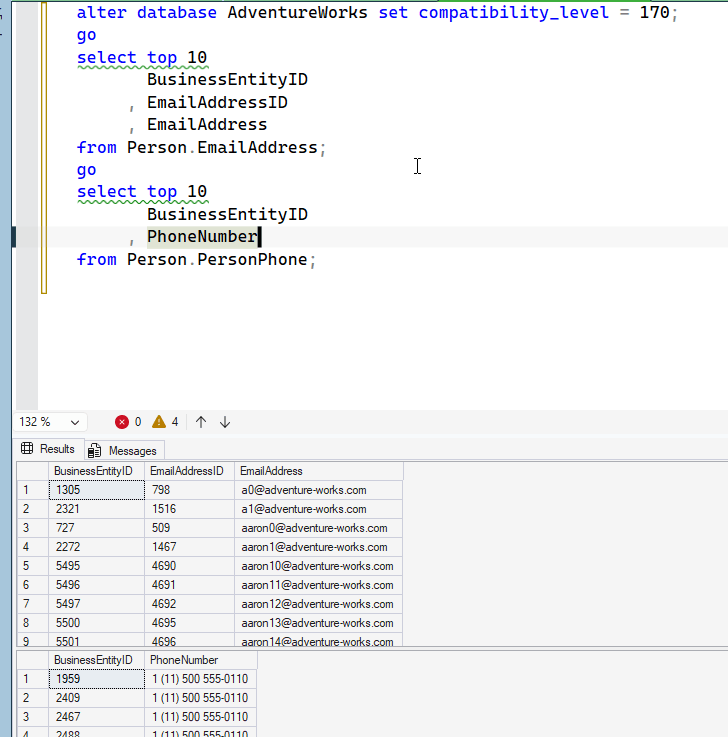
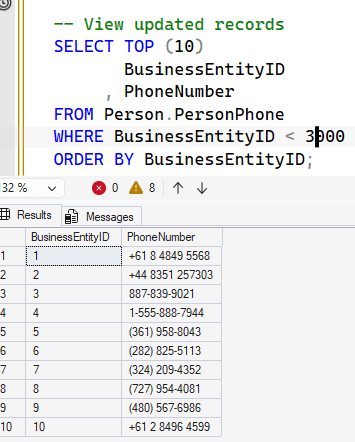
In the sample data for AdventureWorks, we have the same phone used over and over. Let's alter the data a bit with this script. This gives me some valid US, UK, and Australia format numbers.
UPDATE Person.PersonPhone
SET PhoneNumber = CASE
                      -- US format: (XXX) XXX-XXXX
                      WHEN ABS(CHECKSUM(NEWID())) = 0 THEN
                          '(' + CAST(200 + ABS(CHECKSUM(NEWID())) AS VARCHAR) + ') '
                          + CAST(200 + ABS(CHECKSUM(NEWID())) AS VARCHAR) + '-'
                          + CAST(1000 + ABS(CHECKSUM(NEWID())) AS VARCHAR)

                      -- UK format: +44 XXXX XXXXXX
                      WHEN ABS(CHECKSUM(NEWID())) = 1 THEN
                          '+44 ' + CAST(1000 + ABS(CHECKSUM(NEWID())) AS VARCHAR) + ' '
                          + CAST(100000 + ABS(CHECKSUM(NEWID())) AS VARCHAR)

                      -- Australia format: +61 X XXXX XXXX
                      ELSE
                          '+61 ' + CAST(2 + ABS(CHECKSUM(NEWID())) AS VARCHAR) + ' '
                          + CAST(1000 + ABS(CHECKSUM(NEWID())) AS VARCHAR) + ' '
                          + CAST(1000 + ABS(CHECKSUM(NEWID())) AS VARCHAR)
                  END
WHERE BusinessEntityID < 3000;
go
update person.PersonPhone
 set PhoneNumber = '887-839-9021'
  where BusinessEntityID = 3
update person.PersonPhone
 set PhoneNumber = '1-555-888-7944'
  where BusinessEntityID = 4
go
Here are the first 10:
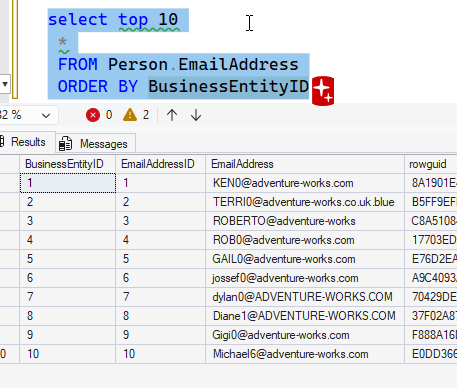
Let's also update some email addresses with this script to change case:
UPDATE Person.EmailAddress
SET EmailAddress = CASE
                       WHEN CHARINDEX('@', EmailAddress) > 0 THEN
                           UPPER(LEFT(EmailAddress, CHARINDEX('@', EmailAddress) - 1))
                           + SUBSTRING(EmailAddress, CHARINDEX('@', EmailAddress), LEN(EmailAddress))
                       ELSE
                           UPPER(EmailAddress)
                   END
WHERE BusinessEntityID
BETWEEN 1 AND 5
go
UPDATE Person.EmailAddress
SET EmailAddress = CASE
                       WHEN CHARINDEX('@', EmailAddress) > 0 THEN
                           UPPER(LEFT(EmailAddress, 1))
                           + LOWER(SUBSTRING(EmailAddress, 2, CHARINDEX('@', EmailAddress) - 2))
                           + SUBSTRING(EmailAddress, CHARINDEX('@', EmailAddress), LEN(EmailAddress))
                       ELSE
                           EmailAddress
                   END
WHERE BusinessEntityID
BETWEEN 8 AND 10
go
UPDATE Person.EmailAddress
SET EmailAddress = CASE
                       WHEN CHARINDEX('@', EmailAddress) > 0 THEN
                           LEFT(EmailAddress, CHARINDEX('@', EmailAddress))
                           + UPPER(SUBSTRING(EmailAddress, CHARINDEX('@', EmailAddress) + 1, LEN(EmailAddress)))
                       ELSE
                           EmailAddress
                   END
WHERE BusinessEntityID IN ( 7, 8 )
update Person.EmailAddress
 set EmailAddress = 'ROBERTO@adventure-works'
 where BusinessEntityID = 3
update Person.EmailAddress
 set EmailAddress = 'TERRI0@adventure-works.co.uk.blue'
 where BusinessEntityID = 2
go
Updated data here:
Testing Phones
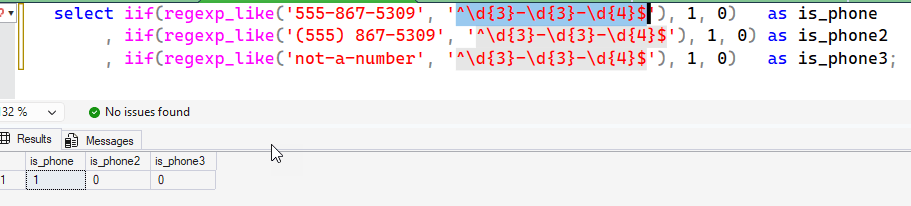
First, a simple check: does a string look like a US phone number in the NXX-NXX-XXXX format (three digits, hyphen, three digits, hyphen, four digits)? In this case, we can't directly use REGEXP_LIKE() in the column list, but we can use it inside IIF(). I'll do that with this pattern. The explanation is that I am looking for the following (decoding the pattern):
- ^ is the start
- \d{3} is 3 digits exactly, characters 1-3.
- - is matching the explicit hypen, character 4
- \d{3} is 3 digits exactly, characters 5-7
- another hypen (character 8)
- \d{4} matches 4 digits, characters 9-12
- $ is the end of the line
select iif(regexp_like('555-867-5309', '^\d{3}-\d{3}-\d{4}$'), 1, 0)   as is_phone
     , iif(regexp_like('(555) 867-5309', '^\d{3}-\d{3}-\d{4}$'), 1, 0) as is_phone2
     , iif(regexp_like('not-a-number', '^\d{3}-\d{3}-\d{4}$'), 1, 0)   as is_phone3;
The first string matches, the second doesn't (parentheses and a space don't fit the strict pattern), and the third obviously fails:
I'll run a few more, none of which match. The lengths are correct, but I've added some characters and a space in places. This shows the digit matches mean I need numbers 0-9 in there, not any other character.

This illustrates an important point: REGEXP_LIKE tests whether the pattern matches — it doesn't tell you whether a value is semantically valid, only whether it fits the shape you describe. The pattern above is strict. If you want to accept multiple phone formats, you need a more flexible pattern (more on that below). Suppose I want to test if I have valid US phone numbers, which could be in different formats. I have these in my test data set:
- 887-839-9021
- 1-555-888-7944
- (361) 958-8043
Using both Prompt AI and Claude, I got two different regular expressions to try. Both work, but as you can see the approach is different. I am not a regex expert and I typically depend on something like RegEx101 or AI to help.
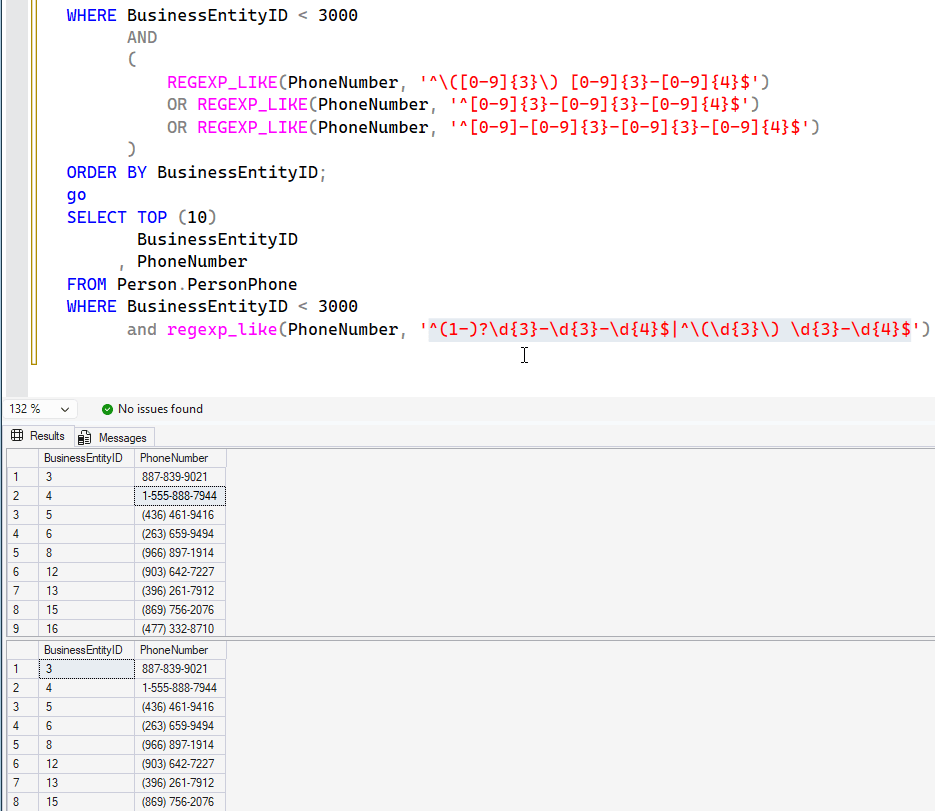
You can debug how these work, but the idea is they work and let you decide what you validate and what you don't. Either RexEx101 or Claude (or Prompt AI) can help you
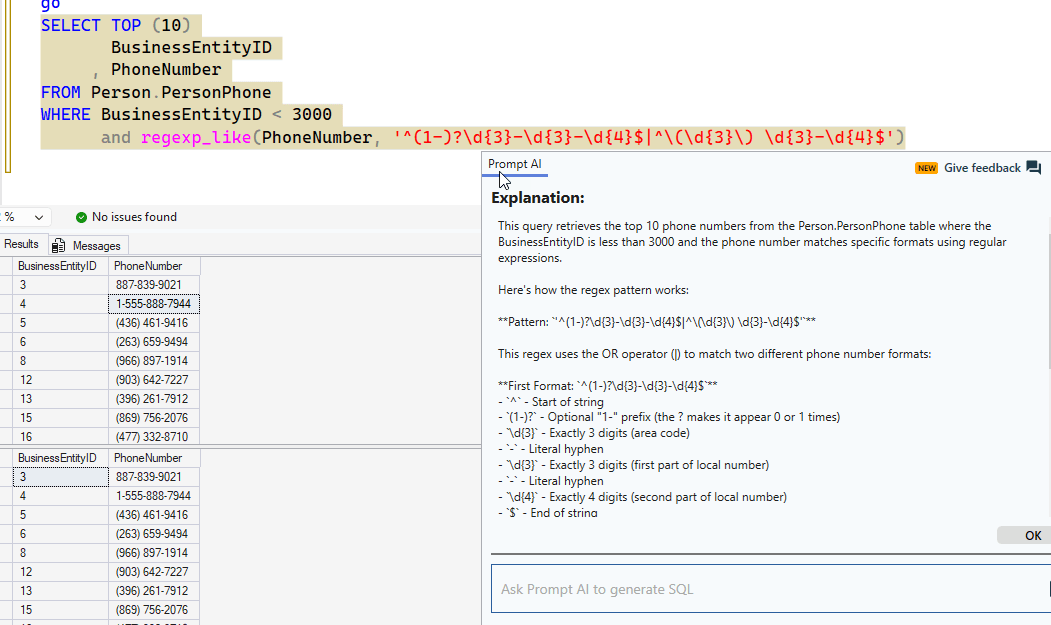
The important thing to note here is that if you have a regex pattern, this will apply it to your data.
However, how does this perform? Well, this is a function in the WHERE clause. This means that the index will not be used to find these exact rows. Each item in the index has to be scanned. In this case, there is an index on (BusinessEntityID, PhoneNumber, PhoneNumberType). If I change my query to ignore the PK and get the other data, I will see this in the plan. An index scan, as this has to look through the data and apply the function to each value. On this small set, statistics time/io don't really matter.
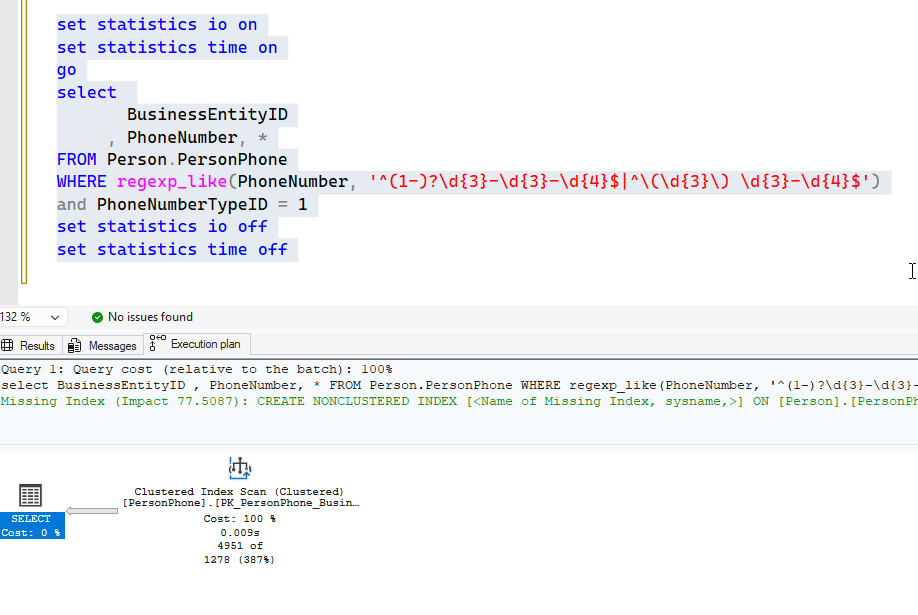
This is something to be aware of, and you will want to use other techniques to filter the amount of data that runs through this function. I'll leave this to others, but be aware here of the impact on large data sets.
REGEXP_Options with Emails
There are options available with this function. These are documented above, so let's look at a few ways in which this works. In my list of email addresses, I have a number that are valid and some that are not. Let's check with a "standard" email validation regex of ^[\w.+-]+@[\w-]+\.[a-zA-Z]{2,}$. You can explain this to yourself with another site or AI.
I I run my list of emails through this, I get these values. ID 2 s invalid as there is a value after the TLD. ID3 has no TLD.
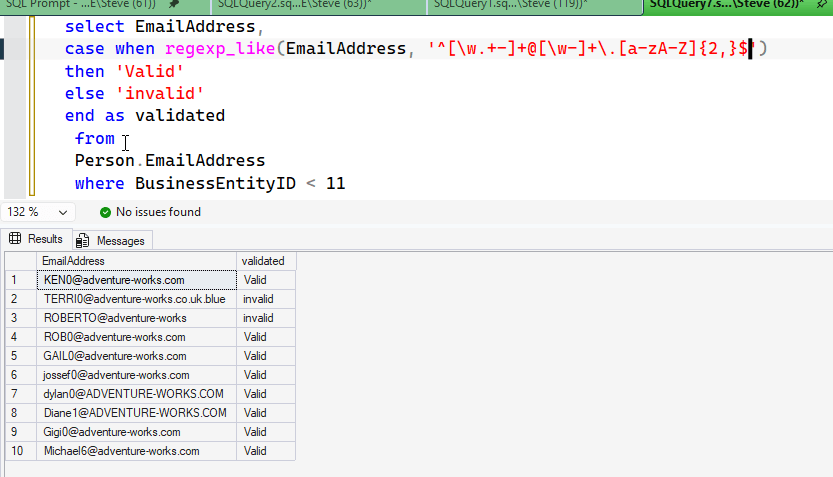
However, let's now try some options. First, let me run this code: Notice I've removed the A-Z in the domain name:
select EmailAddress,
case when regexp_like(EmailAddress, '^[\w.+-]+@[\w-]+\.[a-z]{2,}$')
then 'Valid'
else 'invalid'
end as validated
 from
 Person.EmailAddress
 where BusinessEntityID < 11
When I do this, I get some invalid email addresses. This is because the upper case values for the domain don't match the a-z specification.
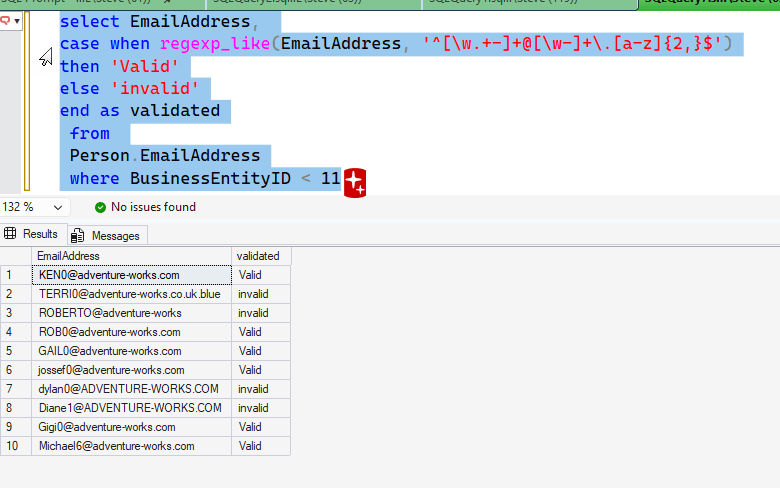
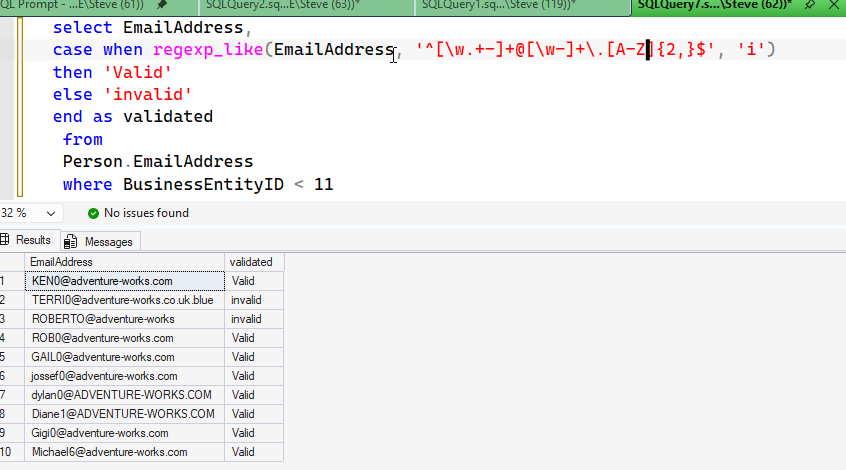
However, I can fix this. Let's add a flag, in this case the "i" flag as the third parameter. That gives me this query:
select EmailAddress,
case when regexp_like(EmailAddress, '^[\w.+-]+@[\w-]+\.[a-z]{2,}$', 'i')
then 'Valid'
else 'invalid'
end as validated
 from
 Person.EmailAddress
 where BusinessEntityID < 11
In my results, I now see that the upper case domains are validated. This because the "i" sets this to a case insensitive match.
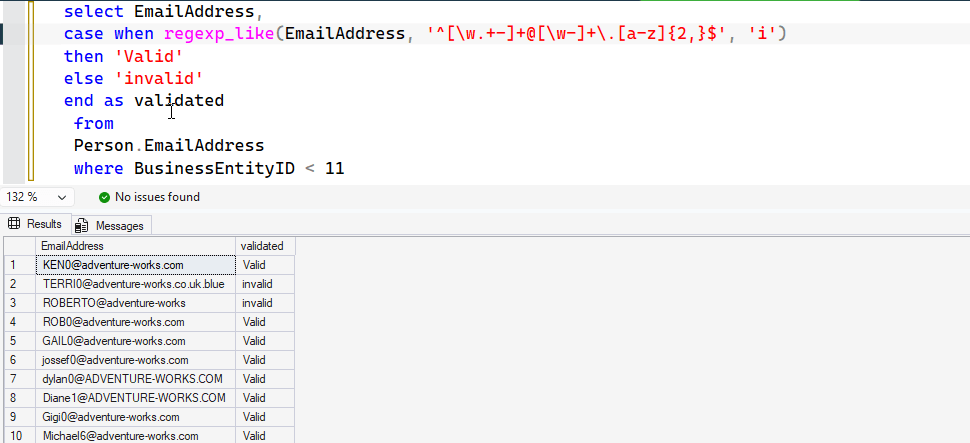
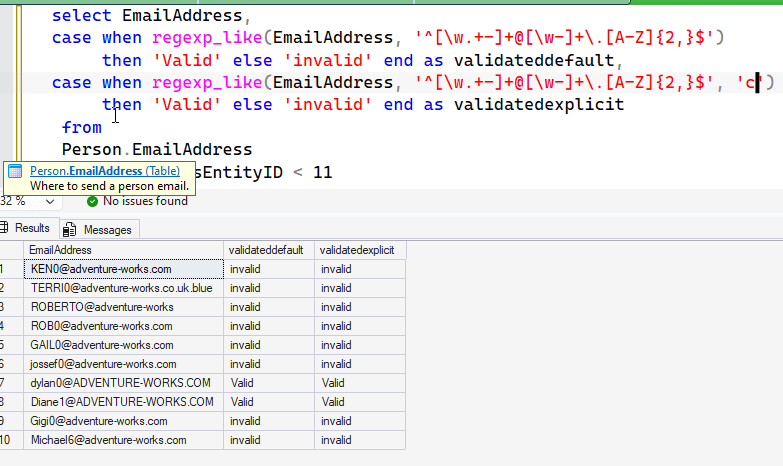
The default is an option of "c", a case sensitive search. If no options are provided, this is used. If I change my values to upper case, A-Z, then the same results appear.
However, if I remove the flag, then I only see certain values as validated. I have included a second field that uses the explicit case sensitive flag, so we can see these are the same.
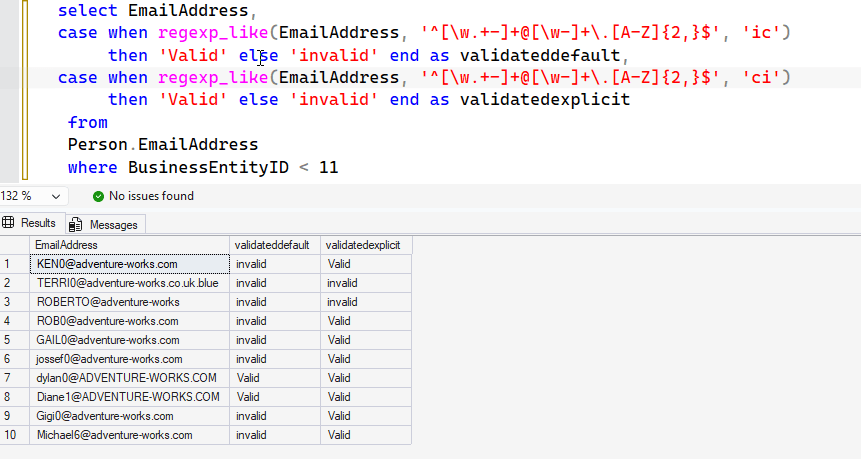
What about applying multiple flags. Well, the flags are a single parameter, so applying them is adding multiple ones in a string. How we we handle this? They are all applied, with the latest one winning. For example, let's add "ic", a case insensitive match and then a case sensitive match. I'll also do the reverse as the third field. You can see in here that the last flag to the right wins. Compare these results to those above.
Multi Line Matches
There is a "m" flag that lets you match across multiple lines. This is false by default, so if this is not included, multi line matches are not made. Here is an example of text in a small table. I've added some multi-line values.
create TABLE Msgs (id INT, txt NVARCHAR(200));

INSERT INTO Msgs VALUES
(1, 'foo
bar'),      -- two lines: "foo" then "bar"
(2, 'foobar'),    -- one line, no bar at start
(3, 'barfoo'),    -- one line, bar at start
(4, 'bar
foo ');    -- two lines, bar at start
go
Now, we'll run a query that looks for bar at the beginning of a line. Note that ID 1 has bar at the beginning of a line, but it's after a newline in the data. IDs 3 and 4 have it at the start. Look at the results:
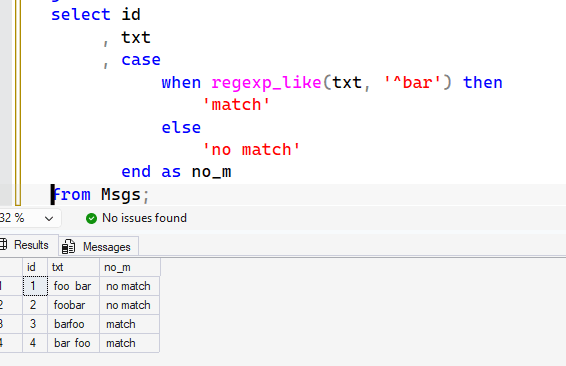
Now, let's add the "m" flag. Notice that this now matches 3 lines, including ID 1.
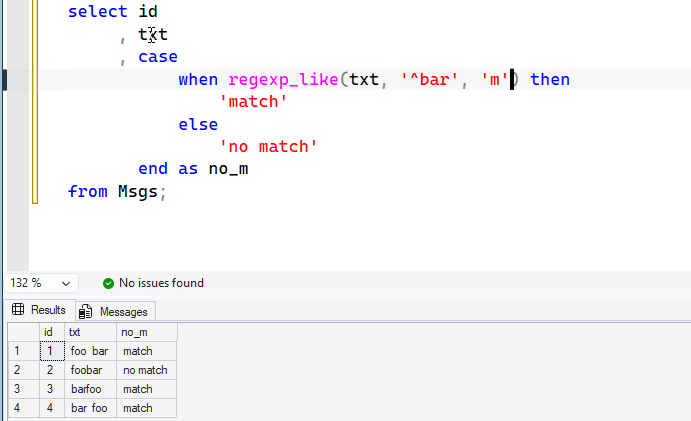
This flag helps with data that contains newlines, and you wish to match values across multiple lines as a human would read, not just in a single string.
The last flag is the "s" flag, which lets a newline match a period in the regular expression. I assume this is to make the expression simpler. However, this doesn't easily work in most Windows systems. One would think this natches line 4.
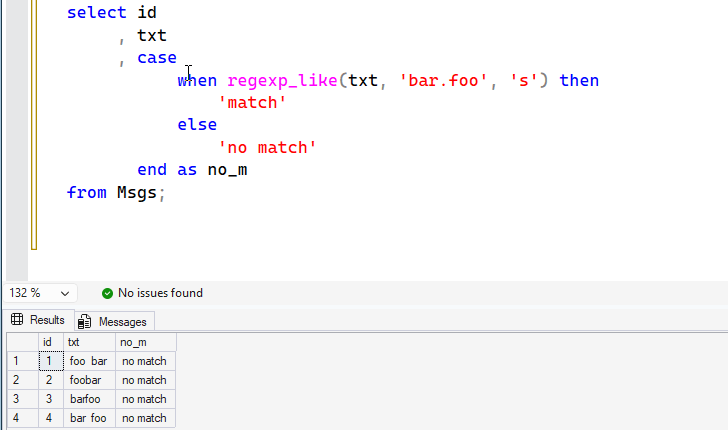
The problem is that line 4 is really these characters: b, a, r, char(10), char(13), f, o, o.
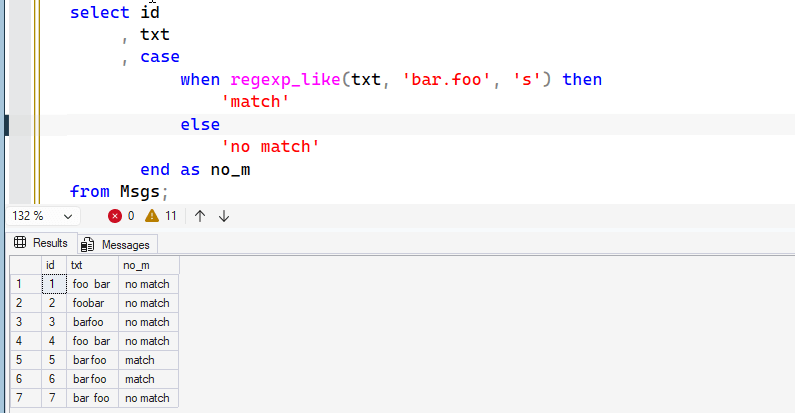
Let's add 3 new rows to show this:
insert into dbo.Msgs
(
    id
  , txt
)
values
(5, 'bar' + char(10) + 'foo'),
(6, 'bar' + char(13) + 'foo'),
(7, 'bar' + char(10) + char(13) + 'foo')
Now let's run the query. Both 5 and 6 match, which means a \n is either CHAR(10) or CHAR(13), but not both.
Using REGEXP_LIKE as a Check Constraint
One of the most practical uses for REGEXP_LIKE is enforcing data shape at insert/update time via a CHECK constraint. Here I'll create a software release tracking table that enforces a strict version format and a valid URL pattern for the release notes link:
DROP TABLE IF EXISTS dbo.SoftwareReleases;
CREATE TABLE dbo.SoftwareReleases
(
    ReleaseID     INT IDENTITY(1, 1) PRIMARY KEY,
    ProductName   VARCHAR(100) NOT NULL,
    VersionNumber VARCHAR(20)  NOT NULL
        CONSTRAINT chk_semver CHECK (REGEXP_LIKE(VersionNumber, '^\d+\.\d+\.\d+$')),
    ReleaseNotes  VARCHAR(500) NULL
        CONSTRAINT chk_url CHECK (
            ReleaseNotes IS NULL
            OR REGEXP_LIKE(ReleaseNotes, '^https?://[A-Za-z0-9.\-]+(/[^\s]*)?$')
        )
);
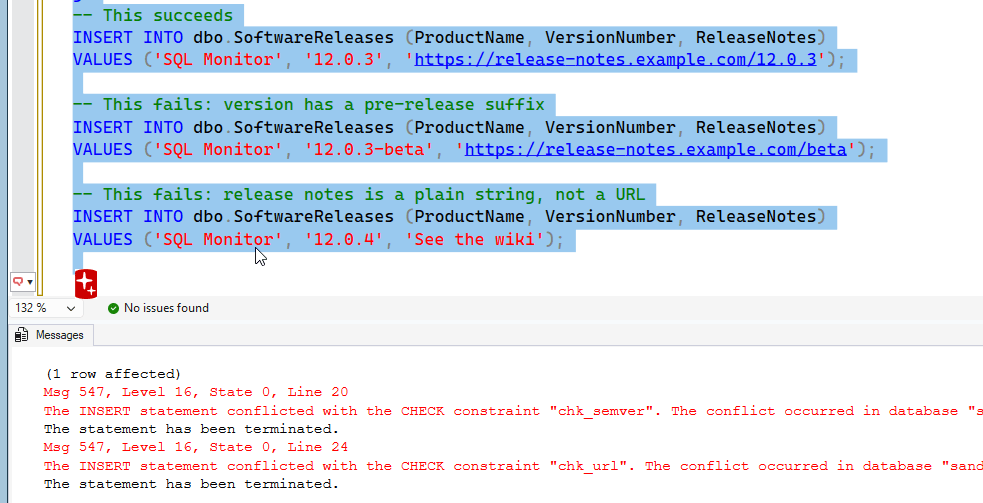
Let me try inserting both valid and invalid rows:
-- This succeeds
INSERT INTO dbo.SoftwareReleases (ProductName, VersionNumber, ReleaseNotes)
VALUES ('SQL Monitor', '12.0.3', 'https://release-notes.example.com/12.0.3');

-- This fails: version has a pre-release suffix
INSERT INTO dbo.SoftwareReleases (ProductName, VersionNumber, ReleaseNotes)
VALUES ('SQL Monitor', '12.0.3-beta', 'https://release-notes.example.com/beta');

-- This fails: release notes is a plain string, not a URL
INSERT INTO dbo.SoftwareReleases (ProductName, VersionNumber, ReleaseNotes)
VALUES ('SQL Monitor', '12.0.4', 'See the wiki');
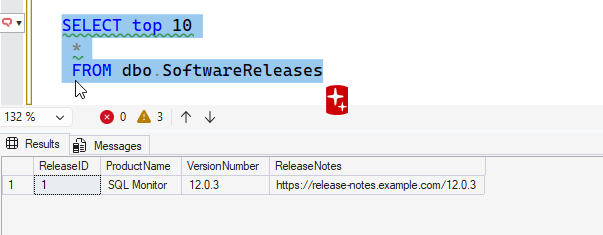
The first insert works. The second is rejected by chk_semver because -beta doesn't match ^\d+\.\d+\.\d+$. The third is rejected by chk_url because See the wiki doesn't start with http:// or https://. We can see these errors during the insert.
There is only one row in the table:
This is a powerful pattern for enforcing data quality rules that would otherwise require application-layer validation or complicated trigger logic.
Summary
In this article we've taken our first look at the new regular expression functions in SQL Server 2025, starting with REGEXP_LIKE. It's a boolean predicate that tests whether a string matches a pattern, and it fits naturally into WHERE clauses and CHECK constraints. The three things worth remembering:
- you need compatibility level 170.
- the flags argument is genuinely useful. Case-insensitive matching with 'i' removes a lot of awkward LOWER() wrapping that older T-SQL required.
- Third, regex tests pattern shape, not semantic validity. It's excellent for ruling out obvious garbage and enforcing structural rules, but for range checks, cross-field validation, or complex business rules you'll still need additional T-SQL logic alongside it.
The next articles will cover the remaining regex functions: REGEXP_COUNT for counting matches, REGEXP_INSTR for finding match positions, REGEXP_REPLACE for substitutions, and REGEXP_SUBSTR for extracting matched substrings.