

With SQL Server 2025 RTM, being available since 2025-11-18, one of the things to test is your disaster recovery plan. Is your current DRP still valid? Are there new backup or recovery features to be tested and validated?
In the backup area of SQL Server 2025, one of the novelties is a new compression algorithm to your availability: ZSTD. This algorithm is announced to be faster and more effective than its predecessor MS_XPRESS. However, it will not be used by default.
For what it's worth, I've only ever tested backup compression to check if it produces smaller files than a non-compressed backup and to see its overall system impact on the SQL Server instance.
We have been using backup commands with compression since it became available with Enterprise Edition as well as Standard Edition (SQL Server 2008 R2). Our recovery procedures gain the most advantage from compression as they need to process smaller backup files, often made available over a file share in a safe zone. Not to mention the number of copies that are being stored in different locations, to ensure at least one copy is available in case of a disaster.
Now, with SQL Server 2025, this new algorithm is announced to be even more efficient, having a 30-50% better compression ratio compared to MS_XPRESS. Space and I/O savings are not to be neglected either. With ZSTD also come compression levels, each to be tested for their impact on the instance's CPU consumption and backup efficiency.
At recovery time, an optimized decompression mechanism will have it process your backup(s) in a fast way, on top of the I/O savings for reading a smaller file.
Checking the Backup Settings
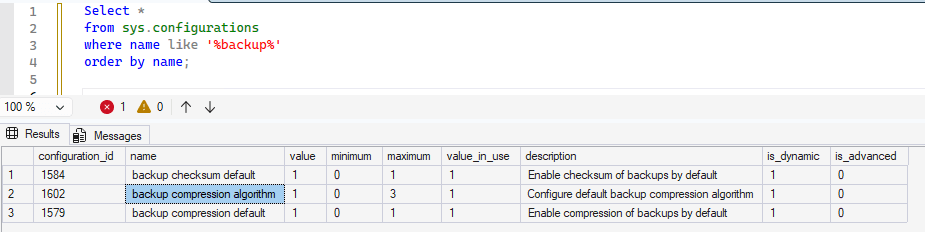
The current default compression algorithm can be shown by querying sys.configurations. This is set to 1, as you see below.
You can find all there is needed to now about sys.configurations in the Microsoft documentation.
For now I specifically used “where name like '%backup%'” in my query, to show you the other configuration options that influence things with regards to default backup behaviors. It is important to know is all these settings are dynamic settings ( is_dinamic = 1), hence you don't need to re-start the SQL Server instance to activate the new settings.
The ZSTD compression is not used by default, so you should test it and its impact to your databases and choose to use it based upon your findings. By default, nothing changes to the used compression algorithm. The table below show the values you can use with configuration setting "backup compression algorithm"
| No | Algorithm | Description | Introduced |
| 0 | NONE | No compression (baseline). | Always available |
| 1 | MS_XPRESS | The traditional, default compression algorithm in previous SQL Server versions. | SQL Server 2008+ |
| 2 | QAT | Intel QuickAssist Technology (QAT) algorithm, for hardware-accelerated compression. | SQL Server 2022 |
| 3 | ZSTD | The new, faster, and more effective algorithm with adjustable levels. | SQL Server 2025 |
The following command will modify the configuration setting to enable the ZSTD algorithm.
exec sp_configure 'backup compression algorithm',3
reconfigure
Keep in mind you have to execute the "Reconfigure" to activate the new setting.
When I run this, I can see that the value for the backup compression algorithm has changed.


This configuration setting is a dynamic setting, so it will instantly be active at instance level, once you modify it using sp_configure.
At this time, you cannot modify the "backup compression algorithm" configuration setting using the SQL Server Management Studio 22 GUI.
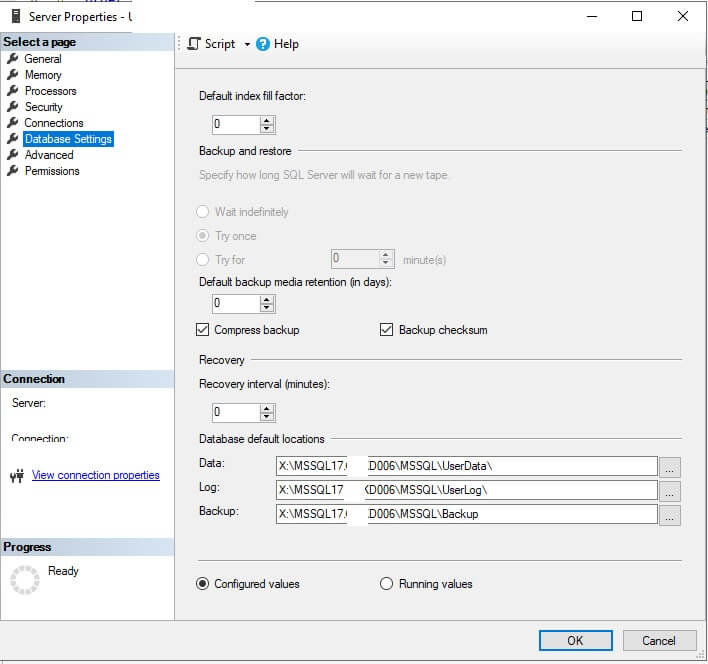
Since SQL Server 2022, the Backup command has also been modified to use compression algorithms. With SQL Server 2025, ZSTD and its compression levels have been added. The syntax changes are shown below.
[ COMPRESSION [ ( ALGORITHM = { MS_XPRESS | ZSTD | accelerator_algorithm } [ , LEVEL = { LOW | MEDIUM | HIGH } ] ) ] | NO_COMPRESSION ]

BACKUP DATABASE [YourDbName] TO DISK= … ; /* uses all backup configuration settings */
BACKUP DATABASE [YourDbName] TO DISK= … WITH COMPRESSION; /* uses configuration setting ‘Backup Compression Algorithm’ and ‘Enable checksum of backups by default’*/
BACKUP DATABASE [YourDbName] TO DISK= … WITH COMPRESSION (ALGORITHM = ZSTD)

BACKUP DATABASE [YourDbName] TO DISK= … WITH COMPRESSION (ALGORITHM = ZSTD, LEVEL = HIGH)
With my little database these are the changes in backup file size:
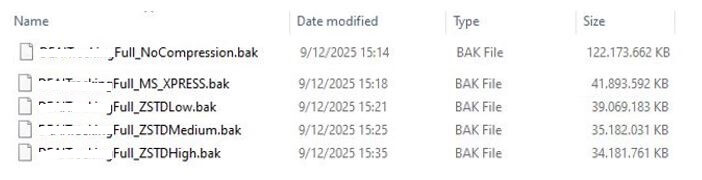
Of course the size is impacted by the actual content of your database.
In my tests, using ZSTD did not meet the announced 30-50% better compression ratio compared to MS_XPRESS, but ZSTD Low and Medium completed in less time.
Below, I have executed the 5 backup statements in one batch. Just to have a reference for speed.
BACKUP DATABASE [mydb] To disk=N'W:\Backups\mydbFull_NoCompression.bak' WITH INIT , NOUNLOAD ,  NAME = 'No compression', SKIP ,  STATS = 1,
DESCRIPTION = 'Full Database Backup' ,  FORMAT, CHECKSUM, BUFFERCOUNT = 17 , MAXTRANSFERSIZE = 1048576 ,
COPY_ONLY,
NO_COMPRESSION;

BACKUP DATABASE [mydb] To disk=N'W:\Backups\mydbFull_MS_XPRESS.bak' WITH INIT , NOUNLOAD ,  NAME = 'MS_XPRESS compression', SKIP ,  STATS = 1,
DESCRIPTION = 'Full Database Backup' ,  FORMAT, CHECKSUM, BUFFERCOUNT = 17 , MAXTRANSFERSIZE = 1048576 ,
COPY_ONLY,
COMPRESSION (ALGORITHM = MS_XPRESS);

BACKUP DATABASE [mydb] To disk=N'W:\Backups\mydbFull_ZSTDLow.bak' WITH INIT , NOUNLOAD ,  NAME = 'ZSTD Low', SKIP ,  STATS = 1,
DESCRIPTION = 'Full Database Backup' ,  FORMAT, CHECKSUM, BUFFERCOUNT = 17 , MAXTRANSFERSIZE = 1048576 ,
COPY_ONLY,
COMPRESSION (ALGORITHM = ZSTD, LEVEL = Low)


BACKUP DATABASE [mydb] To disk=N'W:\Backups\mydbFull_ZSTDMedium.bak' WITH INIT , NOUNLOAD ,  NAME = 'ZSTD Medium', SKIP ,  STATS = 1,
DESCRIPTION = 'Full Database Backup' ,  FORMAT, CHECKSUM, BUFFERCOUNT = 17 , MAXTRANSFERSIZE = 1048576 ,
COPY_ONLY,
COMPRESSION (ALGORITHM = ZSTD, LEVEL = Medium)


BACKUP DATABASE [mydb] To disk=N'W:\Backups\mydbFull_ZSTDHigh.bak' WITH INIT , NOUNLOAD ,  NAME = 'ZSTD High', SKIP ,  STATS = 1,
DESCRIPTION = 'Full Database Backup' ,  FORMAT, CHECKSUM, BUFFERCOUNT = 17 , MAXTRANSFERSIZE = 1048576 ,
COPY_ONLY,
COMPRESSION (ALGORITHM = ZSTD, LEVEL = High)
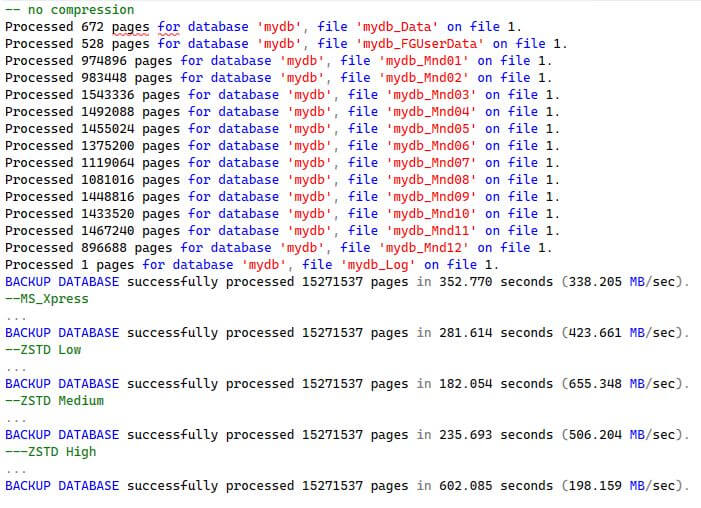
As backup time needed varies, I need to do more testing with some of our larger databases.
Always bare in mind: Smaller backup files, means less disk space, faster file copies and faster restores. Faster restores means you may even be able to meet your DRP SLA !
Caveats
When changing the compression algorithm, you need to specify the FORMAT option to force the backup medium to be reset.

It is interesting to know is that you can add multiple backups to a backup file, using different compression levels. All that matters for the backup file, is that it has been created using compression algorithm ZSTD.
Conclusion
I would urge you to test this new compression algorithm and see how it affects your operations. Use the configuration settings if you want to avoid non-compressed backups being made. Choose the compression algorithm to serve you best.
Keep in mind to delete all existing target backup files before you launch the next backup statement or backup job using a new compression algorithm ( or use the FORMAT backup option ).
( I hope your backup target files are being copied to another safe zone anyway. )
Resources:
