

Introduction
I first encountered this challenge during a logistics project. I needed to dynamically find the nearest warehouse for a customer, but all our data was stored in SQL Server, and I wanted to avoid relying on external APIs. After some research, I realized it’s possible to calculate distances directly in SQL Server using a combination of math and T-SQL functions.
In this guide, I’ll walk you through everything step-by-step so you can follow along easily. We’ll cover:
- How distance calculations work in SQL Server
- Handling different coordinate formats
- Writing reusable functions
- Practical examples you can run right in SSMS
- Real-world use cases
Even beginners will be able to apply these techniques by the end of this guide.
Understanding the Basics
The Earth isn’t flat, so calculating distances isn’t as simple as subtracting coordinates. For very short distances, a flat approximation might be sufficient, but for anything larger, we need to account for the Earth’s curvature. The concept we use is called the Great Circle Distance, which represents the shortest path between two points on a sphere. This is the same principle airlines rely on when planning flight routes.
To perform this calculation in SQL Server, we need the latitude and longitude of each point, convert those values from degrees to radians, and then apply some trigonometric functions like SIN, COS, and ACOS.
Don’t worry you won’t need to memorize the formula. We’ll wrap all of this logic into a reusable function that you can call directly in your queries.
Step 1: A Simple Example Between Two Cities
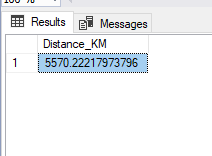
Let’s start small. We’ll calculate the distance between New York and London.
DECLARE @Lat1 FLOAT = 40.7128;  -- New York
DECLARE @Lon1 FLOAT = -74.0060;

DECLARE @Lat2 FLOAT = 51.5074;  -- London
DECLARE @Lon2 FLOAT = -0.1278;

SELECT
    6371 * ACOS(
        SIN(RADIANS(@Lat1)) * SIN(RADIANS(@Lat2)) +
        COS(RADIANS(@Lat1)) * COS(RADIANS(@Lat2)) *
        COS(RADIANS(@Lon2 - @Lon1))
    ) AS Distance_KM;
The RADIANS() function is used to convert degrees into radians, which is necessary for trigonometric calculations. Functions like SIN, COS, and ACOS are then used to compute the distance over the sphere of the Earth. Finally, the number 6371 represents the Earth’s mean radius in kilometers, which we multiply by to get the final distance.
Step 2: Reusable Function for Any Pair of Coordinates
Instead of repeating the formula, let’s create a function:
CREATE FUNCTION dbo.CalculateDistance
(
    @Lat1 FLOAT,
    @Lon1 FLOAT,
    @Lat2 FLOAT,
    @Lon2 FLOAT
)
RETURNS FLOAT
AS
BEGIN
    RETURN 6371 * ACOS(
        SIN(RADIANS(@Lat1)) * SIN(RADIANS(@Lat2)) +
        COS(RADIANS(@Lat1)) * COS(RADIANS(@Lat2)) *
        COS(RADIANS(@Lon2 - @Lon1))
    );
END;
Here, 6371 represents the Earth’s mean radius in kilometers, used to convert the spherical distance into km. This reminder helps ensure beginners understand the unit of measurement.
Now you can calculate distances anywhere with a simple function call.
Step 3: Using the Function
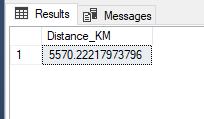
SELECT dbo.CalculateDistance(40.7128, -74.0060, 51.5074, -0.1278) AS Distance_KM;
Step 4: Handling Coordinates in Different Formats
Real-world data isn’t always stored as clean decimal numbers. For example, you might encounter coordinates written like 40° 42' 46" N instead of a simple decimal value. DMS stands for Degrees, Minutes, and Seconds. This format is common in older datasets or certain GPS systems, so we convert it to decimal degrees for calculation
We can convert these to decimals using a helper function:
CREATE FUNCTION dbo.ConvertToDecimalDegrees (@Input VARCHAR(50))
RETURNS FLOAT
AS
BEGIN
    DECLARE @Degrees FLOAT, @Minutes FLOAT, @Seconds FLOAT, @Result FLOAT;

    -- Replace symbols with spaces
    SET @Input = REPLACE(REPLACE(REPLACE(@Input, '°', ' '), '''', ' '), '"', ' ');

    SELECT
        @Degrees = PARSENAME(REPLACE(@Input, ' ', '.'), 3),
        @Minutes = PARSENAME(REPLACE(@Input, ' ', '.'), 2),
        @Seconds = PARSENAME(REPLACE(@Input, ' ', '.'), 1);

    SET @Result = @Degrees + (@Minutes / 60) + (@Seconds / 3600);

    IF @Input LIKE '%S%' OR @Input LIKE '%W%'
        SET @Result = @Result * -1;

    RETURN @Result;
END;
Note: In decimal degrees, north and east coordinates are positive, while south and west are negative. This ensures the distance calculations work correctly.
Here we use PARSENAME as a quick way to split degrees, minutes, and seconds, but you could also parse the string with other methods depending on your data format.
Handling coordinates in different formats is important because real-world data is often messy or imported from external sources. By supporting Degrees, Minutes, and Seconds formats, and automatically accounting for N, S, E, and W directions, our approach ensures that the calculations are accurate regardless of how the coordinates are stored.
Step 5: Real World Example With Airports
Create Table
CREATE TABLE Airports (
    AirportName NVARCHAR(100),
    IATA NVARCHAR(3),
    Latitude FLOAT,
    Longitude FLOAT
);
Insert Sample Data
INSERT INTO Airports VALUES
('John F Kennedy International', 'JFK', 40.6413, -73.7781),
('Heathrow Airport', 'LHR', 51.4700, -0.4543),
('Tokyo Narita', 'NRT', 35.7720, 140.3929);
Step 6: Distance Between Two Airports
SELECT
    A1.AirportName AS Origin,
    A2.AirportName AS Destination,
    dbo.CalculateDistance(A1.Latitude, A1.Longitude, A2.Latitude, A2.Longitude) AS Distance_KM
FROM Airports A1, Airports A2
WHERE A1.IATA = 'JFK' AND A2.IATA = 'NRT';
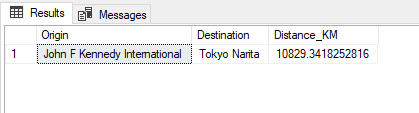
This is a simple cross join filtered for specific airports, which is easier for beginners to understand than a standard JOIN with complex conditions.
Step 7: Find Nearest Airports
As you can see, the function correctly calculates distances between airports and even lets you find the nearest ones for a given location, making it useful for logistics or travel applications.
DECLARE @UserLat FLOAT = 40.730610;
DECLARE @UserLon FLOAT = -73.935242;

SELECT TOP 3
    AirportName,
    dbo.CalculateDistance(@UserLat, @UserLon, Latitude, Longitude) AS Distance_KM
FROM Airports
ORDER BY Distance_KM;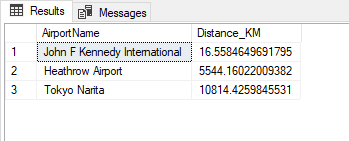
Tips for Accurate and Efficient Calculations
It’s important to pay attention to the input format because strings or inconsistent coordinate formats can break the results. Always normalize your data before running calculations. Keep in mind that this method assumes the Earth is a perfect sphere, which is close enough for most applications, but it won’t provide the extreme precision needed for high-end GPS calculations. Finally, when working with large tables, distance calculations can become slow. To improve performance, consider using indexes, pre-computing distances, or limiting the number of rows before applying the function.
Why Not Just Use SQL Server’s GEOGRAPHY Type?
It’s true that SQL Server’s GEOGRAPHY type can handle distances, areas, and other spatial queries. However, it comes with some caveats: it requires special setup for spatial types, and legacy systems might not support it. For simple distance calculations, a lightweight function like the one we’re building is often easier to maintain and works across all environments without extra configuration.
Practical Use Cases
This approach can be applied in a variety of real-world scenarios. In delivery and logistics, it helps find the nearest warehouses and optimize delivery routes. Travel applications can suggest the closest airports or hotels to users. Ride-hailing apps can match passengers with nearby drivers efficiently. Retailers can show users their nearest store locations, and analysts can cluster data geographically or track performance across regions.
Conclusion
Calculating distances in SQL Server doesn’t have to be complicated. By combining coordinate conversion, spherical math, and reusable SQL functions, you can create location aware applications entirely within your database, without depending on external APIs.
With the practical examples provided in this guide, you now have a complete toolkit to calculate distances, find the nearest points, and even visualize routes all directly in SSMS. Whether you’re working on logistics, travel, or data analysis, these techniques give you the flexibility to handle real world spatial data efficiently and accurately.