

Introduction
As beginners when we face a problem where data must be processed one row at a time, such as calculating running totals or checking stock balance or finding the time between customer actions or similar, we often think of using a cursor or a while loop.
To our human mind, processing data row-by-row makes sense. However, database engines do not think like us humans. Database engines are optimized for set-based operations (i.e., processing large blocks of data simultaneously). Row-by-row processing in SQL Server is also commonly known as RBAR: Row-By-Agonizing-Row. It forces the database engine to open a memory thread, fetch a row, process it, jump to the next row, and repeat. This destroys the server performance.
In this deep-dive tutorial, we will use local Microsoft SQL Server instance to build a high-volume transactional database. We will write a traditional Cursor to solve a real-world financial tracking problem, analyze why and how it chokes our server, and rewrite it using modern T-SQL Window Functions to achieve a near cent percent performance increase.
Setting up the local environment
To begin with the tutorial, we first have to set up our local environment. A local database with usually 5 or 10 dummy records will always run fast, masking the underlying structural flaws. We will need to create a fresh, isolated database table representing bank account transactions and populate it with a large dataset to actually see the performance issues.
Creating the ledger table
To create a table in our local database that will hold the financial transaction information, we need to run the following query in our local SQL editor window:
CREATE TABLE AccountLedger (
    TransactionID INT IDENTITY(1,1) PRIMARY KEY,
    AccountID INT NOT NULL,
    TransactionDate DATETIME NOT NULL,
    Amount DECIMAL(18,2) NOT NULL
);
Creating an index on this table
Next, we would need to create an index on the table against the combination of 2 columns: AccountID and TransactionDate. Both our Cursor and Window Functions (which we will be creating going forward) will need to look at data sorted by account (AccountID) and date (TransactionDate). Having an index on these columns collectively will prevent the database from performing expensive sorting operations in memory and there by improve the performance to some extent.
To create this index, we have to run the below query in our SQL editor:
CREATE INDEX IX_AccountLedger_Account_Date
ON AccountLedger (AccountID, TransactionDate);
Populating high volume records into the database
Now that we have our table and index created, all we are left with is populating high volume transactional data into the table so that there is enough records to look up and process. To do so, we can run the folowing query in our SQL editor. The below query will inject 20,000 realistic transaction records split across 5 different bank accounts. It provides a substantial data payload (around 20, 000 records) to accurately measure hardware execution time.
WITH RowGenerator AS (
    -- Base Case: Start our loop counter at 1
    SELECT 1 AS RowNum
    UNION ALL
    -- Recursive Case: Increment the row number up to 20,000
    SELECT RowNum + 1
    FROM RowGenerator
    WHERE RowNum < 20000
)
INSERT INTO AccountLedger (AccountID, TransactionDate, Amount)
SELECT
    (RowNum % 5) + 1, -- Cycles accounts evenly between IDs 1 through 5
    DATEADD(MINUTE, RowNum, '2026-01-01 00:00:00'), -- Adds 1 minute increments sequentially
    CASE WHEN RowNum % 3 = 0 THEN -75.50 ELSE 150.00 END -- Alternates deposits ($150) and withdrawals (-$75.50)
FROM RowGenerator
OPTION (MAXRECURSION 0);
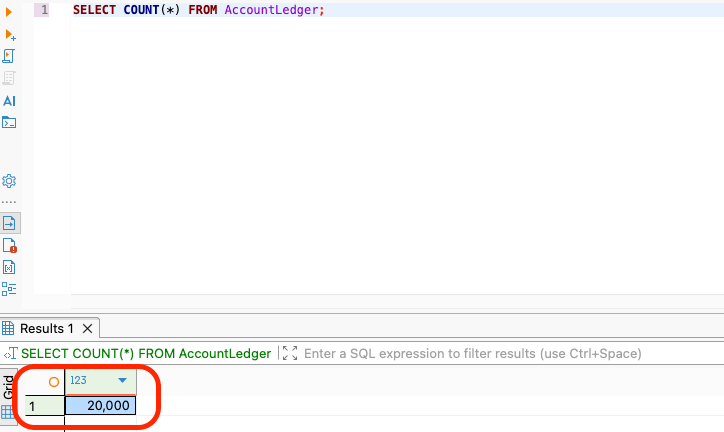
After the query executes successfully, we will once verify by running the following query in our SQL editor:
SELECT COUNT(*) FROM AccountLedger;
Activating hardware performance metrics
Finally, to understand the problem and to validate the solution proposed, we would need to have the performance metrics enabled. This will help us in checking the realtime performance of the queries that we execute and realize the impact of those in our database. To enable the performance metrics, we can run the following query in our SQL editor. It forces the engine to output specific metrics for the system load during our query execution/database operation.
STATISTICS IO shows how many memory blocks (or pages) were accessed and STATISTICS TIME shows the exact CPU processing time in milliseconds.
SET STATISTICS IO ON;
SET STATISTICS TIME ON;
Understanding the problem statement
Now that we have accomplished our local setup for this article, we need to focus on understanding a real time problem statement that we are trying to solve here. We basically need to generate a report that displays every transaction chronologically per bank account, accompanied by a running balance (i.e., the cumulative sum of all transactions for that account up to that specific second). To do this, we can straight forward use the cursor method (which will impact the database performance) or the window function (which is our solution to improve the database performance).
Cursor implementation - slow approach
Firstly, a cursor is a SQL feature that reads data one row at a time. Normally, SQL Server is best at processing many rows together. But a cursor works more like a loop in programming:
- Pick the first row
- Process it
- Move to the next row
- Repeat until all rows are finished
In this example below, the cursor reads each transaction one by one and keeps adding the amount to calculate the running balance.
Explaining the below cusrsor logic at a high-level:
First, we create a temporary cursor table called #CursorOutput. It will store the final report result. The cursor will process each transaction and insert the calculated result into this table.
DECLARE @CurrentAccountID INT;
DECLARE @CurrentDate DATETIME;
DECLARE @CurrentAmount DECIMAL(18,2);
DECLARE @CalculatedBalance DECIMAL(18,2) = 0;
DECLARE @LastAccountID INT = -1;
Next, we are declaring few set of variables. These variables temporarily store values while the cursor processes each row.
- @CurrentAccountID - stores the account ID of the current row.
- @CurrentDate - stores the transaction date.
- @CurrentAmount - stores the transaction amount.
- @CalculatedBalance - stores the running balance.
- @LastAccountID - helps detect when the cursor moves to a new bank account.
The cursor will use these variables like small containers while reading each transaction.
DECLARE LedgerCursor CURSOR FAST_FORWARD FOR
SELECT AccountID, TransactionDate, Amount
FROM AccountLedger
ORDER BY AccountID, TransactionDate;
Next, we declare the cursor named LedgerCursor. It tells the SQL Server: Read transactions from the AccountLedger, ordered by account and transaction date. The ordering is very important because the running balance must be calculated in chronological order for each account.
Note: FAST_FORWARD means that the cursor will only move forward, row by row. It cannot go backward or update any rows.
OPEN LedgerCursor;
FETCH NEXT FROM LedgerCursor INTO @CurrentAccountID, @CurrentDate, @CurrentAmount;
Next, we open the cursor and fetch first row. This starts our cursor. Then it fetches the first row from the result set and stores the values into the variables declared above. At this point, our SQL Server has picked the first transaction and is ready to process it.
WHILE @@FETCH_STATUS = 0
BEGIN
Next, we process the rows one by one. It starts a loop. @@FETCH_STATUS = 0 means the cursor has successfully fetched a row. So the loop continues as long as there are more rows to process.
IF @CurrentAccountID <> @LastAccountID
BEGIN
    SET @CalculatedBalance = 0;
    SET @LastAccountID = @CurrentAccountID;
END?
Also, when account changes, we reset the balance. It checks if the cursor has moved to a new bank account. If it is a new bank account, the running balance should start again from zero.
SET @CalculatedBalance = @CalculatedBalance + @CurrentAmount;
This adds current transaction amount to the running balance. If the amount is positive, running balance increases. If the amount is negative, running balance decreases.
INSERT INTO #CursorOutput (AccountID, TransactionDate, Amount, RunningBalance)
VALUES (@CurrentAccountID, @CurrentDate, @CurrentAmount, @CalculatedBalance);
After calculating the running balance for the current transaction, the cursor stores the result into the #CursorOutput. This adds one row in the final report.
FETCH NEXT FROM LedgerCursor INTO @CurrentAccountID, @CurrentDate, @CurrentAmount;
This moves the cursor to the next transaction. Then the loop repeats the same steps again.
CLOSE LedgerCursor;
DEALLOCATE LedgerCursor;
Once all rows are processed successfully, the cursor is closed. DEALLOCATES removes the cursor from memory. This is important for appropiate cleanup.
SELECT * FROM #CursorOutput ORDER BY AccountID, TransactionDate;
This displays the final report with running balances.
DROP TABLE #CursorOutput;
This removes the temporary table after the report is shown. This is also an important step for database cleanup.
Now that we have understood how the cursor works and the purpose it serves, we can use the following query in our SQL editor to have the cursor generarte the financial report and check the performance metrics:
-- 1. Create a temporary staging table to store the final compiled report rows
CREATE TABLE #CursorOutput (
    AccountID INT,
    TransactionDate DATETIME,
    Amount DECIMAL(18,2),
    RunningBalance DECIMAL(18,2)
);

-- 2. Declare variables to hold the specific field values extracted from each individual row
DECLARE @CurrentAccountID INT;
DECLARE @CurrentDate DATETIME;
DECLARE @CurrentAmount DECIMAL(18,2);
DECLARE @CalculatedBalance DECIMAL(18,2) = 0;
DECLARE @LastAccountID INT = -1;

-- 3. Declare the Cursor structure, telling it to read data sorted by Account and Date
DECLARE LedgerCursor CURSOR FAST_FORWARD FOR
SELECT AccountID, TransactionDate, Amount
FROM AccountLedger
ORDER BY AccountID, TransactionDate;

-- 4. Open the cursor memory channel and load the first record
OPEN LedgerCursor;
FETCH NEXT FROM LedgerCursor INTO @CurrentAccountID, @CurrentDate, @CurrentAmount;

-- 5. Begin a loop that continues until the cursor runs out of rows (@@FETCH_STATUS = 0 means success)
WHILE @@FETCH_STATUS = 0
BEGIN
    -- If we switch to a brand new bank account, reset the running balance accumulator back to zero
    IF @CurrentAccountID <> @LastAccountID
    BEGIN
        SET @CalculatedBalance = 0;
        SET @LastAccountID = @CurrentAccountID;
    END

    -- Accumulate the current row's transaction value into the running balance
    SET @CalculatedBalance = @CalculatedBalance + @CurrentAmount;

    -- Store the computed values into our output staging table
    INSERT INTO #CursorOutput (AccountID, TransactionDate, Amount, RunningBalance)
    VALUES (@CurrentAccountID, @CurrentDate, @CurrentAmount, @CalculatedBalance);

    -- Fetch the next row from the server memory pipeline
    FETCH NEXT FROM LedgerCursor INTO @CurrentAccountID, @CurrentDate, @CurrentAmount;
END;

-- 6. Clean up memory allocations (Mandatory database house-keeping)
CLOSE LedgerCursor;
DEALLOCATE LedgerCursor;

-- 7. View the final result dataset
SELECT * FROM #CursorOutput ORDER BY AccountID, TransactionDate;

-- 8. Clean up temp storage
DROP TABLE #CursorOutput;
Once we run the above query in our SQL editor, we should see a similar output:
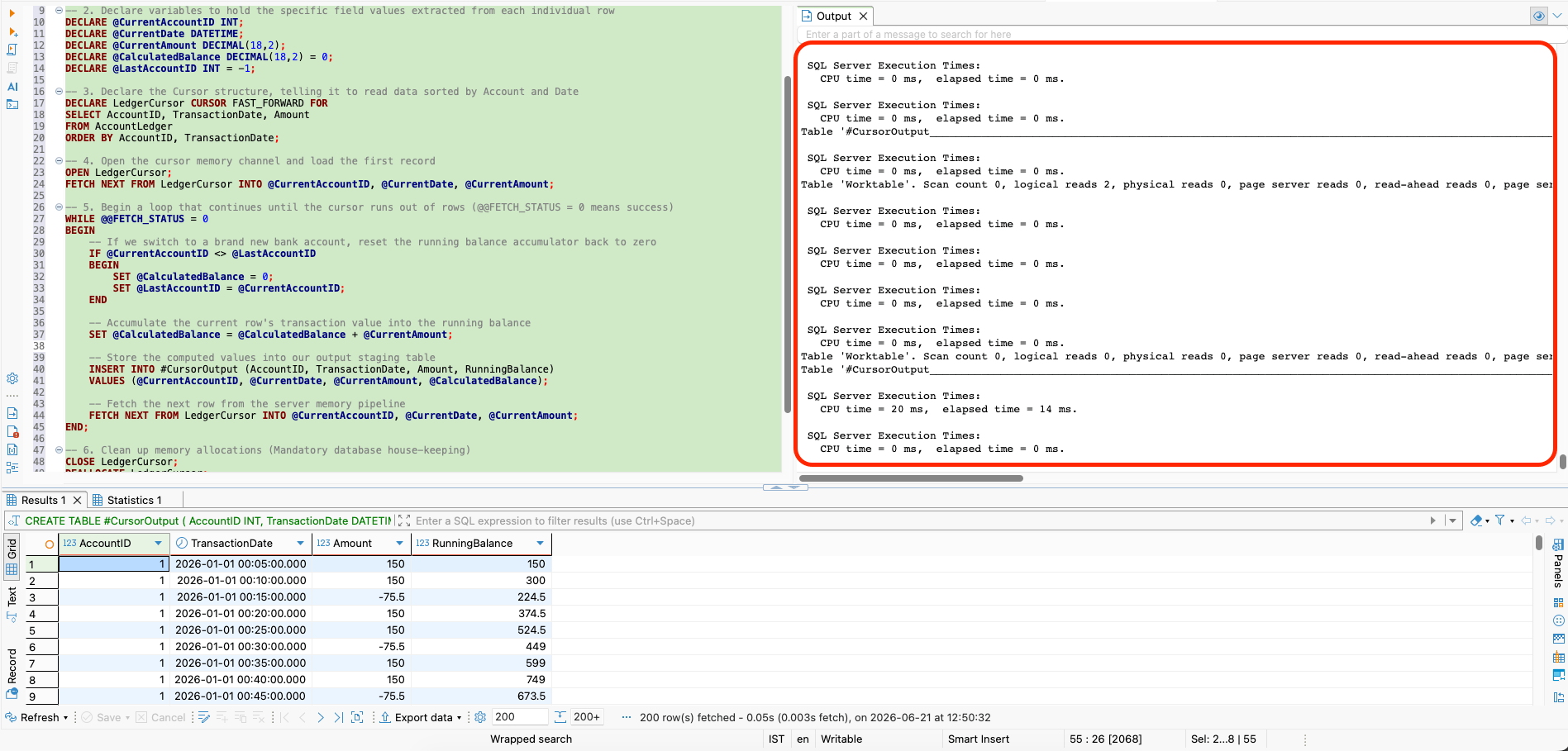
If we take a look at the performance metrics on the right panel, we would see thousands of rows repeating the text block pattern as follows:
Table '#CursorOutput'. Scan count 0, logical reads 1
Table 'AccountLedger'. Scan count 1, logical reads 2

SQL Server Execution Times:
   CPU time = 480 ms,  elapsed time = 512 ms
Now, let us understand why is this implementation slow. This is because the script iterates 20,000 separate times (over every 20,000 records in the database table). This causes 20,000 context switches inside the database management system engine. It performs thousands of micro-inserts and reads, locking resources iteratively.
Window functions - modern approach
Instead of navigating line-by-line using a cursor, we can use a window function. A Window Function allows us to perform analytical calculations across a set of rows that are still logically related to the current row, all within a single declarative statement. So instead of manually looping through rows, we simply tell SQL Server that for each account, sort the transactions by date and keep adding the amount as you go. This becomes easier to write, easier to read, and much faster for large data.
To do so, we use the clause SUM(Amount) OVER (PARTITION BY AccountID ORDER BY TransactionDate) to instruct the engine to group calculations by AccountID and sum them progressively down the chronological index order. Below we have the entire window function in the query snippet but first we will take a look at each block/section of it and try to understand the purpose it serves.
SELECT
    AccountID,
    TransactionDate,
    Amount,
This part chooses the columns we want to show in the report.
- AccountID - shows which bank account the transaction belongs to.
- TransactionDate - shows when the transaction happened.
- Amount - shows the transaction value.
- The amount can be positive or negative.
SUM(Amount)
SUM() is used to add values. Here it adds the AMOUNT column. But it's not a normal SUM(). A normal SUM() would usually give one total per group. For example, one final total per account. But we do not only want the final total here in our case. We want the balance after each transaction. That is why we use SUM() with OVER() here.
OVER (
    ...
)
OVER() turns the normal SUM() into a window function. As we just discussed above, a window function performs a calculation across a set of related rows, but still keeps each row visible. In simple words, it allows SQL Server to calculate a running total while still showing every transaction row. Without OVER(), SQL Server might collapse rows into one total. With OVER(), SQL Server keeps all rows and adds a calculated running balance beside each row.
PARTITION BY AccountID
This tells the SQL Server to do the calculation separately for each account. To compare this with our cursor logic, we can assume that this replaces the following cursor logic we had:
IF @CurrentAccountID <> @LastAccountID
BEGIN
    SET @CalculatedBalance = 0;
END
In the cursor version, we manually checked for when the account changed. However, in this window function version, PARTITION BY AccountID automatically handles that reset.
ORDER BY TransactionDate
This tells the SQL Server to calculate the balance in transaction date order. This is again very important because running balance depends on order. So SQL must know which transaction comes first, second, third, and so on. To understand, we can consider that this replaces the cursor’s row-by-row movement we had:
FETCH NEXT FROM LedgerCursor
Instead of manually fetching the next row, SQL Server follows the TransactionDate order internally.
ROWS BETWEEN UNBOUNDED PRECEDING AND CURRENT ROW
This part defines exactly which rows should be included in the running total. It states to start from the first transaction of this account and add everything up to the current row.
Breaking it down:
- ROWS means we are working with physical rows.
- UNBOUNDED PRECEDING means start from the very first previous row in that account group.
- CURRENT ROW means stop at the current transaction row.
So for each row, SQL adds: all previous rows + current row
AS RunningBalance
This gives a name to the calculated column. So the output report will show a column called: RunningBalance. Without this alias, SQL Server might show a long expression as the column name, which is hard to read.
FROM AccountLedger
This tells the SQL Server where the data comes from. AccountLedger is the table that stores all account transactions.
The entire window function query snippet that we can use to run from our SQL editor is:
SELECT
    AccountID,
    TransactionDate,
    Amount,
    SUM(Amount) OVER (
        PARTITION BY AccountID
        ORDER BY TransactionDate
        ROWS BETWEEN UNBOUNDED PRECEDING AND CURRENT ROW
    ) AS RunningBalance
FROM AccountLedger
ORDER BY AccountID, TransactionDate;
Once we run the above query in our SQL editor, we should see a similar output:
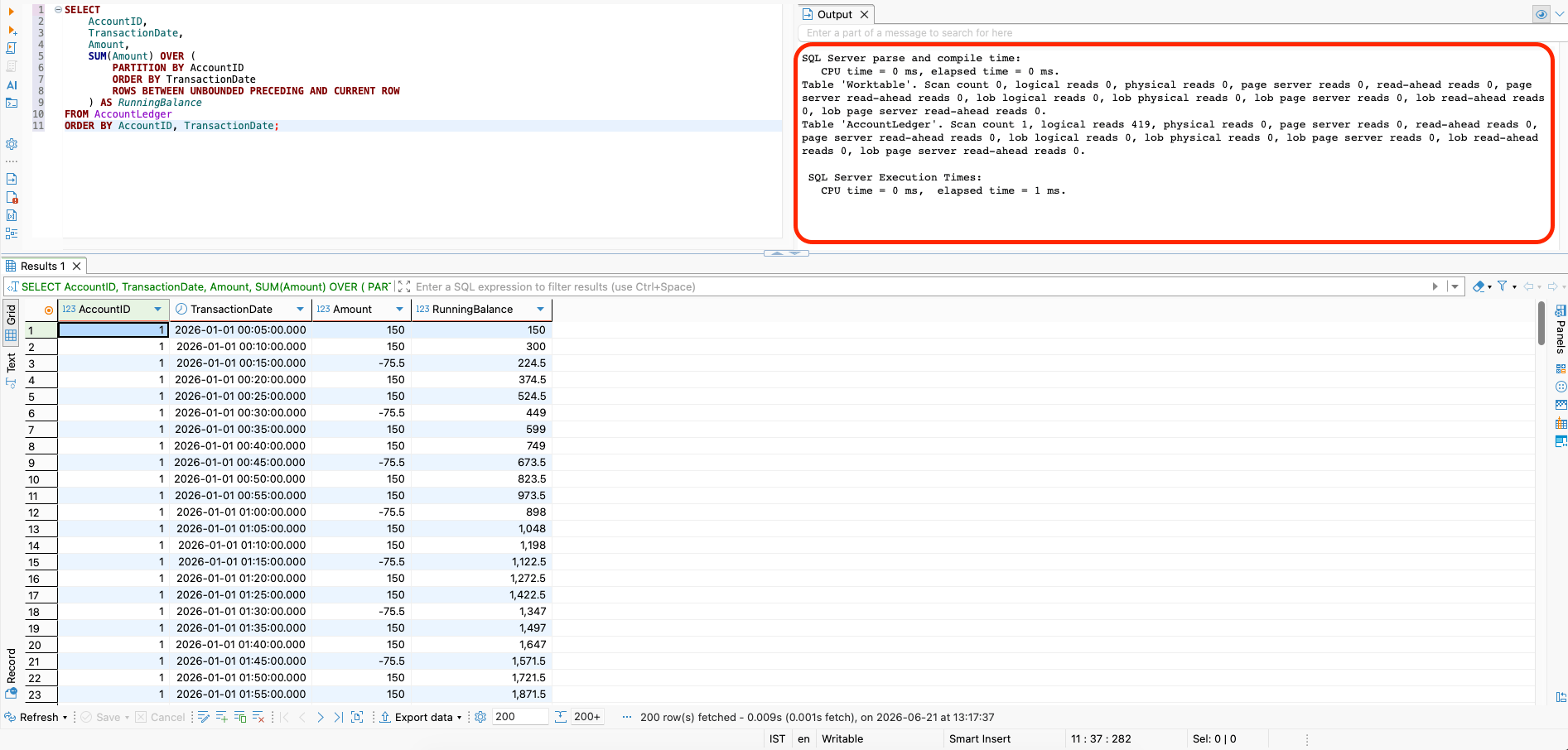
If we take a look at the right pane where the performance metrics are listed out, we can see a text like:
Table 'AccountLedger'. Scan count 1, logical reads 419
This means that the logical Reads dropped from over 20,000 total transactional reads down to just 419 page reads. SQL Server scanned the data once utilizing the index we had created during our local database setup process.
We can also see a text in the performance metrics which lists out as:
SQL Server Execution Times:
   CPU time = 0 ms,  elapsed time = 1 ms.
This means that the CPU execution time tanked from roughly ~500 milliseconds down to almost nearly 0 milliseconds.
All this happened because the window function completely removed the requirement for temporary staging tables (like #CursorOutput inside the cursor implementation) and running entirely within optimized native execution memory streams.
Conclusion
We must ensure that whenever we need to create cumulative totals, running moving averages, pull historical delta values or similar, we should always avoid loops completely. Instead, we should check for if we can map this requirement out by using an OVER() clause. It's always wise to remember that building a set-based solution ensures our applications remain scalable, performant, and reliable under high production stress.