
Introduction
I want to start this level by talking about a pain that most of us have felt at some point. Storage sizing in SQL Server has always been something DBAs had to manage carefully. If the data files were set too small, then there was a real risk of running into a full database at the worst possible time. That often meant a late night emergency where tempdb filled up or some bulk load caused the database to stop growing. On the other hand, if the files were set too large, then finance teams would question why money was being wasted on space that was never used. Neither side felt good.
When growth actually happened, things got even harder. Traditional SQL Server had to extend the file, and that extension was rarely smooth. File growth operations required zeroing out space, and that caused blocking or slowdowns for user sessions. On slower disks, such as cloud VMs running standard storage, the delays could stretch into minutes. Every DBA has lived through that uncomfortable silence when applications stop responding, only to realize that an auto-grow event was taking place. It was not only frustrating, it was risky. Hyperscale decided to take a fresh approach and move away from this model completely.
Legacy Auto-Grow: The Pain We Left Behind
Before Hyperscale was introduced, storage growth in SQL Server was something we all accepted as part of daily life. It was not smooth, and it was not predictable, but we simply lived with it. A DBA would usually spend time in advance pre-allocating data file sizes, setting auto-grow thresholds, and double-checking settings, hoping that the database would not surprise them during a critical workload. The truth is, even with all of that preparation, the moment growth actually occurred was almost always painful.
If you were running a large import, or if reporting users were hammering the system with ad-hoc queries, you could sometimes feel the entire environment pause. The reason was simple. SQL Server had to extend the file before it could keep writing. That process involved allocating more disk space and often zeroing out those new pages to make them safe. During that time, user sessions would be blocked or at least slowed down. On a busy OLTP system, that pause felt like an eternity.
On cloud virtual machines, where storage latency is higher, the situation became even worse. What might have taken a few seconds on local SSD could stretch into minutes. Imagine being in the middle of business hours and watching the application freeze because a filegrow was underway. It gave DBAs that sinking feeling — “why is everything stuck?” — and then finally realizing it was not a deadlock or a hardware crash, it was simply an auto-grow event finishing in the background.
The hardest part is that this was considered completely normal. Everyone knew file growth caused stalls, and there was no real way to avoid it except to keep files pre-sized well beyond actual needs. Hyperscale looked at this long-standing pain point and chose not to patch it with minor improvements. Instead, it rewrote the entire playbook, creating a storage design where growth happens instantly without locking the system.
The Hidden Cost of File Growth: Security and Zeroing
One important detail about why file growth was so painful in the past has to do with file zeroing. Each time SQL Server grew a data file, the operating system had to fill the new space with zeros before the database engine could use it. This was not wasted work. It was a security requirement, designed to make sure that no old data from previously deleted files on the disk could suddenly appear inside the database. Without this step, there was a risk that confidential information could be exposed.
While file zeroing protected security, it made growth slow. To ease the pain, Microsoft introduced Instant File Initialization (IFI). If the SQL Server service account was granted the Windows privilege called Perform volume maintenance tasks, then SQL Server could skip the zeroing step for data files. That made growth almost instantaneous. However, IFI had two major limitations. First, it never applied to log files, because log growth had to be fully zeroed to guarantee recovery in the event of a crash. Second, IFI came with a trade-off. Skipping zeroing meant that the new space might still contain remnants of old files on the disk. SQL Server would overwrite it eventually, but for a short time the residual data might exist. On a dedicated server this was usually considered acceptable, but in shared or highly regulated environments many administrators refused to enable IFI because of that risk.
Azure SQL Hyperscale changes the picture completely. There are no .mdf or .ndf files to extend, and no dependency on Windows file zeroing. Storage is allocated through Azure Blob, which always delivers clean, ready-to-use space. When more capacity is required, Hyperscale simply brings a new page server online. Because each page server operates on fresh, isolated blob storage, there is no risk of exposing previous data and no need for operating system privileges like IFI. Even transaction log growth is handled differently in Hyperscale, through a separate log service that expands independently without blocking the workload.
The result is simple but powerful. In the legacy model, DBAs had to choose between painful file growth or enabling IFI with some security considerations. In Hyperscale, that debate disappears entirely. Growth is both instant and secure by design, without any special configuration, and it applies equally to data and log storage.
References: Instant File Initialization,.
Hyperscale’s Auto-Grow Design
In traditional SQL Server, auto-grow means expanding a single .mdf or .ndf file, one chunk at a time. But in Azure SQL Hyperscale, there are no classic data files to grow. Instead, storage is reimagined as a set of distributed page segments managed by something called Page Servers. These aren’t storage devices—they’re compute nodes that act as intelligent intermediaries. The real data is stored in Azure Blob Storage, and the page servers pull data from blob, cache hot pages in local SSD, and serve them to the compute node as needed. Each page server is responsible for about 1 TB of data, and when your database grows, Hyperscale doesn’t resize anything—it just spins up a new page server and hooks it into the chain. There’s no downtime, no ALTER DATABASE needed, no delay. The growth is dynamic, elastic, and completely hidden from the user. You don’t allocate space manually or pre-size anything. Storage simply grows in real time, when your data demands it. This is what makes Hyperscale’s auto-grow feel instant and effortless—because under the hood, you’re not growing a file, you’re growing a distributed architecture.
Hyperscale Auto-Grow work like this:
- Storage is managed by Page Servers, not .mdf/.ndf files
- Each page server handles a range of pages (~1 TB)
- Data is stored in Azure Blob Storage
- Page servers cache hot pages in local SSD for fast access
- When more space is needed, new page servers are added automatically
- Page allocation is dynamic, not pre-sized or pre-provisioned
- There’s no file reallocation, no downtime, and no write stall
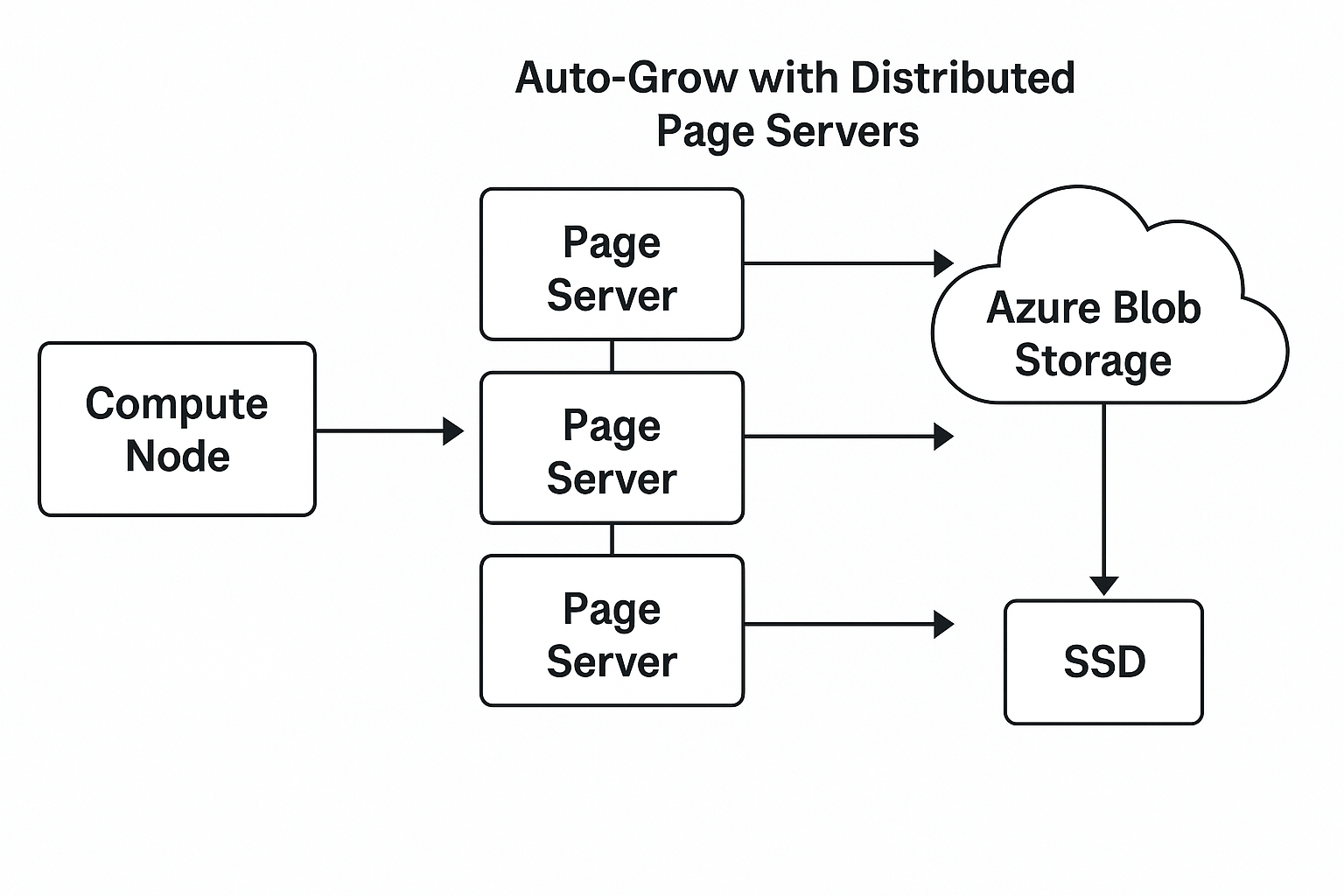
So, We not just growing a file, but a distributed segment chain. This process helps in instant growth with no file reallocation, no downtime, and no performance hiccup.
Scaling Past 100 TB
Hyperscale can support up to 100 TB per database (soft limit). This is possible because:
- New page servers spin up as needed
- Storage is backed by Azure blob + SSD tiering
- You never need to define max size during creation
As an example, here is how you create a Hyperscale database.
-- Create a Hyperscale DB with no size constraint
CREATE DATABASE SuperScale
(EDITION = 'Hyperscale', SERVICE_OBJECTIVE = 'HS_Gen5_4');
Note: No MAXSIZE is required. It auto-expands.
Experiment: Driving Growth With a Wide Table
To really watch Hyperscale’s auto-grow in action, I created a simple but intentionally “wide” table. Each row is roughly 7 KB because of the fixed-length CHAR columns. That means we don’t need billions of rows to push storage consumption — a few million is enough to quickly chew up gigabytes.
Here is the script:
SET NOCOUNT ON;

IF OBJECT_ID('dbo.BigGrow') IS NOT NULL DROP TABLE dbo.BigGrow;

-- wide row design (~7KB each) to drive space usage fast
CREATE TABLE dbo.BigGrow
(
    RowID     BIGINT IDENTITY(1,1) PRIMARY KEY,
    Col1      CHAR(800)  NOT NULL DEFAULT REPLICATE('A',800),
    Col2      CHAR(800)  NOT NULL DEFAULT REPLICATE('B',800),
    Col3      CHAR(800)  NOT NULL DEFAULT REPLICATE('C',800),
    Col4      CHAR(800)  NOT NULL DEFAULT REPLICATE('D',800),
    Col5      CHAR(800)  NOT NULL DEFAULT REPLICATE('E',800),
    Col6      CHAR(800)  NOT NULL DEFAULT REPLICATE('F',800),
    Col7      CHAR(800)  NOT NULL DEFAULT REPLICATE('G',800),
    Col8      CHAR(800)  NOT NULL DEFAULT REPLICATE('H',800),
    Col9      CHAR(600)  NOT NULL DEFAULT REPLICATE('I',600),
    CreateUtc DATETIME2(3) NOT NULL DEFAULT SYSUTCDATETIME()
);

-- Insert 1 crore rows (2 million) using a recursive CTE
;WITH N AS
(
    SELECT 1 AS n
    UNION ALL
    SELECT n + 1 FROM N WHERE n < 2000000
)
INSERT INTO dbo.BigGrow (Col1,Col2,Col3,Col4,Col5,Col6,Col7,Col8,Col9,CreateUtc)
SELECT REPLICATE('A',800),REPLICATE('B',800),REPLICATE('C',800),REPLICATE('D',800),
       REPLICATE('E',800),REPLICATE('F',800),REPLICATE('G',800),REPLICATE('H',800),
       REPLICATE('I',600), SYSUTCDATETIME()
FROM N
OPTION (MAXRECURSION 0);
What This Query Does
- Creates a wide table called BigGrow. Each row has fixed-width columns that add up to roughly 7 KB. This means storage grows quickly with fewer rows.
- Populates 2 million rows (20 lac) using a recursive CTE. Each row is filled with repeating characters just to consume space.
- Because Hyperscale storage expands elastically, there is no blocking and no visible pause even while writing tens of gigabytes of data.
Observed Behavior
Before running this script, my database reported about 23 MB of actual used data in Azure portal(Go to SQL Databases--> Overview), even though the default allocated storage for a Hyperscale database is 10 GB. That is the baseline every Hyperscale DB starts with.
Before loading any data, here is the Hyperscale size:

After loading 2 million rows in any BigGrow table, the Hyperscale db size:

After loading 2 million rows, I saw the reported size in sys.database_files jump to about 15 GB. In a traditional SQL Server instance, a growth of that magnitude would have triggered multiple auto-grow events, each one pausing the workload while the file extended and zeroed out new space. In Hyperscale, however, the inserts completed smoothly. The auto-grow happened in the background, handled by the page servers and Azure Blob storage, with no blocking, no “everything is stuck” moment, and no need for DBA intervention.
This experiment highlights the practical difference. In legacy SQL Server, you worried about growth settings, file sizes, and whether auto-grow would stall production. In Hyperscale, you just keep loading data — even to the tune of tens of gigabytes — and the storage layer quietly keeps pace.
With Hyperscale:
- No need to run DBCC SHRINKFILE or ALTER DATABASE ... MODIFY FILE
- No downtime or lock during size extension
- No alerts needed for file growth thresholds
You focus on data. Hyperscale handles growth.
We can summarise the differences between Hyperscale db and Traditional SQL in this table:
| Feature | Hyperscale | Traditional SQL |
|---|---|---|
| Max Size Needed? | No | Yes |
| Manual Filegrow? | No | Yes |
| Auto Expand Delay | Near-Instant | Slow (seconds-minutes) |
| Write Blocking on Grow | None | Sometimes |
What Happens When You Hit the 128 TB Limit?
Today, Hyperscale supports up to 128 TB per database. That is thirty-two times larger than the 4 TB limit in General Purpose or Business Critical tiers. Once you reach that limit, the database cannot grow further, and inserts will fail with an “out of space” error.
It is important to understand that 128 TB is a service limit, not a technical ceiling. The distributed architecture could theoretically continue adding page servers. Microsoft enforces this boundary for manageability and support. Over time, the cap may be raised, but today you should plan around it.
To go beyond 128 TB, Microsoft recommends sharding — splitting your data across multiple Hyperscale databases, each with its own 128 TB capacity, and routing queries based on a shard key. This is an architectural pattern that lives in your application layer, not something SQL Server does automatically.
Summary
Hyperscale’s auto-grow mechanism is the final nail in the coffin for manual storage planning. You don’t size files. You don’t watch disk. You just insert data and scale. Whether you grow from 500 MB to 5 TB or from 5 TB to 50 TB, there’s no downtime, no refactoring, and no surprise lags. It just grows.
And that’s the magic of a distributed storage system that’s finally designed for the cloud.
In the next level, we’ll explore how Backups and Restores work in this distributed world—and why they’re faster, safer, and simpler than ever before.