

Introduction
SQL Server 2025 and Azure (Azure SQL Database, Azure SQL Managed Instance, and SQL database in Microsoft Fabric) now include optimized locking. This new feature reduces the memory used by locks, lock escalation, and blocking, which improves concurrency and performance. In this article, we will learn the following:
- First, we will explain the concept of optimized locking.
- Secondly, we will learn how to enable and disable this feature.
- Thirdly, we will explain what Accelerated Database Recovery (ADR) is and why it is necessary to enable optimized locking.
- We will also learn about the RCSI option and which isolation level is best for optimized locking.
- In addition, we will explain how to check the optimized locking option using the UI, system views, or system functions.
- Also, we will learn how to use a system view to check the locking.
- Finally, we will show some tips to reduce blocking.
Optimized Locking concept
Optimized locking is a new feature that has two main components: Transaction ID (TID) locking and LAQ (Lock After Qualification). With TID locking, a transaction holds only one exclusive lock on its own transaction ID until it ends, instead of holding many row or page locks. This reduces the memory used by locks and makes lock escalation much less likely. In this section, we will focus on LAQ.
Previously, an update or delete took an update (U) lock on each row it scanned, before checking the predicate (the condition or join of the statement). Only if the predicate was satisfied was an exclusive (X) lock taken on the row.
The following diagram explains the old process:
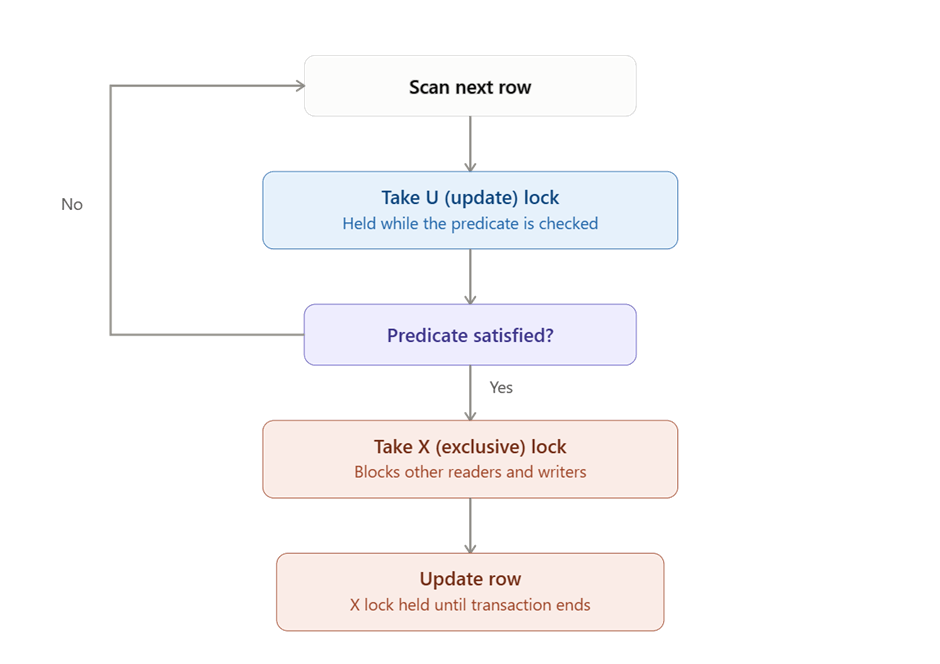
Let’s say that we are updating a table of sales where the amount sold is >1000. First, we scan a row and apply an update (U) lock before evaluating the predicate (condition). Secondly, when the predicate is satisfied, the U lock is converted to an exclusive (X) lock. If it is not satisfied, the U lock is released, and we scan the next row. Finally, the row is updated, and the X lock is held until the transaction ends (COMMIT or ROLLBACK).
The problem here is the U lock: it is taken on every scanned row, even on rows that do not satisfy the predicate, so a query can be blocked by rows that it will never modify.
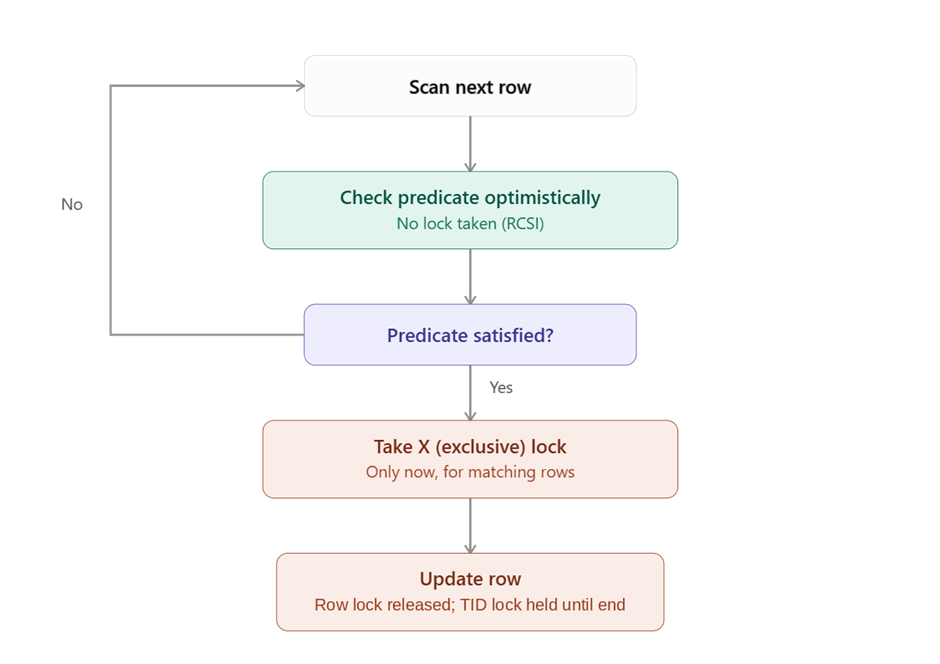
Optimized locking works differently. It does not take update (U) locks. Instead, it evaluates the predicate on the latest committed version of the row without taking any lock. This requires the Read Committed Snapshot Isolation (RCSI) option (we will see this option later, but for now, let’s say that it is a database option that uses row versioning, so readers do not need shared locks).
The rest is similar to the previous flow. The main difference is that only the rows that satisfy the predicate are locked, which makes locking more efficient. In addition, thanks to TID locking, the X row lock is released as soon as the row is updated, and the transaction only keeps one lock on its transaction ID until it ends.
Here is a diagram of the Optimized Locking flow:
How to enable/disable optimized locking
You can enable optimized locking by using SSMS. The steps in this section apply to SQL Server 2025, where optimized locking is disabled by default and can be enabled per database. In Azure SQL Database and SQL Database in Microsoft Fabric, it is always enabled (and also in Azure SQL Managed Instance with the Always-up-to-date or SQL Server 2025 update policy).
First, in Object Explorer, right-click the database where you want to enable optimized locking and select Properties. Go to the Options page and, in the Transactions and Recovery section, look for Optimized Locking. Change the value from False to True.
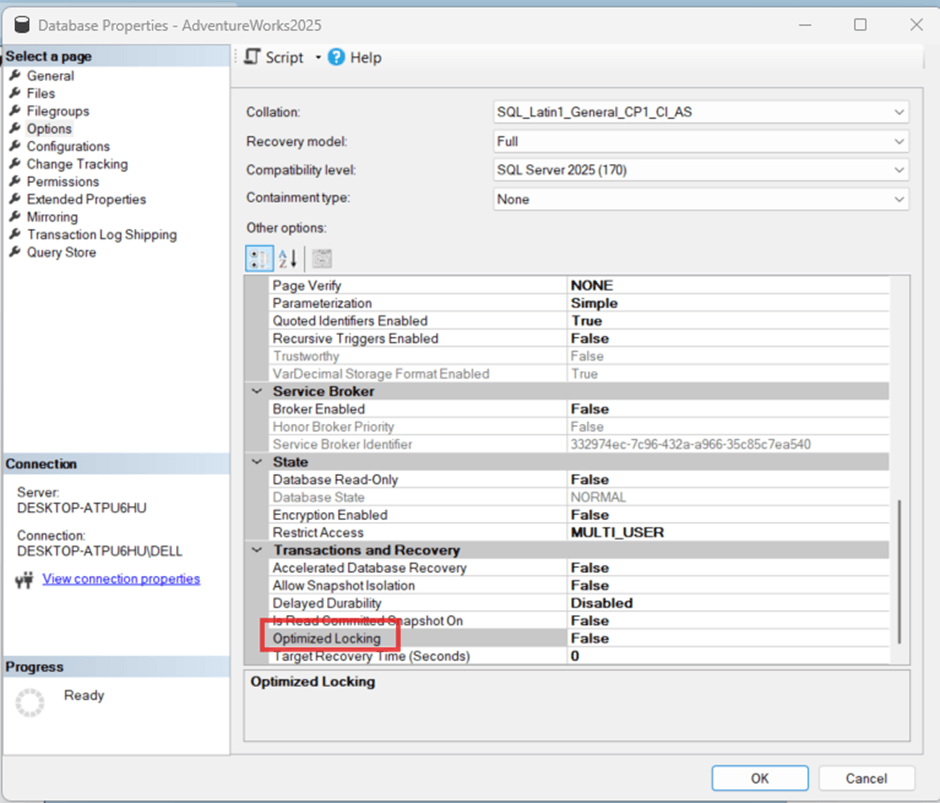
The value False disables the option, and True enables it.
Optionally, you can use T-SQL statements for this.
ALTER DATABASE AdventureWorks2025 SET OPTIMIZED_LOCKING = ON WITH ROLLBACK IMMEDIATE;

GO
If you want to disable optimized locking, use these statements:
ALTER DATABASE AdventureWorks2025 SET OPTIMIZED_LOCKING = OFF WITH ROLLBACK IMMEDIATE;

GO
You may receive the following error message when trying to enable optimized locking.
Alter failed for Database 'AdventureWorks2025'. (Microsoft.SqlServer.Smo)
For help, click: https://go.microsoft.com/fwlink?ProdName=Microsoft+SQL+Server&ProdVer=18.100.11.28&EvtSrc=Microsoft.SqlServer.Management.Smo.ExceptionTemplates.FailedOperationExceptionText&EvtID=Alter+Database&LinkId=20476
An exception occurred while executing a Transact-SQL statement or batch. (Microsoft.SqlServer.ConnectionInfo)
Optimized Locking cannot be enabled for this database because Accelerated Database Recovery is not enabled. Enable Accelerated Database Recovery and try again.
You might also receive:
ALTER DATABASE statement failed. (Microsoft SQL Server, Error: 12133)
Connection Id 497cfb14-1f5d-4e94-8776-7d0dca3ef853 at 2026-09-18 23:11:09Z
For help, click: https://docs.microsoft.com/sql/relational-databases/errors-events/mssqlserver-12133-database-engine-error
This error occurs because Accelerated Database Recovery (ADR) is not enabled in the database, and optimized locking requires it. Next, let me explain Accelerated Database Recovery.
Accelerated Database Recovery (ADR)
Microsoft introduced this feature in SQL Server 2019 and improved it in later versions. It makes database recovery after a crash and the rollback of transactions much faster.
Without ADR, rollback and recovery time depends on transaction size because the engine must read and undo changes from the transaction log. ADR uses a persistent version store (PVS), kept inside the user database itself, so recovery and rollback do not depend on the transaction length, and the transaction log can be truncated more aggressively.
For more information about Accelerated Database Recovery, refer to this link.
So, why is ADR a requirement to use Optimized Locking? When ADR is enabled, every row internally stores the ID of the transaction that last modified it (the TID), and row versions are kept in the PVS. Optimized locking builds on this infrastructure: TID locking locks the transaction ID instead of each row, and LAQ uses the same infrastructure to check the predicate on the latest committed version of the row. That is why ADR must be enabled first.
In order to enable ADR in SSMS, in Object Explorer, right-click the database that you want to change and select Properties. You need to go to the Options page, select Accelerated Database Recovery (in the Transactions and Recovery section), and select True to enable the ADR option.
To disable ADR, you just need to set it back to False. If optimized locking is enabled, you must disable it first.
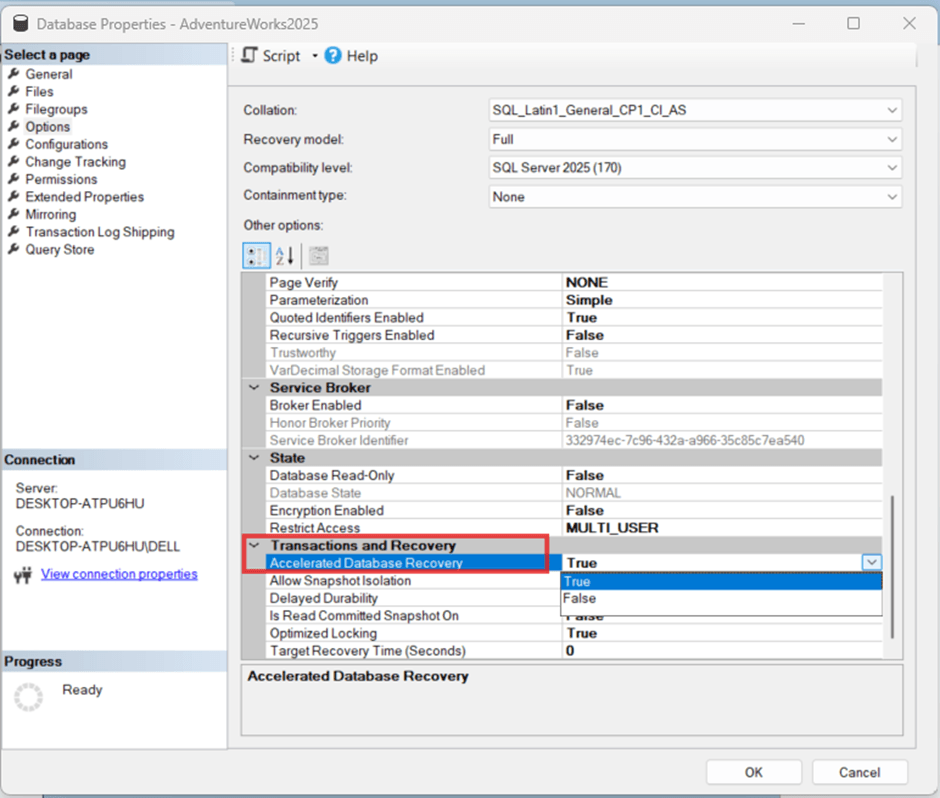 ADR for Optimized Locking
Optionally, you can use the T-SQL commands for this.
ALTER DATABASE AdventureWorks2025 SET ACCELERATED_DATABASE_RECOVERY = ON WITH ROLLBACK IMMEDIATE;
If you want to disable ADR, use these commands:
ALTER DATABASE AdventureWorks2025 SET ACCELERATED_DATABASE_RECOVERY = OFF WITH ROLLBACK IMMEDIATE;
RCSI option
For optimized locking to give its full benefit, it is necessary to have RCSI enabled. RCSI stands for Read Committed Snapshot Isolation. It is not a separate isolation level: it is a database option that changes how the READ COMMITTED isolation level works. Instead of taking shared locks, it reads the last committed version of every row as it was when the statement started. The data readers do not block the writers, and the writers do not block the readers. However, the writers still block other writers.
So, RCSI is not a strict requirement to enable optimized locking (only ADR is), but it is necessary to get all the benefits of this feature: without RCSI, only TID locking is used, and LAQ is not applied.
In order to enable RCSI using SSMS, right-click the database that you want to change and select Properties. Go to the Options page and set Is Read Committed Snapshot On to True.
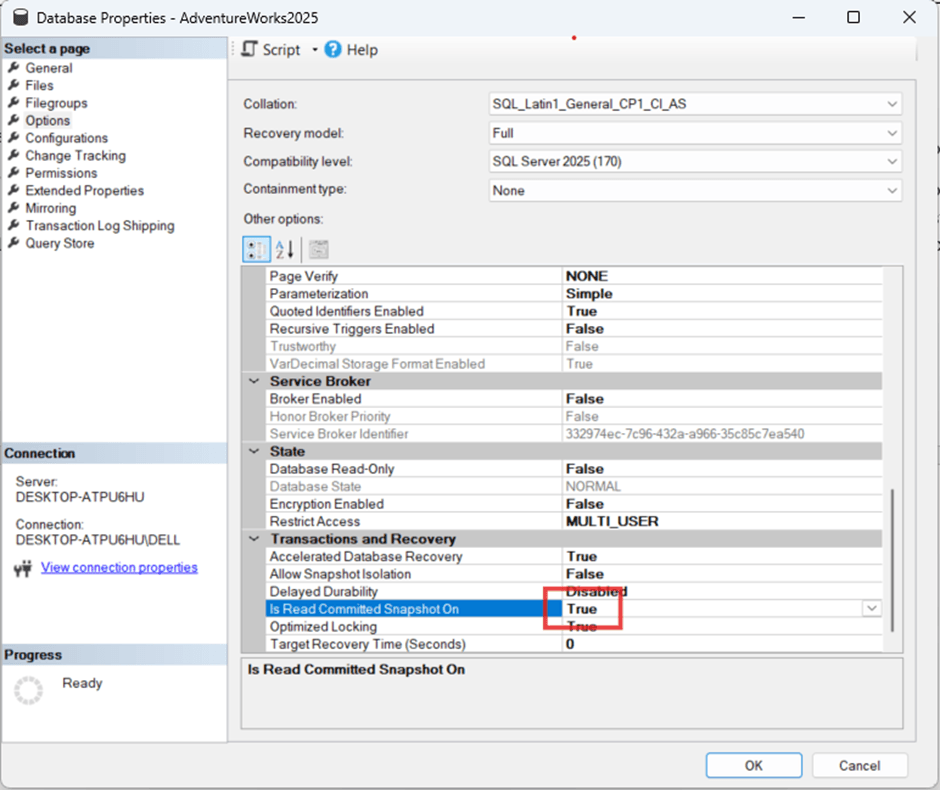
RCSI option for Optimized LocksIf you want to disable this option, just set the option to False.
Optionally, you can use T-SQL statements. The following statement will enable RCSI:
ALTER DATABASE YourDatabaseName
SET READ_COMMITTED_SNAPSHOT ON WITH ROLLBACK IMMEDIATE;
If you want to disable this option, just use the following statement:
ALTER DATABASE YourDatabaseName
SET READ_COMMITTED_SNAPSHOT OFF WITH ROLLBACK IMMEDIATE;
How to Verify the Optimized Locking Option
In order to check if the optimized locking option is enabled, you can use SSMS: in Object Explorer, check the database properties and the Options page.
Make sure that the Optimized Locking option is set to True.
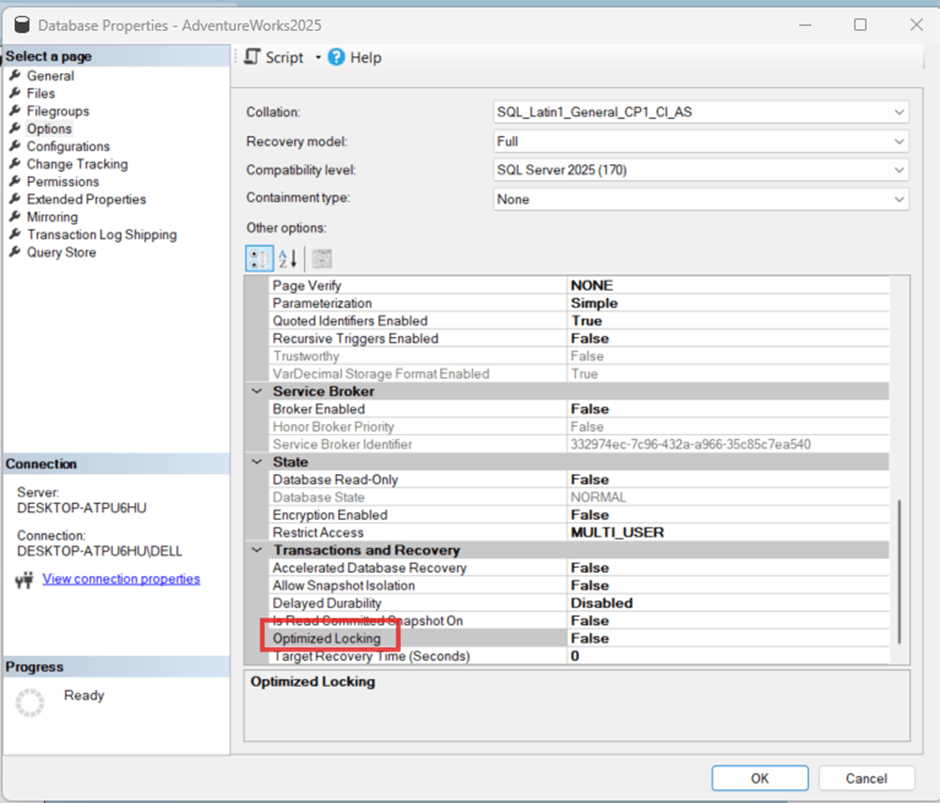 Optimized Locking option
The following query shows how to check if the optimized locking option is enabled. 1 means that it is enabled and 0 that it is disabled.
SELECT name,
       is_optimized_locking_on
FROM sys.databases
WHERE name = 'YourDatabaseName';
Another way is using the DATABASEPROPERTYEX function. It returns 1 if the option is enabled, 0 if it is disabled, and NULL if optimized locking is not available in your version:
SELECT DATABASEPROPERTYEX('YourDatabaseName', 'IsOptimizedLockingOn') AS optimized_locking;Check the Locking using System Views
Previously, we learned how to check if the Optimized Locking option was enabled or not. Now, we will test if this feature is actually working. For this purpose, we will create a simple table named LAQ_Demo with some data. The table has no indexes, so every UPDATE has to scan all the rows; this is what makes the difference visible. For this test, RCSI must also be enabled.
CREATE TABLE dbo.LAQ_Demo (a INT, b INT);
GO
INSERT dbo.LAQ_Demo VALUES (1, 0), (2, 0), (3, 0);
GO
Next, we will create two sessions (two query windows).
In the first session, we will begin a transaction and update the LAQ_Demo table. We do not commit or roll back the transaction yet.
BEGIN TRAN;

UPDATE dbo.LAQ_Demo SET b = b + 1 WHERE a = 1;
Secondly, in the second session, we will try to update a different row.
UPDATE dbo.LAQ_Demo SET b = b + 1 WHERE a = 2;
If optimized locking (and RCSI) is enabled, this update will complete successfully. LAQ checks the predicate on the latest committed version of each row without locking it, and the row with a = 1 does not satisfy a = 2, so the second session is not blocked. However, if you disable optimized locking, the second session will wait (it will be blocked).
The following query, run from another session, shows the blocked request:
SELECT session_id, blocking_session_id, wait_type, wait_time, status
FROM sys.dm_exec_requests
WHERE blocking_session_id <> 0;
As you can see, session 85 (session_id) is blocked by session 54 (blocking_session_id). It is waiting for an update lock (wait type LCK_M_U), and the query also shows the wait_time in milliseconds and the status (suspended).
 Blocking session
Here is a list of other lock wait types.
Wait types
| Wait type | Lock mode | Explanation |
| Basic lock mode | ||
| LCK_M_S | Shared (S) | Waiting to acquire a shared lock, usually to read a row, page, or table. Occurs when a reader is blocked by a writer holding an incompatible lock such as X. Much less common when RCSI is enabled. |
| LCK_M_U | Update (U) | Waiting to acquire an update lock. Taken when reading rows that will probably be modified (search phase of UPDATE/DELETE, or the UPDLOCK hint). Blocked by other U or X locks. |
| LCK_M_X | Exclusive (X) | Waiting to acquire an exclusive lock to modify data. Incompatible with almost every other lock, so it is a common wait type in writer-versus-writer blocking. |
Intent lock modes (table/page level) | ||
| LCK_M_IS | Intent Shared (IS) | Waiting to acquire an intent shared lock, which signals the intention to place S locks on lower-level resources. Blocked by an X lock on the same resource. |
| LCK_M_IU | Intent Update (IU) | Waiting to acquire an intent update lock, which signals the intention to place U locks on lower-level resources. |
| LCK_M_IX | Intent Exclusive (IX) | Waiting to acquire an intent exclusive lock, which signals the intention to place X locks on lower-level resources. Often blocked by a table-level S or X lock (for example, after lock escalation). |
| LCK_M_SIU | Shared with Intent Update (SIU) | Waiting to acquire a shared lock on a resource together with intent update locks on lower-level resources. |
| LCK_M_SIX | Shared with Intent Exclusive (SIX) | Waiting to acquire a shared lock on a resource together with intent exclusive locks on lower-level resources. |
| LCK_M_UIX | Update with Intent Exclusive (UIX) | Waiting to acquire an update lock on a resource together with intent exclusive locks on lower-level resources. |
| Schema locks | ||
| LCK_M_SCH_S | Schema Stability (Sch-S) | Waiting to acquire a schema stability lock, which is taken while compiling and executing queries to prevent schema changes. Blocked by a Sch-M lock (DDL in progress). |
| LCK_M_SCH_M | Schema Modification (Sch-M) | Waiting to acquire a schema modification lock, required by DDL such as ALTER TABLE, DROP, or an offline index rebuild. It is incompatible with every other lock, so it waits for all sessions using the object to finish, and blocks new ones while it waits. |
| Bulk operations | ||
| LCK_M_BU | Bulk Update (BU) | Waiting to acquire a bulk update lock, used during bulk imports (BULK INSERT or bcp with the TABLOCK hint) so that several bulk loads can run in parallel while other access is blocked. |
| Key-range locks (SERIALIZABLE isolation level) | ||
| LCK_M_RS_S | Key-Range Shared / Shared (RangeS-S) | Waiting for a shared lock on the current key and a shared range lock between the current and previous key. |
| LCK_M_RS_U | Key-Range Shared / Update (RangeS-U) | Waiting for an update lock on the current key and a shared range lock between the current and previous key. |
| LCK_M_RX_S | Key-Range Exclusive / Shared (RangeX-S) | Waiting for a shared lock on the current key and an exclusive range lock between the current and previous key. |
| LCK_M_RX_U | Key-Range Exclusive / Update (RangeX-U) | Waiting for an update lock on the current key and an exclusive range lock between the current and previous key. |
| LCK_M_RX_X | Key-Range Exclusive / Exclusive (RangeX-X) | Waiting for an exclusive lock on the current key and an exclusive range lock between the current and previous key. |
| LCK_M_RIn_NL | Insert Range / Null (RangeI-N) | Waiting for a NULL lock on the current key (released instantly) and an insert range lock between the current and previous key. Occurs when inserting into a range protected by SERIALIZABLE readers. |
| LCK_M_RIn_S | Insert Range / Shared (RangeI-S) | Waiting for a shared lock on the current key and an insert range lock between the current and previous key. |
| LCK_M_RIn_U | Insert Range / Update (RangeI-U) | Waiting for an update lock on the current key and an insert range lock between the current and previous key. |
| LCK_M_RIn_X | Insert Range / Exclusive (RangeI-X) | Waiting for an exclusive lock on the current key and an insert range lock between the current and previous key. |
Status values
Next, we will show the possible values of the status column of sys.dm_exec_requests.
| Status | Explanation | Notes |
| Running | The request is currently executing on a CPU scheduler. | The request is doing work right now. It holds this status only while it is on the CPU. |
| Runnable | The request is ready to run and is in the runnable queue, waiting for a scheduler to give it CPU time. | A consistently high number of runnable requests indicates CPU pressure (see SOS_SCHEDULER_YIELD waits and signal wait time). |
| Suspended | The request is not running because it is waiting for a resource, such as a lock, an I/O operation, a latch, or a memory grant. | Check wait_type, wait_time, and blocking_session_id to see what it is waiting on. When the resource becomes available, it moves to Runnable. |
| Sleeping | The request has no work to do at the moment. | Rarely seen in this view. Idle sessions waiting for a new command do not appear in sys.dm_exec_requests; their status is reported in sys.dm_exec_sessions. |
| Background | The request is being run by an internal background task. | Used by system tasks such as the deadlock monitor, checkpoint, or lazy writer. Normally ignored when troubleshooting. |
Finally, you can use this query to verify the sessions, resources, and request modes.
SELECT request_session_id,
       resource_type,
       request_mode,
       request_status,
       COUNT(*) AS cantidad
FROM sys.dm_tran_locks
WHERE resource_database_id = DB_ID('YourDatabaseName')
  AND request_session_id <> @@SPID
GROUP BY request_session_id, resource_type, request_mode, request_status
ORDER BY request_session_id, resource_type
GO
The results of the query are the following.
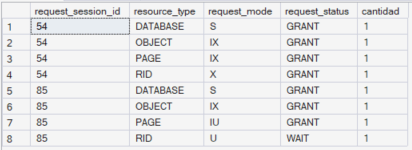 Query results
Some Tips to Reduce Blocking
It is not mandatory, but it is a good practice to enable RCSI and use the READ COMMITTED isolation level, which is the default. In SSMS, you can set the isolation level of a query window (a session) to READ COMMITTED. Note that the isolation level is a session setting, not a database setting. To do it, go to the Query menu. Then, select Query Options. Go to Execution > Advanced and set SET TRANSACTION ISOLATION LEVEL to READ COMMITTED.
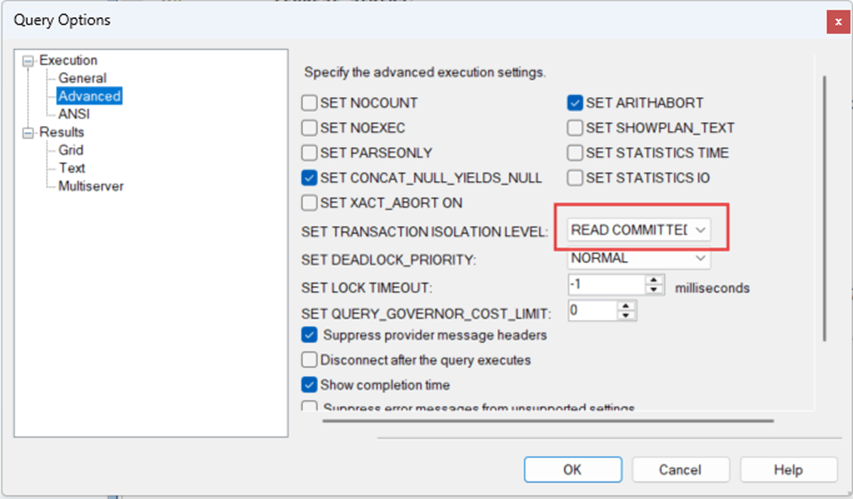
Optionally, you can use T-SQL.
SET TRANSACTION ISOLATION LEVEL READ COMMITTED;
GO
In addition, avoid locking hints such as UPDLOCK, HOLDLOCK, or READCOMMITTEDLOCK: they are honored, but they reduce the benefits of optimized locking, so use them only where they are really needed. If you still have doubts about this feature, write your comments.