

With the AI push being everywhere, Redgate is no exception. We’ve been getting requests, demands, suggestions, and more about how to add AI into our products and help developers and DBAs be more productive.
One of the areas we’ve started to add some AI is in Flyway Desktop (FWD), with a few features designed to help reduce the cognitive load and context switches needed while developing code, and help users better understand what changes they’re making in their systems. This post looks at one of those changes, which is in preview (as of Jan, 2026).
I’ve been working with Flyway and Flyway Desktop for work more and more as we transition from older SSMS plugins to the standalone tool. This series looks at some tips I’ve gotten along the way.
Understanding Deployment Scripts
In Flyway, we call the deployment scripts “migration scripts”, but they are the same thing. These are scripts that are changing, altering, or evolving our database schema in some way. New or altered objects, various schema items, and more.
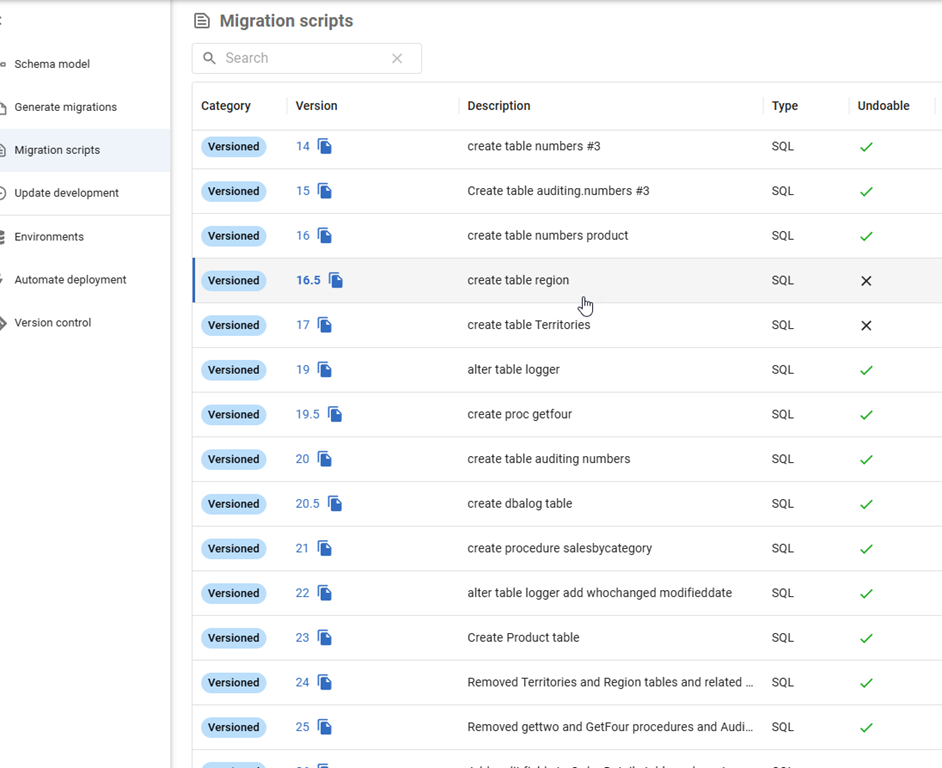
When a developer creates a migration script, they often do this close to the time they are making the changes in development. Not always, but I find a lot of customers change something, test it, and then make the migration script. Guidance for a lot of customers is to keep the migration scripts simple and easy. For example, here’s one I have that creates a simple table. If you look in the image on v23, which says “Create Product Table” in the description, that is what it does.
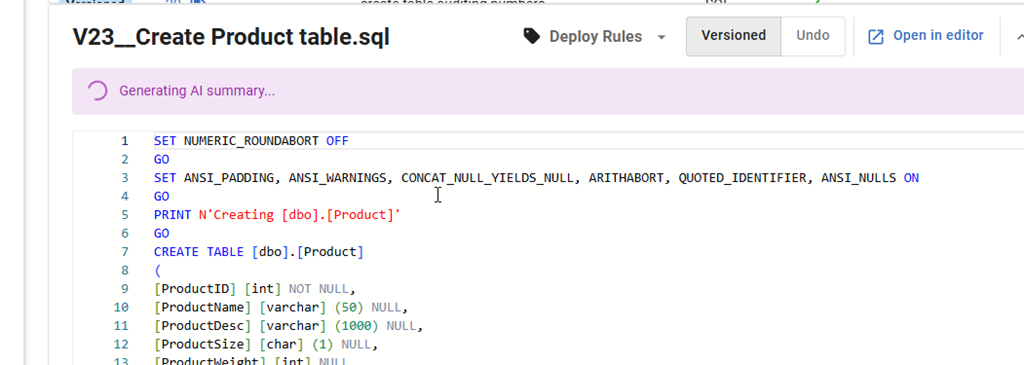
If I click on this line, I see the script shown below the name (V23__Create Product Table.sql). The new thing just below in this image is that an AI summary is being generated.
In a few seconds, this changes. I get the summary of the table. In this case, it says I have a new table with some columns.
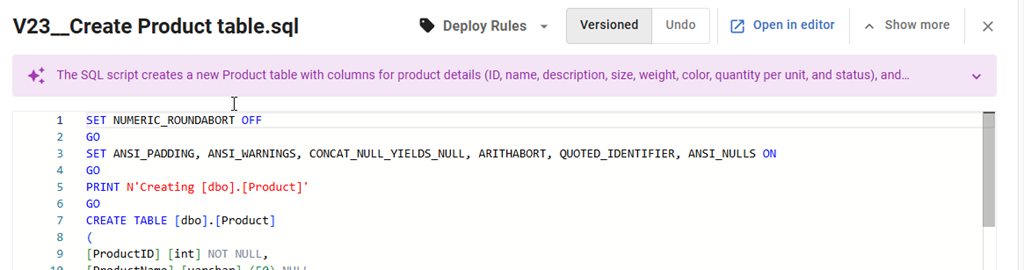
If I expand this with the drop-down on the right, I see the full summary. This includes telling me a PK is being created, which is good info. I could look through the code, but the settings, the PRINT statements and more make this harder than it should be.

What about a more complex script? If I pick a different one, such as V24__Removed Territories and Region tables and related constraints and procedures, I get an OK description that lets me know a few things are being changed. I wish this had a little more detail in it, such as the tables on which FKs are being dropped, and maybe a list.

Let me create a whole new set of objects. In this case, I’ve added some discount features in a bunch of tables. Here is the list of objects I added to the migration script.
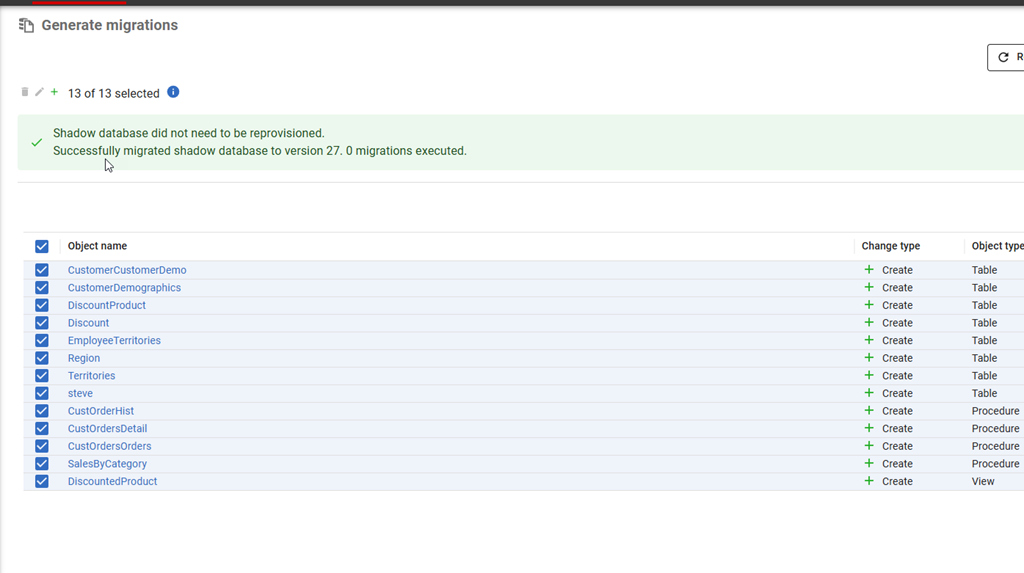
When I generate the migration script and then click on it in the Migration Scripts tab, I see this description.
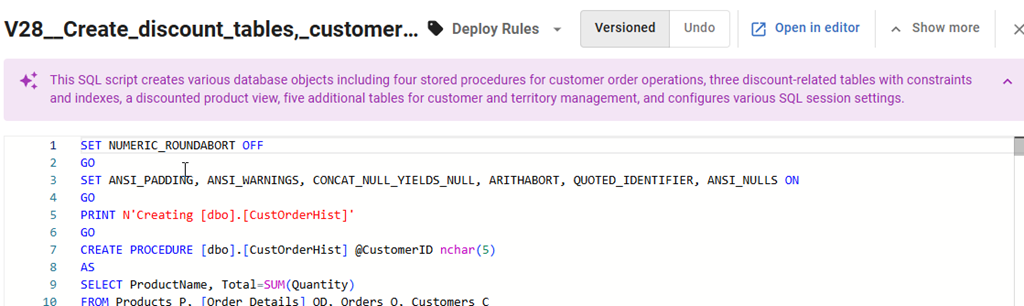
That’s an interesting description, as I see that there are territory and customer tables, which I’d forgotten I added. I was working on them and added them, but hadn’t committed them. I added the discount stuff (3 tables and a view) in a dev session today, and then selected everything to save and include in a migration script.
This is one of those areas where the summary helps me remember what’s in here, and in this case, I’d want to delete this script and re-generate it with a different set of object changes. Then a second migration script with other changes.
Enabling AI Features in Flyway
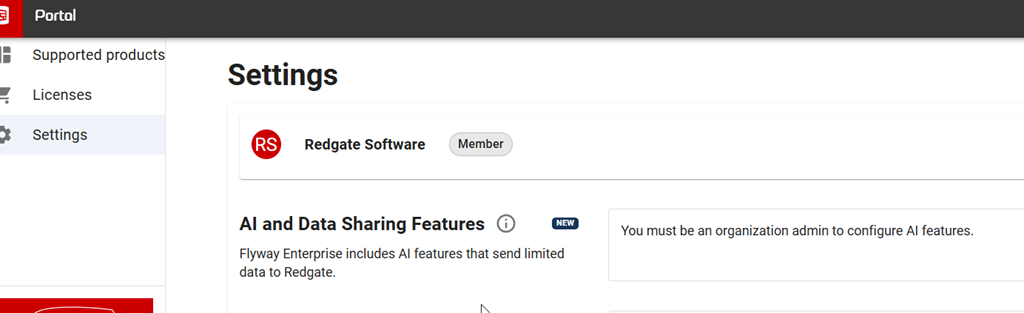
This is a preview feature as of Jan 5, 2026 as I write this. To get this in your FWD, your organization needs to have enabled AI features in your portal. I’m just a member, but whoever is an admin for your Redgate products would find it here.
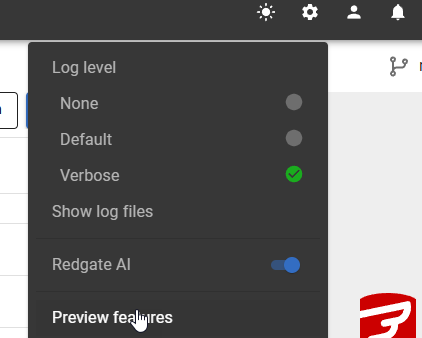
In FWD, you need to look at the Preview Features item under the config menu.
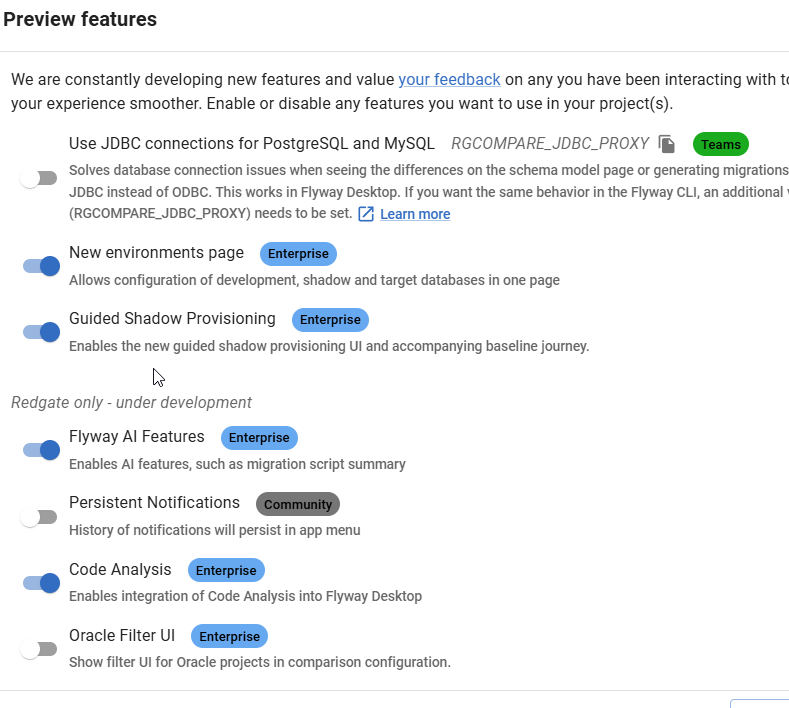
In this area, you can enable or disable features as needed. I see these marked as Red-gate only, but I think they are supposed to be released to some customers by this time. It’s likely I need to upgrade my FWD, which I’ll do when I have time.
Once you do this, you should start seeing some AI stuff with the purple/pink shaded area and the sparkle icon that we’re all seeing everywhere.

Summary
This post shows one of the Flyway AI features that we’re adding to help you deal with the chaos and complexity of database development in your environment. This features tries to summarize the details in your migration script and provide you a summary.
This isn’t perfect, but as you look at scripts, it fairly quickly gives you a look at what’s included without you having to read all the code. You should double check the code and be sure it’s what you expect, but if you’re looking through a few scripts for a particular change or impact, this might help save you time.
There is a limit to the amount of stuff we send to the LLM to summarize. I can’t remember (or find) the limit, but very large scripts aren’t summarized, and you’ll see a message to that effect.
This feature is documented, but we are likely to enhance and change it a bit, so all feedback is welcome. If your organization doesn’t want you using AI, and you could share some schema from a migration script, I’d be happy to test it for you and see what summary is produced and send it back to you. Ping me on X/LinkedIn/BlueSky if you want.
Flyway is an incredible way of deploying changes from one database to another, and now includes both migration-based and state-based deployments. You get the flexibility you need to control database changes in your environment. If you’ve never used it, give it a try today. It works for SQL Server, Oracle, PostgreSQL and nearly 50 other platforms.
Video Walkthrough
See a video of me looking at this feature below.