

Today, many cloud vendors require developers to use a web browser to design and develop software solutions. The Fabric ecosystem is based upon two key components: the capacity and the service. Both can be managed via a web browser. How about the developers who are comfortable with tools such as Visual Studio Code and SQL Server Management Studio. Is there a way to design solutions using remote tools?
Business Problem
Our boss has asked us to explore how to remotely design Lakehouse objects using Visual Studio code. Today, we are going to look at visual studio extensions that will help with this task. While we are concentrating on the Lakehouse architecture, the Warehouse has both a read/write endpoint. Any tools that allow a developer to connect to the SQL Analytical Endpoint can be used to create objects in the Warehouse. Just remember that data should be managed in large batches. Otherwise, performance issues will occur with any data manipulation language statements. Enough has been said about the Warehouse. The rest of the article will explore how to manage both the Spark environment (Lakehouse) as well as the SQL Analytical endpoint.
Four Visual Studio Extensions
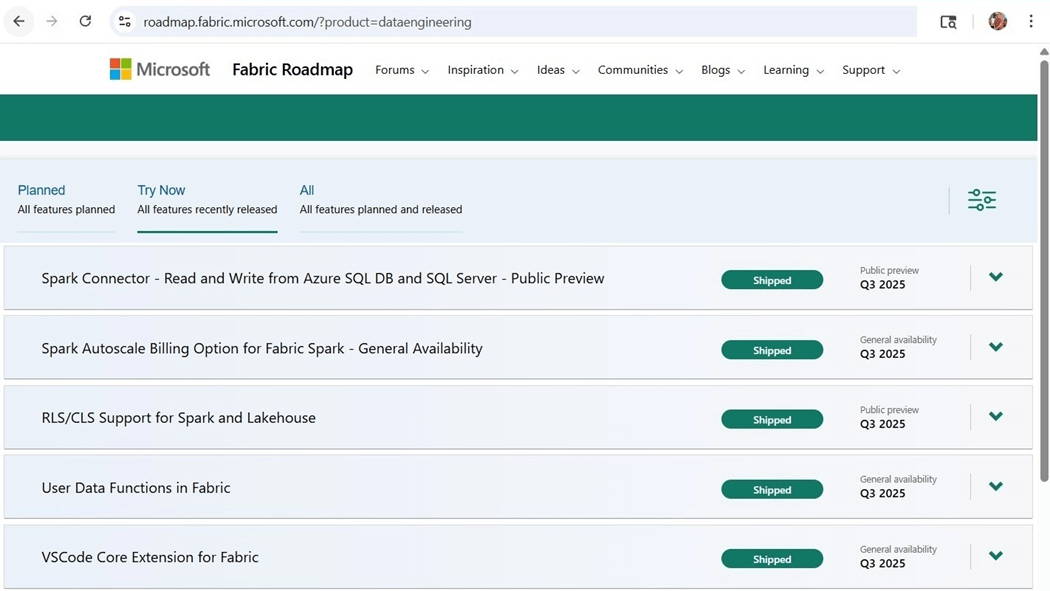
I periodically keep an eye on the Fabric Roadmap. As a consultant, I work with a variety of platforms and technologies. Thus, it is important to keep up to date with changes in the Fabric service. The image below shows the Fabric core extension for Visual Studio was released in the third quarter of 2025.
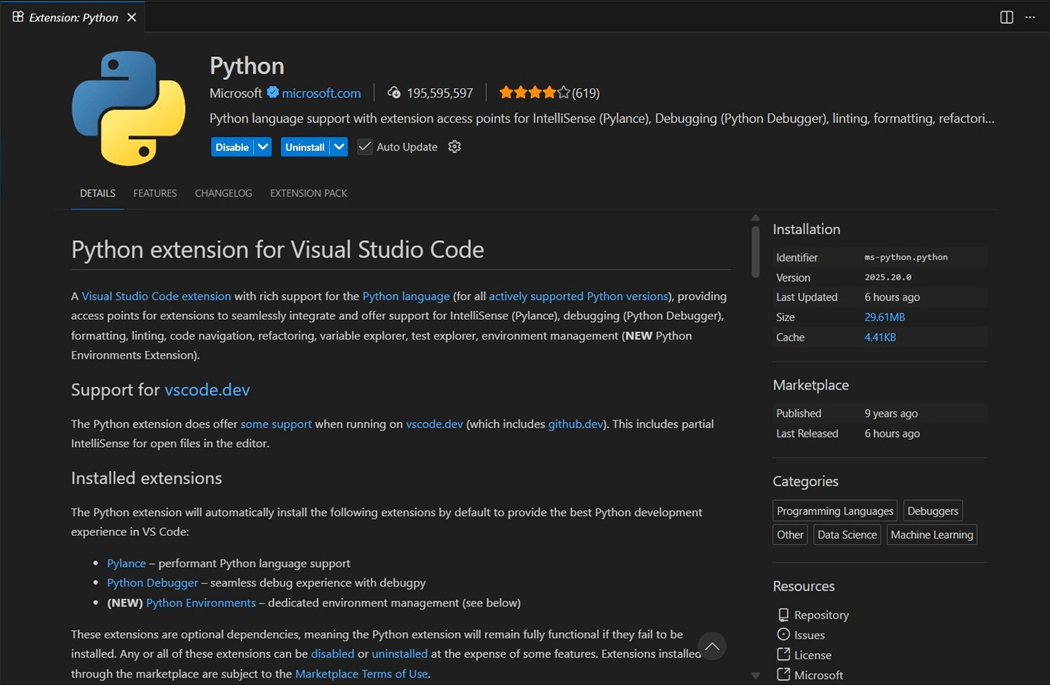
I develop my Spark Notebooks using Python Language and the PySpark library. Therefore, having the Python language installed within Visual Studio is a requirement. This article assumes that you have Visual Studio code installed already on your laptop. Go to the extensions menu and search for Python. Please install this extension as the first configuration step.
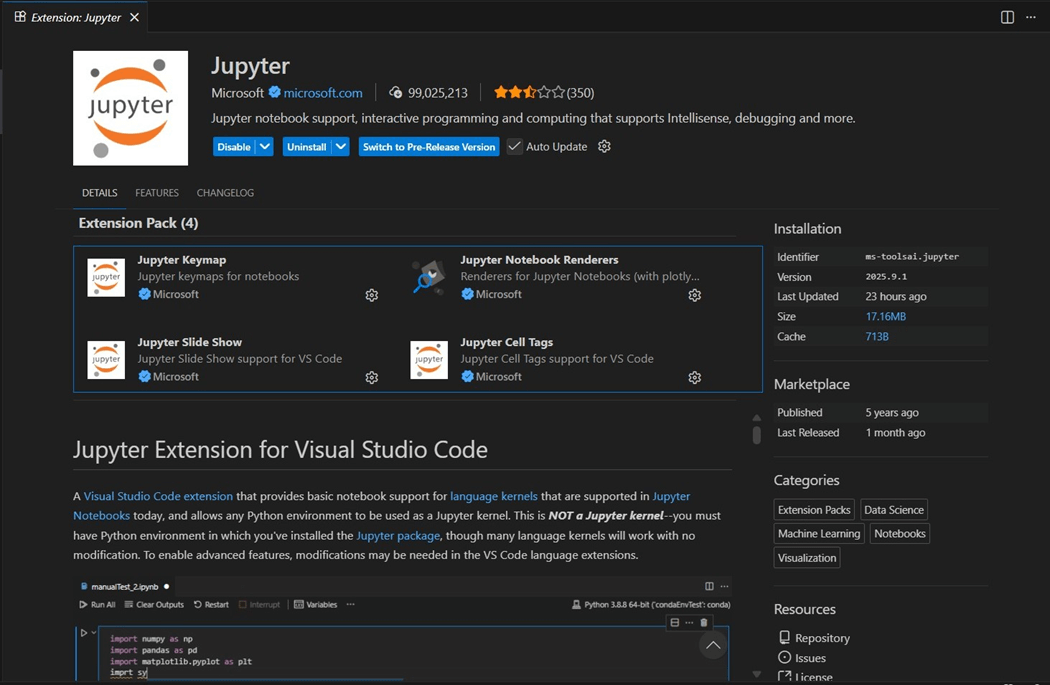
The only prerequisite for the Fabric extension is Jupyter notebooks. Please install this extension as the second configuration step.
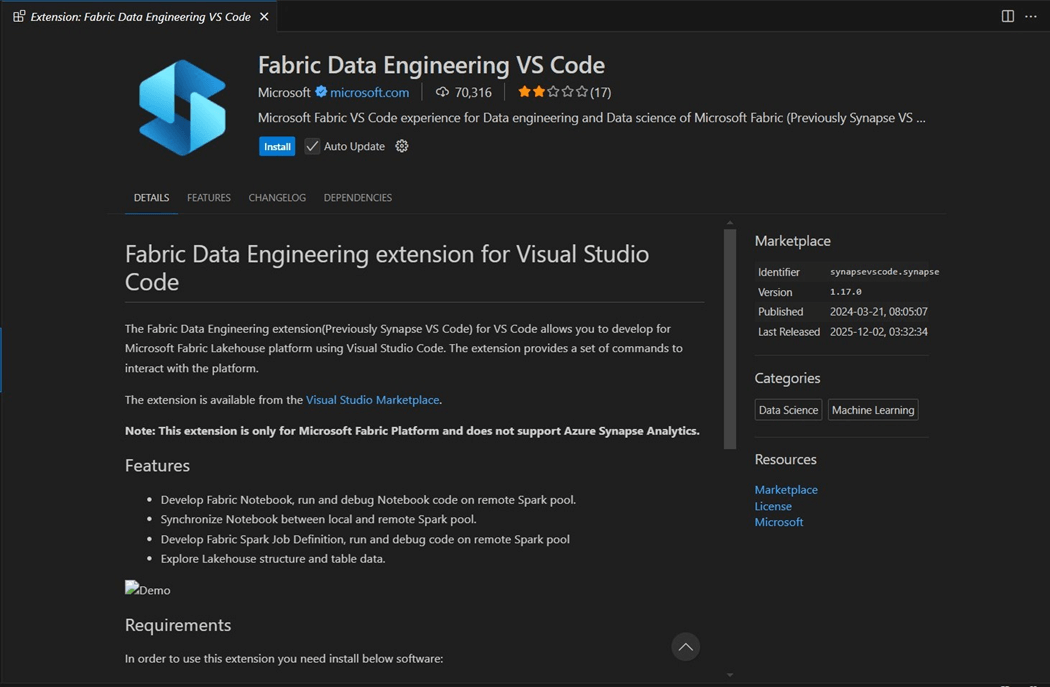
Looking at the features of the Fabric extension, we can read that many development actions can be done remotely. Please see image below. The final notebooks we develop can be synchronized with the cloud service. Install the Fabric Data Engineering extension as the third step.
Both the Fabric Lakehouse and Fabric Warehouse have a SQL Analytic Endpoint. To create T-SQL scripts, we will be using the SQL Server extension. The fourth configuration step is to install this component.
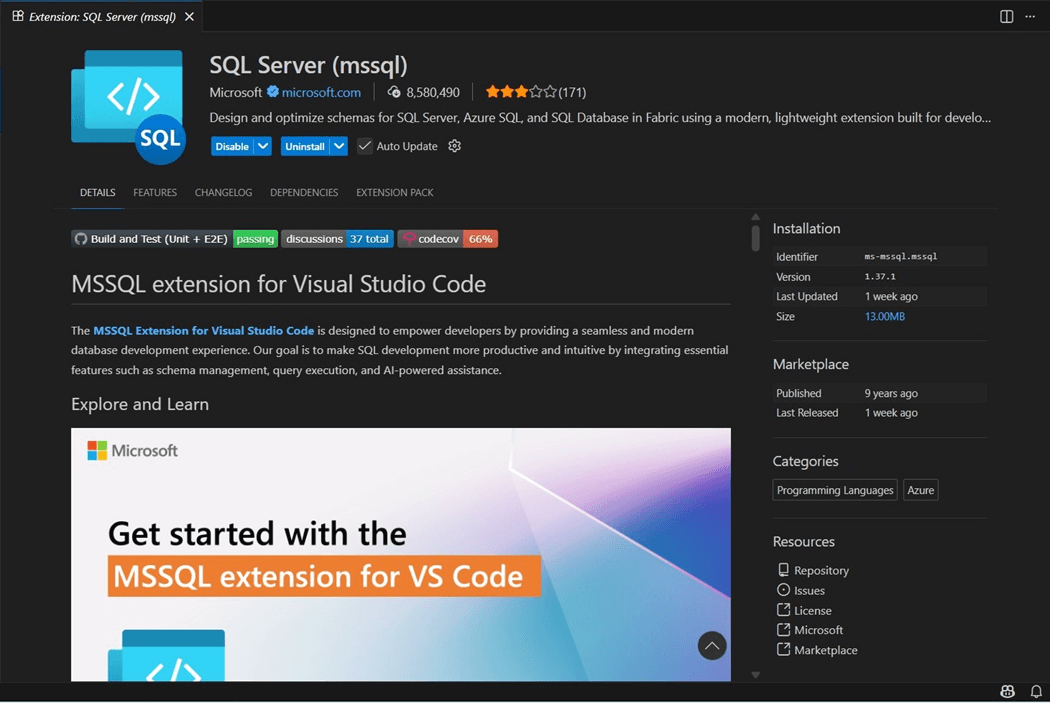
All four extensions allow the data engineer (developer) to solve many problems. In the next section, we will learn how to connect Visual Studio Code to the Fabric Service.
Configure VS Code
The command pallet is where all functionality of the extensions can be found. Press Ctrl+Shift+P to quickly access this dialog box. Type in the word “Fabric” to see the options available to us.
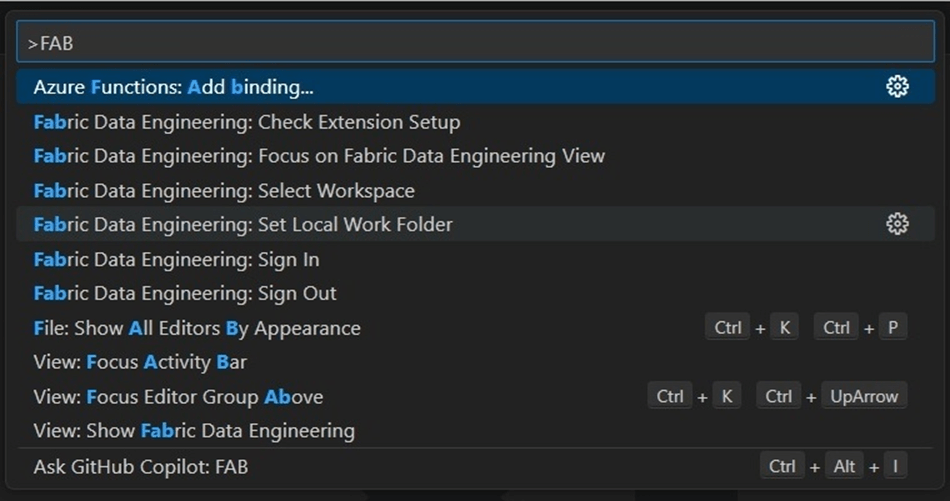
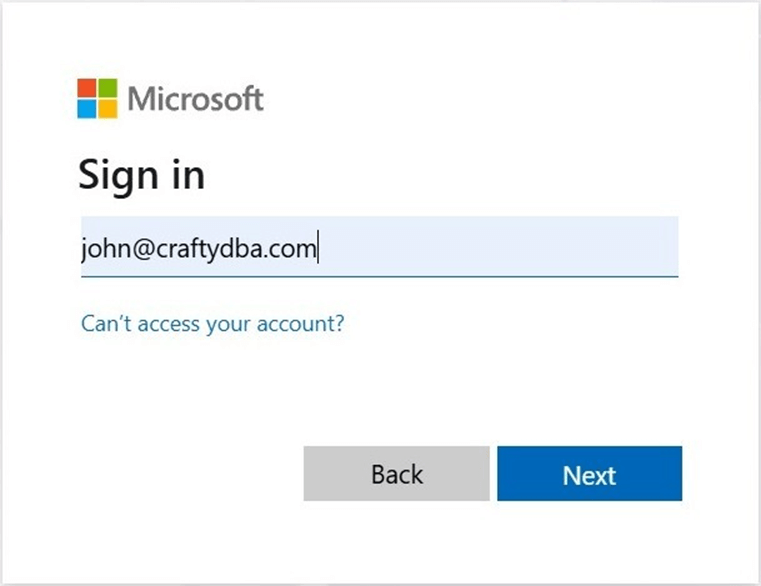
The Microsoft Fabric service is secured with Azure Entra ID. Thus, the first step is to sign into the service. I will be using the john@craftydba.com account to log into the service. I will be skipping all the details of the multi-factor authentication. Use what ever is appropriate to sign into your Fabric Service.
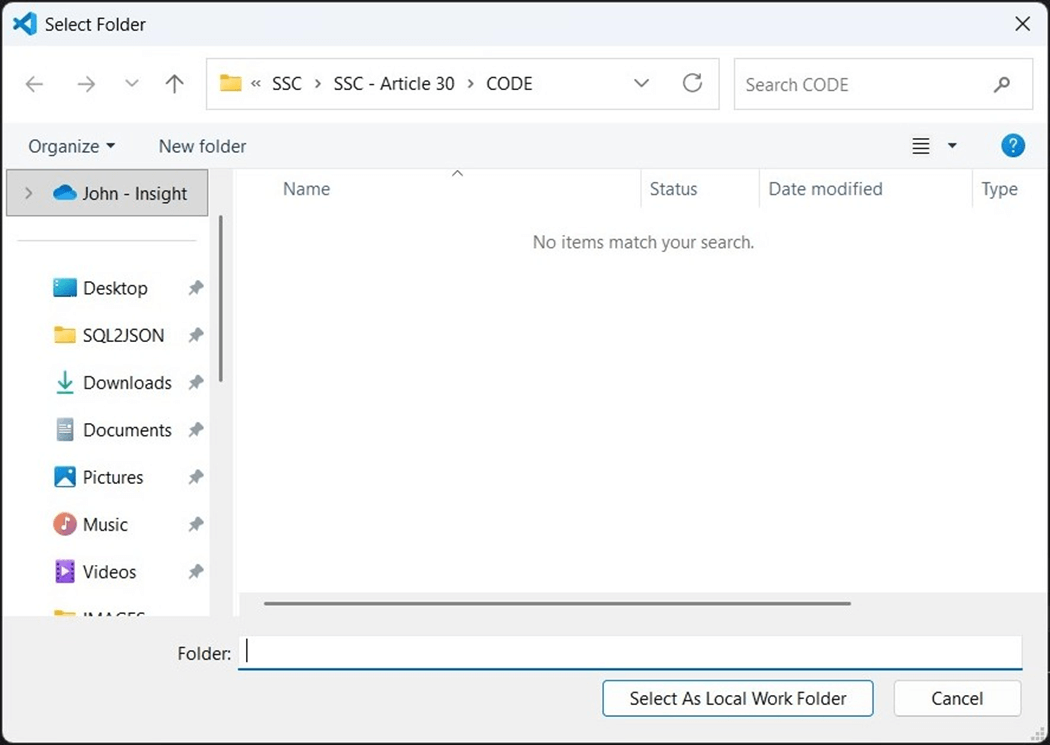
The Fabric extension is smart enough to know that the next step is to set a local working folder.
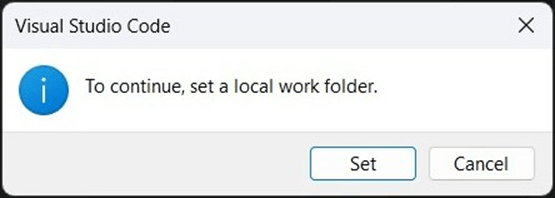
Use the windows explore dialog box to select the working folder. In my case, it will be a CODE directory under this article number.
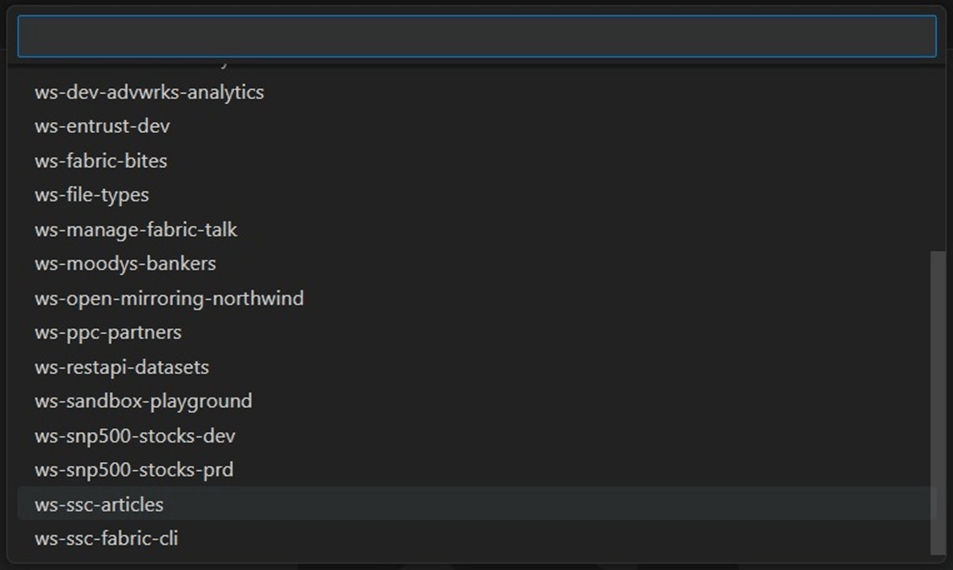
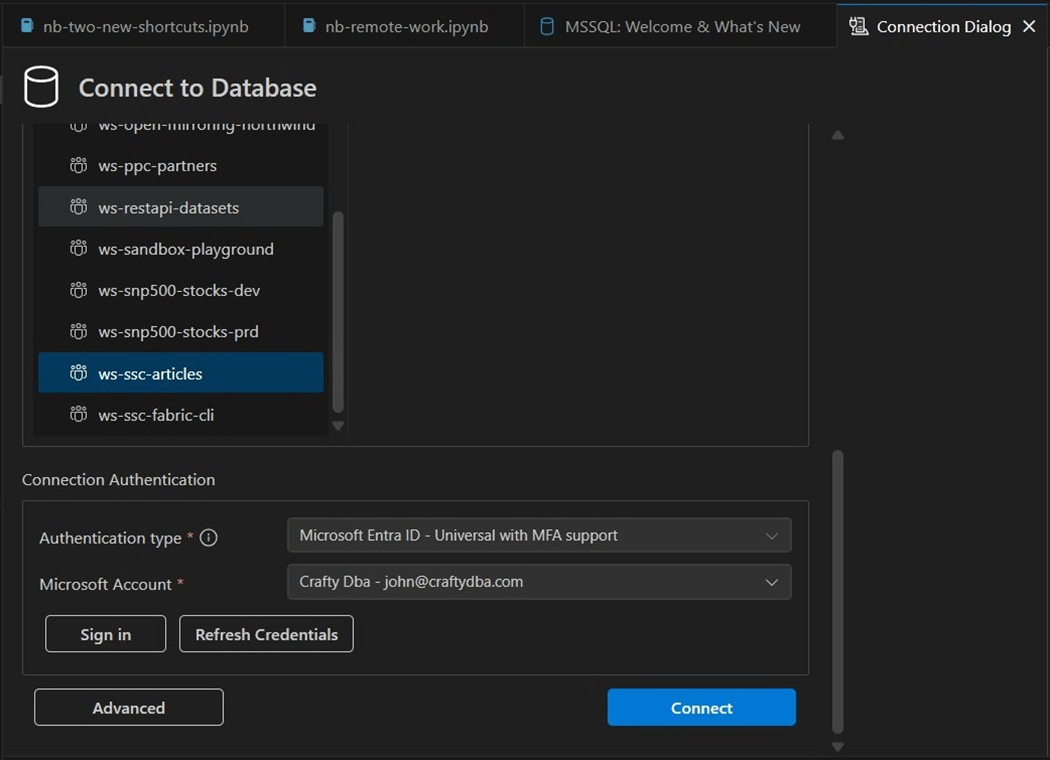
The last step is to select the Fabric Workspace to connect to the local directory. In our case, we will continue working with the lakehouse, named lh_ssc_articles, in the workspace, called ws-ssc-articles. The image below shows the list of workspaces that I have in Fabric.
The image below is extremely busy and has a lot of stuff going on. Let’s get into the details of each section.
This screen was brought up by clicking the big S icon for Synapse engineering. Please make sure that the Fabric capacity is running or errors will be thrown. The top section shows notebooks labeled as R for remote. The notebook named nb-remote-work is the focus of this article. It was initially labeled as L for local. I did synch the notebook to the Fabric service. After making a change locally, the notebook is now labeled M as modified.
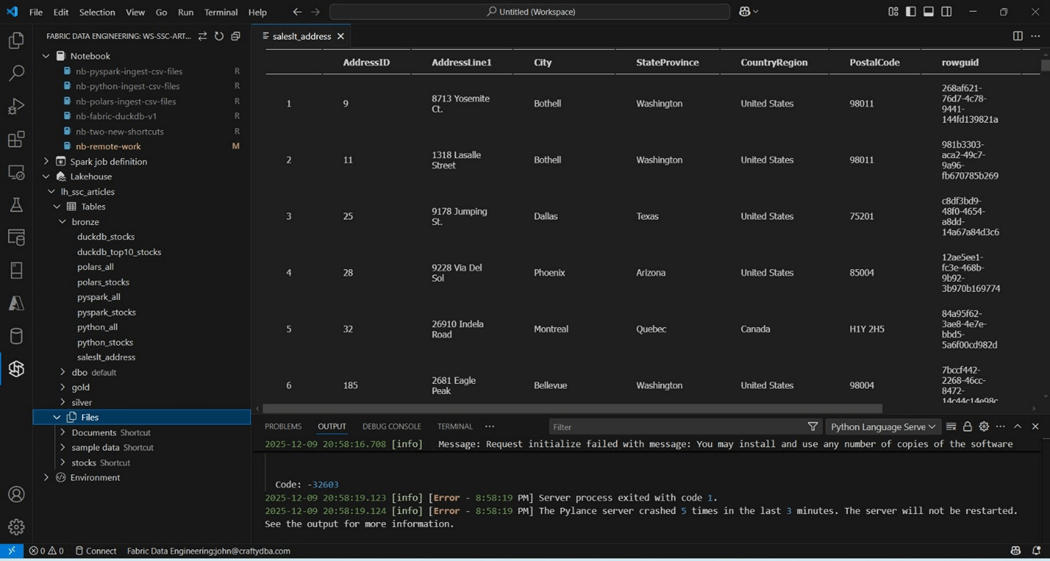
Past articles used ADLS (stocks), OneDrive (sample data) and SharePoint (Documents) shortcuts. All three directories (shortcuts) are shown above under Files. Last but not least, we can drill into the tables that are part of the lh_ssc_articles lakehouse. This lakehouse uses schemas and I choose to expand the bronze schema. I double clicked the saleslt_address delta table. The extension brought down a sample of the data for my viewing. There seems to be an error with the Pylance server. To get rid of this annoying error, find the extension and disable the component.
Execute Existing Notebook
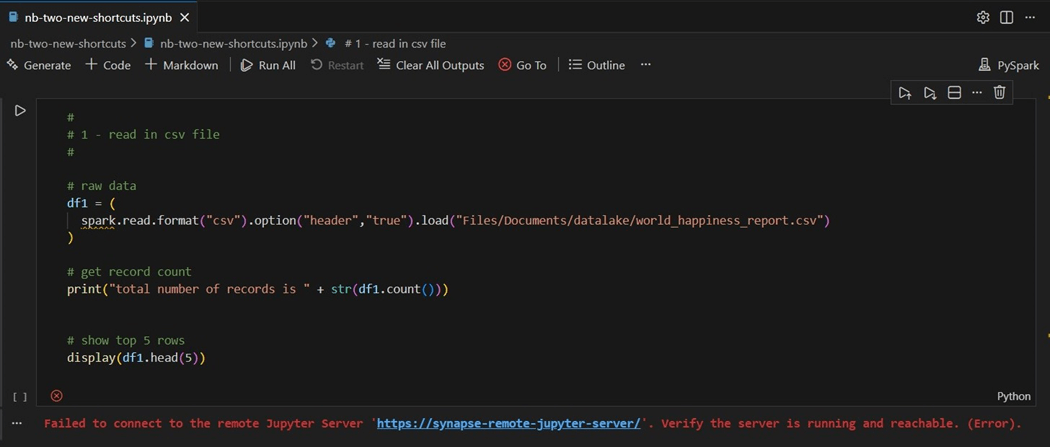
A right click on the notebook named nb-two-new-shortcuts in the Synapse Data Engineering window will bring down a local copy. The local work folder is where files are synchronized between the local laptop and the cloud service. This window can be accessed with the files icon on the right menu. I am going to bring up my most recent notebook that tries to read a CSV file from OneDrive. Please note that the artifacts are being stored in the CODE directory. The execution of the notebook fails since the kernel is pointing to the local installation of Python.
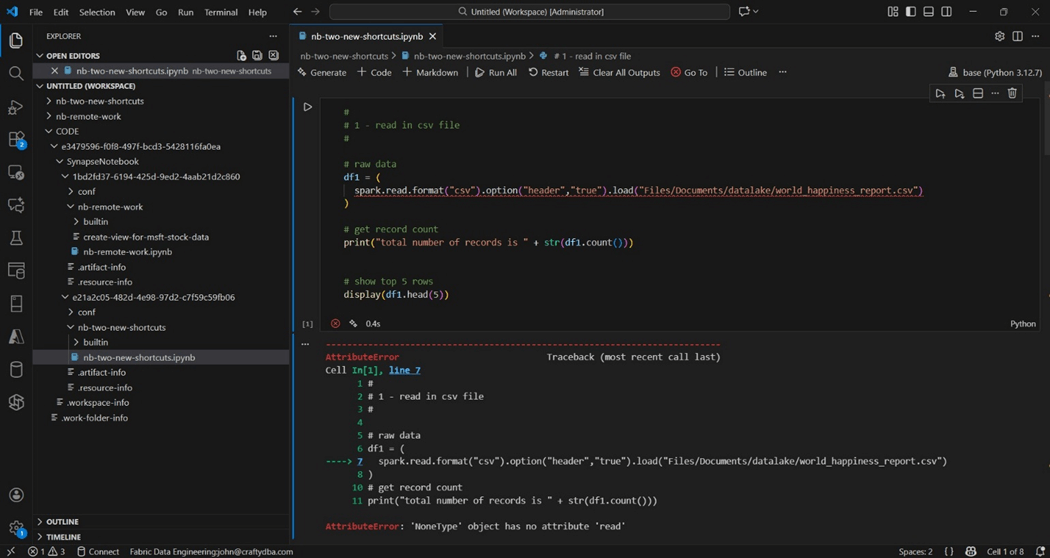
To fix this issue, click on the compute icon to switch over to the Microsoft Fabric Runtime.

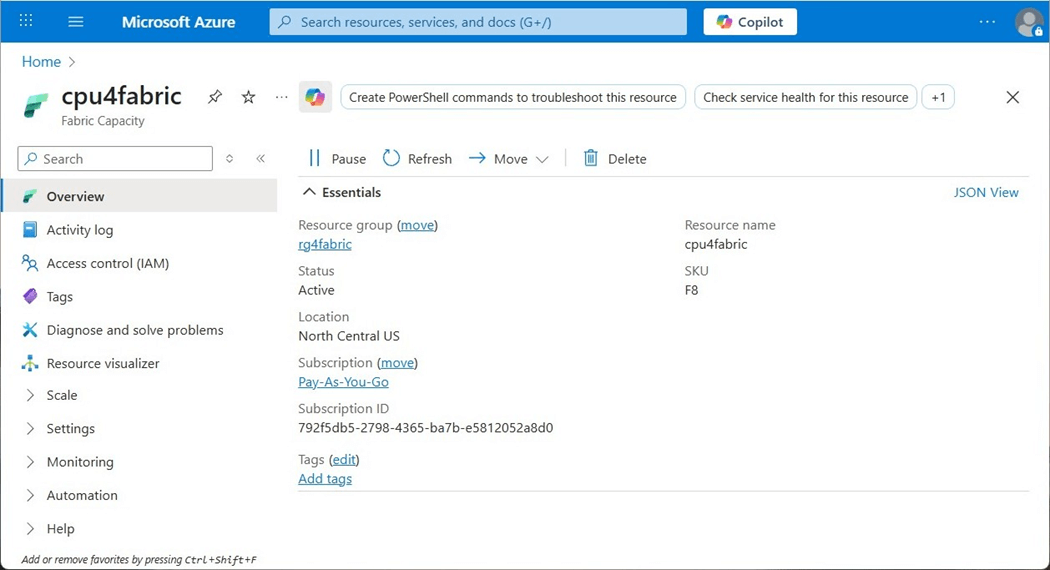
The next issue you might encounter is that Fabric Capacity in a paused state.
Please have someone with Fabric Capacity rights sign into Azure and start the capacity.
The top five happiest countries for years 2015 and 2016 are show below.
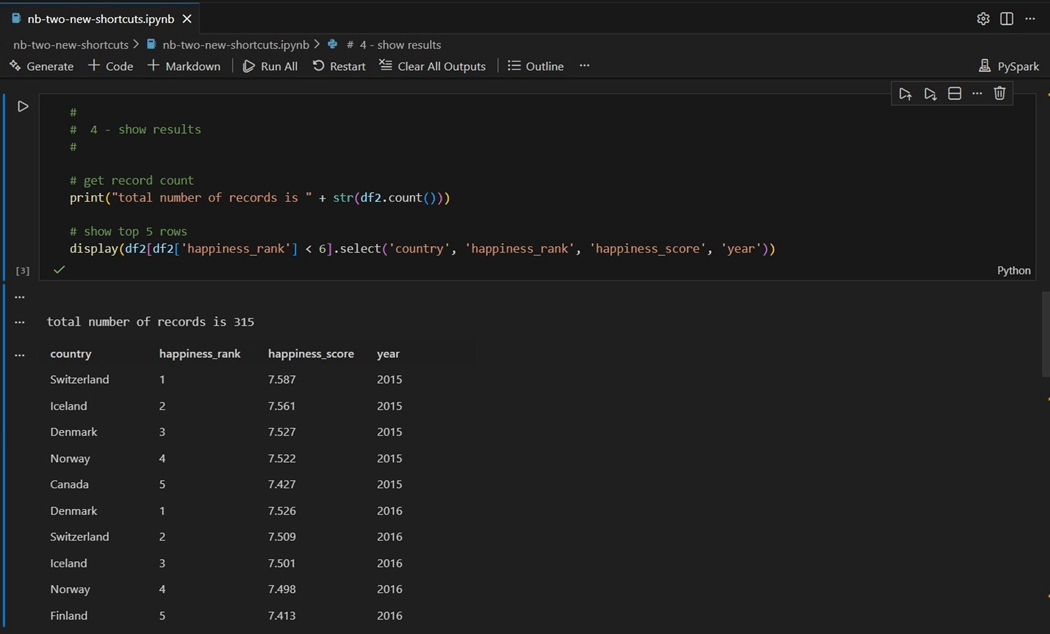
In short, we have the same results locally as we did remotely. That is a good thing!
Execute New Notebook
I want to find the prime numbers between 1 and 5 million and store the results in a Pandas Dataframe. Additionally, I want to create a new table called vscode_tbl_primes in the bronze schema. The purpose of this exercise is to see if both Spark SQL and PySpark code execute correctly with VS Code.
How does a notebook know which lakehouse to execute against? The configure magic command allows us to specify both the workspace and lakehouse.
%%configure -f
{
    "defaultLakehouse": {
        "name": "lh_ssc_articles",
        "workspaceId": "e3479596-f0f8-497f-bcd3-5428116fa0ea",
        "id": "926ebf54-5952-4ed7-a406-f81a7e1d6c42"
    }
}
I have solved this problem many times in the past. I am assuming that the following functions are already defined.
| Name | Parameters | Comments
|
| is_prime | candidate | Is the number prime? |
| store_primes | alpha, omega | Return a Pandas data frame of values and time of execution. |
The next task is to create a delta table with the following Spark SQL.
%%sql

--
--  Create fabric table to hold prime numbers
--

create table if not exists bronze.vscode_tbl_primes
(
    my_value long,
    my_time string
);
I want the program to be restartable. Therefore, we need to remove any existing data from the table.
%%sql

--
-- Clear existing data in Fabric table
--

truncate table bronze.vscode_tbl_primes;
The call to find the prime numbers is shown below.
#
#  3 - Save prime numbers (start cluster - 25.8 secs) to pandas dataframe
#

# upper + lower bounds
alpha = 2
omega = 5000000

# total primes found
total = store_primes(alpha, omega)
print(f"Total number of primes from 1 to 5M are {total}")
The last step is to append the data to the table.
#
#  4 - Store data to Fabric delta table
#

# Make spark dataframe
df_primes = spark.createDataFrame(total)

# Append data to existing table
df_primes.write.saveAsTable("bronze.vscode_tbl_primes", mode="append")
The image below shows that 348,512 primes were found.
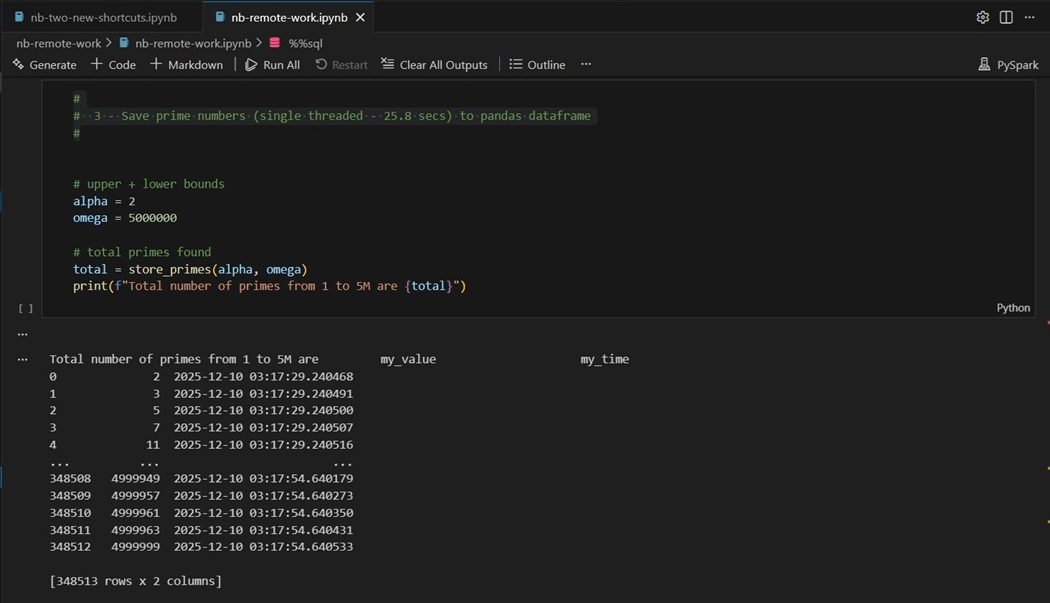
If you want to run this code multiple times, you remove the truncate cell and add a parameter cell. To convert a code cell to a parameter cell, right click and select parameters.

To recap, we were able to successfully execute both PySpark and Spark SQL code in the notebooks. Don’t forget to use parameter cells so that the notebook is re-usable.
Coding the SQL Analytic Endpoint
The SQL Analytic Endpoint of the lakehouse allows the developers to apply both column and row level security as well as transform the existing delta table data using views. In this section, we will talk about generating a new view using the SQL Server extension.
The first step on our journey is to create a new connection to the endpoint. Before, we used to have to look up the endpoint URL. In the new extension, we can select the browse Microsoft Fabric option.
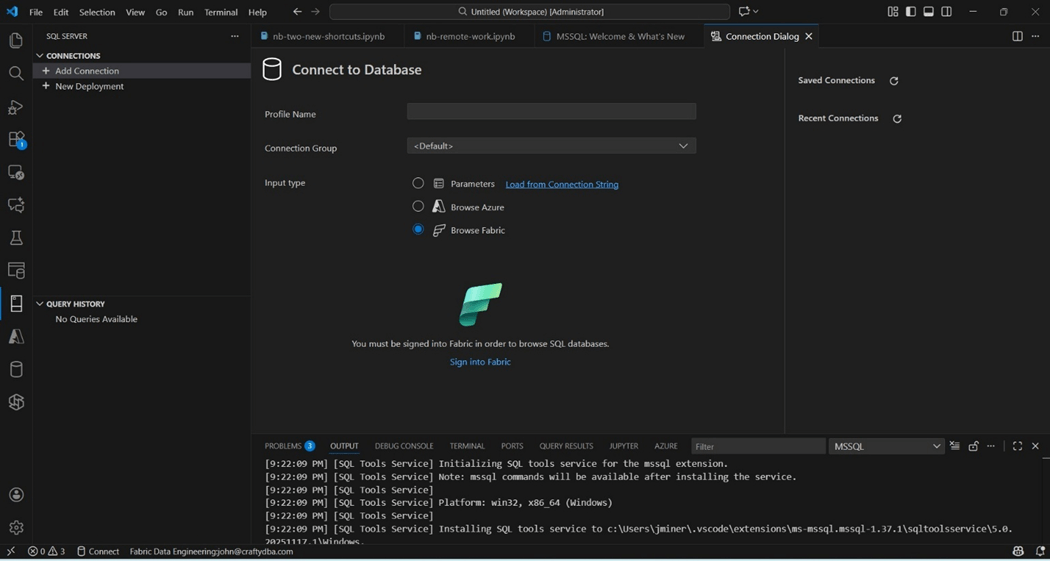
Since I am already signed into Microsoft online, I do not have to validate my credentials again. We can use the dialog box to browse to the correct endpoint.
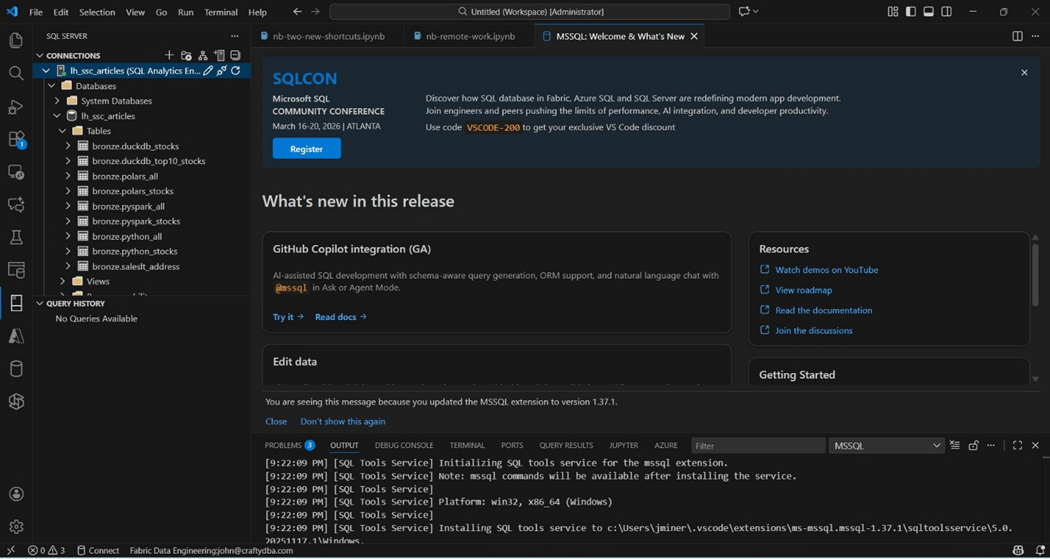
We can see the delta tables in the Fabric lakehouse in the image below.
We are going to use the historical S&P 500 data in this example. We want to create a new schema, named gold, and a new view, called vw_msft_stock. Finally, we want to retrieve rows of data from the view to our VS code window.
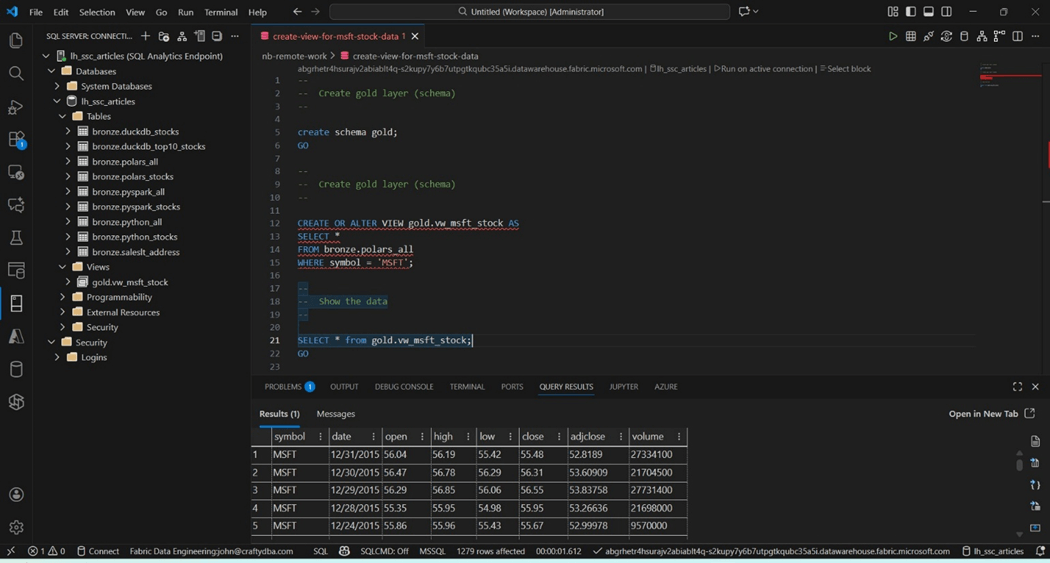
The above screen shot shows the newly created view and schema. Additionally, we are seeing some sample data from the year 2015. In short, we can create objects in the SQL Analytical Endpoint using Visual Studio Code.
Summary
Technology is moving at a fast and furious pace. It is sometimes hard to keep up with all the new tools and design patterns. Microsoft has supplied the Visual Studio (VS) Code developer with two key extensions for Fabric Lakehouse development.
First, the Fabric Data Engineering extension allows the creation of both PySpark and Spark SQL code. One additional step is needed to configure the notebook to point to the correct lakehouse. Advance features such as parameter cells are supported within the VS Code environment.
Second, the SQL Server extension has been updated to search for Analytical Endpoints in the Fabric environment. Database objects such as schemas, views, and security can be deployed from T-SQL source files.
What I did not cover is source code management. Since the Spark Notebooks can be synchronized with the Fabric Workspace, we can use GIT to store the notebooks in a repository of our choosing. Because the T-SQL scripts are not stored in the workspace, we can manually check these objects into our favorite source code repository. I hope you enjoyed reading this article. Enclosed is the code that was in the PySpark notebook.