

Troubleshoot error - Install-Module: Administrator rights are required to install modules in 'C:Program FilesWindowsPowerShellModules.' for SQL Server module.
By default, if we install a PowerShell module, it gets saved in the C:Program FilesWindowsPowerShellModules directory. Recently, in a situation user has limited administrator permission on VM. He could not write to the directory C:Program FilesWindowsPowerShellModules. Therefore, the sqlserver module could not be loaded.
Install-Module SQLServer
It gives the following error message.
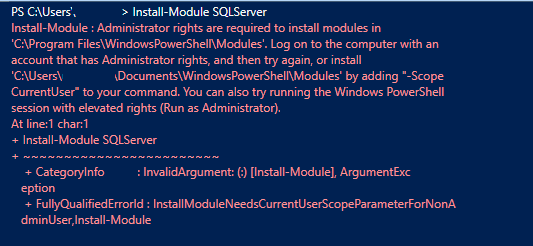
How do you install the SQLServer module in this case?
Use the following PS script to install and import the module in a specific directory. Here, I specified the directory name as C:TempPSModule. You can modify the path as per your requirements.
if ($env:PSModulePath -notlike "*c:TempPSModule*")
{
if((Get-Item c:TempPSModule -ErrorAction SilentlyContinue ) -eq $null) {
New-Item -Path c:TempPSModule -Name "Modules" -ItemType "directory"
}
$env:PSModulePath += ";c:TempPSModule"
}
Save-Module -Name SqlServer -Path c:TempPSModule
Import-Module -Name sqlserver
It downloads and installs the SqlServer PowerShell module in the specified directory, as shown below.
