

Email notifications are a common requirement in SQL Server environments. An application may need to notify a customer when an order is created, alert an administrator when inventory falls below a threshold, or send a reminder when a record requires attention.
SQL Server Database Mail is one option for implementing these workflows. However, some notification processes involve more than sending a message. They may require retrieving records, applying business rules, generating personalized content, and updating database records after processing. For these scenarios, Power Automate Desktop (PAD) provides another approach. It can connect to SQL Server, execute queries, iterate through result sets, and send email through an SMTP server.
In this article, I will demonstrate a workflow that retrieves unprocessed orders, sends an email for each order, and updates the corresponding database record. The same design can be adapted to other database-driven notification scenarios.
Understanding the Workflow
Consider an order-processing system in which each order must trigger an email notification. Instead of manually checking the database and sending emails, we can automate the process using a desktop flow.
The workflow consists of five main operations:
- Establish a connection to SQL Server.
- Retrieve orders that have not yet been processed.
- Iterate through the query results.
- Generate and send an email for each order.
- Update the database after successful processing.
Power Automate Desktop acts as the orchestration layer. SQL Server remains responsible for storing the data and executing queries, while the SMTP server handles email delivery.
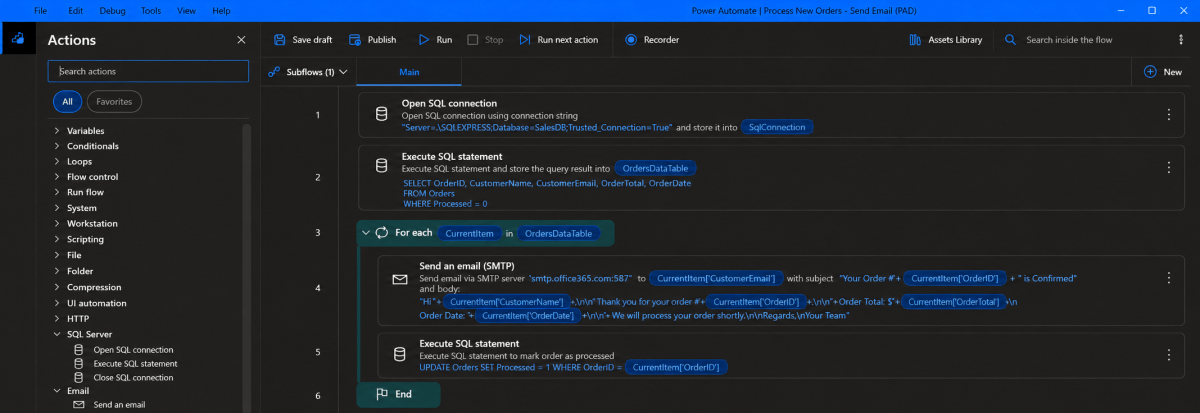
This design is particularly useful for scheduled processes that do not require immediate, event-driven execution. It can also be extended with additional validation, logging, and error-handling steps.
Prerequisites
Before building the flow, make sure the following components are available:
- A Windows machine with Power Automate Desktop installed.
- Access to the SQL Server instance containing the relevant data.
- A database account with the necessary permissions to read and update the order records.
- An email account and SMTP configuration that permit the flow to send messages.
- Network connectivity from the Windows machine to both SQL Server and the SMTP endpoint.
For Microsoft 365, the SMTP submission endpoint is commonly smtp.office365.com, using port 587 with STARTTLS. The mailbox and tenant must support the selected authentication method. SMTP AUTH may be disabled by an administrator or restricted by tenant policy, so verify the configuration before building the flow.
The examples below use an Orders table with fields such as OrderID, CustomerName, CustomerEmail, OrderTotal, OrderDate, and Processed. Adjust the names to match your database schema.
Establishing a SQL Server Connection
Open Power Automate Desktop and create a new desktop flow. From the Actions pane, locate the Open SQL connection action and add it to the flow. Configure the connection string to point to the SQL Server instance and database containing the order records. Depending on the environment, you can use Windows authentication or SQL Server authentication. For example, a connection string using Windows authentication could look like this:
Server=YOUR_SERVER;
Database=YOUR_DATABASE;
Integrated Security=True;
The exact connection string may vary depending on the installed SQL client provider and authentication requirements. Enter it in the format supported by the action and your environment.
When the action executes successfully, it provides a SQL connection variable that subsequent database actions can use. Because the desktop flow connects directly to the database, you do not necessarily need a cloud gateway or a cloud-based SQL connector for this part of the workflow. The Windows machine must still have network access and the required database permissions.
Retrieving Orders That Require Notifications
After opening the connection, add the Execute SQL statement action. The goal is to retrieve only those records that need processing. In this example, the Processed column indicates whether an order has already been handled.
SELECT OrderID, CustomerName, CustomerEmail, OrderTotal, OrderDate FROM dbo.Orders
WHERE Processed = 0
ORDER BY OrderData DESC;
The query returns the relevant orders as a data table that can be used by the next action.
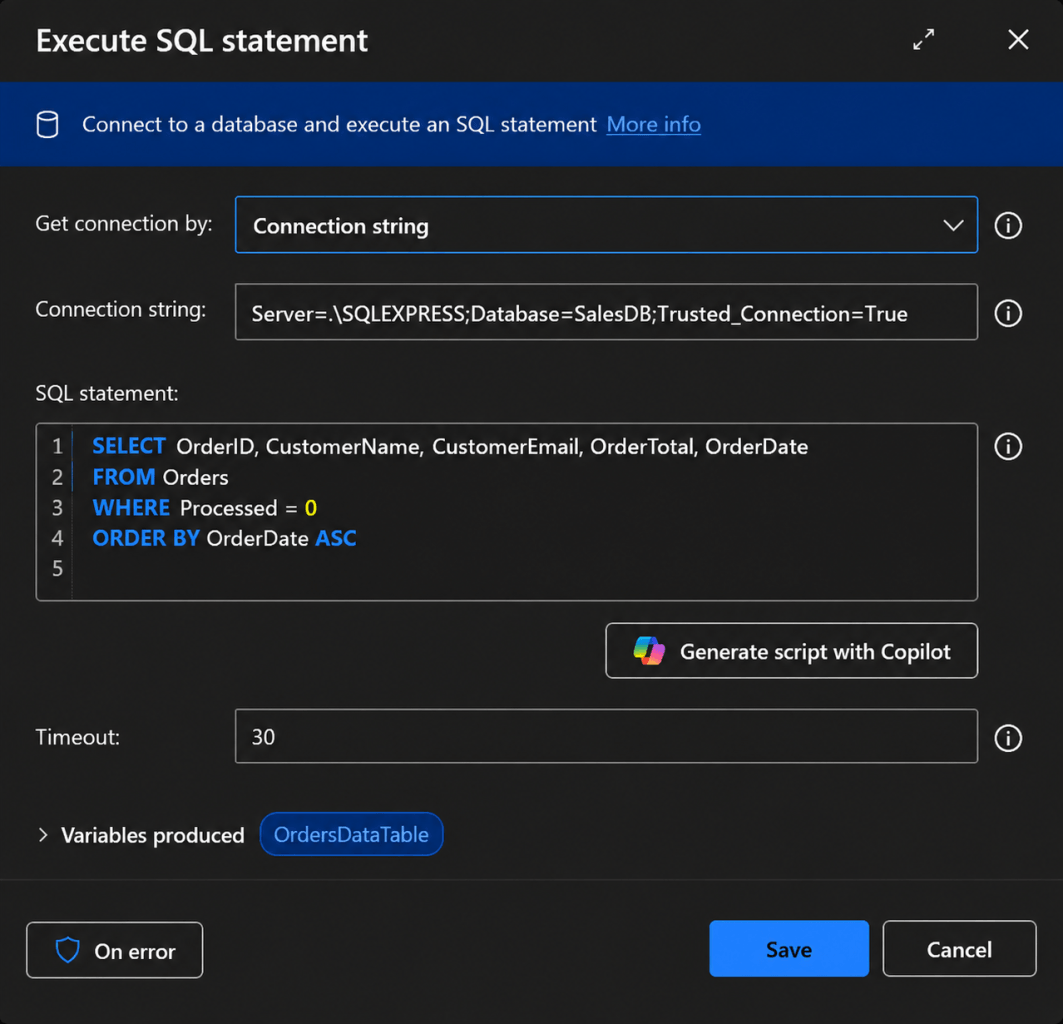
Filtering the records at the database level is preferable to retrieving the entire table and filtering it later in the flow. It reduces the amount of data transferred and makes the workflow easier to understand.
In a production environment, you may need additional conditions. For example, the query could exclude cancelled orders, select orders created within a specific period, or restrict processing to a particular business unit. You should also consider whether the query needs a stable ordering, such as ORDER BY OrderID, and how concurrent executions will be prevented from selecting the same records.
Iterating Through the Query Results
The SQL query returns a collection of records. To process each order individually, add a For each action. Configure the loop to iterate through the data table returned by the SQL execution action. Within each iteration, the current row contains the values associated with one order. These include the order identifier, customer name, email address, and order total. The current row's values can then be used to populate the recipient, subject, and body of the email.
For example, a notification could contain the following information:
- Customer name
- Order identifier
- Order date
- Order total
This approach avoids hardcoding individual customer details into the flow. When another order is returned by the SQL query, the same set of actions processes it using that row's values.
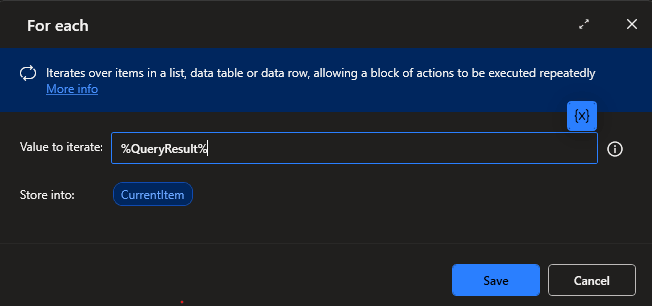
For larger result sets, consider processing records in manageable batches rather than attempting to handle an unlimited number of rows in one execution. This can help control memory usage, execution time, and the number of messages sent during a single run.
Configuring the Email Action
Inside the loop, add the Send an email action that uses SMTP. Configure the SMTP server and authentication details according to your email provider. For a Microsoft 365 mailbox using SMTP submission, the common settings are:
| Setting | Example |
|---|---|
| SMTP server | smtp.office365.com |
| Port | 587 |
| Transport security | STARTTLS |
| Authentication | An approved method supported by the mailbox and tenant |
The example assumes that SMTP submission is permitted. Microsoft 365 authentication policies and security requirements can change, so confirm the current requirements with your administrator. Next, configure the sender, recipient, subject, and message body. The recipient should be populated from the email address in the current order. Similarly, the subject and body can incorporate the order identifier, customer name, or other fields returned by the query.
For example, the message could use a subject such as:
Order notification - Order [OrderID]
The body could include the customer's name, the order reference, and the total amount.
Use the appropriate Power Automate Desktop variables to insert the current row's values. The placeholders above are illustrative; they are not literal variable syntax.
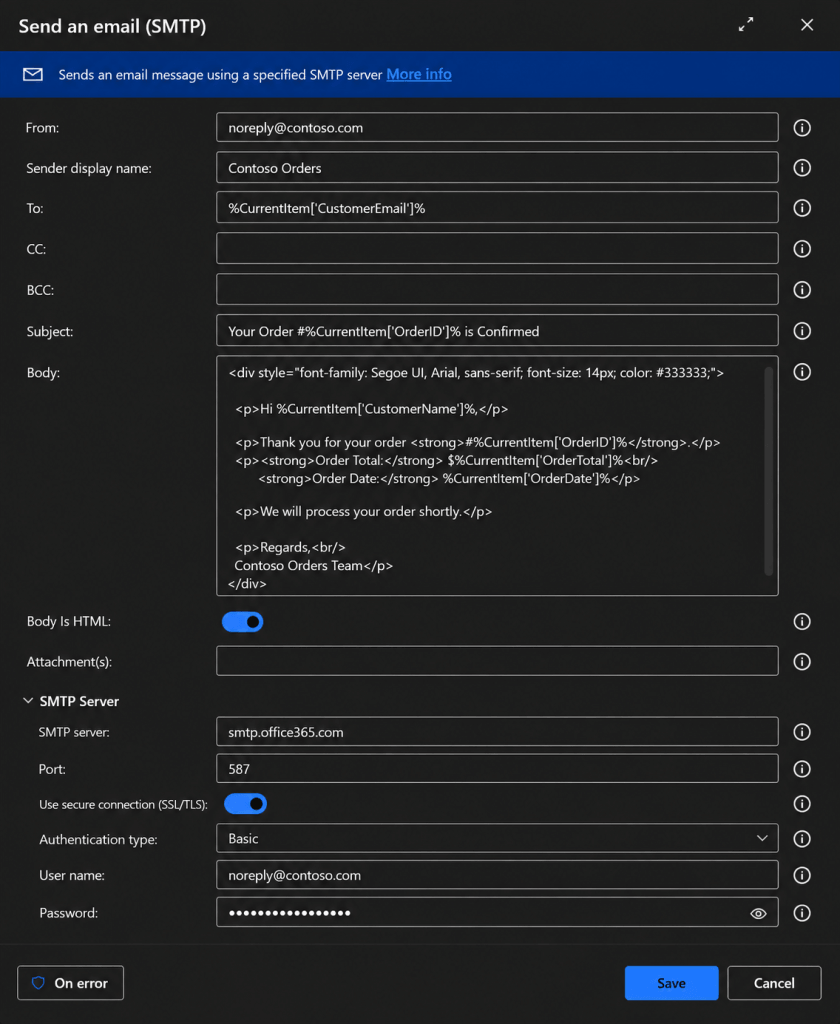
Before processing real customer records, test the configuration using a controlled recipient and a small number of test orders. Confirm that messages are delivered successfully and that the sender and recipient fields contain the expected values.
Also consider whether the notification should contain sensitive information. Email content should be limited to what the recipient needs, and credentials should not be embedded in the message or stored in plain-text variables.
Updating the Database After Processing
Sending the email is only one part of the workflow. The database must also record whether the order has been processed. Otherwise, the next execution could retrieve the same orders and send duplicate notifications. After the email action completes successfully, add another Execute SQL statement action inside the loop.
For example, you could include this code inside the task:
UPDATE dbo.Orders SET Processed = 1 WHERE OrderID = @OrderID;
Here, @OrderID represents a parameter that should be bound to the current order identifier using the supported parameter mechanism. If the desktop action does not support parameter binding for this operation, use a safe alternative that correctly handles the value; avoid constructing SQL by concatenating untrusted input.
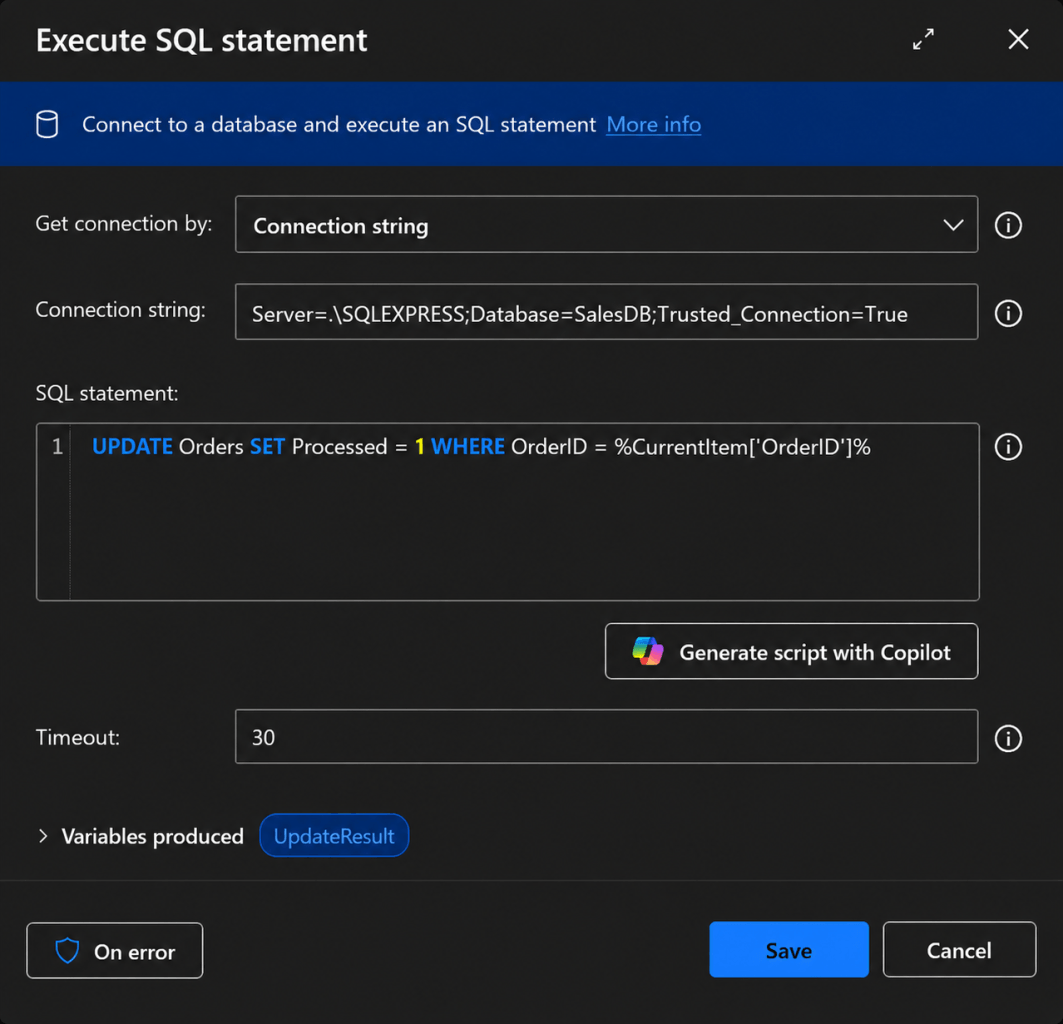
The update should happen only after the email action reports success. If the email fails, the record should not automatically be marked as processed.
For production workflows, a Boolean flag may not be sufficient. Consider maintaining a notification status, attempt count, last-attempt timestamp, and error details. These fields can help distinguish pending records from successful deliveries and records that need investigation.
There is also an important reliability consideration: SMTP delivery and a database update do not form one atomic transaction. A message may be accepted by the mail server even if the subsequent database update fails. A retry could then send a duplicate. If duplicate prevention is important, design an explicit retry policy and notification-tracking mechanism rather than relying on a single flag alone.
Scheduling the Automation
Once the flow works correctly when started manually, the next step is to determine how it should run. For a simple periodic workflow, Windows Task Scheduler may be sufficient to initiate an appropriately configured execution process. If you need centrally managed scheduling or unattended desktop execution, evaluate the supported Power Automate execution options. Keep in mind that unattended execution has separate licensing and configuration requirements. The fact that an action is available in the desktop client does not mean every unattended deployment is free.
Before scheduling the flow, verify that:
- The execution account has the required database permissions.
- Network access to SQL Server and the SMTP server is available.
- Credentials are stored and accessed securely.
- Errors are logged in a location that administrators can inspect.
- The flow handles empty result sets without failing.
- Multiple executions cannot process the same records concurrently.
For a production deployment, test the workflow under the same execution context that will be used by the scheduler. A flow that succeeds in an interactive session may behave differently when run under another account or in an unattended session.
Handling Errors and Operational Issues
A notification process should not assume that every database query or email operation will succeed. Common failure scenarios include a database connection timeout, an invalid email address, SMTP authentication failure, a temporary mail-server error, or a database update that fails after the message has been sent.
A practical implementation should handle these conditions explicitly.
- Database errors: Validate connection settings and permissions. Log query failures and avoid continuing when the data cannot be retrieved reliably.
- Email errors: Use the desktop flow's supported error-handling actions to capture failures. Record the affected order and the error details so the record can be retried or investigated.
- Duplicate notifications: Use a tracking mechanism and consider concurrent execution. A simple Processed = 0 filter does not, by itself, prevent two simultaneous executions from selecting the same order.
- Credentials: Store credentials using an appropriate secure mechanism and restrict access to the Windows account and machine running the automation.
- High message volumes: Respect the sending limits and policies of your mail provider. Use controlled batching, throttling, or a more appropriate messaging service if the workflow needs to send large volumes of email.
These controls are particularly important when the flow is used for customer-facing notifications or business-critical alerts.
When Should You Use This Approach?
Power Automate Desktop is one option among several for database-driven notifications. SQL Server Database Mail is worth considering when the requirement is primarily to send messages directly from SQL Server. It integrates with SQL Server jobs and other database operations without requiring a desktop automation process. Power Automate cloud flows may be more appropriate when the workflow depends on cloud events, SaaS integrations, or centrally managed orchestration. Licensing requirements should be assessed for the specific connectors and execution model. A desktop flow can be a practical choice when the process already runs on Windows, the database is accessible from that machine, and the automation can operate on a schedule.
The decision should account for reliability, monitoring, execution requirements, licensing, security, and expected message volume—not just the initial effort required to build the flow.
Conclusion
Power Automate Desktop can be used to automate a complete database-driven email workflow, from querying SQL Server to generating messages and recording processing results. The essential pattern is straightforward: retrieve the records that need attention, process each record, send the notification, and update the tracking information only when the appropriate success conditions have been met.
With suitable error handling, secure credential management, and a clear retry strategy, the same pattern can support order notifications, inventory alerts, scheduled reminders, and other operational workflows.
Desktop automation is one option for handling notifications, but it is not the only way to build email workflows. When the process involves files stored in Azure Blob Storage, a cloud-based workflow may be more appropriate. For an example of that approach, see how to send Blob Storage files through Azure Logic Apps.