

Attaching a database in SQL Server is the process to bring a database online by attaching the SQL Server data files and transaction log files to SQL Server instance. The process is different than restoring a database. Unlike restoring database, the process attaches the existing primary and optional secondary data files and transaction log files.
The database attach is used in following scenarios:
- Instead of using complex backup and restore method, we can mount the database using the files that are copied from another SQL Server instance.
- We want to migrate the database server or specific databases to another instance or server.
- We want to reconnect the database which was attached and copied to separate instance for data recovery or other maintenance like database consistency check.
When the database attachment process fails, the applications that are dependent on the database will fail which leads to a major outage. In this article, when a database attachment process fails and how to fix it. First, let us understand how the database attachment process works.
How SQL Server performs a database attachment process
Let us first understand what happens when you try to attach a database. We can attach any database using SQL Server management studio or T-SQL command. You can refer to this article to learn the step-by-step process to attach a database. You can also use ALTER DATABASE .. FOR ATTACH command to attach any database.
When you run the ALTER DATABASE command or try to connect using SSMS, the SQL Server performs following tasks:
- Open and validates the header of the .mdf file and confirm that it’s a valid SQL Server database file.
- Check the database file versions to make sure it’s compatible with the SQL Server instance.
- Read the meta data to verify the location of the secondary data files (ndf) and transaction log (.ldf) files.
- Acquires the exclusive lock on the database files.
- Check the transaction log files to verify whether database was cleanly shutdown or not. If the transaction log is missing, then SQL Server might attempt crash recovery or create empty transaction log files.
- Bring the database online.
Now, let us understand different reasons why database attach process fails.
Common reasons why database attach fails.
The database attach process can fail due to multiple reasons.
- Incomplete file transfer: Sometimes the mdf, ndf or ldf files are structurally incomplete because the file transfer process was interrupted due to network drop, storage disconnection or other errors. Even if a single page is missing in MDF file, the SQL Server will immediately abort the attach process.
- Missing or damaged transaction log file: The transaction log files keep the record of all uncommitted transaction. Every time SQL Server starts, it needs to verify that the database reaches its consistent state. If the log file is corrupted, then the database attach process will fail.
- Version incompatibility: The SQL Server does not support the backward compatibility. A database created in SQL Server 2025 cannot be attached to the SQL Server 2019 instance.
- Files are currently in use: While attaching a database, SQL Server acquires the exclusive lock on the database files. If the database file is already attached to other database or other process (another SQL Server instance, backup agent, antivirus scanning) already acquired the lock on the file, the attach process will fail.
- Thread Pool Exhaustion: SQL Server 2025 introduced background threads for persisted statistics that activate when a database comes online. When you attach many databases simultaneously each database consumes one of these background threads. SQL Server has a limited worker thread pool, and bulk attach operations can exhaust it entirely. It will leave some databases stuck in an incomplete state or stall the entire attach process.
- MDF or LDF are corrupted: Physical corruption in database files can cause database attach process to fail. The files can be corrupted due to sudden power loss, storage failure, OS crash or file system error. When the database files are corrupted, the SQL Server is unable to validate the metadata and attach process fails.
Now, let us review the different methods to fix the attach database failed errors.
Methods to Fix SQL Server Attach Database Failed Errors
Before we start looking into further troubleshooting, first review the database files and make sure none of the processes had an exclusive lock on them. If any process or program like antivirus scan is accessing those files, close the application. If business allows, you can restart the SQL Server services. The restart will release all locks acquired on the database files. If these steps do not resolve the problem, go ahead with further troubleshooting.
Method 1 - Check and Grant File/SQL Server Account Permissions
This method is used when you encounter “Access is denied” or “Unable to open the physical file” error while attaching the SQL database. The error occurs when the SQL engine fails to read the MDF/LDF file due to lack of permissions. The SQL Server services run on either domain account or default service account (NT Services\MSSQLSERVER). You can find the service account under SQL Server Configuration manager. You can open SQL Server Configuration Manager and check the Log On As section for permissions.
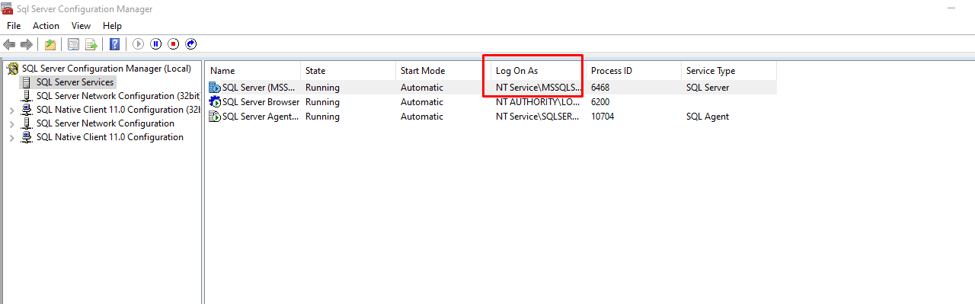
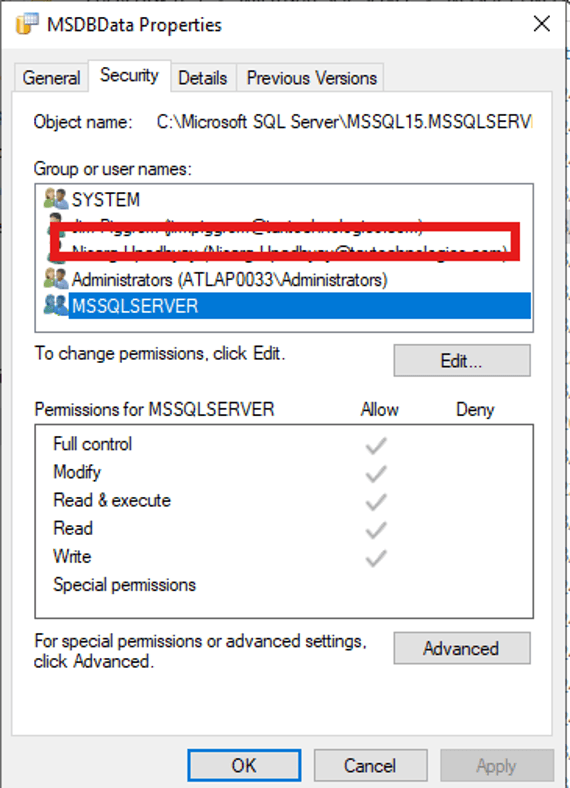
If the service account does not have adequate permission on database files, you will encounter the access denied error. The fix is very simple. Right click on the database files (mdf, ndf and ldf files) à Select Properties à Select Security à Click Edit à Add the SQL Server service account and grant full control permission. See following image.
Once the permissions are granted, retry the attach operation.
Method 2- Fix Attach Failures from Thread Overload
In SQL Server 2025, attaching many databases at once can fail or hang because each database consumes a background thread for persisted statistics. Since SQL Server has a limited worker thread pool, bulk attach operations quickly exhaust available threads, causing slowdowns or incomplete attach. To resolve this, enable Trace Flag 15608.
You can add -T15608 to SQL Server startup parameters by using SQL Server Configuration Manager. Here’s how.
First, open the SSCM (SQL Server Configuration Manager) window on your system, search for the SQL Server Services instance, right-click on it, and click Properties.
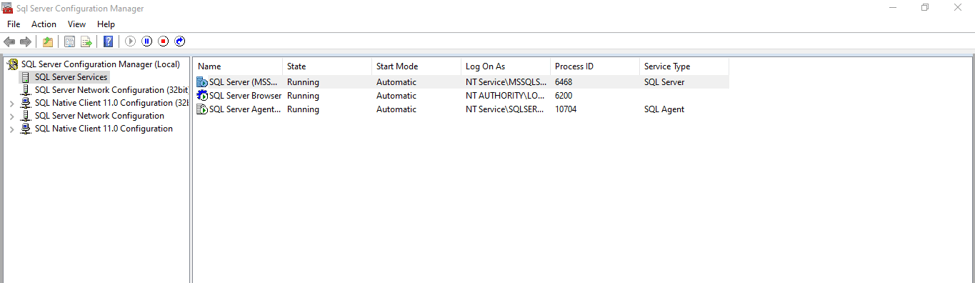
In the Properties window, click Startup Parameters, type "-T15608" as shown below under the Specify a startup parameter option, and click Add.
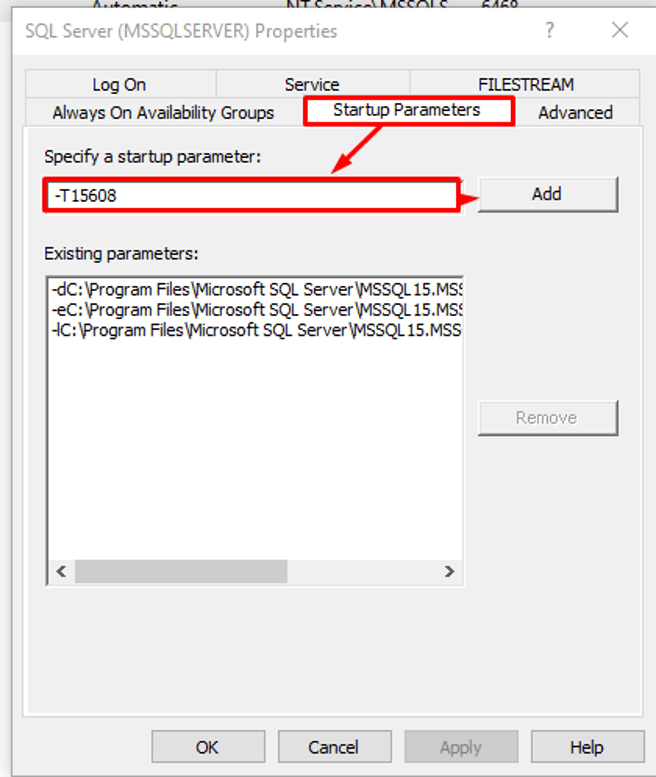
Click OK and then restart your system. Now in SSMS, you can run DBCC TRACESTATUS(15608); If it shows 1, it means it is active.
Now, let us see another method.
Method 3 - Rebuild the Transaction Log File
If the missing transaction log file is causing attach fail errors in SQL Server 2025, you can rebuild it using the ATTACH_REBUILD_LOG command. It works only if the .MDF file is readable or available. For example, we want to attach the AdventureWorks2019 database and it does not have a transaction log file. You can use the following command:
CREATE DATABASE [AdventureWorks2019]
ON (FILENAME = 'C:\Data\ AdventureWorks2019_Full_Backup.mdf')
FOR ATTACH_REBUILD_LOG;
You can even try to attach SQL Database without Transaction Log File using the SQL Server Management Studio (SSMS) or T-SQL commands.
Method 4: Repair the corrupt database file
This method is used when the MDF file is damaged and the attach process fails. When the MDF file is corrupt or damaged, you might see any of the following errors:
- Error 824: SQL Server detected a logical consistency-based IO error.
- Error 823: The operating system returned error while reading from file.
- Error message: Database cannot be opened due to inaccessible files or insufficient memory or disk space.
If the data file header is corrupted, you might see File activation failure. The physical file 'D:\Data\MyDB.mdf' may be incorrect error message.
You can read Troubleshooting Common SQL Server Errors: 823, and 824 article to learn more about these error codes.
Now, if you have a clean and most recent clean and working backup of the database, you should prefer to restore that backup. It is always a preferred path and ensures data consistency. Suppose you want to restore StackOverflow2010 database. Here is the example syntax of the command:
RESTORE DATABASE [Stackoverflow2010]
FROM DISK = 'C:\Backups\Stackoverflow2010_Full_Backup.bak'
WITH Stats=5, RECOVERY;
Alternatively, you can perform an emergency repair of the SQL Server database. The process involves multiple steps, and the recovery process is very complicated. I have written a separate article which explains the step-by-step process to perform the emergency repair.
And finally, if the business cannot afford the data loss, you can use some third-party data recovery tools like Stellar Repair for MS SQL. These tools are designed especially for such scenarios. The tools can read the B-Tree structure of MDF files and potentially recover the tables, views and other database objects and records.
Conclusion
In this article, we learn when the database attach process fails and what are the possible root causes. We understood how the database attachment process works in SQL Server. We also understand different methods to resolve the errors and successfully attach the database.