

Copying data from one location to another requires inertia. That means time transferring the data and the cost of developing code are required to accomplish the task. How can we eliminate the cost of coding an extract and load program? Microsoft Fabric supplies the developer with the functionality to mount the remote storage as a directory under the /Files section of the Lakehouse. Additionally, caching of frequently used files reduces the transfer time.
Business Problem
Many organizations store files in both Microsoft One Drive and/or Microsoft SharePoint. How can we use Fabric shortcuts to access data stored in these services? Today, we are going to experiment with both types of services using a sample Fabric Lakehouse.
Staging Sample Data
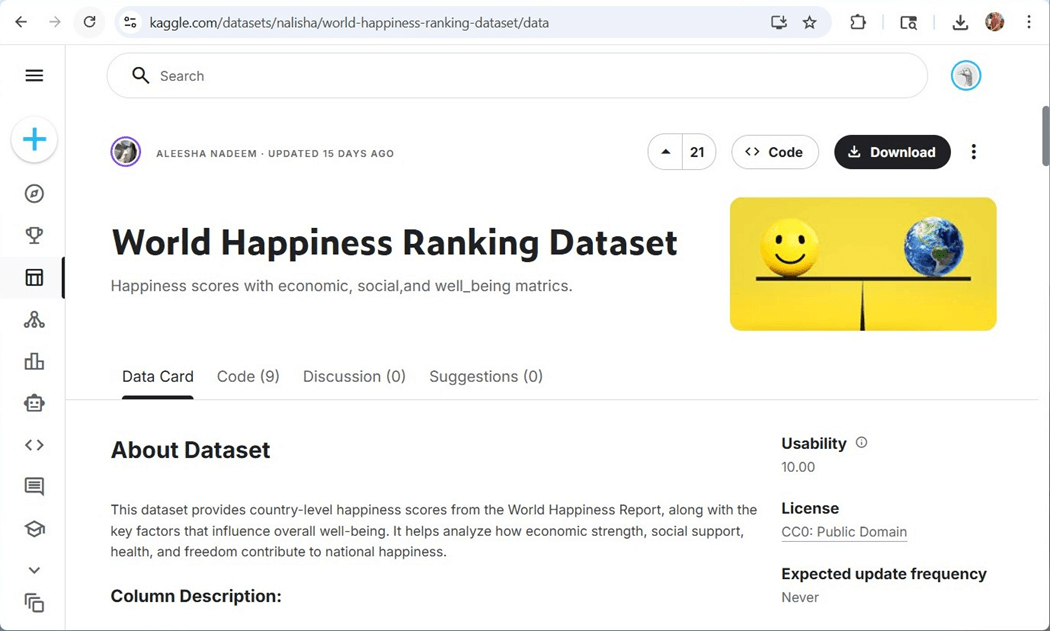
One place that is usually go to for sample datasets is Kaggle. It is known for Machine Learning contests and articles. The image below shows the world happiness ranking dataset.
I created a folder, called datalake, and uploaded the csv file into that folder.
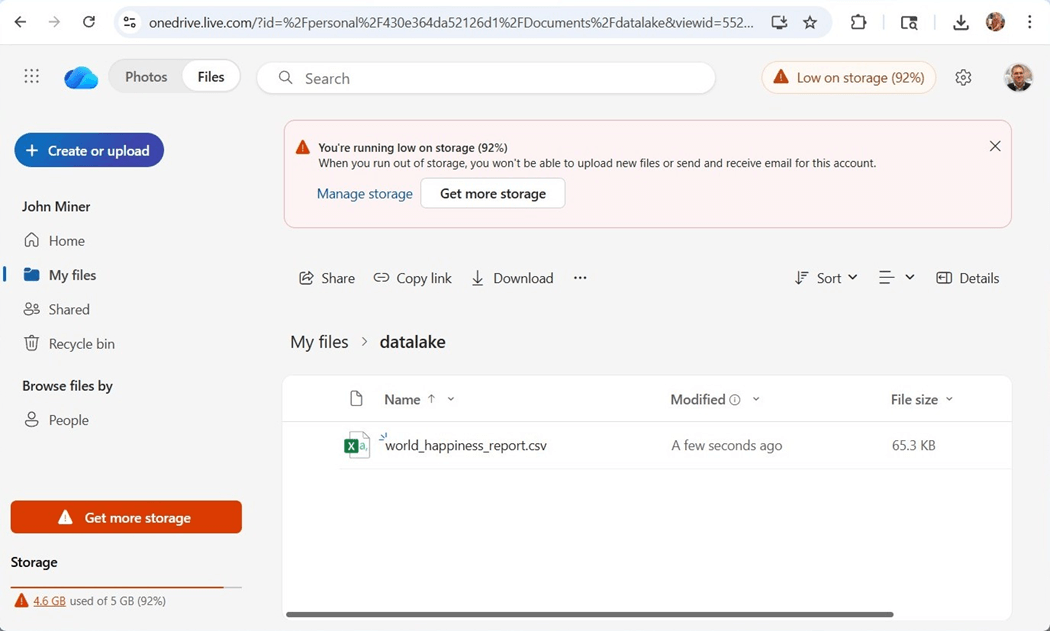
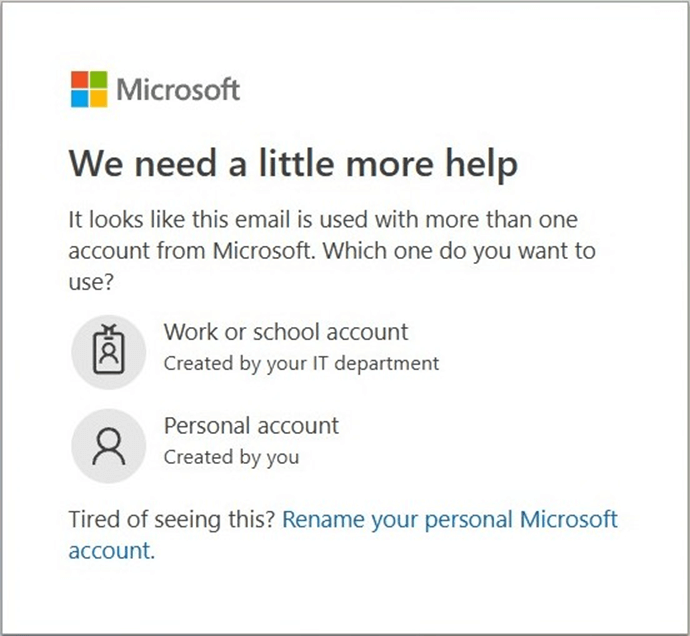
Please note, there are two ways to log into OneDrive. We can use an organization account or a personal account. This is my personal account since it is low on storage space. This difference is especially important, and we will talk about why shortly.
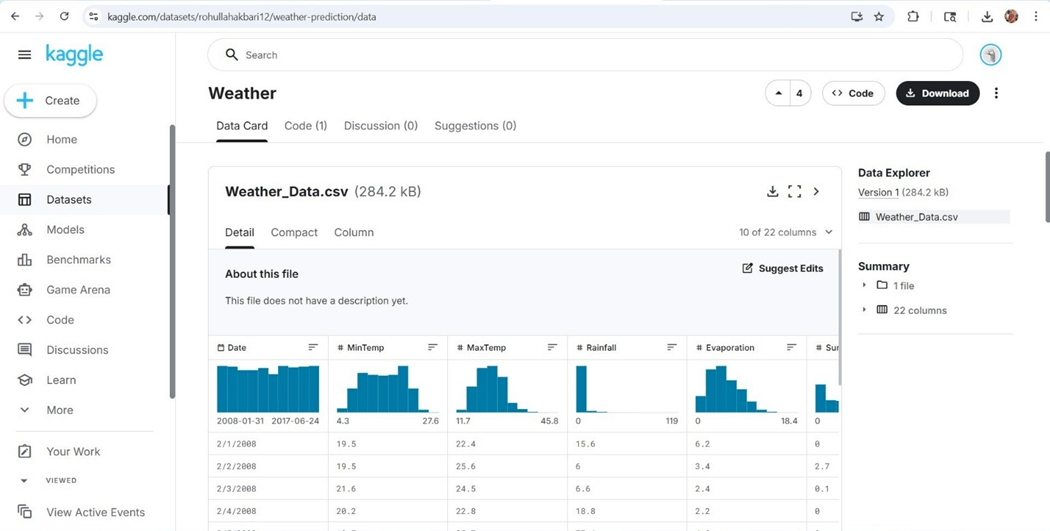
Visting Australia and/or New Zealand has always been on my bucket list. The second dataset we will be working with is based upon weather data from Australia.
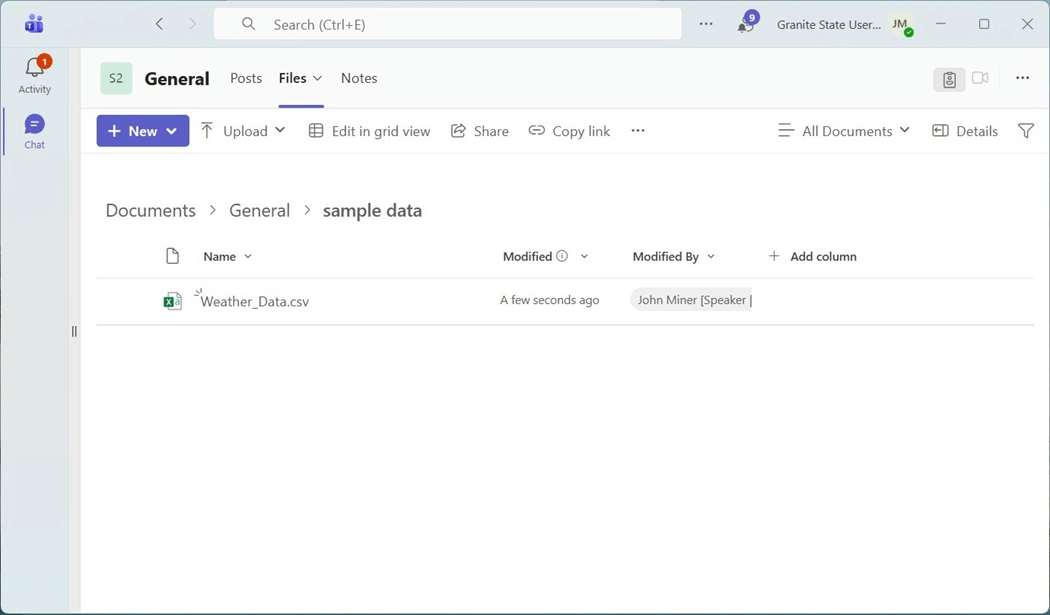
I want to thank my friend and fellow MVP Jim Wilcox for using his E5 subscription which has SharePoint installed for Granite State Code Camp. Both services are using my john@craftydba.com account. However, the SharePoint service is using my account as an Office 365 user.
Now that we have data, lets try working with the happiness ranking dataset.
Personal vs Organizational
If we examine the MS Learn documentation for these new shorts, we find out that the URL should have sharepoint.com as the destination.
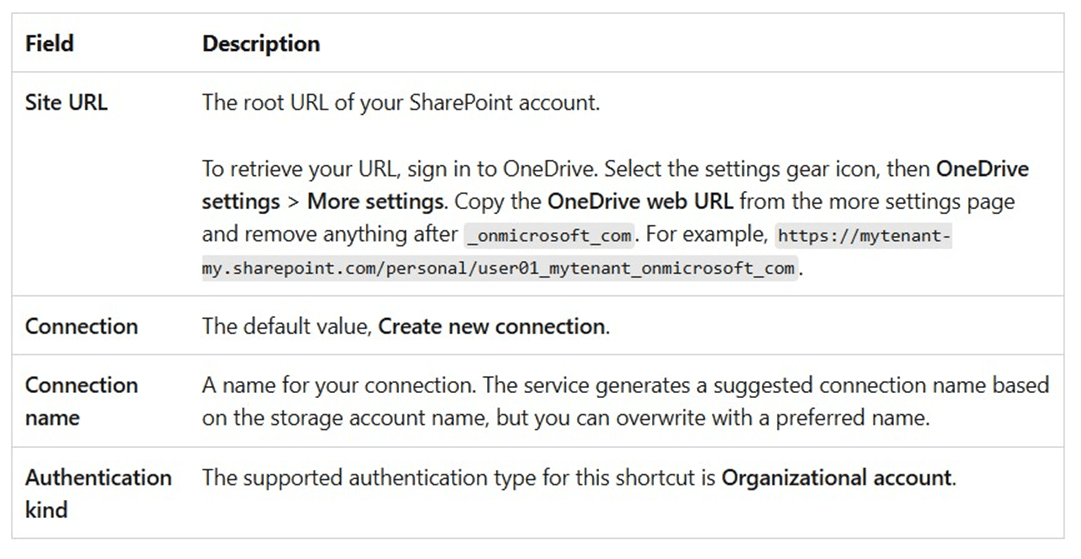
However, the personal OneDrive account points to onedrive.live.com. Please see previous one drive image. Thus, we are using the wrong service. The next section will go over how to fix this issue.
Office 365 Apps for Business
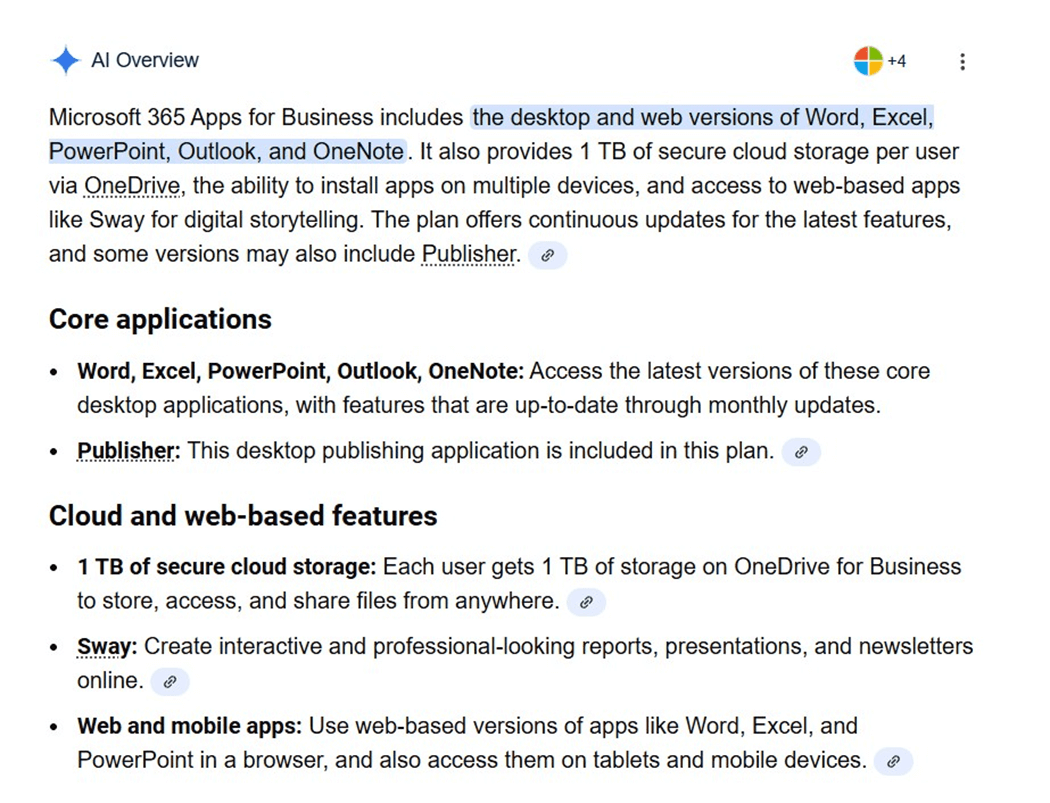
In the era of Artificial Intelligence, I asked what was included within an Office 365 Applications license. The response is shown below. The key item is 1 TB of storage via the OneDrive service.
I happened to be both an Office 365 administration and a Billing contributor. That helps since we order the license via the Microsoft 365 administration center, but the charges are posted on the Azure subscription. The image below shows my request for purchasing one end user license for one month.
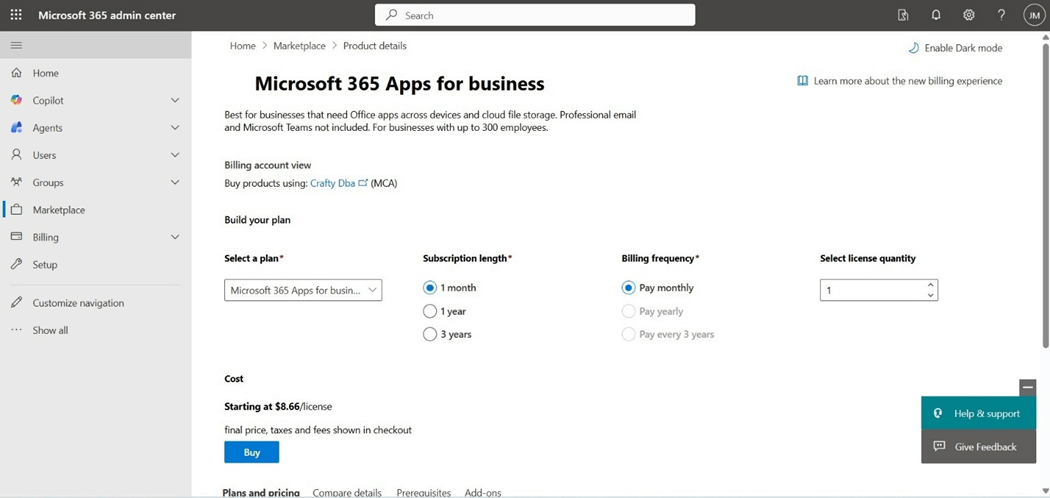
The billing profile needs to be associated with the account that I am buying the license with. The description of the profile matches the action.
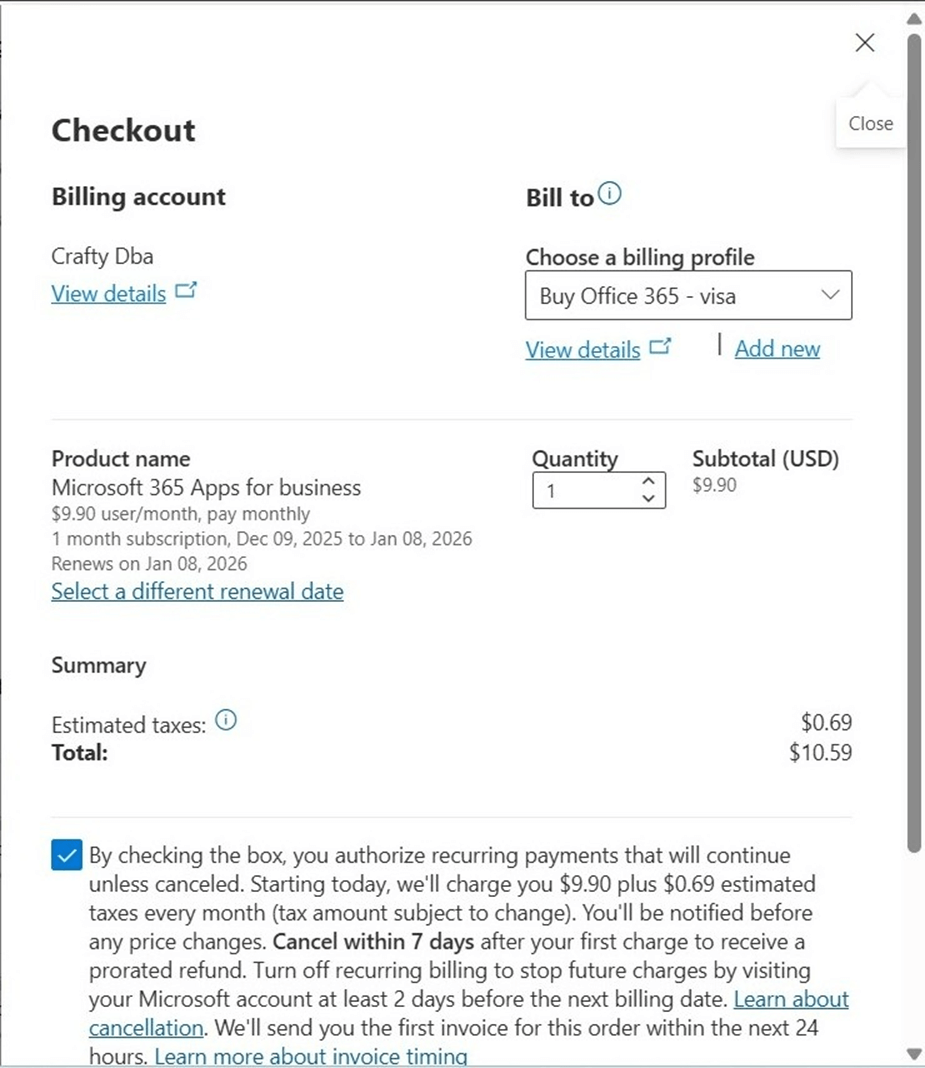
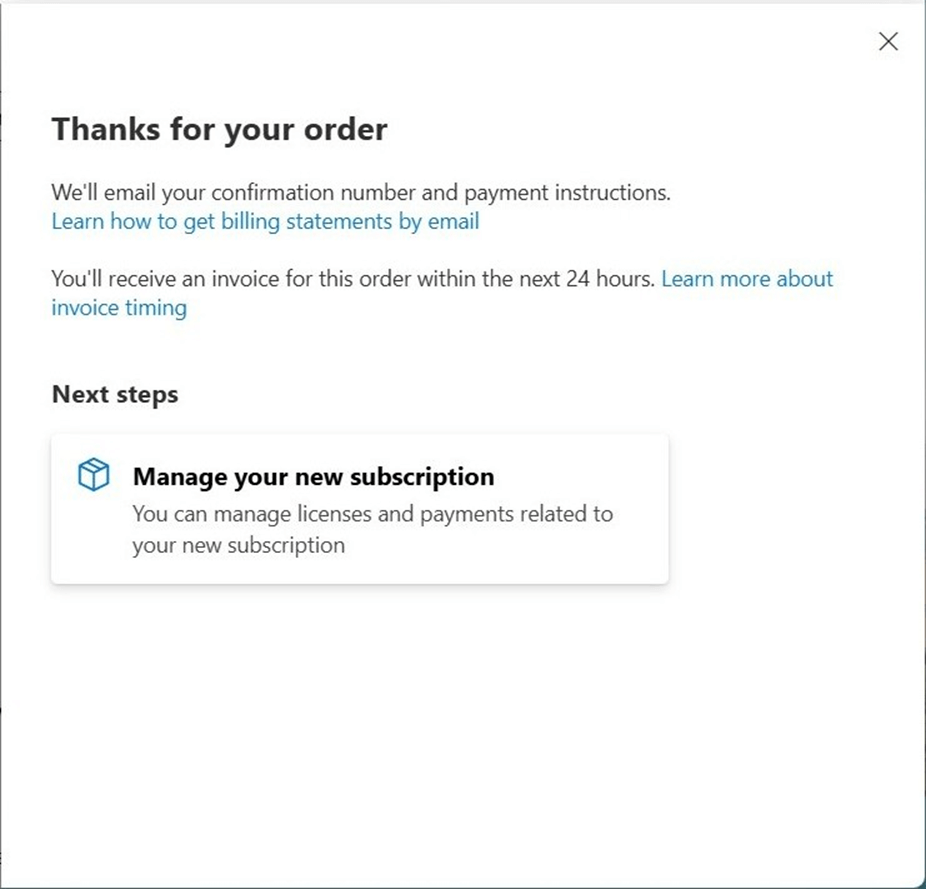
Microsoft kindly thanks us for the new software monthly subscription. Remember, this automatically renews unless you return the license.
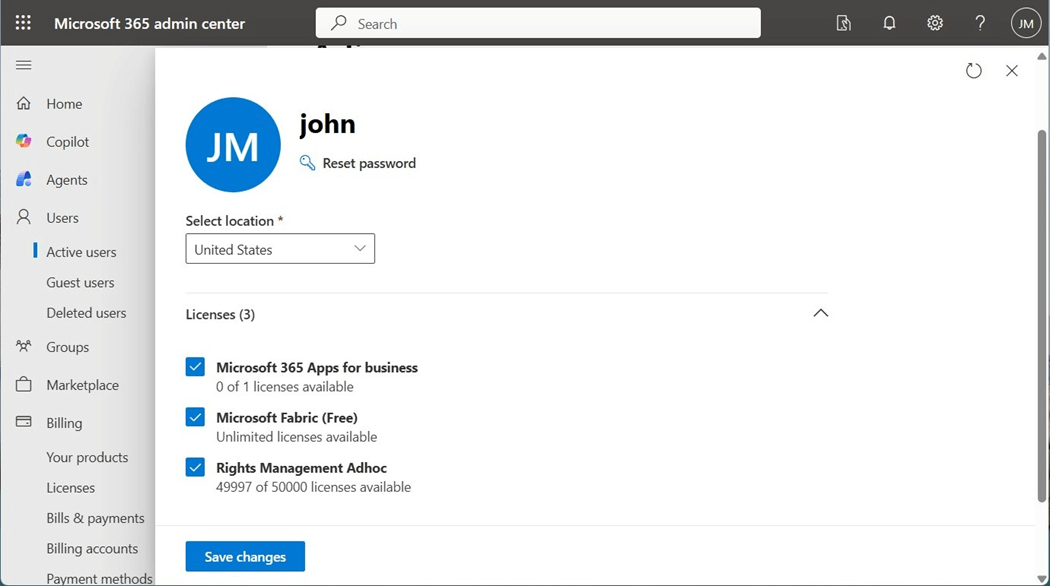
The next step is to assign the license to john@craftydba.com. This organizational account is used in both services as well as Microsoft Fabric.
We can now log into one drive using the same email address but make sure you select the correct account type.
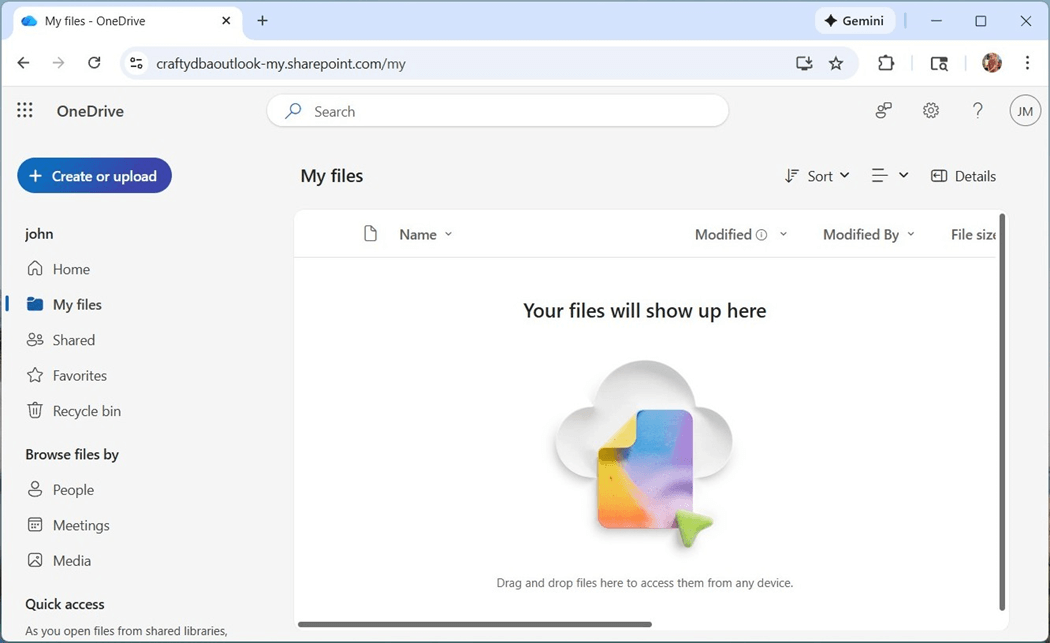
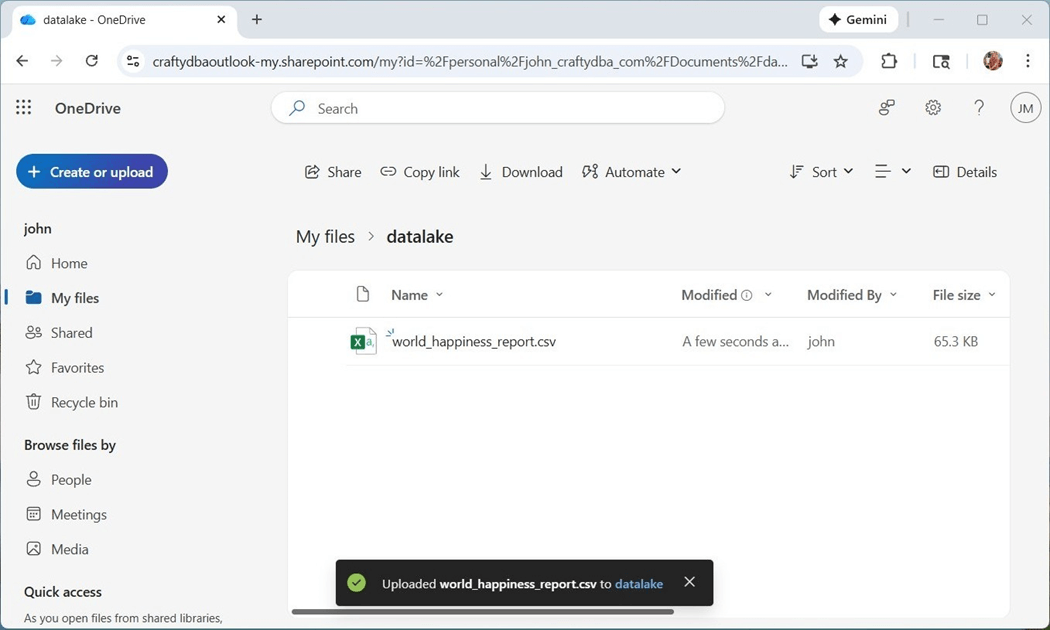
I am going to repeat the process of making a folder named “datalake” and uploading the “world_happiness_report.csv” file to the folder.
The final task is to get the URL that we need when setting up the short cut. Please navigate to the setting page by clicking the gear icon. Then, select the “more settings" sub-page. The diagnostic information has the text that we need.
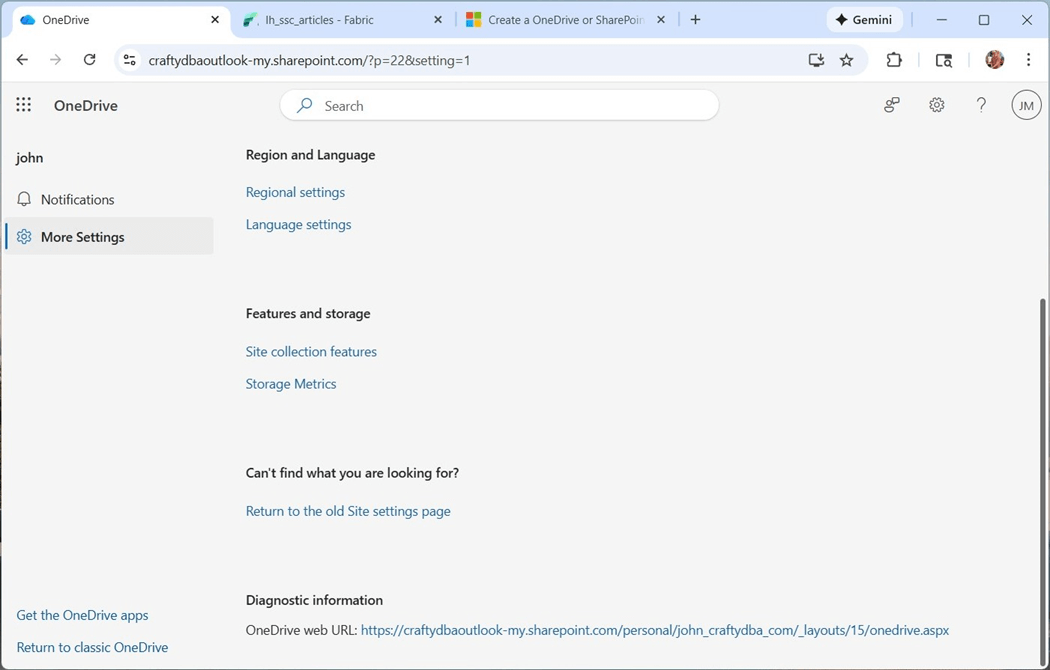
In short, Microsoft has both free and paid services for mail and storage. To use the OneDrive shortcut, we must be using the paid service that is associated with an organizational account.
Create OneDrive Shortcut
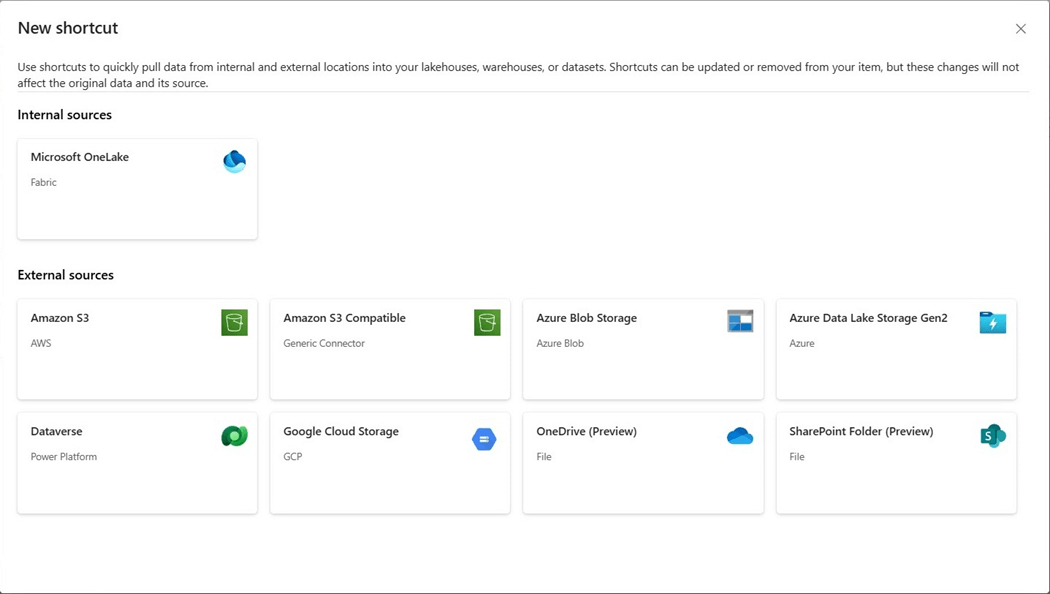
Both the OneDrive and SharePoint shortcuts are in preview. Open the Fabric Lakehouse and right click on the Files folder. The option to create a new shortcut must be selected. The next screen asks the end user which type of shortcut to create.
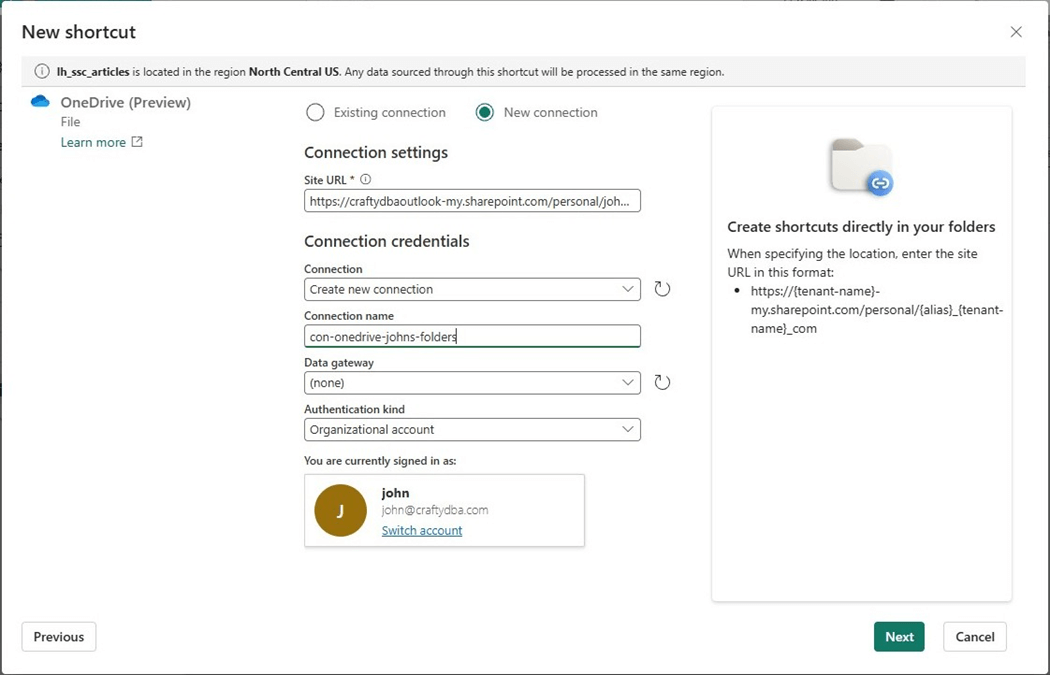
The steps to create a OneDrive shortcut are extremely easy. Paste the URL from the diagnostic line into the Site URL section. Give the connection a meaningful name. Click the next button to continue.
If the account has access to the Site URL, a browser dialog will appear. We can mount the service as a virtual folder at any level we pick.
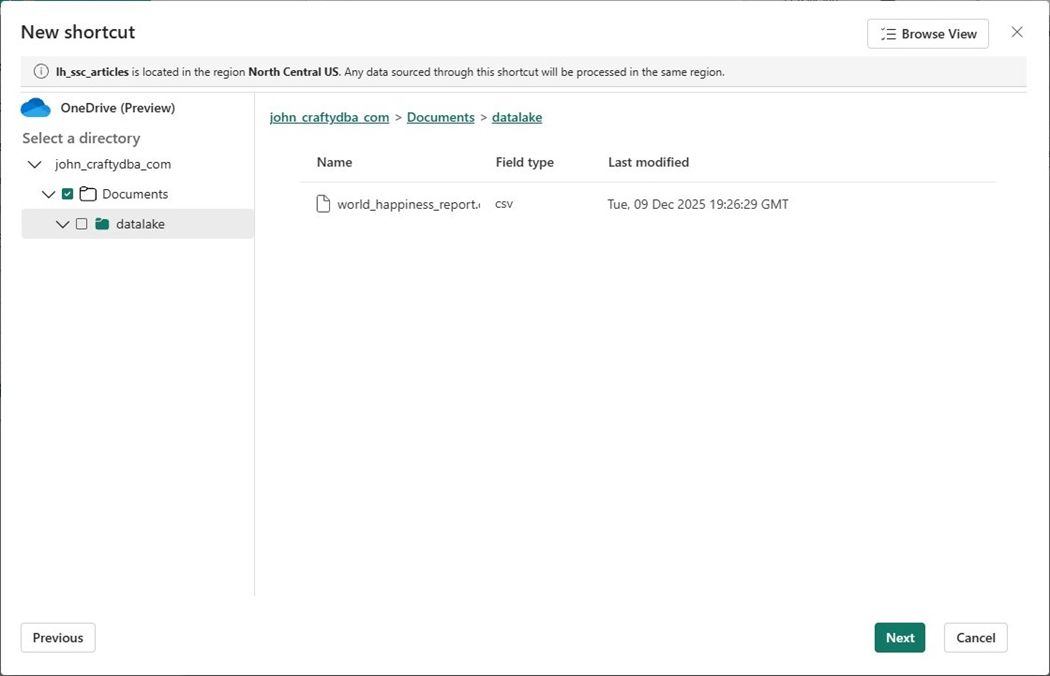
After choosing the root directory (Documents), click the next button followed by the create button.
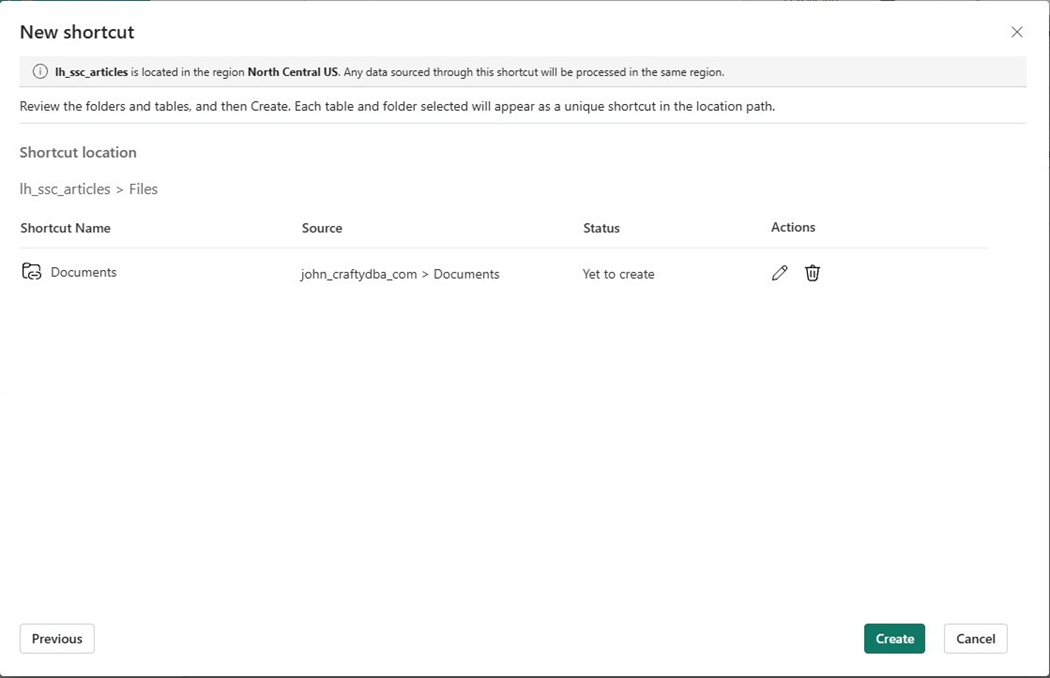
The OneDrive root folder will show up under files. The next step is to write some code to read in the CSV file and transform the dataset.
Use OneDrive Shortcut
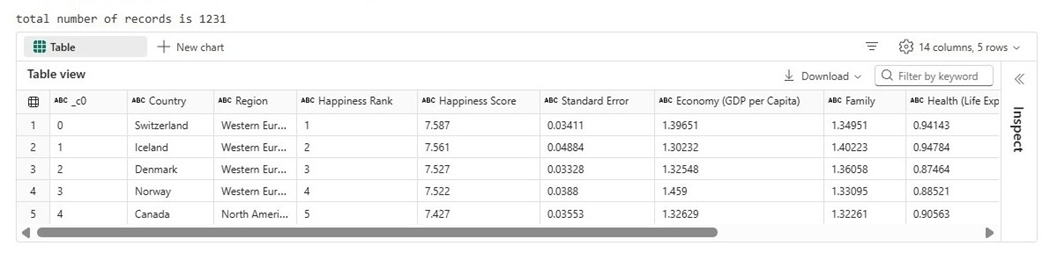
The Python cell below reads the file from the OneDrive service. It displays a row count of the dataset and shows a snapshot of the first five records.
#
# 1 - read in csv file
#

# raw data
df1 = (
  spark.read.format("csv").option("header","true").load("Files/Documents/datalake/world_happiness_report.csv")
)

# get record count
print("total number of records is " + str(df1.count()))

# show top 5 rows
display(df1.head(5))
The image below shows that the CSV file contains 1231 rows of data.
One of my favorite Spark methods is selectExpr. It takes a list of SQL column expressions and applied them to an existing dataframe. During my analysis of the dataset, only the years 2015 and 2016 contain records with complete data. We will be using an expression to subset the data.
#
# 2 - transform the data
#

# just two years have good data
df2 = df1[(df1["year"] == '2015') | (df1["year"] == '2016')]

# make column expressions
expr = []
expr.append("`_c0` as index")
expr.append("Country as country")
expr.append("Region as region")
expr.append("`Happiness Rank` as happiness_rank")
expr.append("`Happiness Score` as happiness_score")
expr.append("`Standard Error` as standard_error")
expr.append("`Economy (GDP per Capita)` as economy")
expr.append("Family as family")
expr.append("`Health (Life Expectancy)` as health")
expr.append("`Freedom` as freedom")
expr.append("`Trust (Government Corruption)` as trust")
expr.append("`Generosity` as generosity")
expr.append("`Dystopia Residual` as dystopia")
expr.append("year")

# apply expressions (transforms)
df2 = df2.selectExpr(*expr)

# show the data
display(df2.head(5))
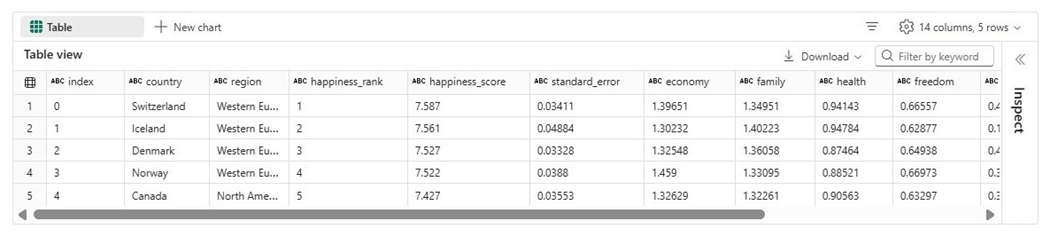
The data shown below has all the column names in lower case with multi word columns having underscores.
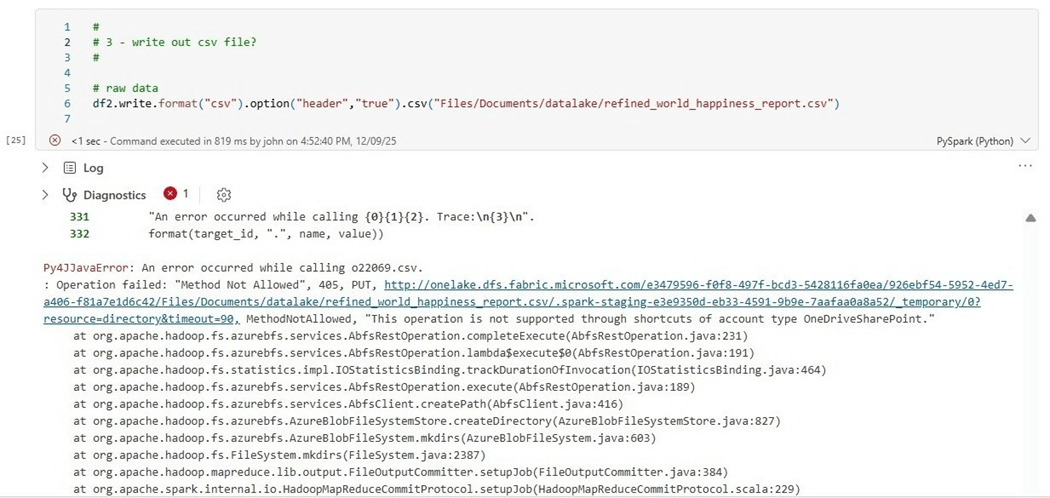
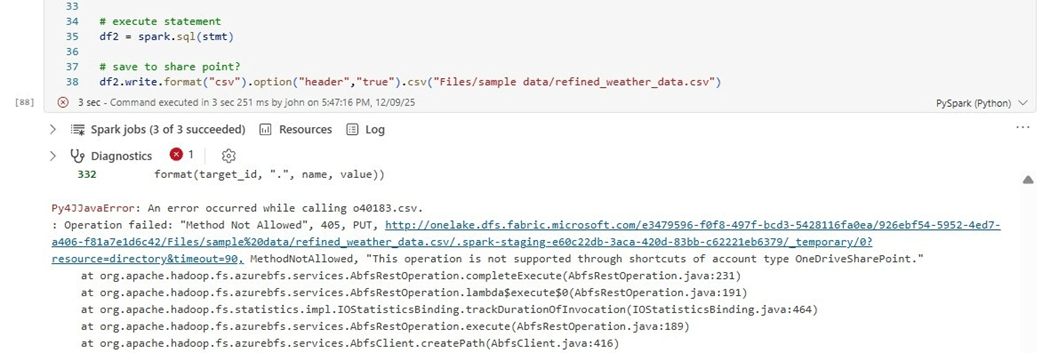
It is difficult to keep track of which shortcut types are read only and the ones that allow writes. Microsoft has changed its mind over time. The easiest way to find out the properties of the shortcut is to create code. The notebook cell below has Python code that tries to write the processed dataset back to OneDrive as a new file. It fails.
The final question I have is which country has the happiest people?
#
#  4 - show results
#

# get record count
print("total number of records is " + str(df2.count()))

# show top 5 rows
display(df2[df2['happiness_rank'] < 6].select('country', 'happiness_rank', 'happiness_score', 'year'))
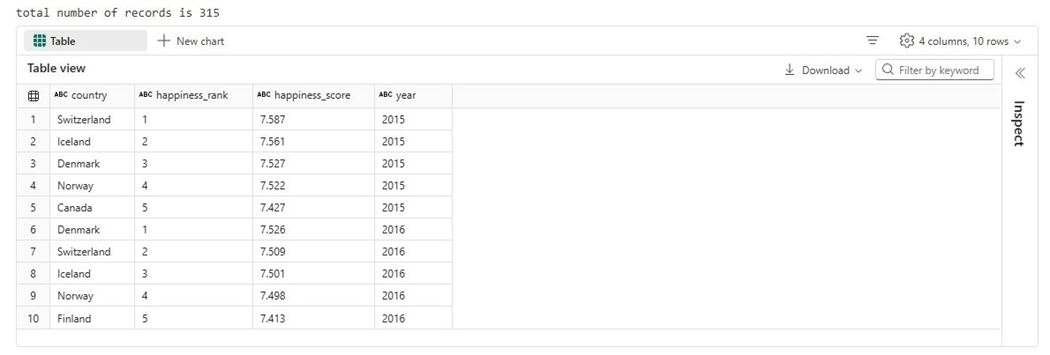
The final dataset has a row count of 315 rows. The image below shows five rows for each year. Switzerland ranks the happiest country for the given data.
To recap, the OneDrive short allows developers to read files from the service and ingest them into the datalake. In the next section, we will work with the SharePoint service.
Create SharePoint Shortcut
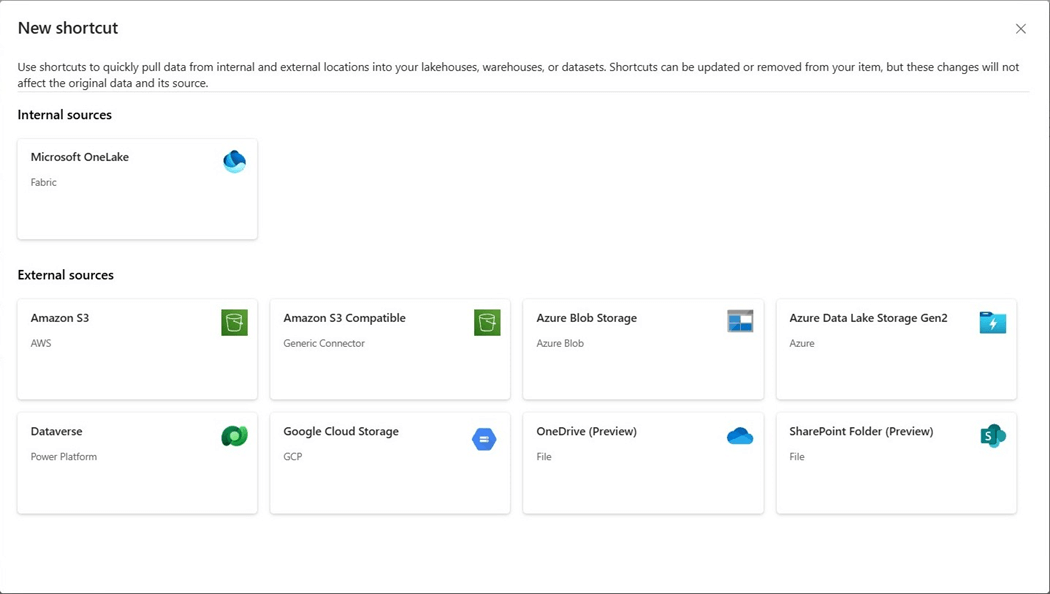
Again, we want to right click the Files folder in the Lakehouse explorer to get access to the “new shortcut” page. Please select the SharePoint folder option which is currently in preview.
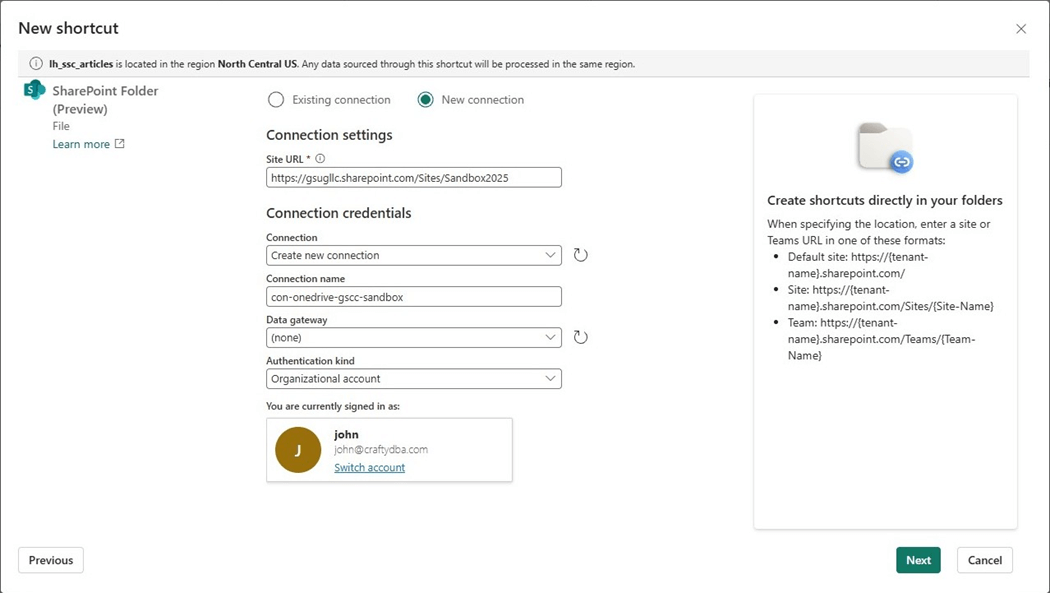
The next step is to enter in the URL for the Site and Folder we want to gain access to.
If our organizational account has access to the service, a browser dialog will show up. This time, we are going to shortcut (virtual mount) the “sample data” folder.
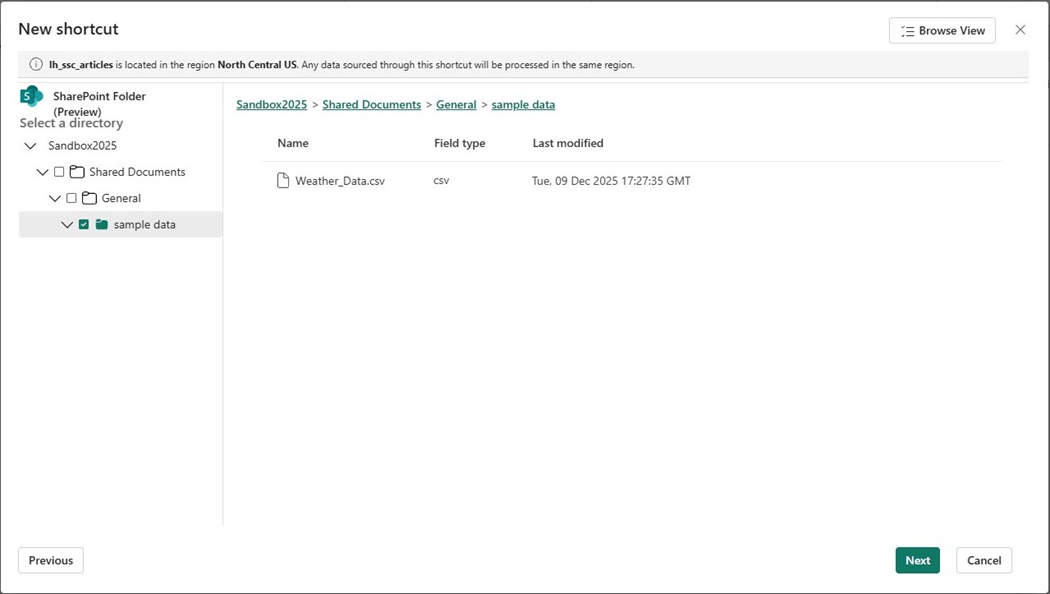
Please verify and click the create button on the next dialog. Now that we have a shortcut to the SharePoint folder, let us write some code to ingest the weather file.
Use SharePoint Shortcut
The PySpark code below shows the ingestion of the weather data. Another technique I like using when I need to rapidly prototype a SQL statement is the Spark method named createOrReplaceGlobalTempView. The global key word allows other spark sessions access to the view.
#
# 5 - read in csv file
#

# raw data
df1 = (
  spark.read.format("csv").option("header","true").load("Files/sample data/Weather_Data.csv")
)

# get record count
print("total number of records is " + str(df1.count()))

# show top 5 rows
display(df1.head(5))

# expose as table
df1.createOrReplaceGlobalTempView("aus_weather_data")
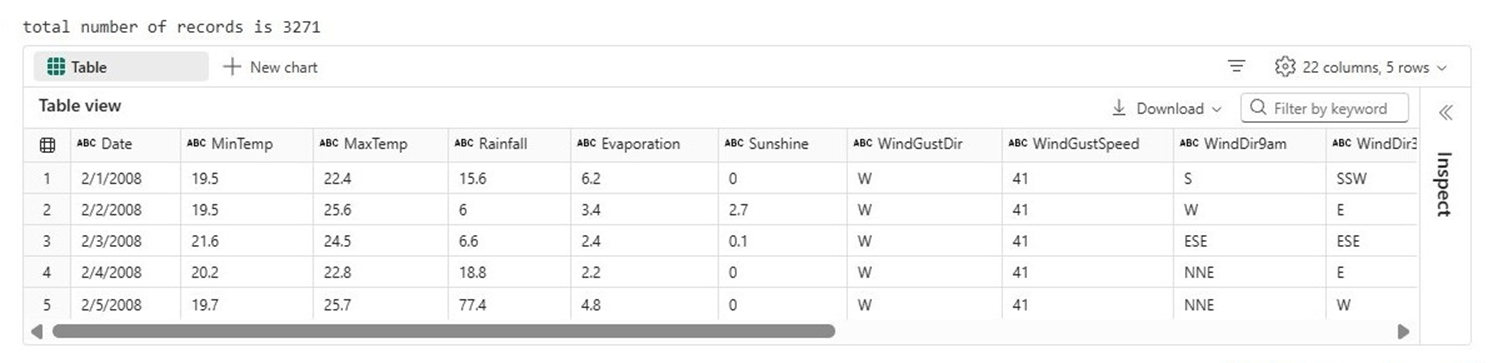
We can see there are 3,271 records in the dataset. The first five records are shown in the output below. We want to see this data summarized at a year and month level.
I used the SQL magic command to evaluate the Spark SQL code before turning it into a Python snippet. We must use the global_temp schema to access our temporary view. Please note that a common table expression is being used instead of a derived table.
#
# 6 - write out csv file?
#

# create sql stmt
stmt = """
with cte_weather_data as
(
  select
    split_part(`Date`, '/', 3) as aus_year,
    right('00' || split_part(`Date`, '/', 1), 2) as aus_month,
    (MinTemp + MaxTemp) / 2 as aus_avg_temp,
    if(RainToday = 'Yes', 1, 0) as aus_rain_flag,
    Rainfall as aus_rain_amt
  from
    global_temp.aus_weather_data
)
select
  aus_year,
  aus_month,
  round(avg(aus_avg_temp), 2) as avg_temp,
  sum(aus_rain_flag) as rain_days,
  round(sum(aus_rain_amt), 2) as rain_amt
from
  cte_weather_data
group by
  aus_year,
  aus_month
order by
  aus_year,
  aus_month
"""

# execute statement
df2 = spark.sql(stmt)

# save to share point?
df2.write.format("csv").option("header","true").csv("Files/sample data/refined_weather_data.csv")
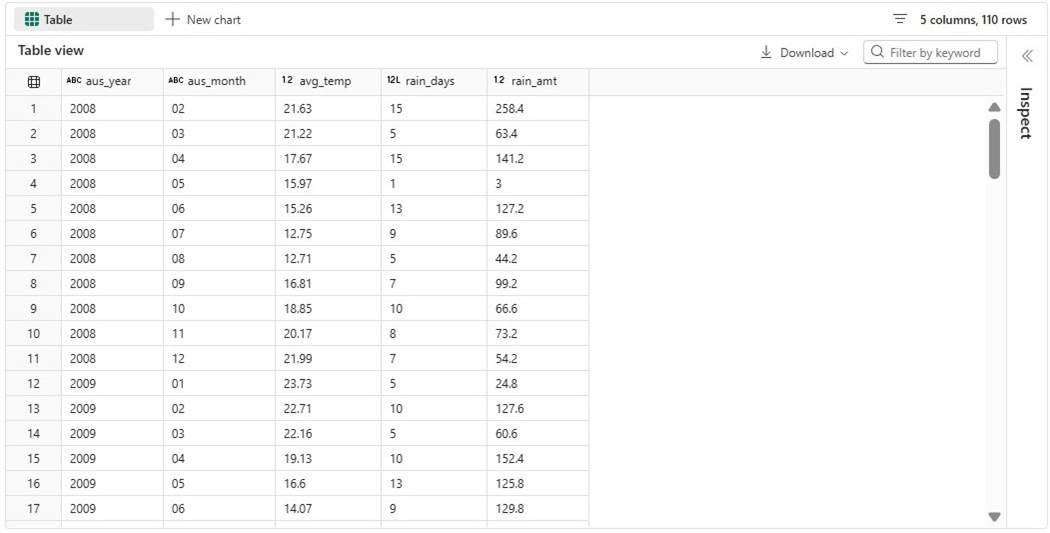
Of course, just like the OneDrive service, we can not create a new file at this time with the shortcut. However, we can remove the write statement and add a display statement to see the resulting dataset.
They do not call Australia “down under” for no reason at all. The winter months in North America are the summer months in this country. We can see extremely high rain fall amounts in our winter months.
Again, the datasets from Kaggle are not one hundred percent accurate. For instance, this dataset does not have any geo-location data. We know that Australia is a big place. Please see overlay of Australia over North America.
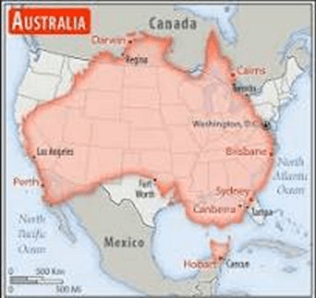
What does a rainy day mean in relation to a large country?
Summary
Before Microsoft introduced shortcuts within the Fabric Lakehouse, developers had to use repeatedly copy files from the source to target location. What happens if the file does not change from day one to day two? The same transfer time was incurred.
Since delta tables are made up of many small files, only the most recent files need to be transferred. Shortcut caching can be enabled within the workspace settings. See the announcement of this feature earlier this year. Only files less than 1 GB in size are cached, and the files can be retained for up to 28 days.
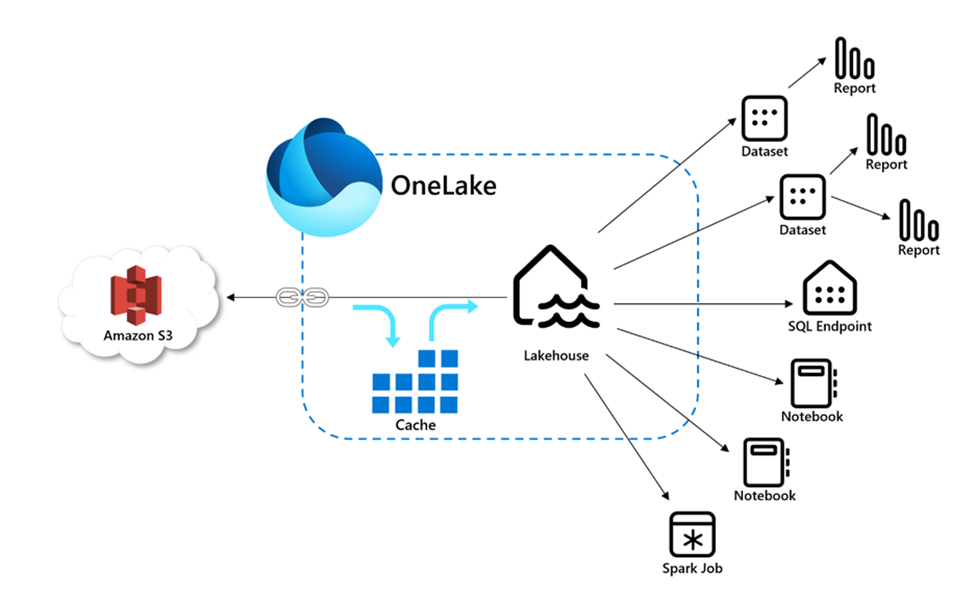
Both the OneDrive and SharePoint organizational services use the same base URL. Thus, it was easy for Microsoft to introduce this feature for both services at the same time. At this point in time, the Fabric Shortcut is read only. If you organization has data in these services and you want to ingest the data into a Fabric Lakehouse, please consider using a shortcut instead of a data pipeline copy activity.
Briefly, Fabric shortcuts eliminate the need to establish a connection for every batch and/or ad-hoc program that needs access to a given service. I hope you enjoyed reading this article. Enclosed is the code that was in the PySpark notebook.