

This article explains how to create a DTS Package that performs the following tasks:
- Deletes existing rows from the Excel Spreadsheet
- Populates the spreadsheet with SQL Server data
- Emails the attached Excel spreadsheet using ActiveX and CDO
In my step-by-step example, I will be using the pubs database to export the contents
of the 'authors' table.
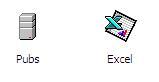
Within a new DTS Package, in DTS Designer, create two Connection objects; the first for
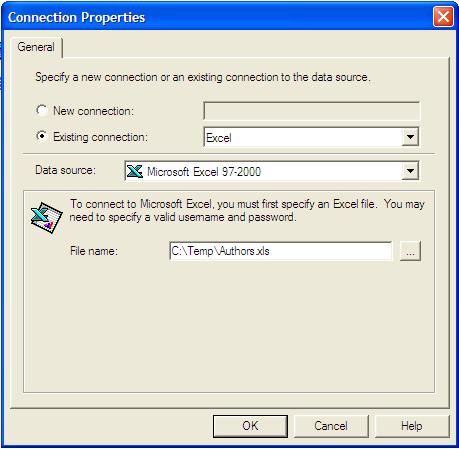
your SQL Server 'Pubs' database, the second for your Excel spreadsheet.
When configuring the Excel spreadsheet connection, I prefer a URL for storing my reporting files, rather than a local path.
Remember that DTS, when executed, will always run on the server/client where it is executed from. This means that if you
build and test the package from your client workstation using, for example, the path "D:\temp\whatever.xls", that same directory
had better be on the server where you schedule the package. If it is not, the package will fail. Using a URL will side-step
this issue, assuming the account running your package has permissions to the URL in question.
Most of you will be testing my example on your home computer, however, so in this example, I will
be placing the Authors.xls spreadsheet under my c:\Temp directory.
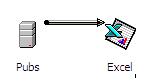
Add a transform data task between the Pubs (SQL Server source) and the Excel (destination) connections.
Configure the transformation by double clicking the black arrow.
On the Source tab, select the 'authors' table.

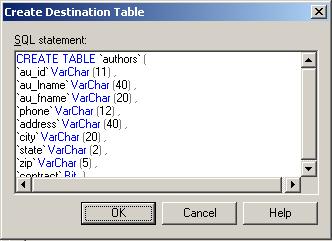
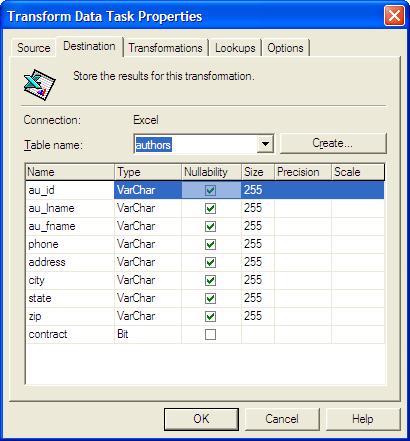
On the Destination tab, you will be prompted to create the Excel table. Before pressing
the OK button, highlight the SQL text, and copy the generated CREATE TABLE code (using CTRL-C) to a notepad (for later use).
Once copied, press OK. After pressing okay, you will now see the destination fields that will appear in the spreadsheet.
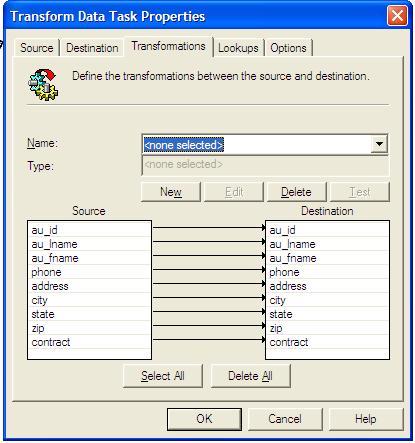
On the Transformations Tab, Select OK, accepting the row transformation defaults.
Next, in your DTS package, create a new Execute SQL Task.
Within this task,
select 'Excel' as the "Existing Connection".
Be sure to change this, so that you don't erroneously delete the
authors table on the SQL Server instance (by the way - it is better to export to Excel
from a view, to avoid modifying SQL Server objects).
Within the SQL statement, enter in DROP TABLE 'authors' and GO. There
is a limitation in the Excel driver that effects the 'DELETE' keyword.
If you attempt to use it, you will receive the error message, "Deleting data in
a linked table is not supported by this ISAM". Instead, we remove the Excel table entirely
with the DROP TABLE 'authors' command.
After the DROP statement, type in GO, then
paste the CREATE TABLE text that you copied earlier. This recreates
the Excel dataset.
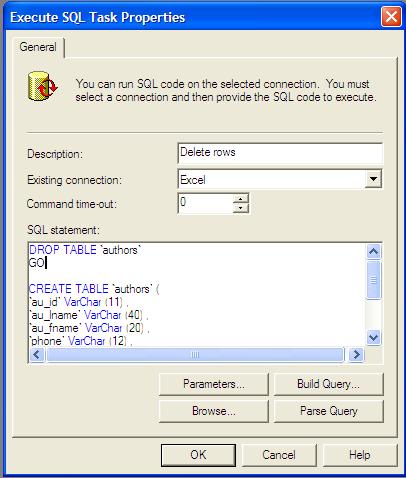
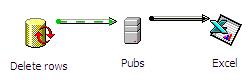
Select OK when finished and create an 'ON SUCCESS' workflow, with the new Execute SQL Task as the first step.
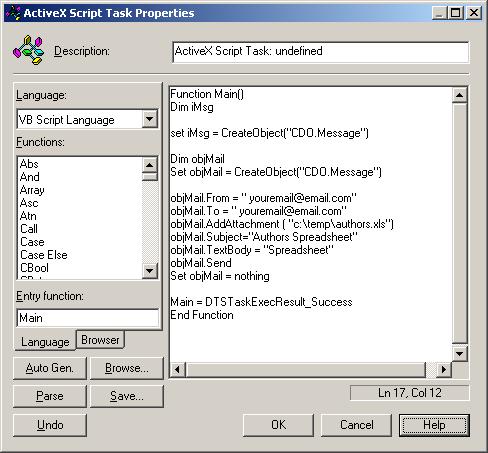
In your DTS Package, Create an ActiveX script that generates the email. Note: this assumes you
are running the DTS package from a client or SQL Server machine that is running
the SMTP service (and that your network infrastructure allows for it). Here is the
text for the ActiveX script that uses CDO to send the spreadsheet. Change the email's TO, FROM,
Subject, and TextBody as you wish:
Function Main()
Dim iMsg
set iMsg = CreateObject("CDO.Message")
Dim objMail
Set objMail = CreateObject("CDO.Message")
objMail.From = " youremail@email.com"
objMail.To = " youremail@email.com"
objMail.AddAttachment ( "c:\temp\authors.xls")
objMail.Subject="Authors Spreadsheet"
objMail.TextBody = "Spreadsheet"
objMail.Send
Set objMail = nothing
Main = DTSTaskExecResult_Success
End Function
Lastly, create an 'On Success' Workflow between the 'Excel' connection Transformation task and the ActiveX 'Email' task.
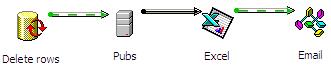
Save the package, and schedule it to execute via a SQL Server Agent Job.
In conclusion, I use this method of reporting as a effective and simple means of providing data to my co-workers and
clients. Providing data in an Excel spreadsheet allows the recipient to massage the data
to their liking. Emailing the spreadsheet is also a convenient option for those recipients who
do not have access to an FTP directory or File Share. As for the execution of the DTS package; you can schedule
your DTS package to run at specified dates and times, or you can
simply run the package ad hoc.
I hope you find these techniques a useful addition to your DTS toolbox.