Introduction
A lot of times I need to move files and rename them after generating the output. I used to accomplish this by either using xp_cmdshell or operating system tasks in a job. Either way, it was some sort of DOS command and wasn't a very elegant solution. Now with all the options in SSIS, this is no longer an issue.
Solution
Fisrt, create a SQL Task to load a folder variable. This will be the name of the folder that will be dynamically generated. In the SQLStatement add...
select datename(month,getdate()) + cast(Year(getdate()) as varchar(4))
Change the Result Set to "Single Row"
In the Result Set Tab, store the results in a new string variable named "Folder" and change the Result Name to 0.

Next, create a new File System Task. Change the operation to Create Directory.
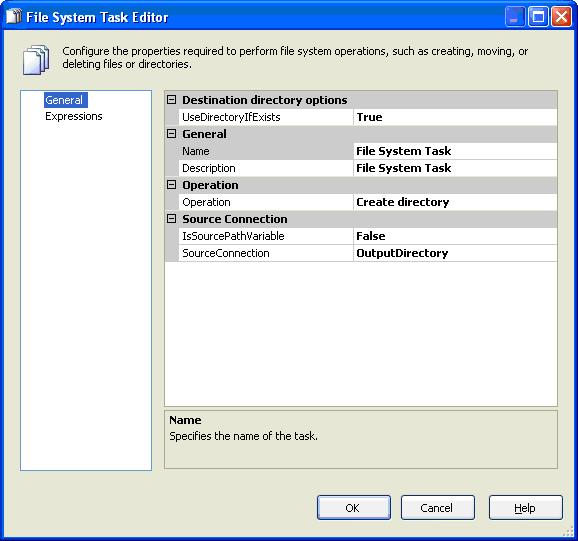
In the Source Connection choose new connection. Change the Usage Type to Existing folder and browse to the directory you will be creating the folders.

In Properties for the new connection you just created, add a new Expression for the ConnectionString. "C:\\Test\\" + @[User::Folder]


Next, create a new Dataflow Task. Choose a Source and Destination as usual.

In the Properties for the FlatFile Connection Manager, add a new Expression for the ConnectionString.
"C:\\Test\\" + @[User::Folder] + "\\DatedFolderFile.txt"

Now you can run the package and it will generate a file in the folder that was just dynamically created.
Conclusion
This scenario was set up to store monthly extracts without having to archive the files before the next month. You can change the folder variable to daily, hourly or anything else you can think of that can be returned by a query. Variables give you a lot of flexibility and are relatively easy to use. Once you start using them, you'll realize they save a lot of time and coding.