

Dynamic Connection Strings (New Feature in Reporting Services 2005)
Wouldn't it be nice to have one report and can display data from
different databases residing on different servers? Instead of
creating a same report multiple times to be deployed on different
servers, we can have one report and it can generate data from any
database on any server.(if you are using stored procedures, make
sure the same stored procedure exists in every database you are
running the report against). So in the URL we can pass in the database
name and server name for different clients for their specific data.
Example
If your connection string looks like this:
Data Source=XYZ333;Initial Catalog=ABC01
Add two parameters in the Report. Click on the Report -> Report Parameters.

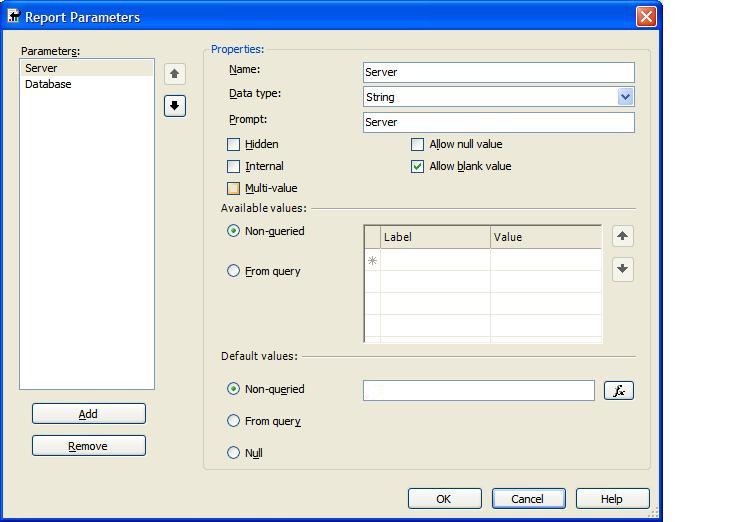
Since the prefix for DataSource is XYZ and Prefix for Database is ABC,
you can hard code the "XYZ" and "ABC" in your connection string and
just pass in "333" for Server and "01" for Database and have your
connection string like this:
="data source=XYZ" & Parameters!Server.Value & ";initial catalog=ABC" & Parameters!Database.Value
If you want to pass in the full ServerName and full Database Name do the following:
="data source=" & Parameters!Server.Value & ";initial catalog=" & Parameters!Database.Value
Steps
- First build your Report by hard coding a connection string
Data Source=XYZ333;Initial Catalog=ABC01;uid=sa;pwd=dynamic
- Test and Preview the report to make sure you see the results you want.
- Add the two parameters to the Report as i mentioned above with the screen shots.
- If everything looks good, go back to your Data Tab and select your DataSet and choose edit.
- Replace your existing connection string with this dynamic expression based connection string.

Choose either the Windows Authentication or you can supply user name and password in the Credentials Tabs:
- Once you did this, do not preview the report since, it will not work and
give you an error.
- Right click on the report and select deploy to the ReportServer. You can
right click on the project and go to properties and TargetServerURL:
Make sure the the path of the server is correct. For example it should be:
http://localhost/ReportServer or the server name you are deploying it to.
- Once it is deployed, run the report and it will ask you to enter the
server name and database name to run the report against.
- Enter that and it will generate the report.
Hope you liked the Article 🙂
Author:
Bilal Khawaja


