Introduction
There are two type of authentication mode in SQL Server.
1. Windows Authentication Mode
2. SQL Server and Windows Authentication Mode
Before we start proceeding, few questions come in my mind. They are as follow:
What is the mean of authentication?
Authentication means identify the visitor/user has privilege or rights to access this or not.
Why we need authentication?
We need authentication to prevent our information/secrets from anonymous user access. We can limit the visitor/user access by apply the different authentication rules.
Many people don't know the difference between Windows Authentication Mode and SQL Sever and Windows Authentication Mode (Mixed Mode). They often don't know how to create and work with them.
In Windows Authentication Mode only Windows User (Operating System User) can access the SQL Server.
In SQL Server and Windows Authentication Mode both Windows (Operating System User) and SQL Server User can access SQL Server.
Description
In this article, I am going to explain how to create SQL Server User/Login and work with it.
Steps to create and use User/Login in SQL Server 2005
Open SQL Server 2005

Select Windows Authentication Mode from Authentication drop down and press Connect button. It will change like this.

Right click on SQL Server name in your computer e.g. in this "techniqu-6ded0c" and click on Properties. It will change like this.

After clicking on Properties this screen will open
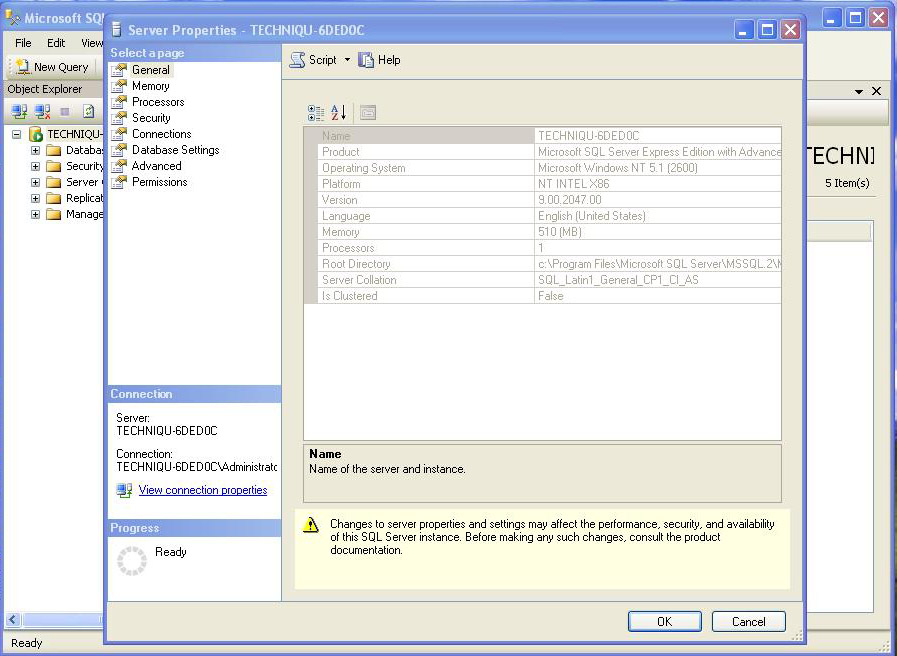
Click on Security and it will changes like this

In this screen click on SQL Server and Windows Authentication Mode and press OK button. Now, both Windows and SQL Server User/Login will be able to access the SQL Server.
Note: If you leave the Windows Authentication Mode as it is then SQL Server User/Login will not be able to access the SQL Server.
After this SQL Server 2005 restarts and come in same state as we open it. Here the first phase completesand now lets move to the second phase.
Expand Scurity folder from left panel, right click on Login folder and click on New.This screen will open.
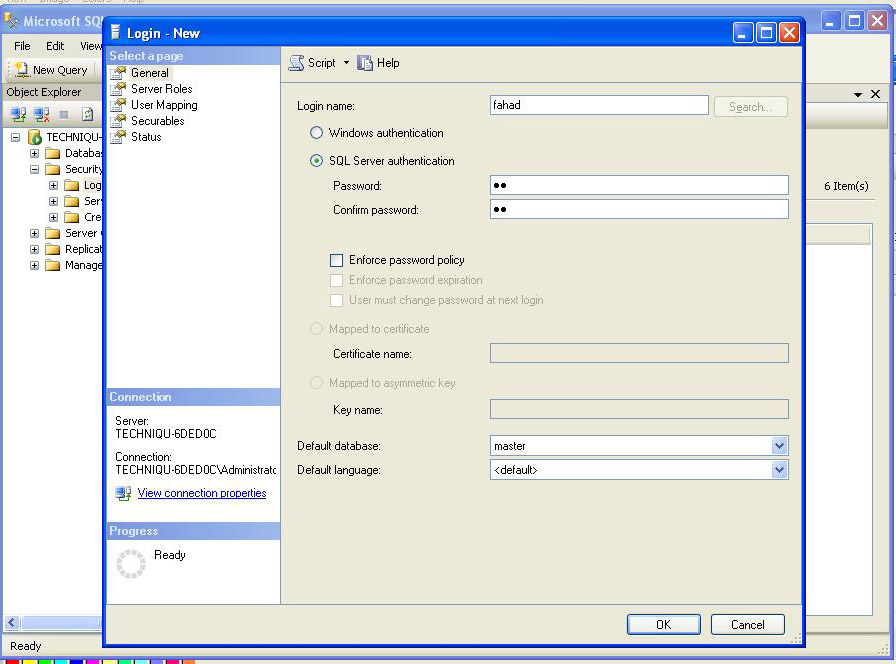
- Enter Login Name
- Click on SQL Server Authentication
- Enter both Passwords
- Uncheck checkbox of Enforce password policy (If you want to use this then give strong/complex password)
When you complete this click on Server Roles and it will change like this.

Here you can define roles of this user. Tick on check box of sysadmin or tick check boxes according to your requirement of user roles. When completes click on User Mapping and it will change like this.

Set each database (master, model and etc.) role as db_owner and public only or tick check boxes according to your requirement of user role. When role completes click on Status and it will change like this.

Click on Grant and Enabled only and press OK button.You will receive a User/Login created successfully message. If it returns an error than you are missing some thing in these steps.
Close the SQL Server and open it again and now use this newly created User/Login.
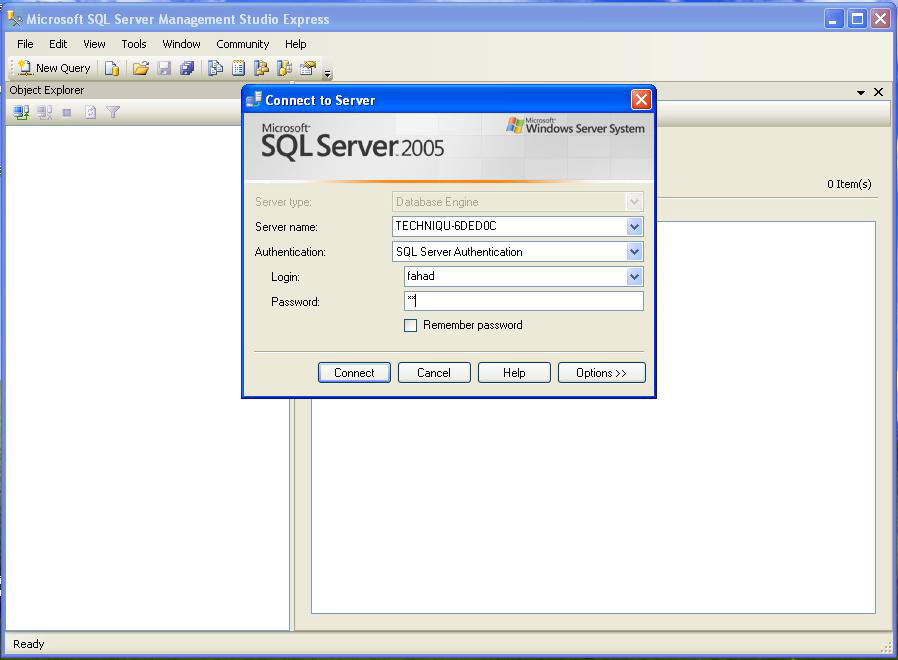
This is how login create and works in SQL Server 2005.
Conclusion
Sometime graphical representation of things, ideas or process gives the better description and elaboration of requirements