Seven SHOWPLAN Red Flags
By Joseph Sack
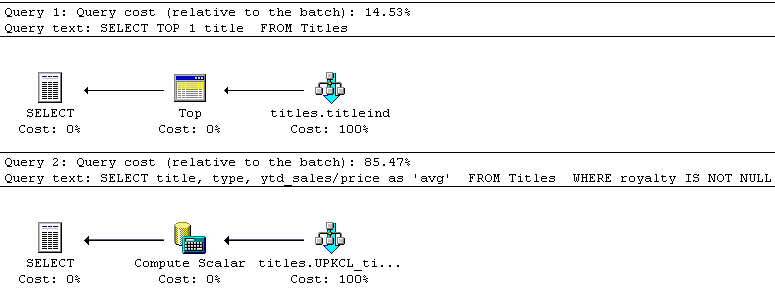
Do you use Query Analyzer's Graphical Showplan, SHOWPLAN_ALL, or SHOWPLAN_TEXT to performance tune your query statements? Most DBAs use one or all of these tools for troubleshooting query performance. But what do most DBAs look for when they examine the query execution plan results? Ask fifty DBAs, and chances are you'll get fifty different answers. Most DBAs and Developers don't have all day to muck around in large execution plans, and yet it is easy to get lost and distracted by the results of a complicated query execution plan. Although SQL Query issues are like snowflakes (very few are exactly alike), we still need to apply troubleshooting practices as consistently as possible. This article will review some of the major areas to pay attention to when analyzing SHOWPLAN output. Since I use Graphical Showplan the most, I will speak to these "red flags" from that tool's perspective. Two caveats: First, this isn't an exhaustive list by any means, as performance issues can arise from thousands of reasons, each with different resolutions. Secondly, many of the "red flags" documented here are a often "green flags" depending on your particular query and situation. Think of this list as an adaptive action plan, where you traverse the various red flags to rule-in or rule-out the culprit. For those who are unfamiliar with SHOWPLAN, either visual or tabular, I suggest you review the SQL Server Books Online topics "SET SHOWPLAN_ALL", "SET SHOWPLAN_TEXT", and "Graphically Displaying the Execution Plan Using SQL Query Analyzer". Red Flag #1: High Percentage Operations In a single statement query, begin by searching for the operator with the highest percentage cost. Searching for the highest cost operator allows you to prioritize which problems must be addressed first.
Remember to read the graphical execution plan output from right to left and from top to bottom. If you are tuning a multi-statement query, remember that a separate graphical execution plan is created for each statement. Each graphical execution plan will show the ordinal position of the query, for example "Query 1", "Query 2"... Search for the query with the highest query cost, and then drill down on highest cost operator.
Red Flag #2: Table Scans, Index Scans, Clustered Index Scans
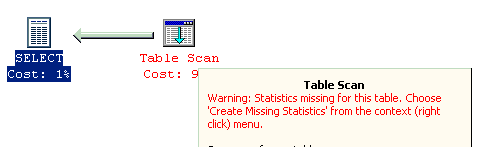
Scans (Table , Index ,and Clustered Index ) are operations that search all rows from the table and return those rows that satisfy the WHERE clause (assuming you use a WHERE clause). A Table Scan retrieves the rows from a non-indexed table (a "heap"). An Index Scan searches rows from a nonclustered index. A clustered Index Scan searches rows from the Clustered Index of a table. Scans are not always bad. Scans of small tables are often not an issue, nor are table scans that must always return all rows. Scans can be bad if your query runs too long for your liking. This, of course, depends on what you are trying to do, and how fast you are trying to do it. Scans are often resolved by proper indexing. Indexing is a large topic all by itself, so the resolution depends on your situation. The end goal is usually to make the query run faster. Some solutions include changing your query to be more selective, using WHERE clause operators that are more selective, adding/modifying/removing indexes, removing hints (query, table, or join), changing the actual table design, and using Index Tuning Wizard. Red Flag #3: Warnings
Warnings are indicated when a physical operator is displayed in red. Warnings can indicate, for example, missing column statistics for a table. Warnings should be addressed immediately and appropriately (depending on the warning type) with either the creation of statistics, indexes, or the addition of JOIN clauses. Red Flag #4: Thick Arrows
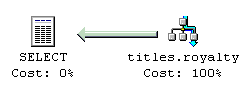
Arrows are not operators, but rather instead used to connect operators to each other. The number of rows impacted by the source operator determines thickness of the arrow. By placing your cursor over the arrow, you can display a row count and row size. Focus your attention on thicker arrows, as larger row sets could indicate higher I/O activity. To reduce the number of rows returned, make sure you are using the WHERE clause to narrow down your result set. Avoid retrieving more rows than necessary. Red Flag #5: Hash Joins
Hash joins are usually chosen by the query optimizer as a last resort. Loop Joins are considered first if one join input is small and the other join input is large. Loop Joins require that both inputs (columns) must be indexed. A merge join may be considered next by the optimizer, if the two join inputs are both sorted on the join column. Hash joins, considered last, can be the most resource intensive of the three join operations, and therefore should be paid attention to. If you encounter high cost hash operations, see if you are able to add/modify indexes so that they are used by the query. Hash joins are not always inappropriate, and can perform better than other join operations, depending on the query and database schema. Red Flag #6: Bookmark Lookups
Bookmark Lookup operators occur in conjunction with a nonclustered index seek, when the query must retrieve from columns that are not available within the nonclustered index. The Bookmark Lookup operation references a row ID or clustering key in order to look up the corresponding row in the table or clustered index. Look for high percentage costs (relative to total statement cost) on the Bookmark Lookup operator. If the cost percentage of the Bookmark Lookup operation is high, investigate whether an appropriate clustered index can be used instead of the original row retrieval operation, or a non-clustered index with the appropriate columns added (a covering index). Red Flag #7: Sorting
A Sort operator orders all incoming rows in either an ascending or descending order, depending on the ORDER BY clause of your query. Sort operators typically add I/O, primarily using the tempdb database for its operations. If you are sorting your results with an ORDER BY unnecessarily, and the SORT operator has a high cost within a long running query, consider removing the ORDER BY clause. Otherwise, if you know you will be sorting frequently on a specific column, consider indexing it. (Remember that you can fix the ascending or descending sort direction for a particular index column in the CREATE INDEX command). |