Introduction
Most of the times, there are two factors that give us a lot of pain when moving
an SSIS package from one server to another. The first one is the directory structure
and the second is the database connection string.
Assume that you have dozens of SSIS packages which take files from the FTP folder
and process them. The FTP location of your server is c:\inetpub\ftproot\. When
you move these packages to another server, which has FTP folder configured at d:\inetpub\ftproot\localuser,
the SSIS packages will fail. Similarly, you may be connecting to the database on
SERVER1 currently. However, when moving to the new server, you may need to connect to SERVER2\SQL2005 named instance. To fix this, you will have to modify each of
the packages on the new server.
Well, we do not move servers very often, right? I agree. Usually this is not a problem
at all. But if you have dozens of SSIS packages then it will be a tedious job
and you will have to work overnight to fix the issues when you move to a new server.
Most of the times people keep identical copy of the SSIS package on the backup servers
so that if the primary server fails, the backup server can be put online. This requires
that the backup sever has EXACTLY the same copy of the SSIS packages as the primary
server. Every time a package is updated on the primary server, the backup servers
need to be updated too.
Such problems can be handled to a good extend by using SSIS package variables. I
am presenting a simpler solution to the above problem in this article.
Handling the differences in Drive/Folder stricture
If you are some one who entered into programming during the MS-DOS era,
you must be familiar with the cute little command: SUBST. It adds an alias to a disk drive or to a specific folder. Here
is an example.

The first line tries to access drive J. Drive J does not exist on my laptop hence the system throws an error. The next statement maps C:\TEMP to
drive J. Once the mapping is done, I can access the file C:\TEMP\rdf.xml
by referring as J:\rdf.xml.
Using this approach, we can create a virtual drive mapping for each folder
that our SSIS package needs to access. Assume that the FTP folder on SERVER1 is
located at c:\inetpub\ftproot\mycorporatedomainname and the FTP folder
of SERVER 2 is located at d:\inetpub\ftproot\localuser. We could create
a virtual drive alias on each server which points to the respective folders. Here
is an example:
SERVER 1:
SUBST R: C:\Inetpub\ftproot\domainname
SERVER 2: SUBST R: D:\Inetpub\ftproot\localuser
The above command creates drive R on both the servers. Note that they are pointing
to different locations. Your package does not need to worry about the differences
in the folder structure any more. You can
refer to a fixed drive name. You can copy the SSIS package from SERVER1 to SERVER2
and can run it without the fear of breaking anything due to the differences in the
folder/drive structure.
Handling the differences in Database Server/instance name
Next, let us see how to handle the differences in database server or instance name.
The best way to handle it is by creating a server alias.
To create a server alias, open SQL
Server Configuration Manager and go to SQL Native
Client Configuration.

Right click on Aliases and select New Alias. Here you can provide
an alias name to the database server and enter the connection information.

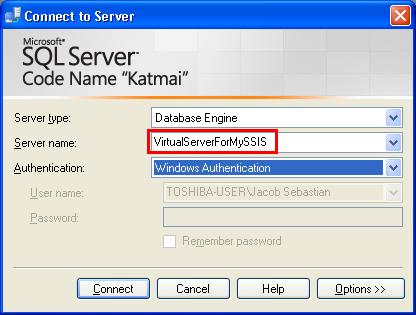
Once this is done, your SSIS packages can refer to the name VirtualServerForMySSIS
which points to the correct database server. You can create an alias with the same
name on the second server too. Your SSIS package can then refer to the database
server by alias name. This way, we can make sure
that the same version of SSIS package will work on both the servers without any
change.
Once you have a server alias configured, you could use it to connect to the correct
server from the management studio. When you pull down a server and bring another
online, you could simply change the server alias to point to the new server. Your
team members will not shout at you for not informing them about the change, because
the change is absorbed at the server alias level.
Even the application development team need not bother about the server movements,
if they are using the server alias in their app.config or web.config.

It is a good idea to use the server alias in the report data sources too.

I guess most of you out there are not prone to frequent server changes or switching.
But there are some poor souls like us, who regularly come across cases where we
need to take an application or service offline from one server and put it online
from another server. Drive aliases and Server aliases were found to be very handy
in such cases.
Conclusions
SSIS packages which access files from a pre-defined folder structure tend
to break when the package is moved to a new server. This happens if the new server
has a different drive or folder structure. This article shows a simple solution
to that by using drive mapping. Drive mapping is done by using the DOS SUBST
command.
Some times, when we move an SSIS package to a new location, we might need to change the database connection properties. If you have dozens of SSIS
packages, updating all the connection strings will be a tedious job. This
can be avoided by creating a server alias from SQL Server Configuration manager.