

How to start the SQL Query Analyzer (master and advanced level)
Yakov Shlafman
I heard in 2-3 hundred years an inexpensive robot will do administration and maintenance of any database (MS SQL Server 2005, Oracle10G, and UDB). Companies will not need DBAs and computer programmers - they will need only entrepreneurs. I imagine - I will wake up in the morning and my inexpensive robot will greet me: "Good morning Dr. Shlafman, all servers are up and running, no performance or other issues happened". I will go for golf, I will have breakfast, nap, dinner, movie, supper, a lot of fun with my family, I will go to bed and before I will fall asleep I will ask myself; "Should I ask for a raise
or should I update my resume and start looking for a new assignment?" And, I will hear my inexpensive robot's voice:"Dr.Shlafman, today, you got a raise. You get a raise any time you want". I will fall asleep happily, cheerfully, and peacefully.
In 2-3 hundred years... Meantime I think how to start the SQL Query Analyzer. Here is the "Just do it" traditional way to open the SQL Query Analyzer:
- Click Start
- Click All Programs
- Click Microsoft SQL Server
- Click Query Analyzer
- In Connect to SQL Server Window select Server
- You may want to select Authentication type for your connection (Windows Authentication is preferred type)
- Click OK.
- Click Change Database Icon on Tool bar, double click on selected database (If you have more then 30 databases on your server it is faster to run USE command to change the database. For example:
- In the Editor Pane type in: USE pubs
- Press F5 key to run the command)
If most of the time you work on one specific project it's wise to setup a default database:
EXEC sp_defaultdb 'Scott', 'Northwind'
Now, when user Scott opens the SQL Query Analyzer database Northwind will automatically become current database without an explicit execution of USE statement.
Using this sequence of steps you should do at least 5 clicks to open the SQL Query Analyzer. If you can do it using three clicks - you can save 2500 clicks for a year based on assumption that you open the SQL Query Analyzer only 5 times every day. (50 weeks * 5 days * 5 times * 2 clicks to save each time) = 2500 clicks.
The second traditional method "I can do it" to start the SQL Query Analyzer is –
- Click Show desktop icon on Taskbar
- Double click the SQL Query Analyzer shortcut
and then steps 5-8 from "Just do it" method. Using "I can do it" method you should do at least 4 clicks to open the SQL Query Analyzer.
The third method "Preferred" to start the SQL Query Analyzer allows you to open the SQL Query Analyzer using 2-3 clicks! To make this method working all you need to have is a SQL Query Analyzer icon on the Task Bar. Here are the steps detailing how to place a SQL Query Analyzer icon on the Taskbar:

Figure 1.
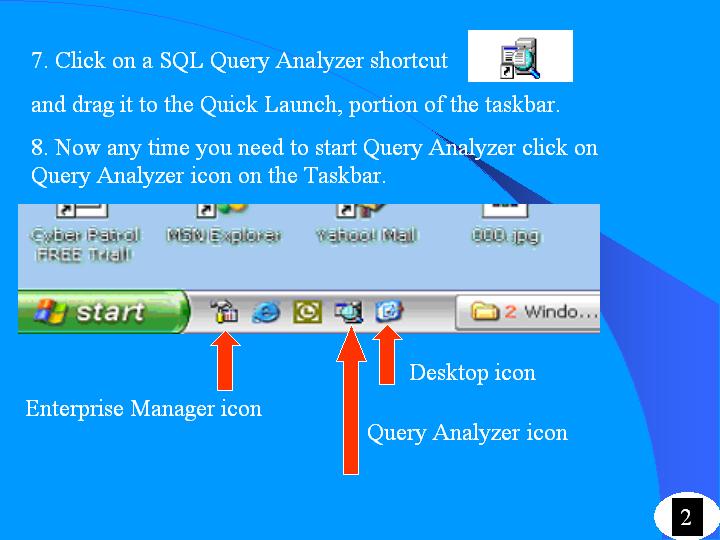
Figure 2.
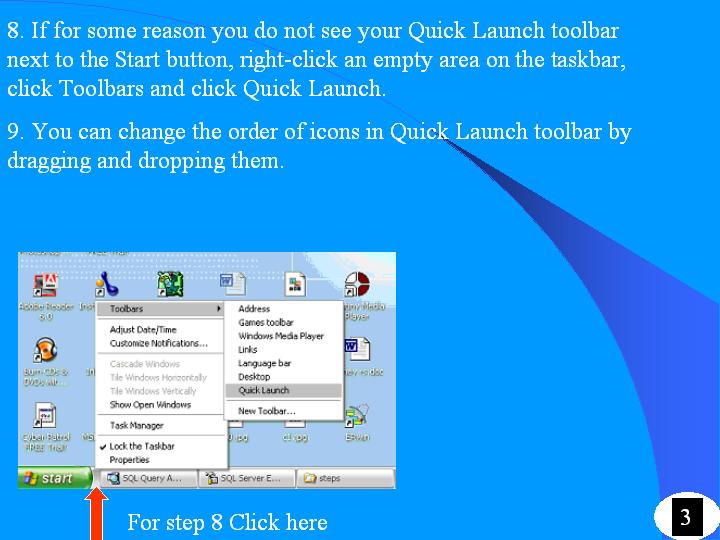
Figure 3.
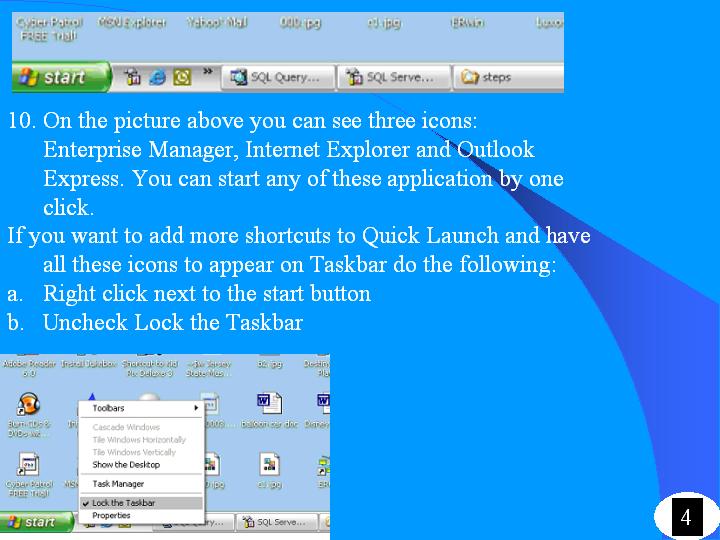
Figure 4.
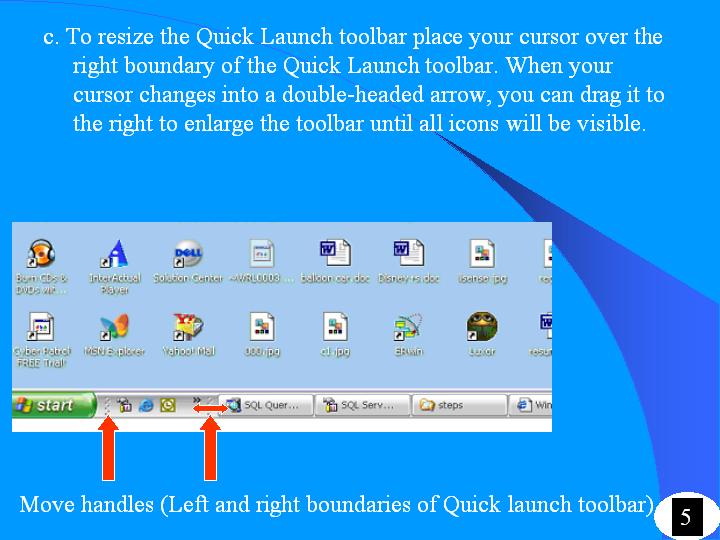
Figure 5.
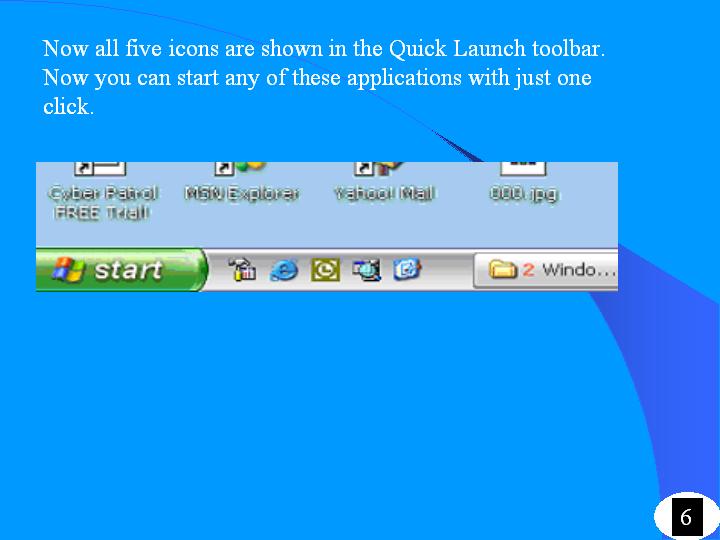
Figure 6.
Using "Preferred" method you can start Enterprize Manager, Internet Explorer, Microsoft OUtlook or any other application you use on every day basic. Just one click and you have Enterprize Manager running! In SQL Query Analyzer, my favorite icon from Tool bar is Connect.
In 2-3 hundred years... Meantime I think how to set up my PC to start the SQL Query Analyzer, Enterprize Manager or any other applications without a click. Here are the steps of "Let it do it" method:
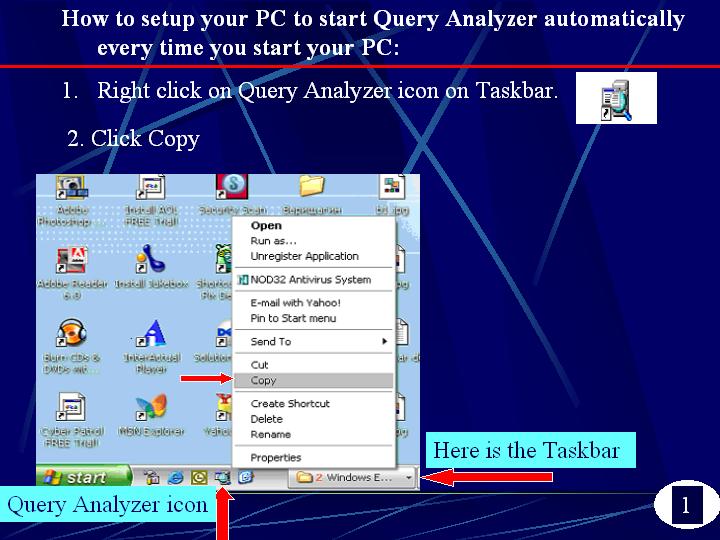
Figure 7.
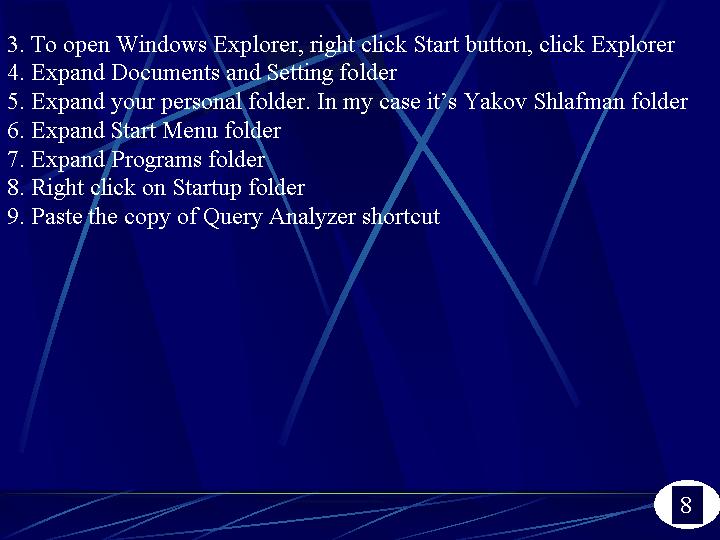
Figure 8.
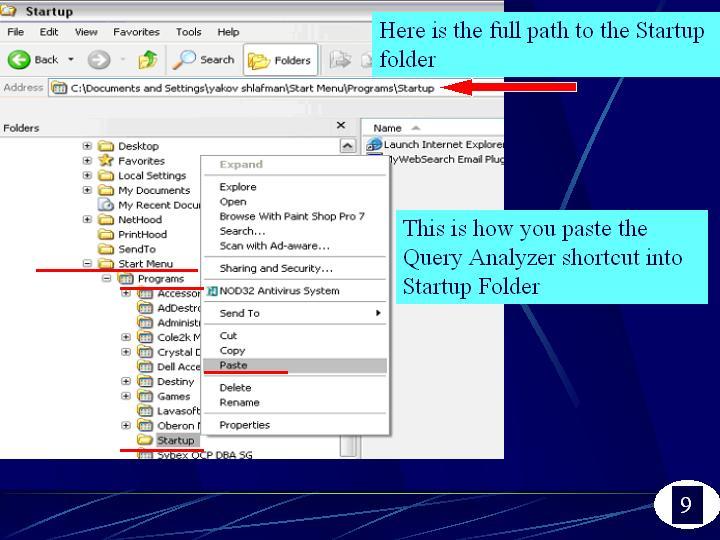
Figure 9.
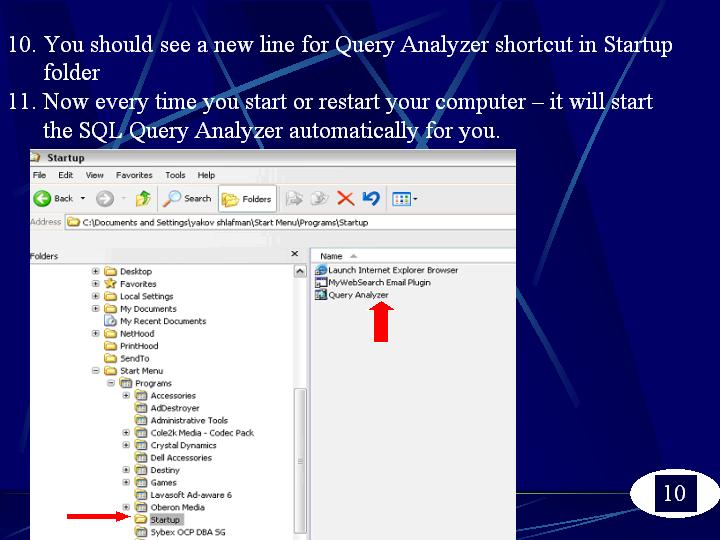
Figure 10.
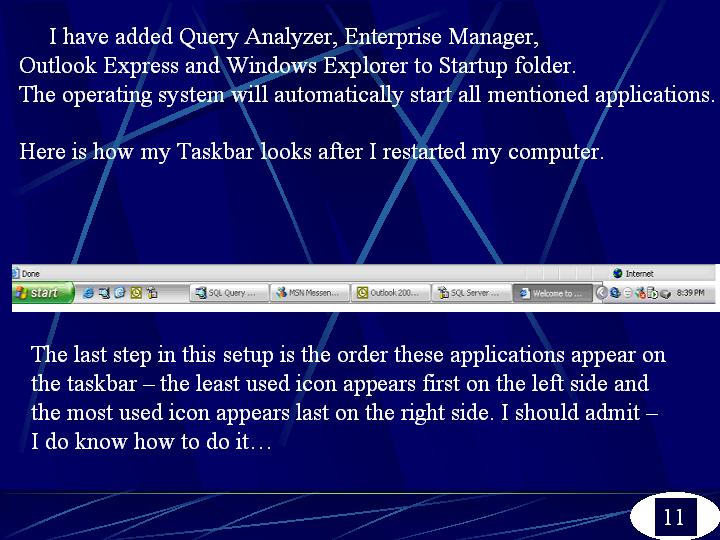
Figure 11.
In 2-3 hundred years... Meantime I am working with multiple servers and databases and I think how to set up my PC to start the SQL Query Analyzer with minimum clicks. Here are the steps of "I'm a DBA" method:
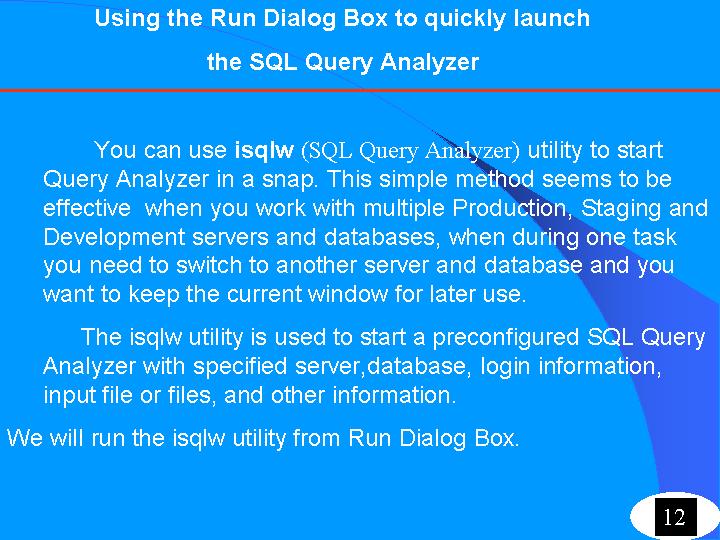
Figure 12.
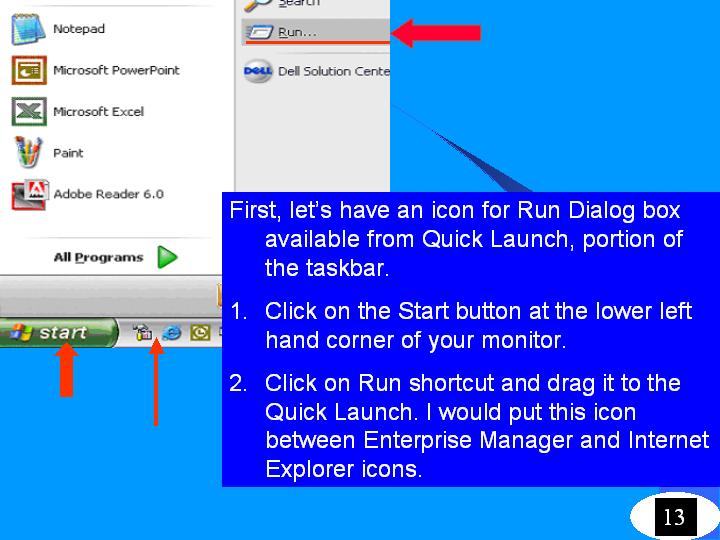
Figure 13.
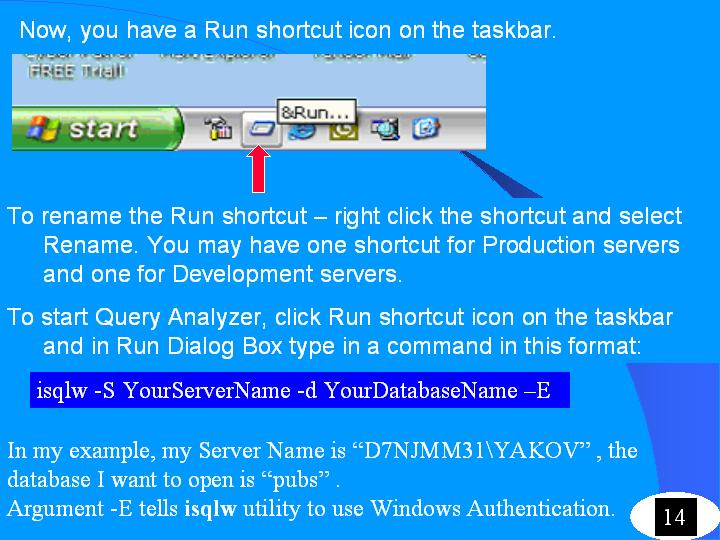
Figure 14.
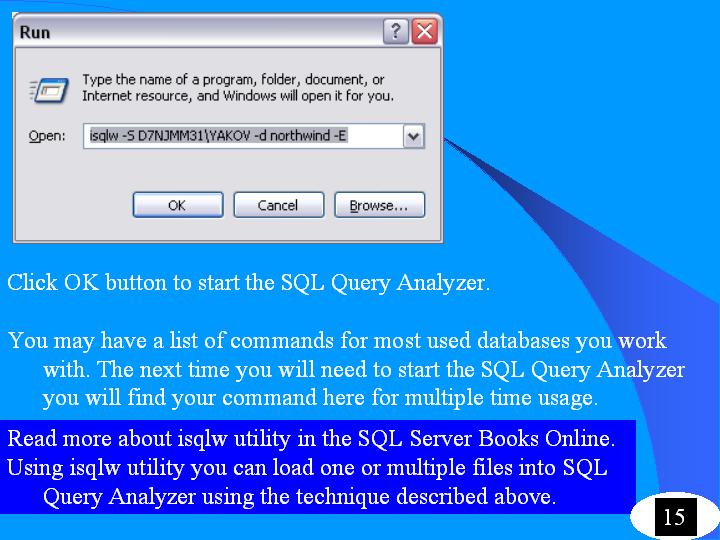
Figure 15.
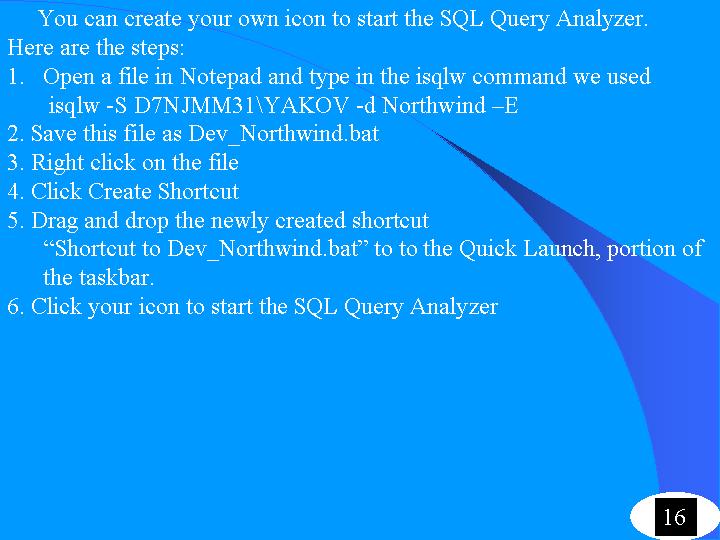
Figure 16.
Credits:
1. to my family, to my kids, to my wife.
2. http://www.pcworld.com/howto/article/0,aid,36586,pg,2,00.asp
3. SQL Server Books Online
